Desktop and TUI
CodeAlta has two apps:
- CodeAlta Desktop (
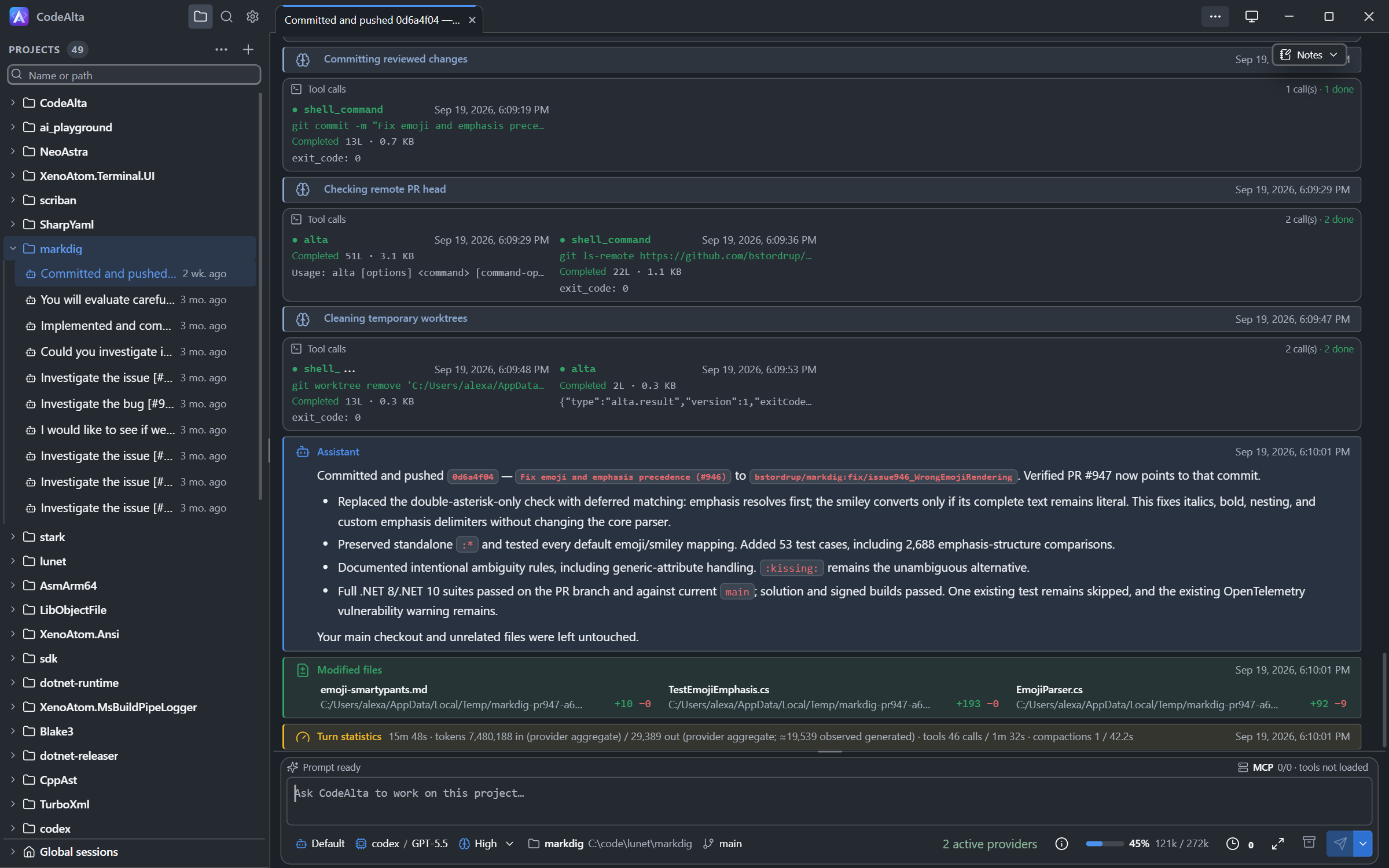
alta) is a desktop application with session tabs you can arrange, a file editor and a single Settings window. It is the most complete way to use CodeAlta. - CodeAlta TUI (
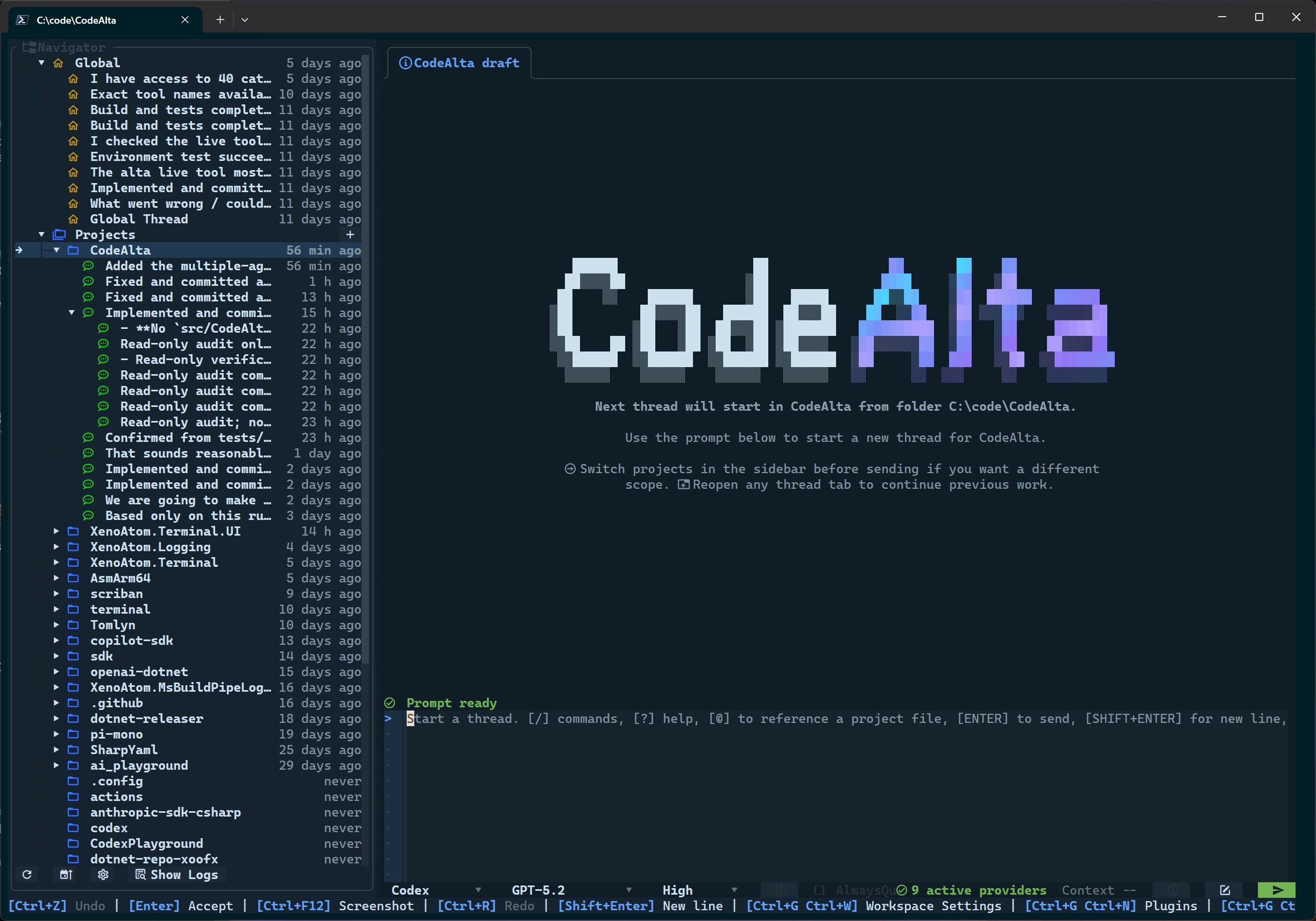
altatui) is a keyboard-first terminal UI.
Both apps share the same harness: the same agent runtime, providers, tools, agent prompts, skills, MCP servers and plugins, on the same ~/.alta profile. This documentation applies to both. Where the two apps differ, the page says so, and screenshots have a Desktop / TUI switch.
Install
dotnet tool install -g CodeAlta        # Desktop: alta
dotnet tool install -g CodeAlta.Tui    # TUI: altatui
You can install both. See Getting Started for requirements and first launch.
What is shared
Everything under ~/.alta/ is common to both apps:
config.toml, model providers and their credentials;- the project catalog and all sessions, with their timelines, notes and pasted images;
- agent prompts, system prompts and skills;
- MCP server configuration and plugins.
A session started in one app can be opened and continued in the other. Only one CodeAlta runs on a profile at a time, so close one app before starting the other.
Appearance is not shared. The desktop app keeps its theme, color scheme, open tabs and window layout in its own application data, and the TUI keeps its theme and navigator settings in ~/.alta/ui-state.yaml.
What the desktop app adds
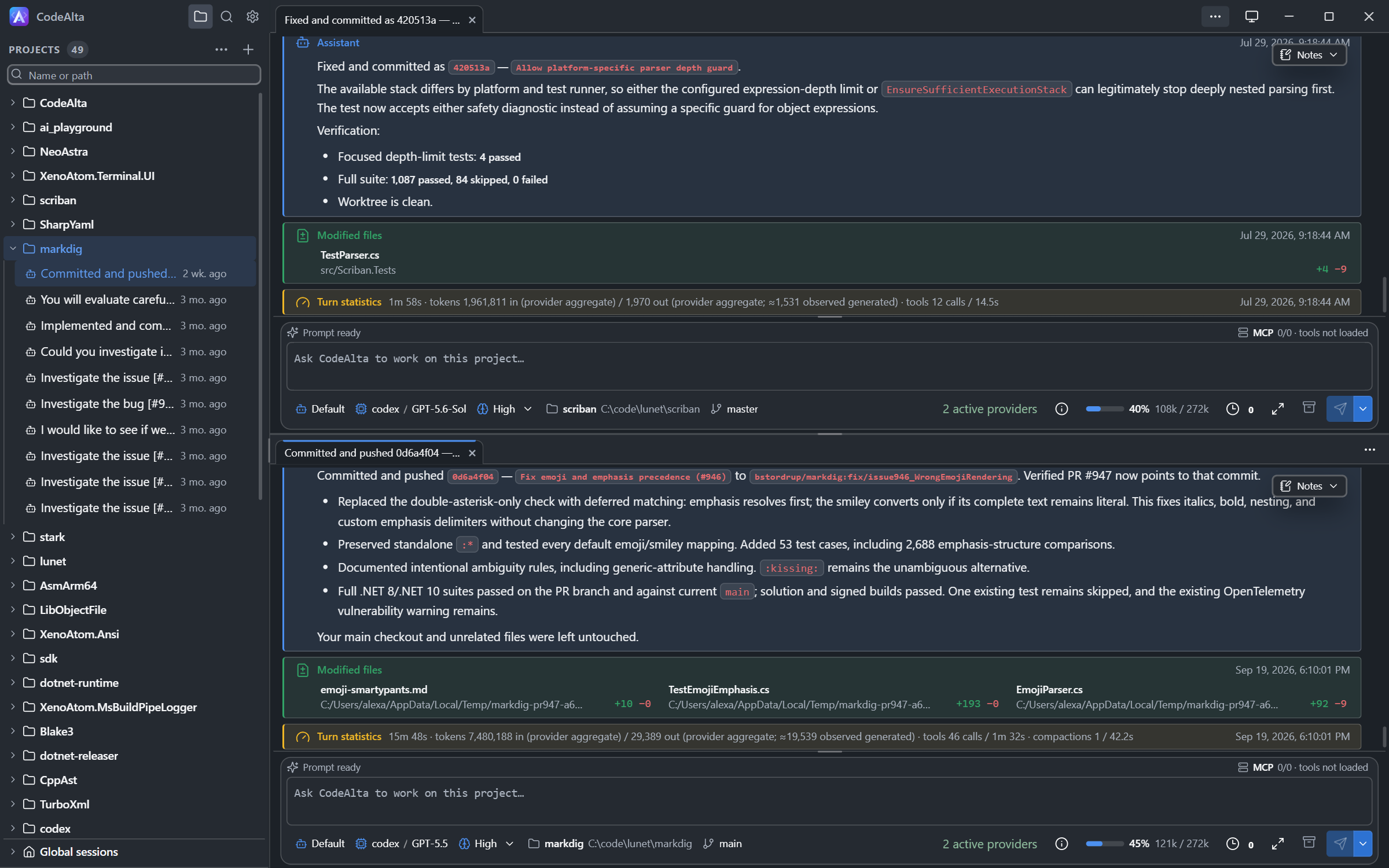
Arrange sessions in the window
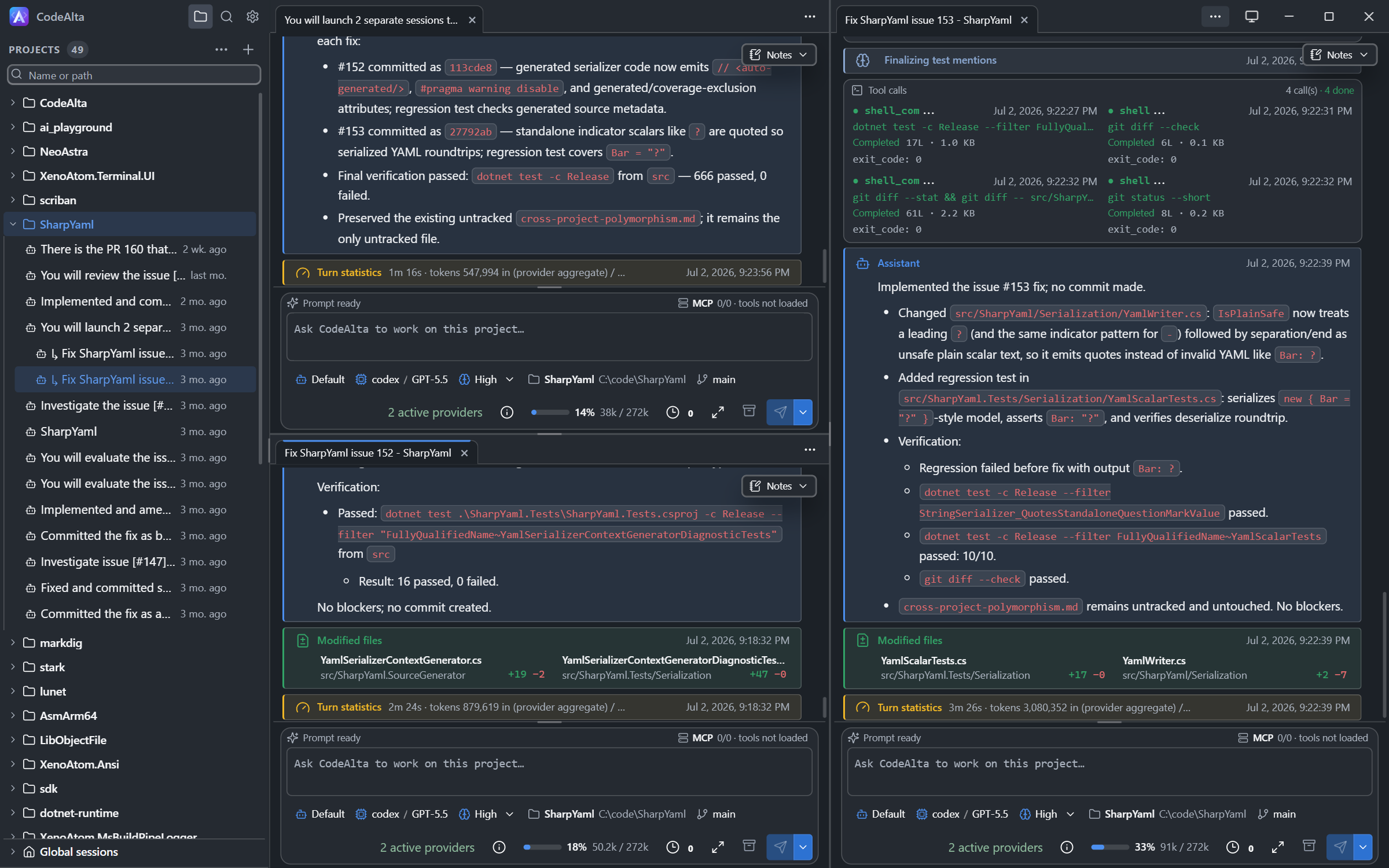
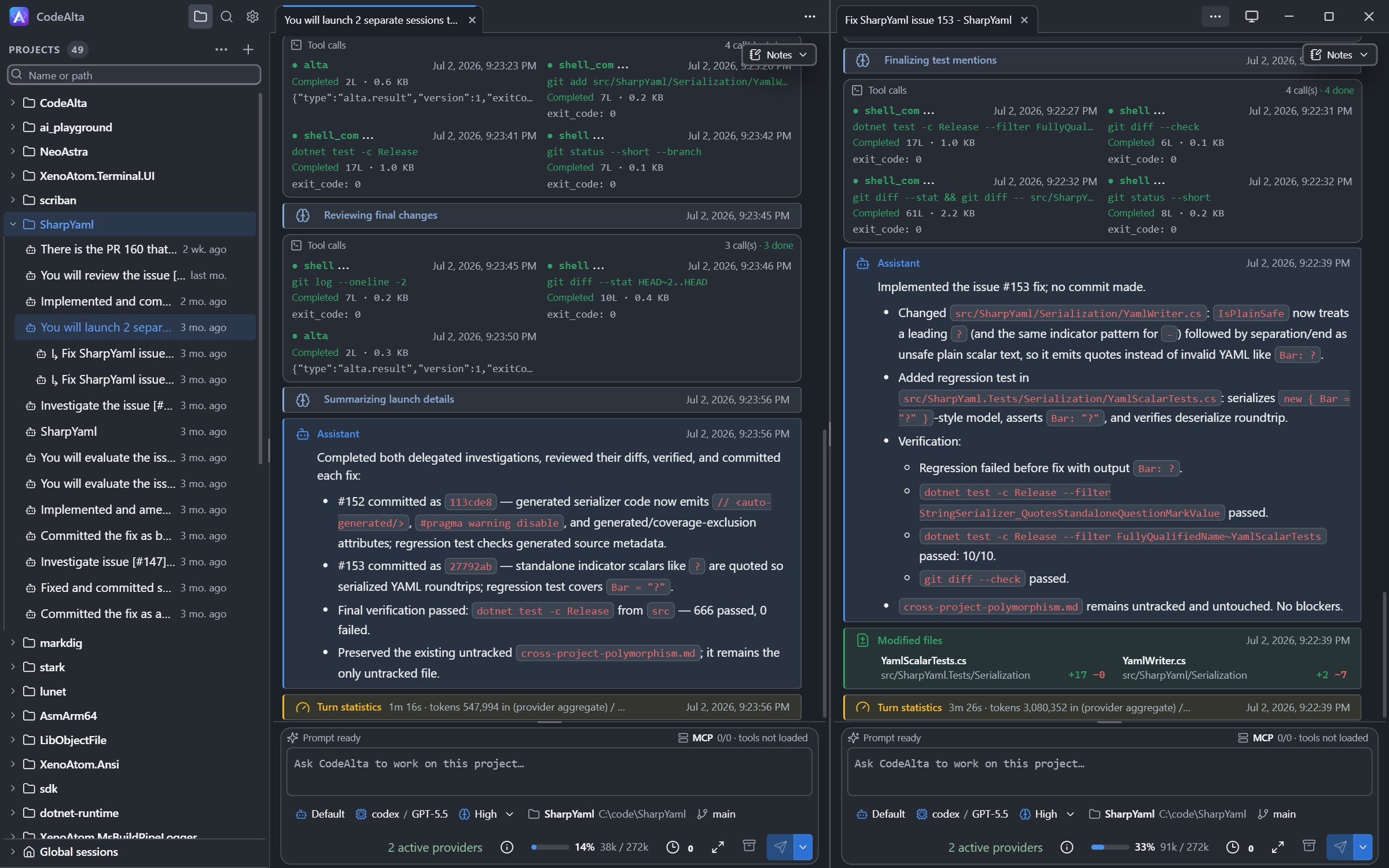
Session tabs can be dragged along the tab strip to reorder them, to the edge of a pane to split the window, or to the center of another pane to merge. The tab menu also has Split right and Split below. Tabs from different projects stay open together, and each pane has its own prompt.
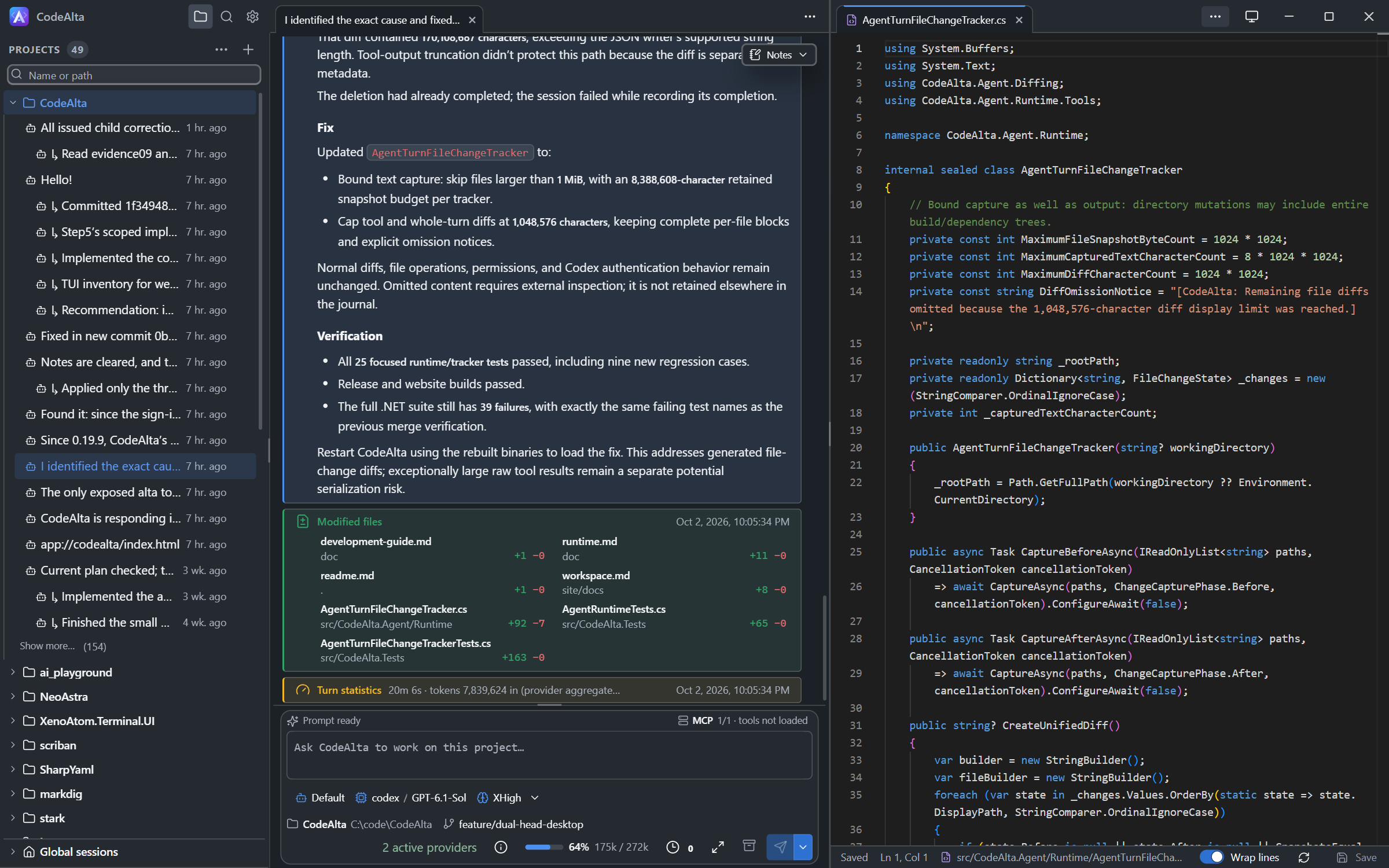
Files beside sessions
Ctrl+E opens a project file in an editor tab. An editor tab can be split like a session tab, so the file stays visible beside the session that works on it.
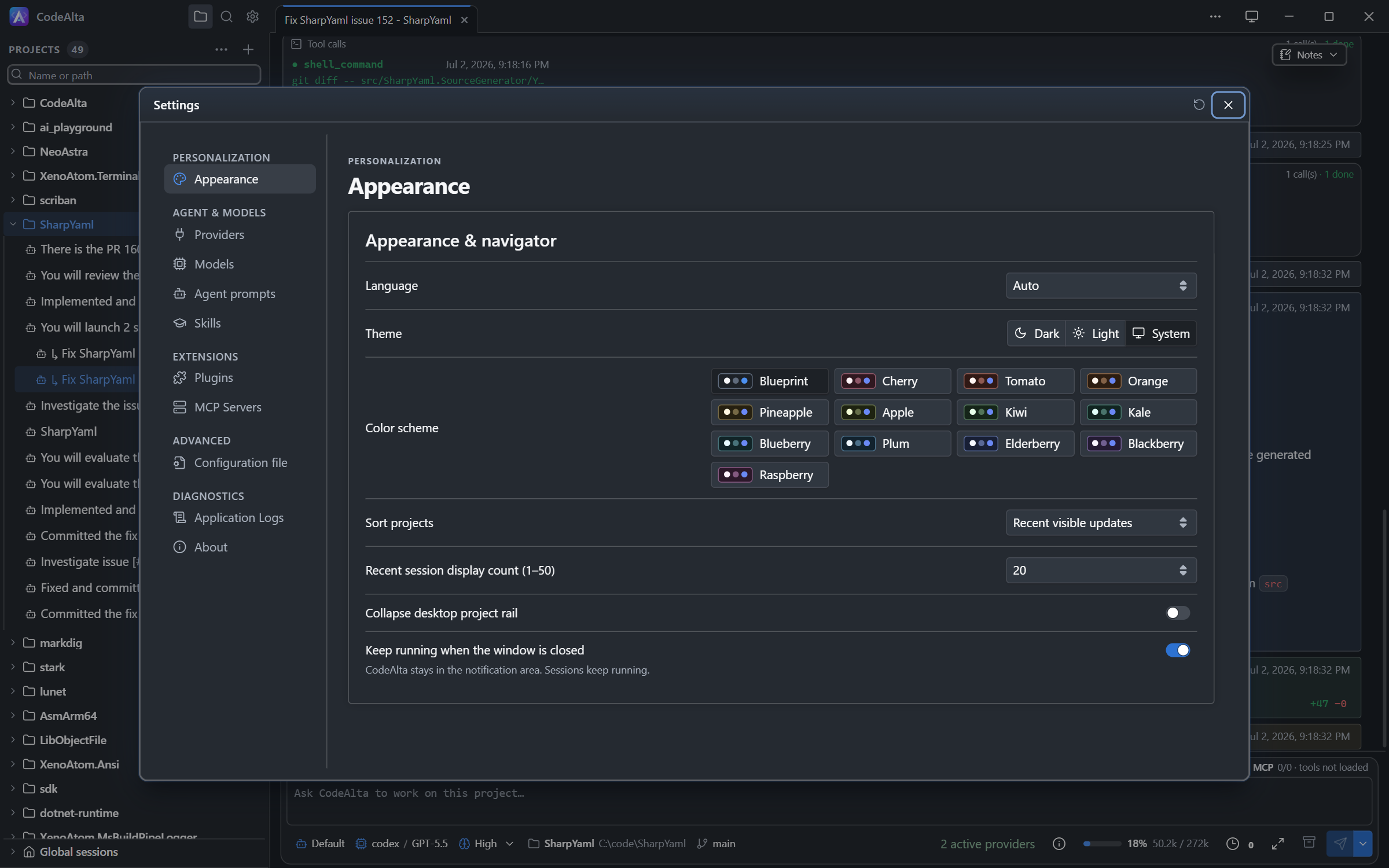
One Settings window
The TUI opens a dialog for each area. The desktop app groups them as pages of one window: Appearance, Providers, Models, Agent prompts, Skills, Plugins, MCP Servers, Configuration file, Application Logs and About.
Windows over the session
Tool details, file diffs, context usage, session info, the session browser and the Notes of a session open as windows that you can move and resize over the workspace.
Runs in the background
Closing the window keeps CodeAlta running in the notification area, with its sessions. Use the tray icon to open the window again or to exit. Turn this off with Settings > Appearance > Keep running when the window is closed. Exiting while sessions are running asks for confirmation first.
Updates from the app
When a new version is available, the desktop app shows a notice with Update and restart. The TUI shows the dotnet tool update command to run.
Differences at a glance
| Desktop | TUI | |
|---|---|---|
| Command | alta |
altatui |
| Session tabs | Drag to reorder, split and merge panes | One visible tab at a time |
| File editor | Editor tabs that can sit beside a session | Editor tab |
| Settings | One window with a page per area | One dialog per area |
| Appearance | Light, dark or system theme, 13 color schemes | Terminal themes |
| Session notes | Movable Notes window over the timeline | Notes panel in the sidebar |
| Pasted images | Thumbnails above the prompt | Preview dialog, in terminals with image support |
| Queue a prompt | Enqueue until idle in the Send options | AlwaysQueue checkbox |
| Tool permissions | Always approved automatically | Approved automatically by default; can be reviewed |
| Plugin dialogs and content | The app's own components, with HTML fragments from the plugin | Terminal controls |
| Updates | Update and restart | Shows the command to run |
| Font | No requirement | Nerd Font required |
| Copy the UI as an image | Not available | Ctrl+F12 |
Current desktop limitations
Tool permission requests are always approved automatically on the desktop. To review each request, use the TUI and turn off Auto approve commands in Workspace Settings.
The --no-plugins and --plugin-safe-mode options belong to the TUI. Set CODEALTA_DISABLE_PLUGINS=1 to start the desktop app without plugins.
A plugin written with terminal controls only shows its plain text or Markdown form on the desktop. See Plugin development.
Which one to use
Use the desktop app for daily work: it shows more at once and every feature is one click away. Use the TUI when you prefer to stay in a terminal, or when you want to review tool permission requests.