Speech to prompt
In CodeAlta Desktop you can dictate a prompt instead of typing it. A speech model that runs on your computer writes what you say at the caret of the prompt. Your voice stays on your computer: it is not sent to a model provider or to any other service.
Dictate a prompt
Click the microphone button beside Send, or press F9, and speak. The button turns red and follows your voice while CodeAlta listens.
- What is being recognized shows in grey at the caret. It can still change while you speak.
- Each time you pause, the sentence is written in the prompt. It is one edit:
Ctrl+Zremoves it. - Click the button again, or press
F9orEsc, to stop: the words you were saying are written too. - Press
Enter(or click Send) while you dictate to finish the sentence and send the prompt in one step.
What you dictated is ordinary text of the prompt: correct it, add to it, then send it as usual. Names of files, functions and commands are often misheard, so read them before you send.
A dictation stops by itself when it hears nothing for 30 seconds. What was said stays in the prompt.
The microphone button is in the prompt of a session and in the prompt of a new session.
The first press sets up dictation
The first time you press the microphone, CodeAlta shows a small setup beside the button and does not record yet:
- Microphone: the input device to listen to, with a bar that moves with your voice. If the bar stays flat when you speak, choose another device: the default device of the system is not always the microphone you talk into.
- Model: the speech model and its size, with a link to choose another one.
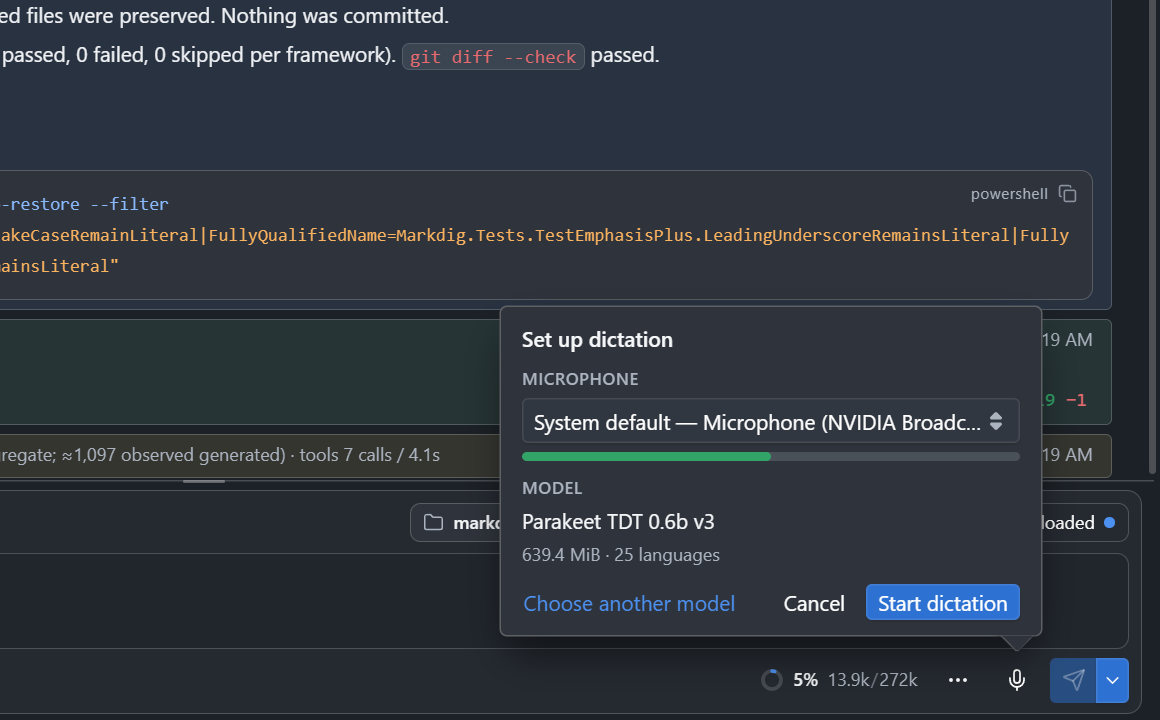
Start dictation keeps the microphone you chose and starts. When the model is not on your computer yet, the button is Download. After that, the microphone button records at once.
The download
Nothing is downloaded before you ask for it. A notification shows the download and the installation, with a Cancel button. You can keep working, and the download goes on when you close Settings. A download that was canceled or interrupted goes on from where it stopped the next time.
The first download has two parts:
- the speech model, from Hugging Face;
- the speech engine (sherpa-onnx, about 10 MiB), from nuget.org.
Every file is checked against its checksum before it is used.
Settings
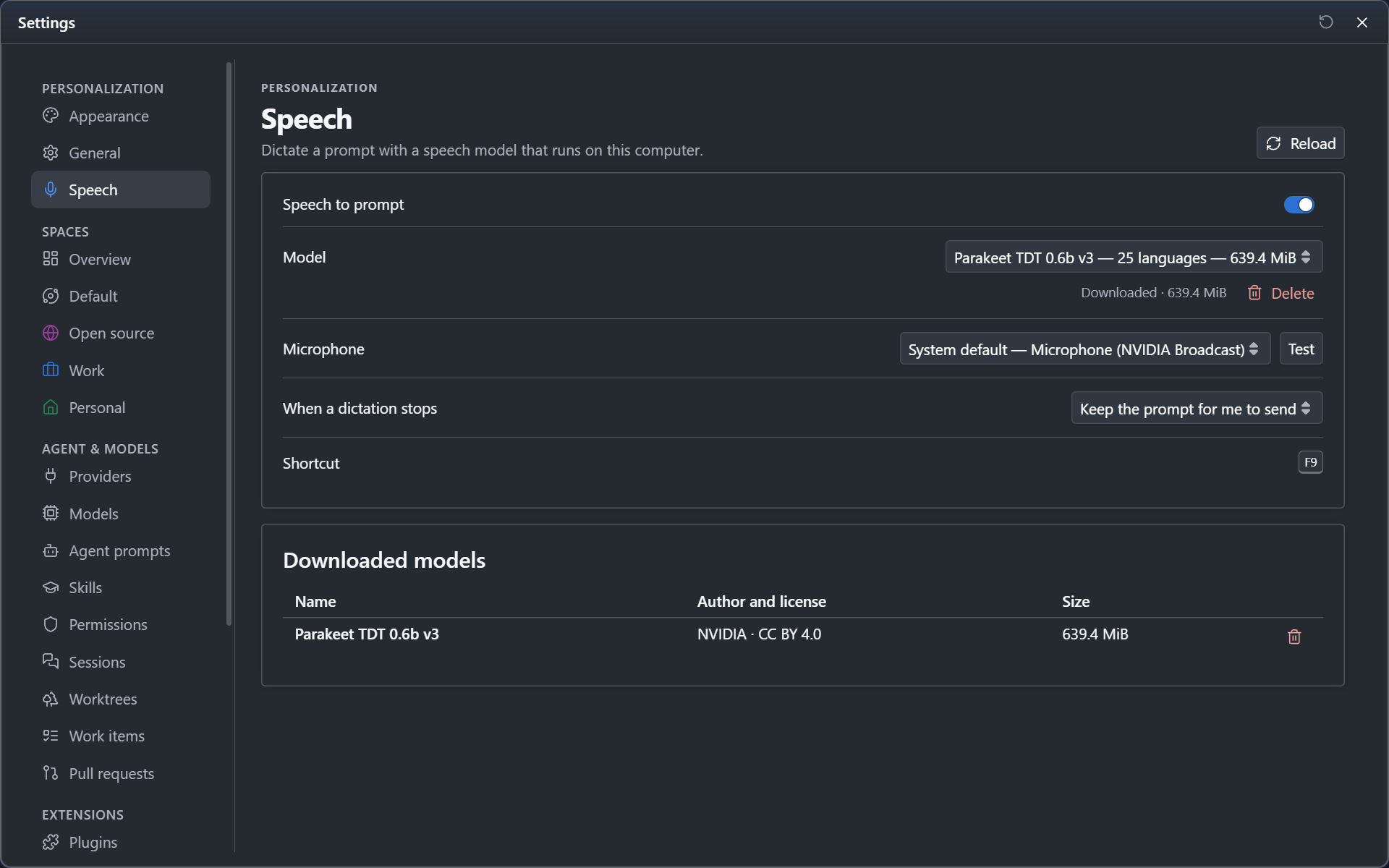
Settings > Personalization > Speech has what speech to prompt can be set to:
| Setting | What it does |
|---|---|
| Speech to prompt | Turns the feature on or off. Off, the microphone button is not shown and CodeAlta never asks for the microphone. |
| Model | The speech model, with its state: to download, downloading, or downloaded with a button to delete it. |
| Microphone | The input device. Test opens it and shows its level, so that you see which device hears you. |
| When a dictation stops | Keep the prompt for me to send (the default) or Send the prompt. |
| Downloaded models | The models on your computer with their size, and a button to delete each of them. |
Sending the prompt
With Keep the prompt for me to send, a dictation only writes: you read the prompt and send it yourself.
With Send the prompt, stopping the dictation with the microphone button or F9 writes the last words and sends the prompt, when at least three words were dictated. Esc stops without sending. A dictation that stops by itself (after a long silence, or because you went to another tab) never sends.
In both modes, Enter during a dictation finishes the sentence and sends.
The microphone
The microphone is chosen for the window you are in: the normal and the developer instance of CodeAlta each keep their own. When the microphone you chose is not connected, CodeAlta uses the microphone of the system and tells you.
When a dictation hears nothing at all for its first seconds, CodeAlta says so, with a button to choose another microphone.
Models
| Model | Languages | Download | From |
|---|---|---|---|
| Parakeet TDT 0.6b v3 (the default) | 25 European languages, recognized by themselves | 639 MiB | NVIDIA, CC BY 4.0 |
| Parakeet TDT 0.6b v2 | English | 631 MiB | NVIDIA, CC BY 4.0 |
| Whisper small | 99 languages | 358 MiB | OpenAI, MIT |
| Moonshine base | English | 135 MiB | Moonshine AI, MIT |
| Moonshine tiny | English | 42 MiB | Moonshine AI, MIT |
The Parakeet models write punctuation and capital letters, and are the most accurate of the list. The Moonshine models are much smaller, for a quick download or a slow computer.
A model of your own
Choose Custom and give the address of a Hugging Face repository, for example https://huggingface.co/<owner>/<repository>, or the address of one of its folders (.../tree/<revision>/<folder>). CodeAlta reads the list of its files and recognizes these models of sherpa-onnx:
- a transducer:
encoder*.onnx,decoder*.onnx,joiner*.onnxandtokens.txt; - Moonshine:
encoder_model.*,decoder_model_merged.*andtokens.txt, or the four files of its first version; - Whisper:
<name>-encoder*.onnx,<name>-decoder*.onnxand<name>-tokens.txt.
When a repository has both, the quantized (int8) files are downloaded. A repository that holds none of these is refused before anything is downloaded. A model is loaded once after its download: one that the engine cannot load is reported then, and can be deleted on the same page.
Where the models and the settings are
Models and the engine are in ~/.alta/cache/speech. The folder can be deleted: it is downloaded again at the next use.
The model stays in memory for a few minutes after a dictation, so that the next one starts at once, then the memory is given back.
The choices are in the [speech] table of ~/.alta/config.toml, except the microphone, which belongs to the window. The defaults are not written:
[speech]
enabled = false          # true when absent
model = "whisper-small"  # a model of the table below, or the address of a repository
send = "on_stop"         # "manual" when absent: the prompt stays for you to send
| Model | model |
|---|---|
| Parakeet TDT 0.6b v3 | parakeet-tdt-0.6b-v3 |
| Parakeet TDT 0.6b v2 | parakeet-tdt-0.6b-v2 |
| Whisper small | whisper-small |
| Moonshine base | moonshine-base-en |
| Moonshine tiny | moonshine-tiny-en |
The permission of the system
The first time, the system may ask whether CodeAlta can use the microphone.
- Windows: in Settings > Privacy & security > Microphone, Let desktop apps access your microphone must be on.
- macOS: allow CodeAlta in System Settings > Privacy & Security > Microphone. Started from a terminal, CodeAlta uses the permission of that terminal.
- Linux: the microphone comes through WebKitGTK, which needs an audio input of the system (PipeWire or PulseAudio). On a system where it has none, the microphone button is not shown.
When speech to prompt is turned off, CodeAlta does not ask for the microphone and the button is not shown.