Bookmarks
A bookmark marks something you want to find again: one message of a session, or a whole session. CodeAlta Desktop shows the bookmarks of a session beside its timeline, and lists all of them in one tab.
Bookmark a message
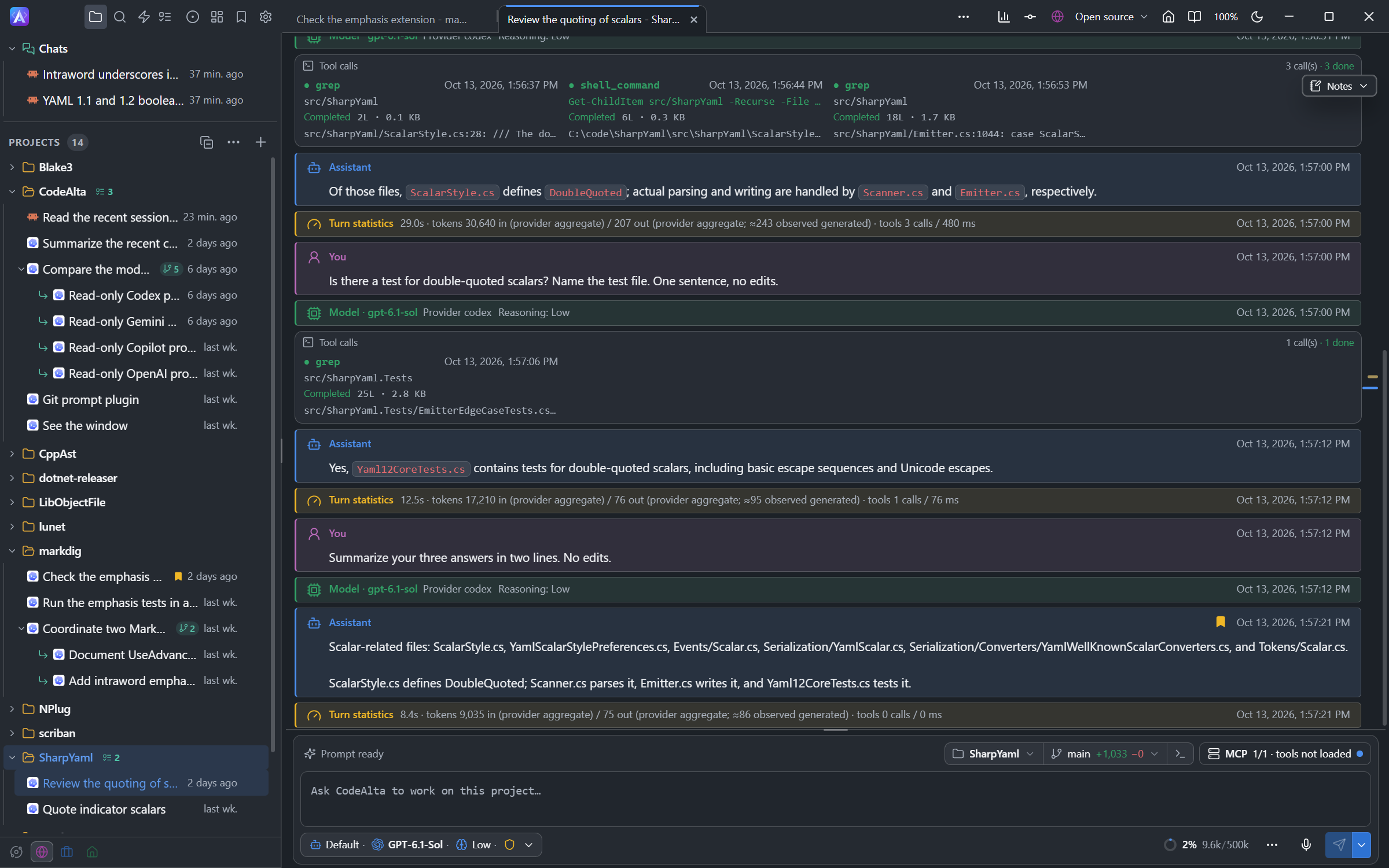
Move the pointer over a message you wrote or a message of the assistant, and click the bookmark button among its actions. The button stays on the message, filled, while it is bookmarked. Click it again to remove the bookmark.
Messages can be bookmarked once they are complete. A message that is still being written, a tool call and a status line have no bookmark button.
Bookmark a session
Open the menu of a session in the Explorer (its ... button, or a right click) and choose Bookmark session. The session then has a small bookmark on its row. The same menu has Remove session bookmark, and /bookmark does the same for the session in front.
Go from one bookmark to the next
A session with bookmarked messages has a short rail at the right edge of its timeline, with one mark for each of them, in the order of the conversation:
- move the pointer over a mark to see whose message it is, its name and its date;
- click a mark to go to its message. When the message is far back in a long session, CodeAlta loads the history up to it first;
- the marks of the messages on screen are highlighted.
With the keyboard, Shift+F3 goes to the previous bookmark and Shift+F4 to the next one.
The Bookmarks tab
Open it with Bookmarks in the title bar (in its … menu when the window is narrow), with Ctrl+G Ctrl+F, or with /bookmarks. It is a tab like the others, restored with your tabs.
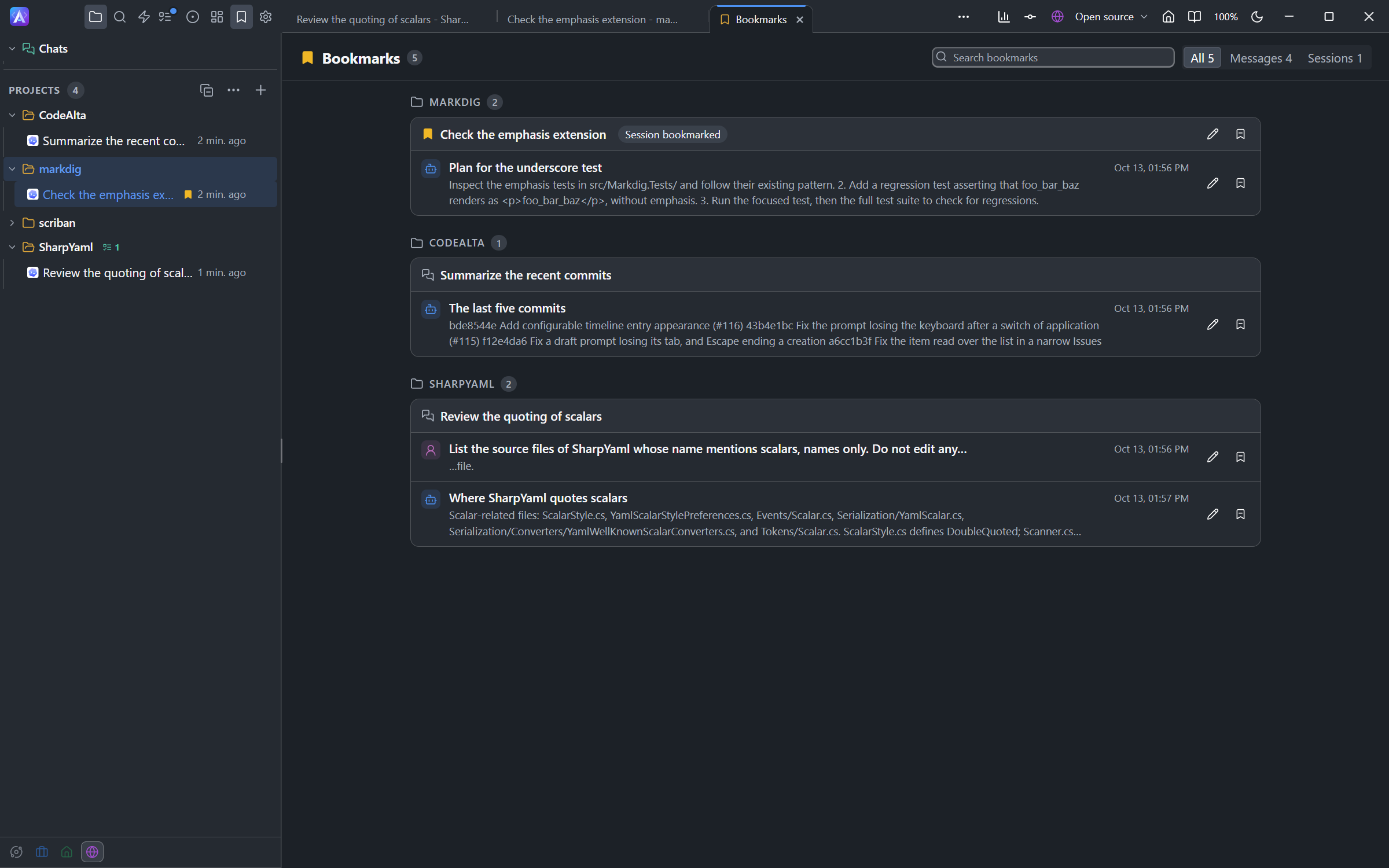
The tab lists every bookmark, of every project:
- by project, then by session, with the most recent bookmarks at the top. The chats have a group of their own;
- the messages of a session are in the order of its conversation, each with its date and the beginning of its text;
- a bookmarked session is marked Session bookmarked.
Click a bookmark to open its session at that message. Click a session to open it.
| To | Do this |
|---|---|
| Find a bookmark | Type in Search bookmarks: the names, the messages, the sessions and the projects are searched. |
| See only messages or sessions | Choose Messages or Sessions beside the search. |
| Name a bookmark | Click the pencil of its row, type a name and press Enter. An empty name gives it back the beginning of its message. |
| Remove a bookmark | Click the bookmark button of its row. |
A bookmark is kept when its session changes. If you rewind a session past a bookmarked message, the bookmark says that its message is no longer in the session. Deleting a session removes its bookmarks.
A session with a bookmark, of its own or of one of its messages, is not deleted by Delete inactive sessions (see Storage).
Bookmarks and agents
An agent reads the bookmarks with the alta bookmark commands, so you can refer to them in a prompt:
Look at my bookmarks of this project and summarize the decisions they hold.
An agent can also add a bookmark when you ask for it, for example "bookmark this session" or "bookmark the answer of the second turn". A bookmark an agent adds appears in the tab at once.