Workspace and Dialogs
CodeAlta is designed for keyboard-first work in a terminal UI. Most popups close back to the prompt editor so you can keep typing without rebuilding context.
Main workspace
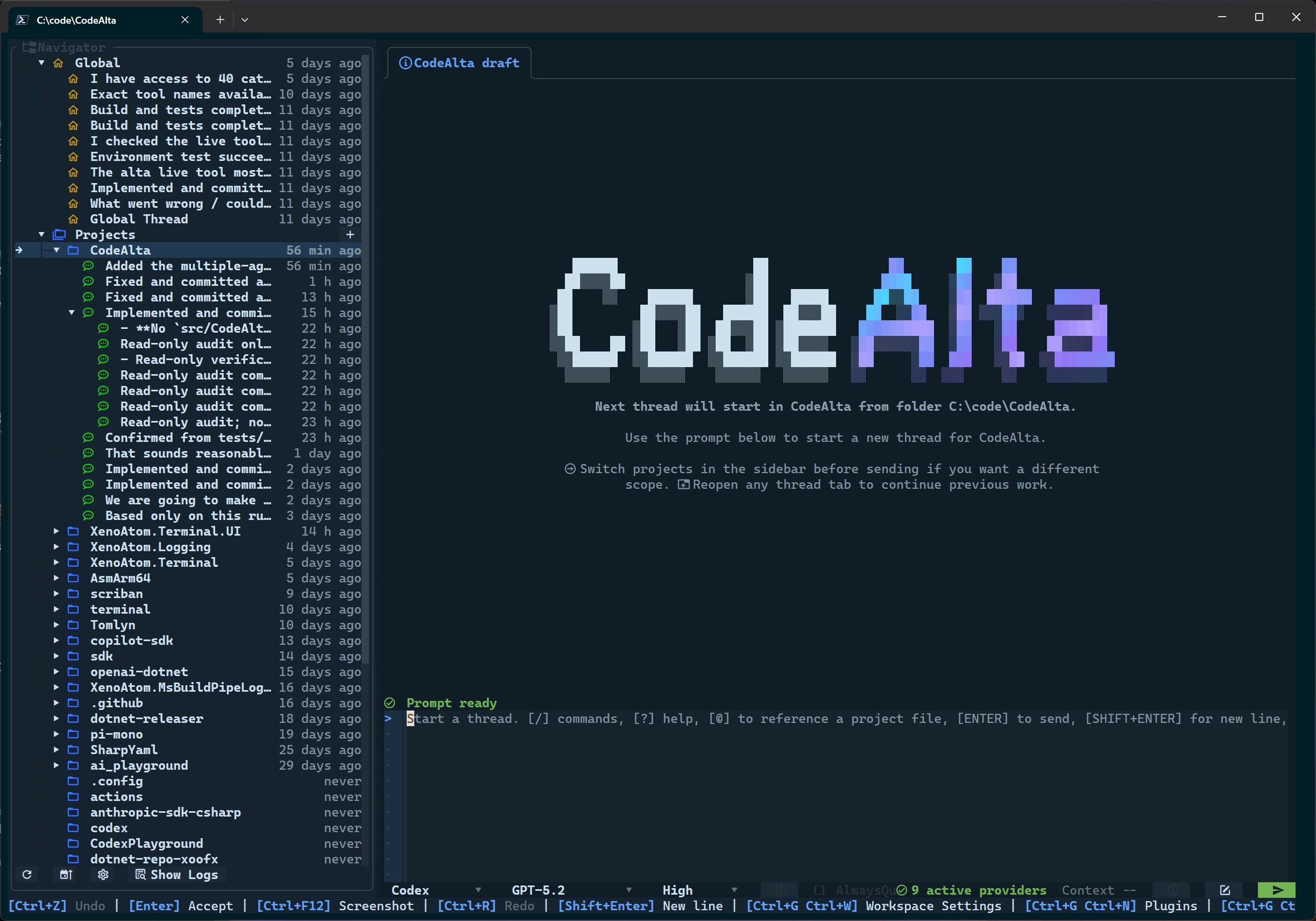
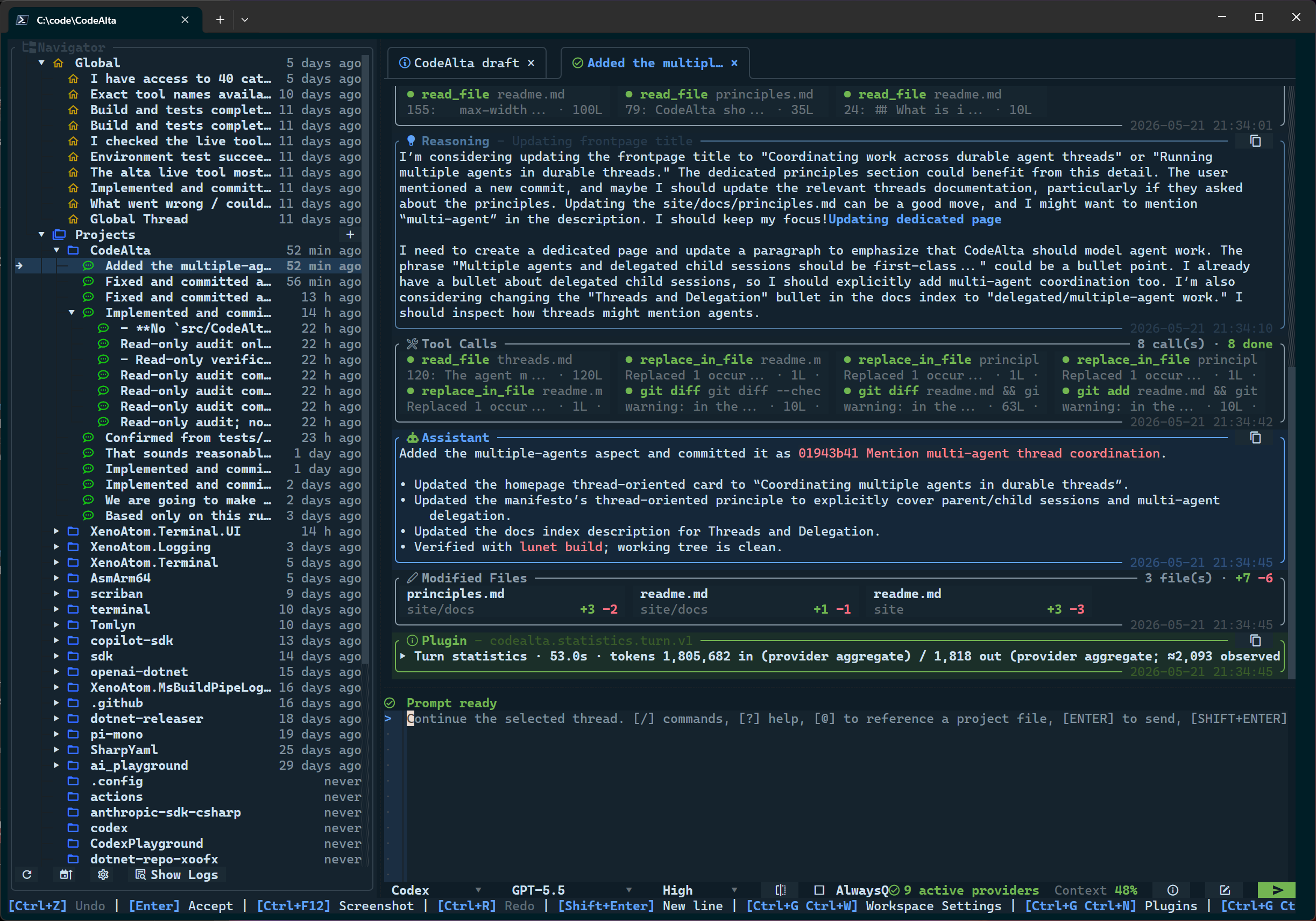
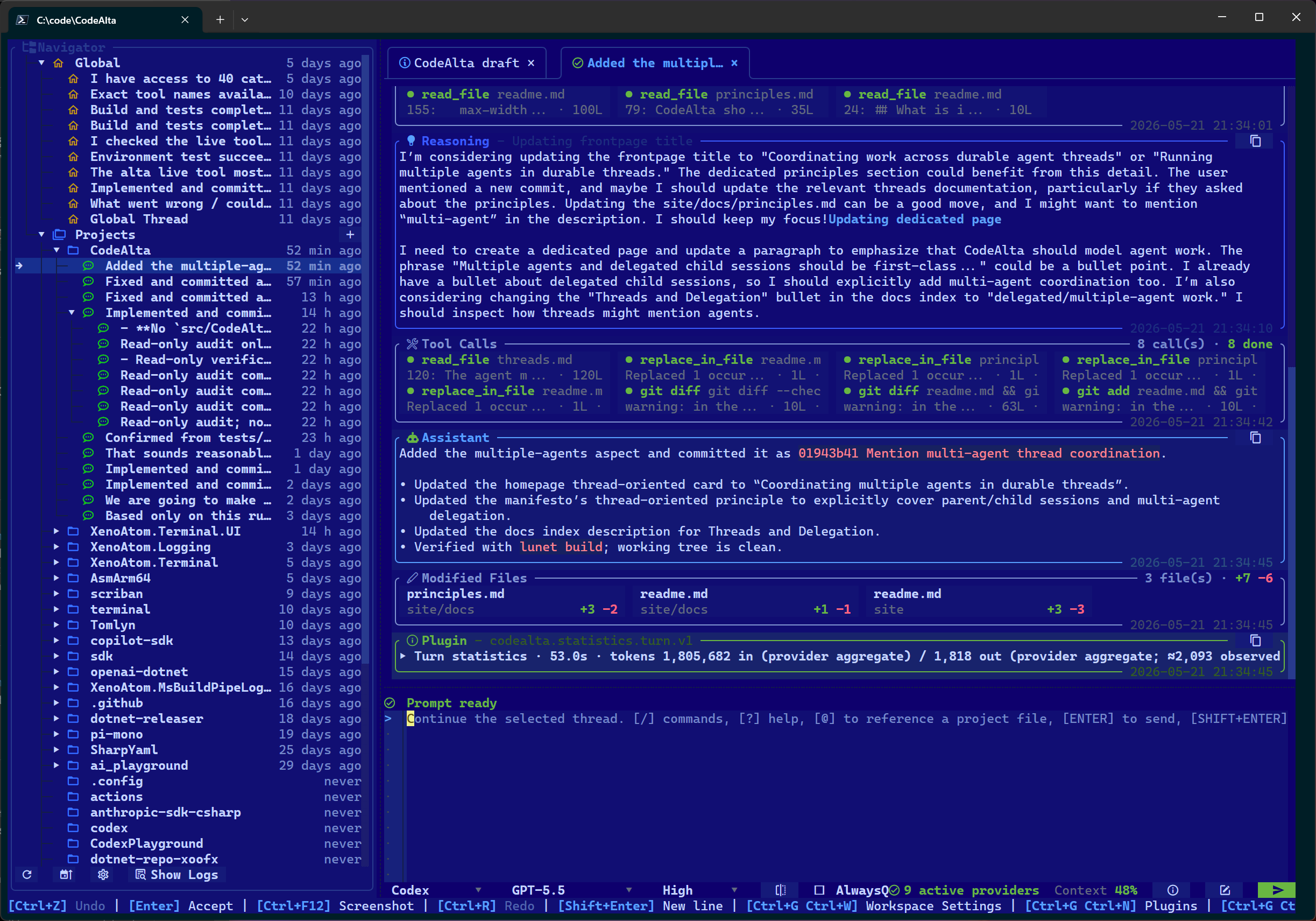
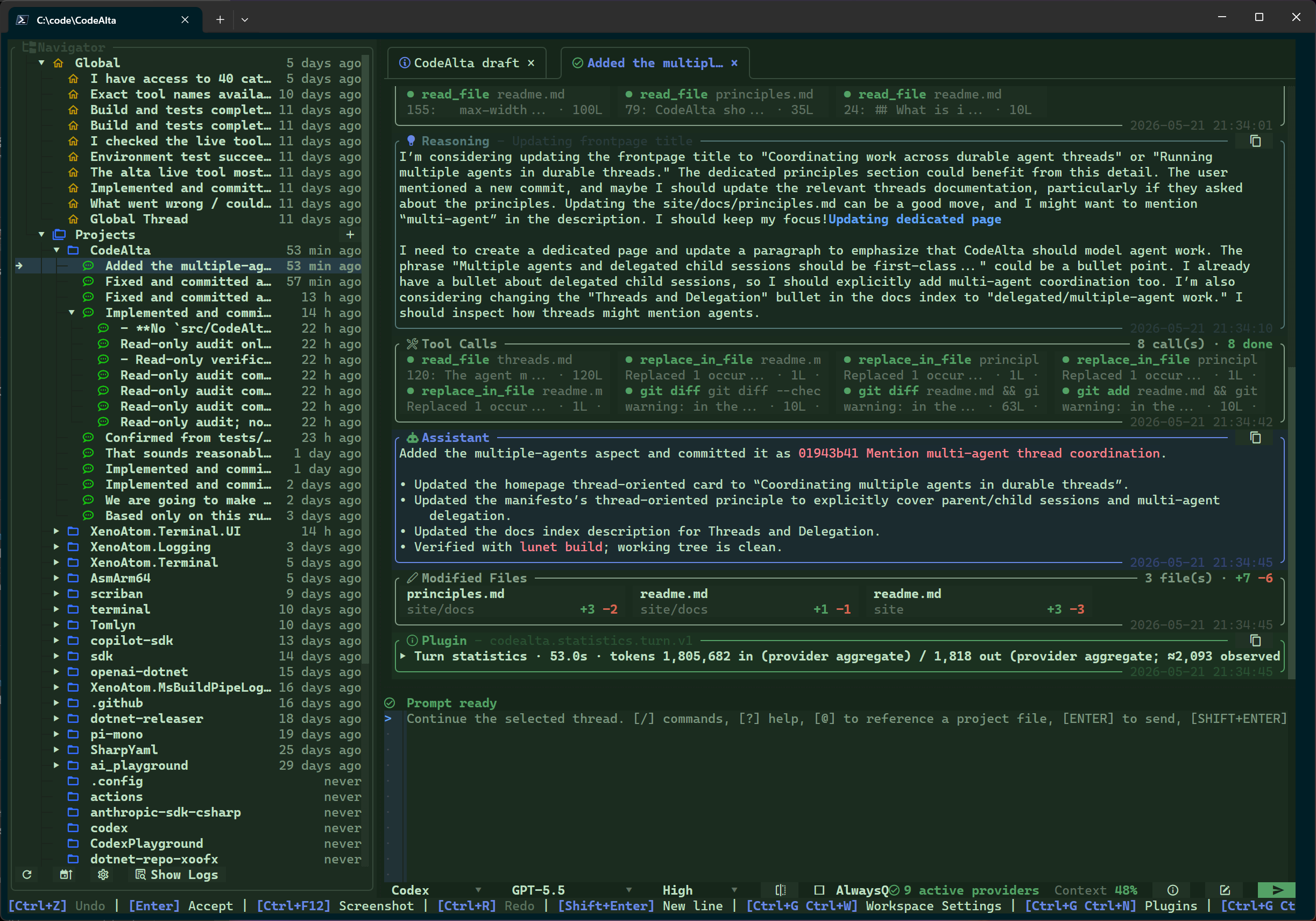
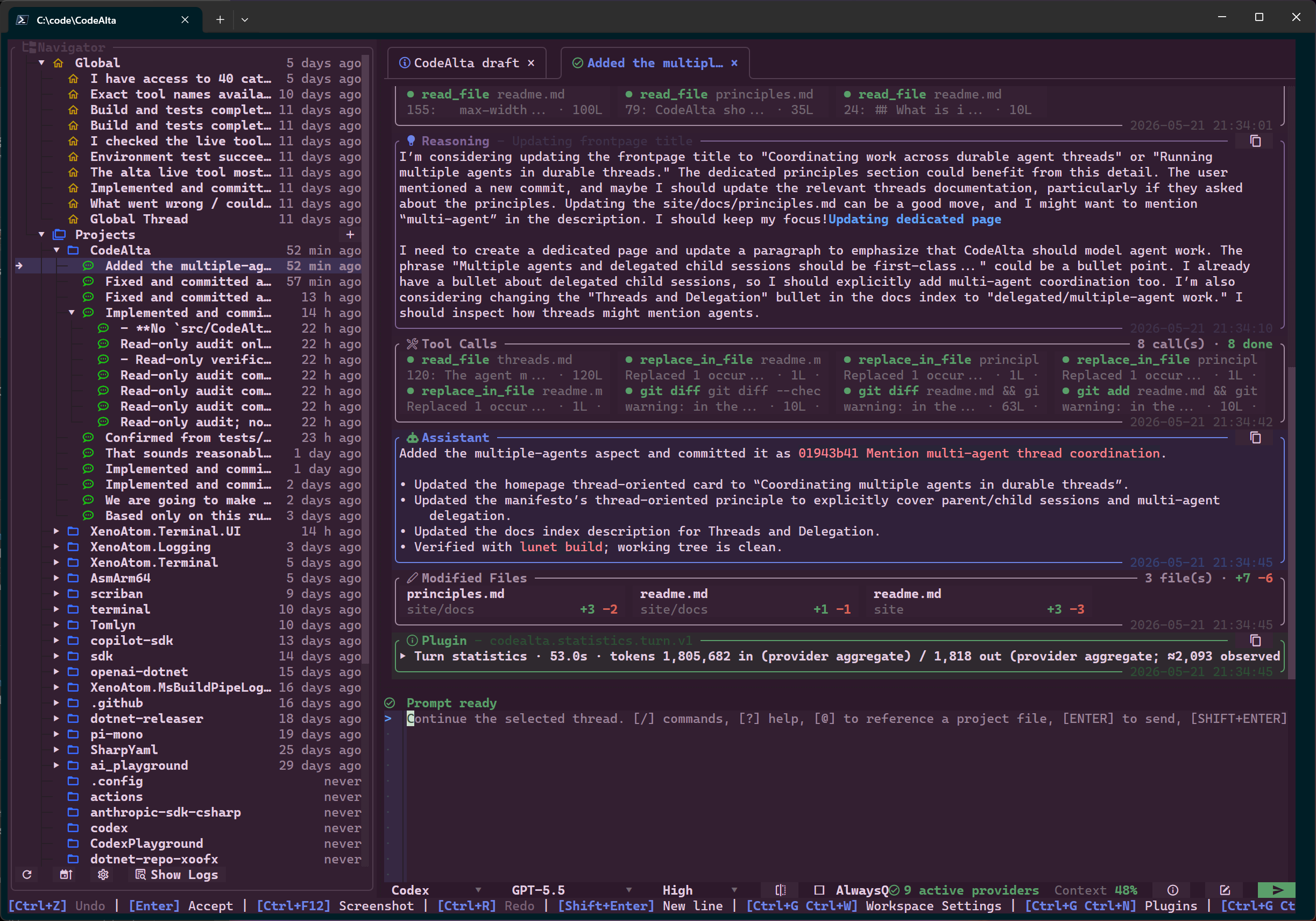
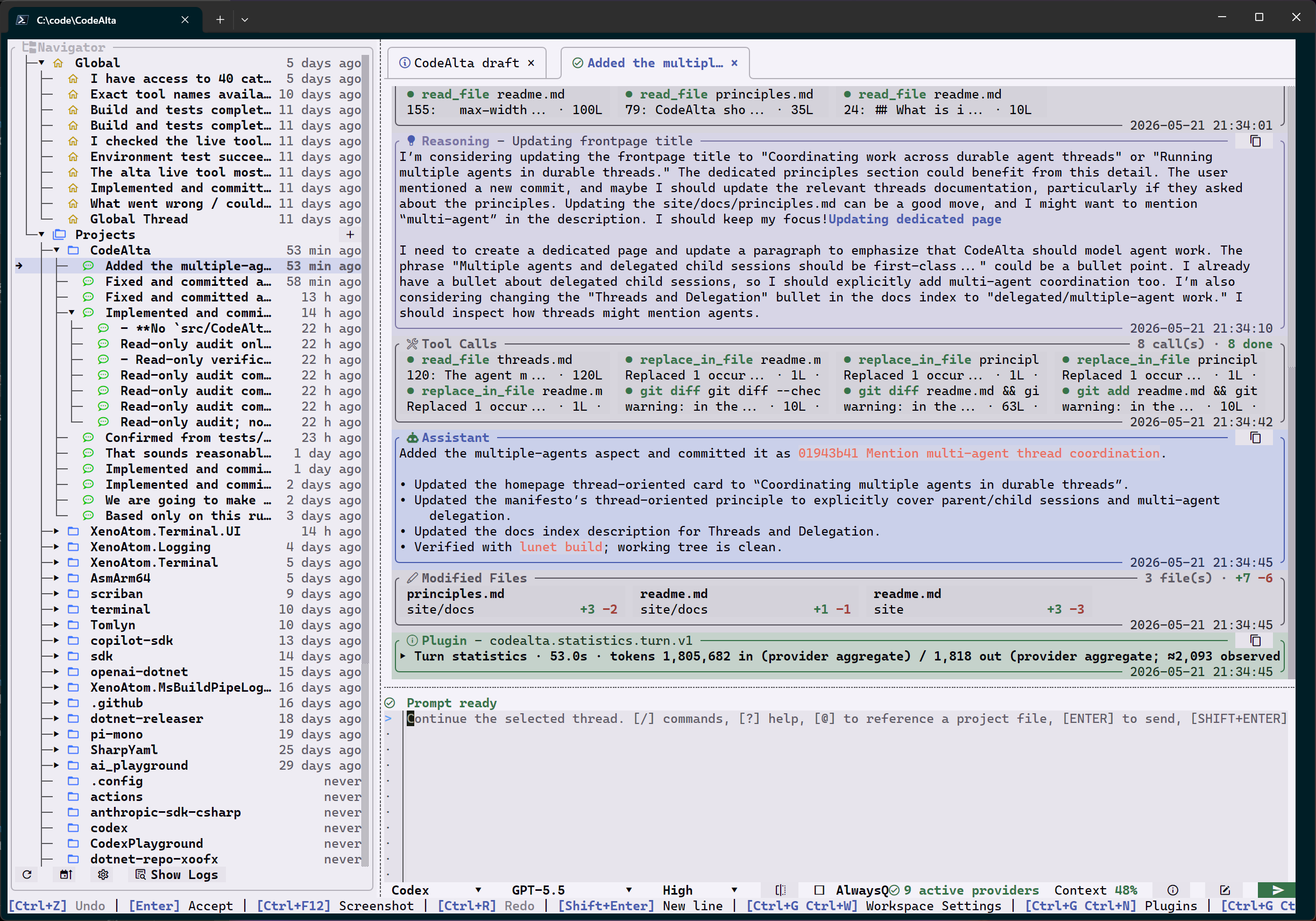
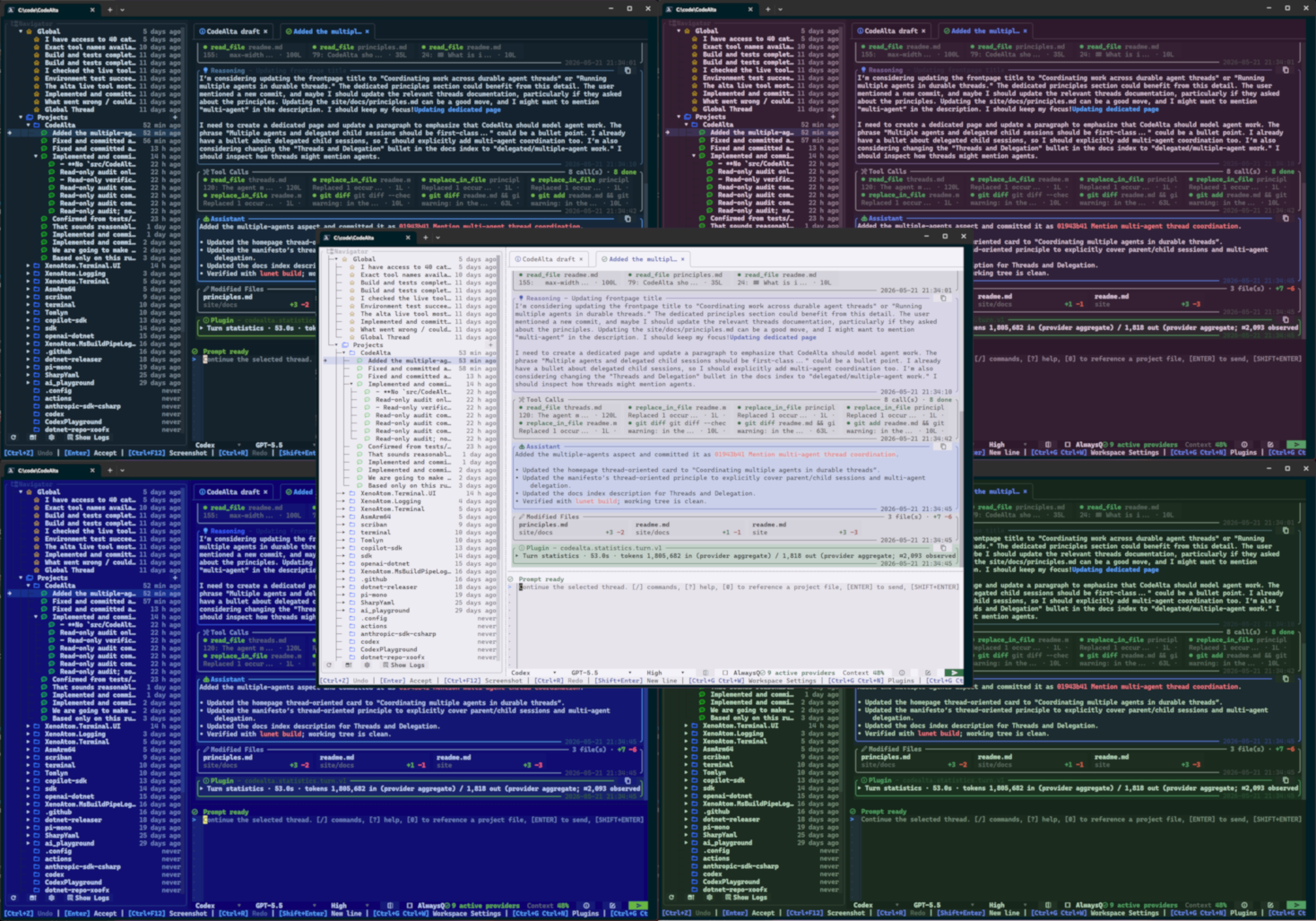
The main screen has four important areas:
- Navigator/sidebar: projects, open sessions, running work, and navigator actions.
- Workspace tabs: session tabs and editor tabs share the same tab strip.
- Timeline: user messages, assistant messages, reasoning/status updates, tool-call chips, results, statistics cards, compaction notices, and modified-file summaries.
- Prompt/footer: prompt editor, queue strip, Agent: profile selector, provider/model/reasoning selectors, context usage, compact button, and status text.
Press F1, type /help, or type ? when you are unsure where an action lives. Help and command discovery are designed to return you to the prompt quickly.
Use Ctrl+Alt+Left and Ctrl+Alt+Right to move between tabs. Use Ctrl+T (or /next_prompt) to cycle the current draft/session to the next agent prompt. Use Ctrl+G Ctrl+G to collapse or expand the navigator, Ctrl+G Ctrl+S to focus the sidebar, and Ctrl+G Ctrl+P to return to the prompt.
If these shortcuts do not work in Windows Terminal, see Troubleshooting: Windows Terminal shortcuts do not reach CodeAlta.
Timeline cards
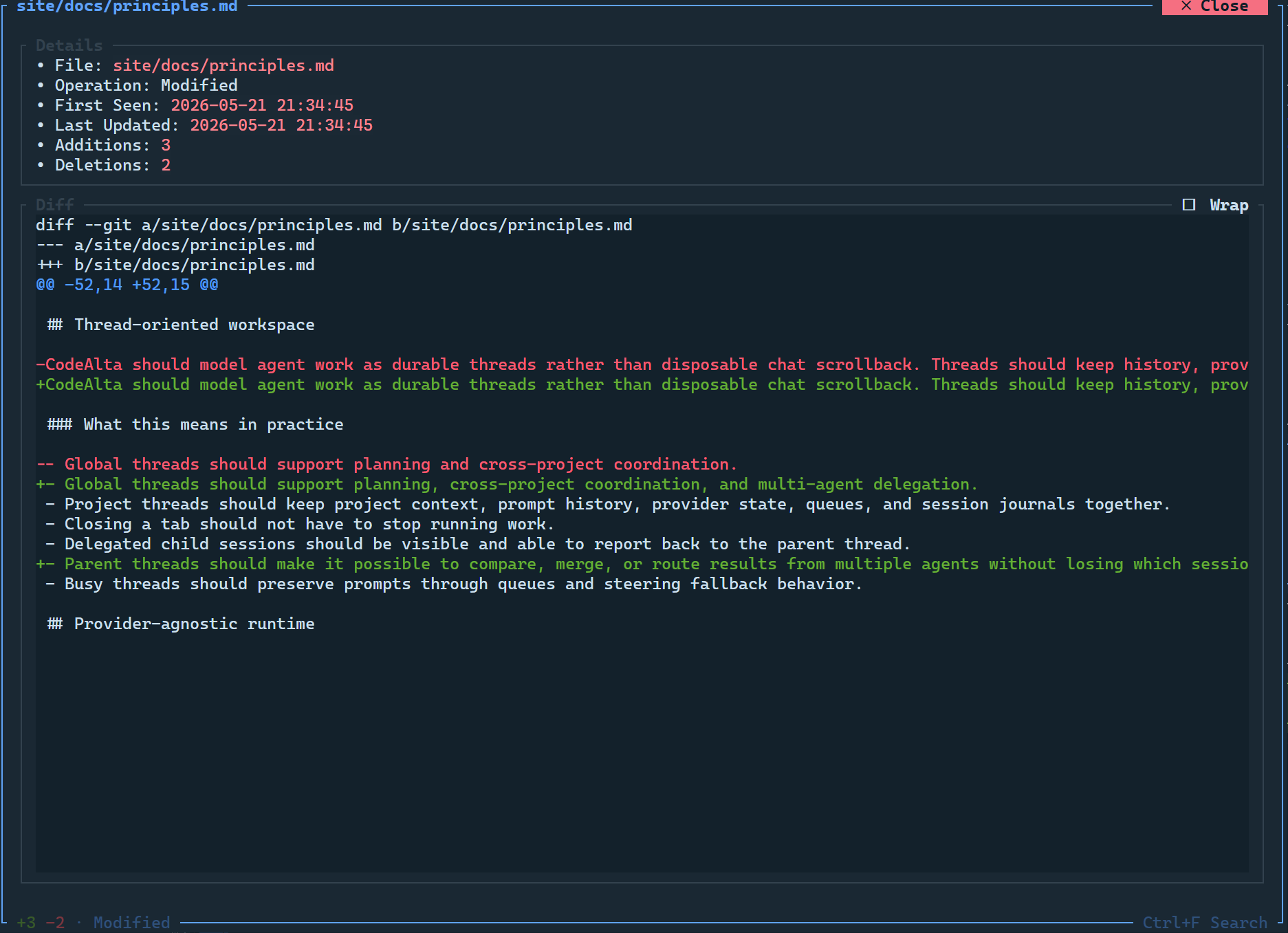
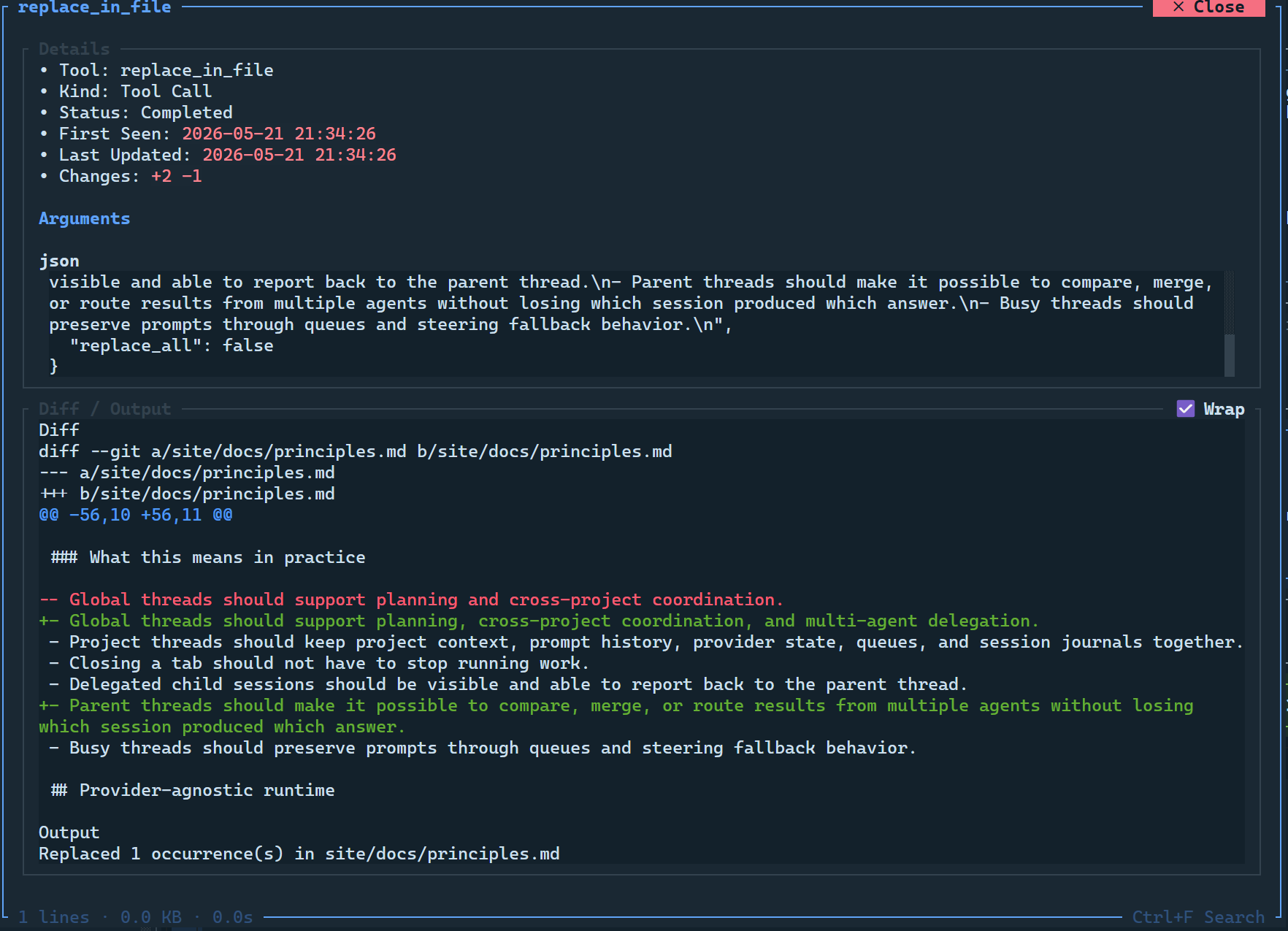
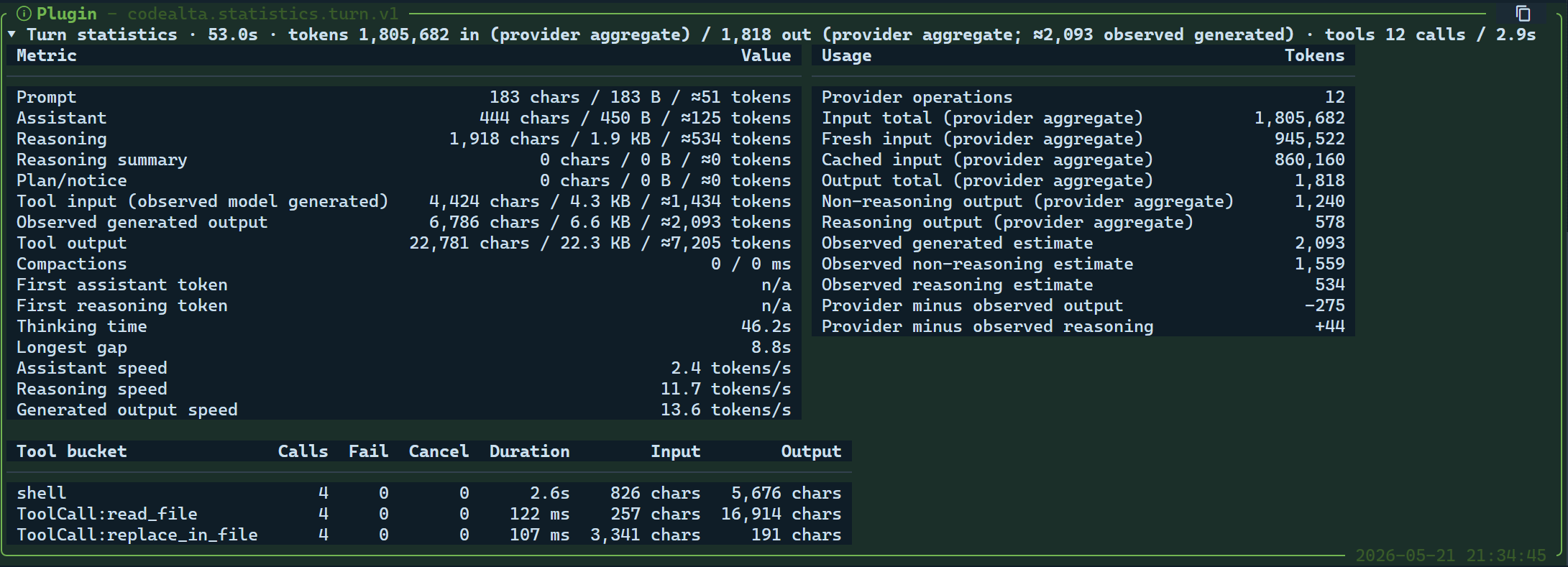
Timeline entries are grouped so the important parts stay visible:
- assistant messages render as Markdown;
- reasoning and status messages explain what the agent is doing;
- tool calls appear as compact chips with expandable details;
- tool results can be collapsed to avoid flooding the transcript;
- the modified-files card summarizes per-file
+/-diff totals and can show diff details; - statistics cards summarize timing, tools, usage, and other plugin-projected details.
Use F3 / F4 to jump between previous and next user or assistant messages. Use Ctrl+F3 to jump to the first message and Ctrl+F4 to return to the bottom.
Prompt editor and prompt queue

Press Enter to send and Shift+Enter for a new line. If the selected session is busy, Enter adds the prompt to the waiting list instead of dropping it. Queued prompts can be edited, repeated, steered immediately when supported, deleted, or cleared with F10.
The footer Agent: selector chooses the agent prompt profile for the current draft/session. Built-in prompts appear first, followed by global ~/.alta/prompts/agents prompts and project .alta/prompts/agents prompts. Global/project prompts with the same file id override lower-precedence prompts; see Agent Prompts.
Ctrl+Enter steers a running provider session. If the provider cannot steer live, CodeAlta re-queues the prompt for the next normal turn.
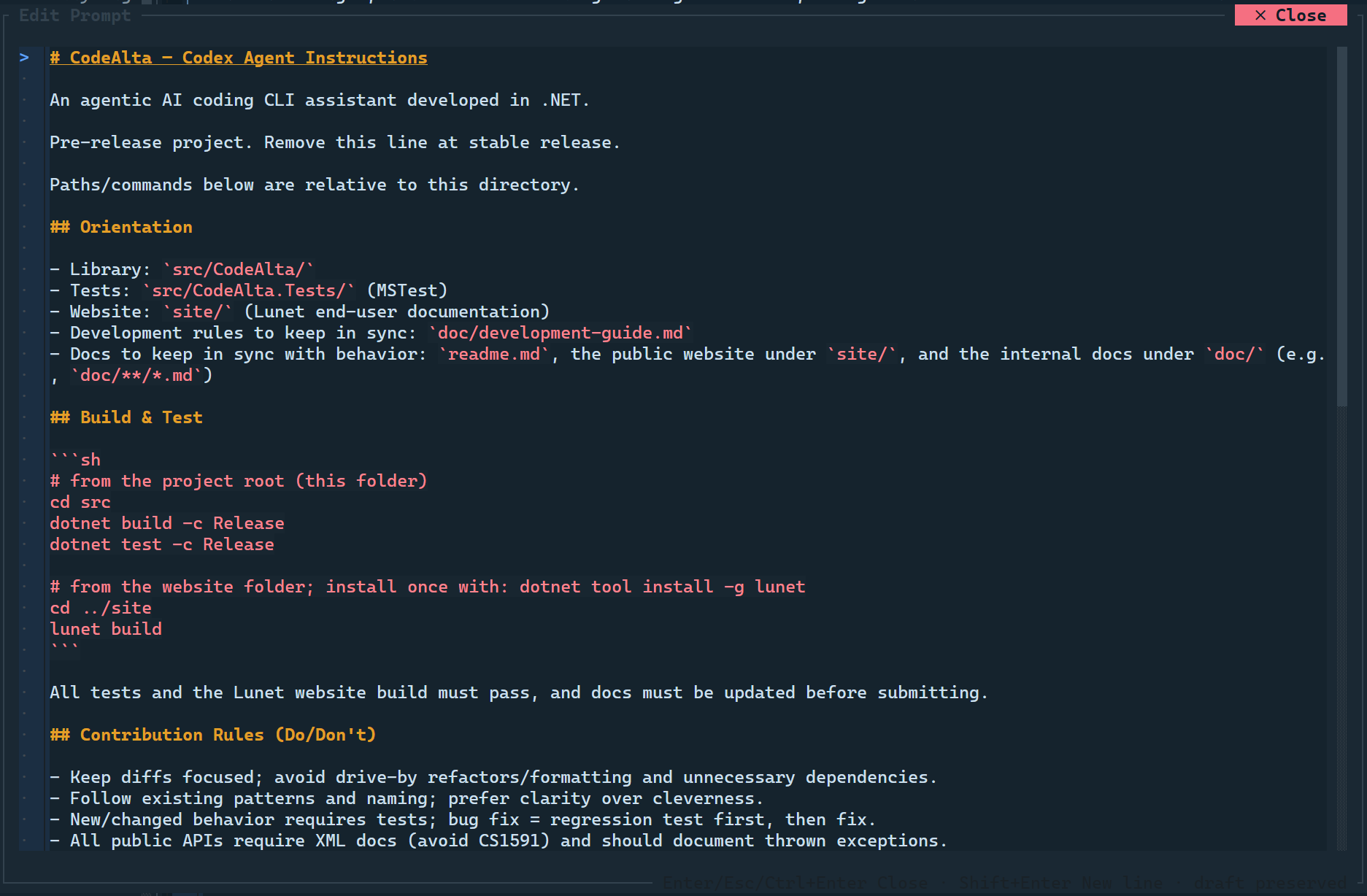
Use F6 or the Full Prompt action to open a larger prompt editor. Enter, Esc, or Ctrl+Enter closes it and keeps your draft.
Open Project dialog
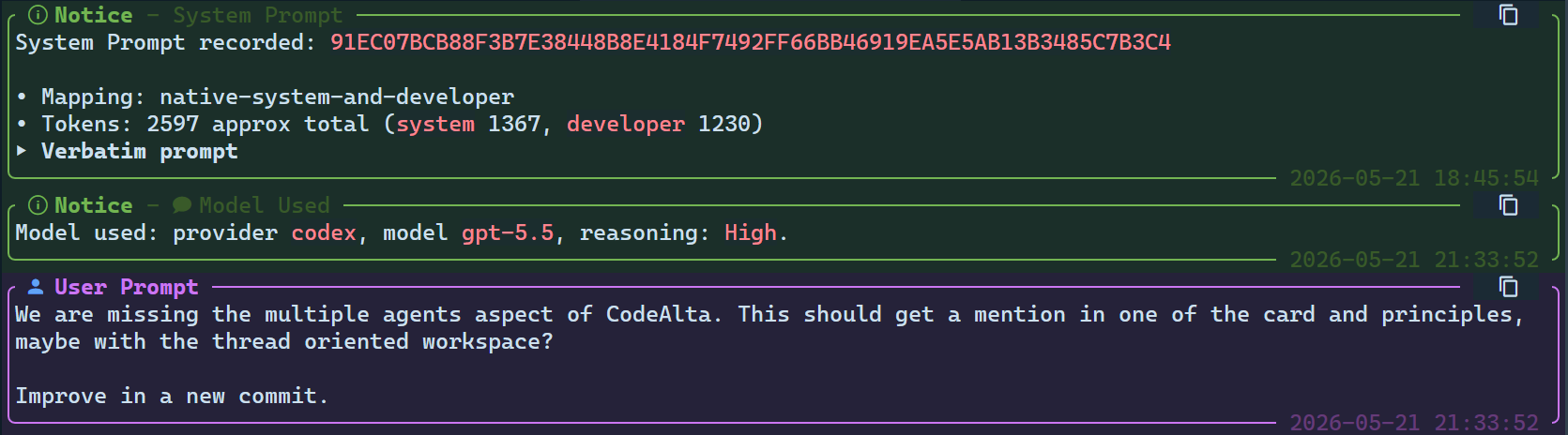
Open it with Ctrl+O, /open, or the + action on the Projects sidebar row.
The dialog supports project-name and directory completion. Rooted paths such as /, C:, D:, and ~ open folders. The Include hidden toggle includes archived/hidden projects in completion.
File/folder picker and prompt attachments
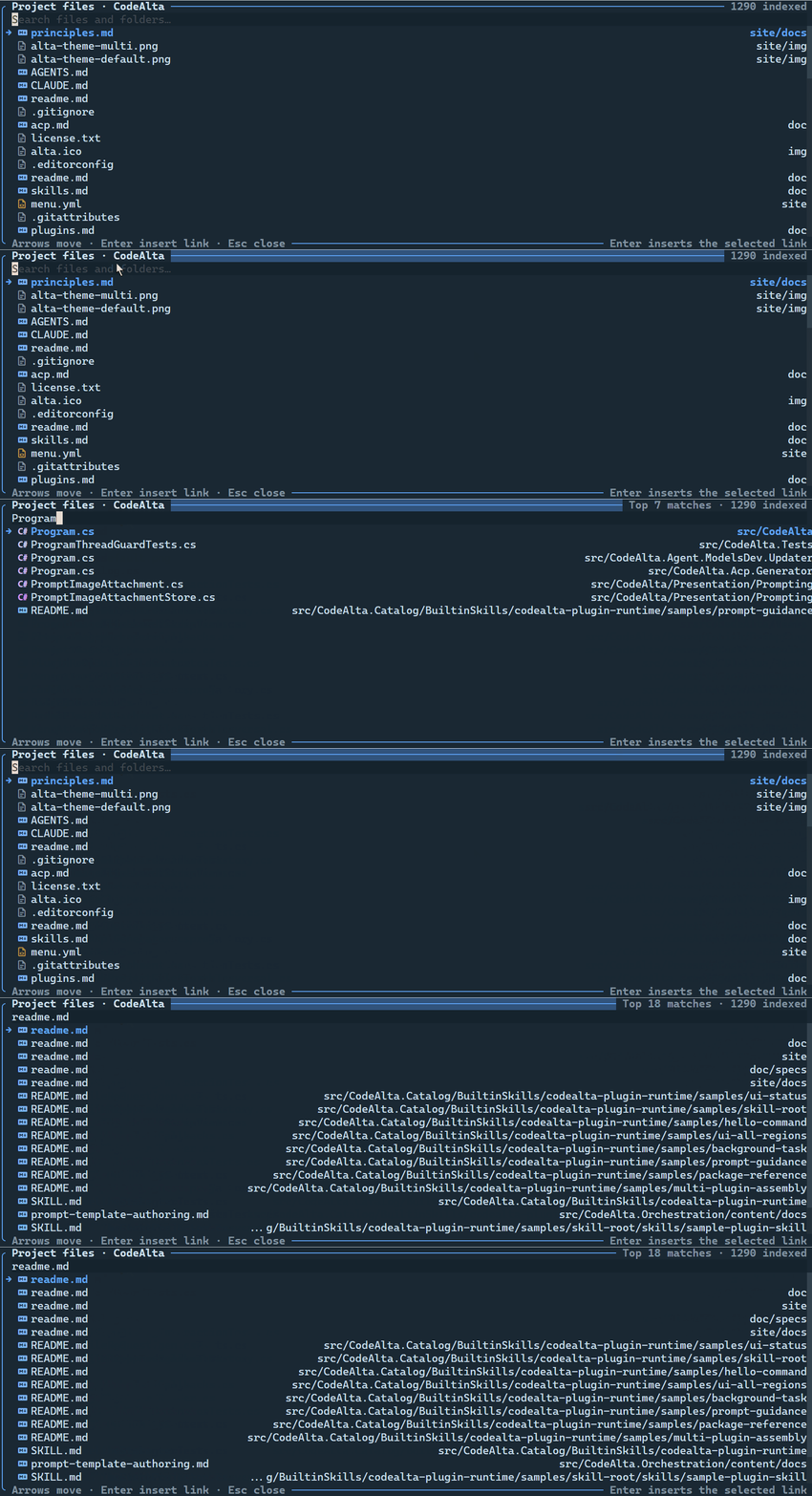
@ picker searches project files and folders, then inserts accepted entries as structured prompt attachments.Type @ in the prompt to search project files and folders. Accepted entries become Markdown links and are sent as structured attachments. You can also type raw references such as:
Attach only the files or folders that are relevant to the task. Smaller, focused context usually makes provider responses easier to review and keeps compaction pressure lower.
@src/CodeAlta/Program.cs
@"src/path with spaces/file.cs":10-40
Use Ctrl+E or /edit to open the same picker in editor mode.
Editor tabs
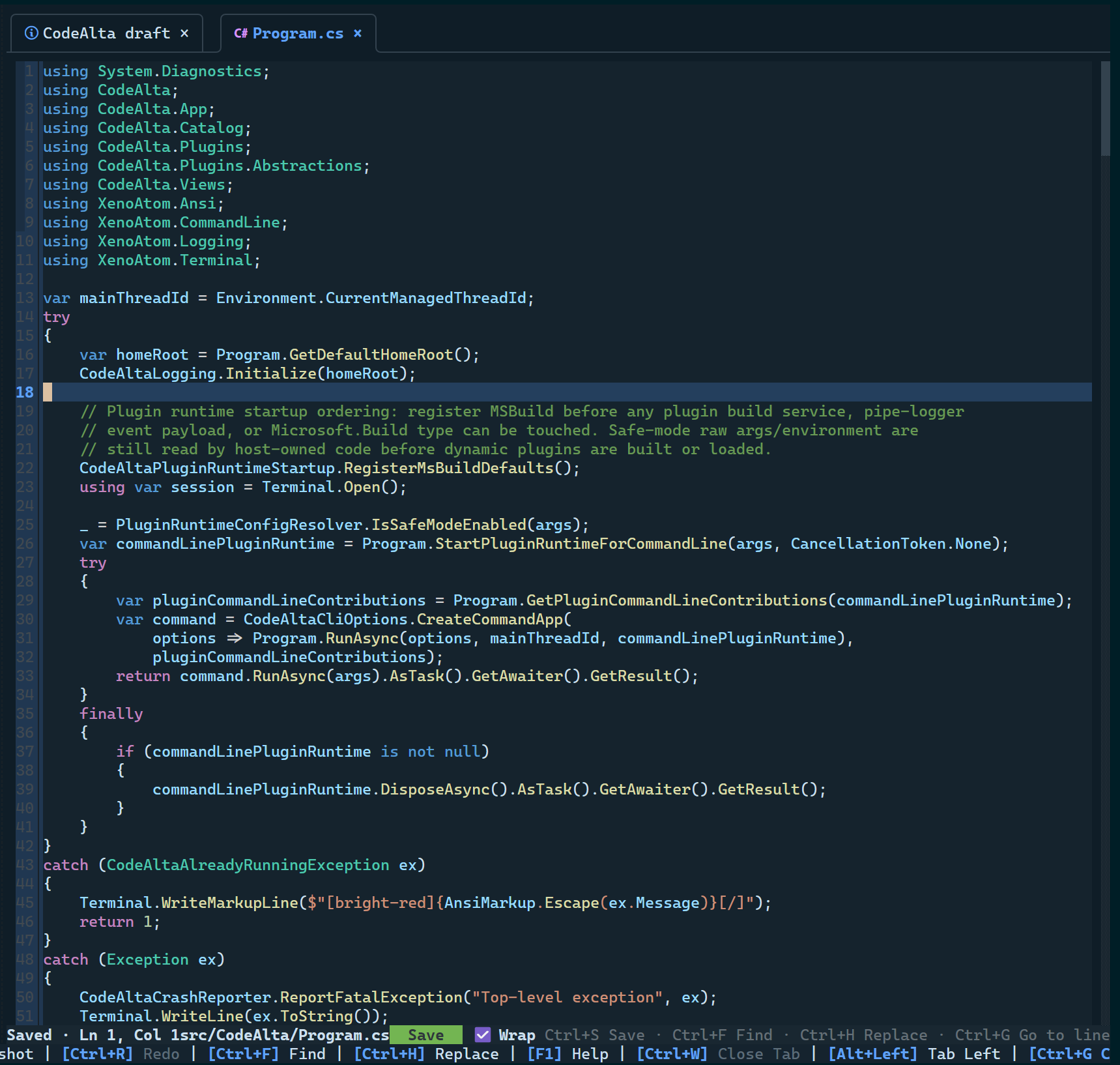
Editor tabs support TextMate syntax highlighting, line/column status, dirty markers, Ctrl+S save, reload prompts for on-disk changes, and close confirmation for unsaved edits. Editor tabs sit beside session tabs so you can inspect files without leaving CodeAlta.
Model Providers dialog
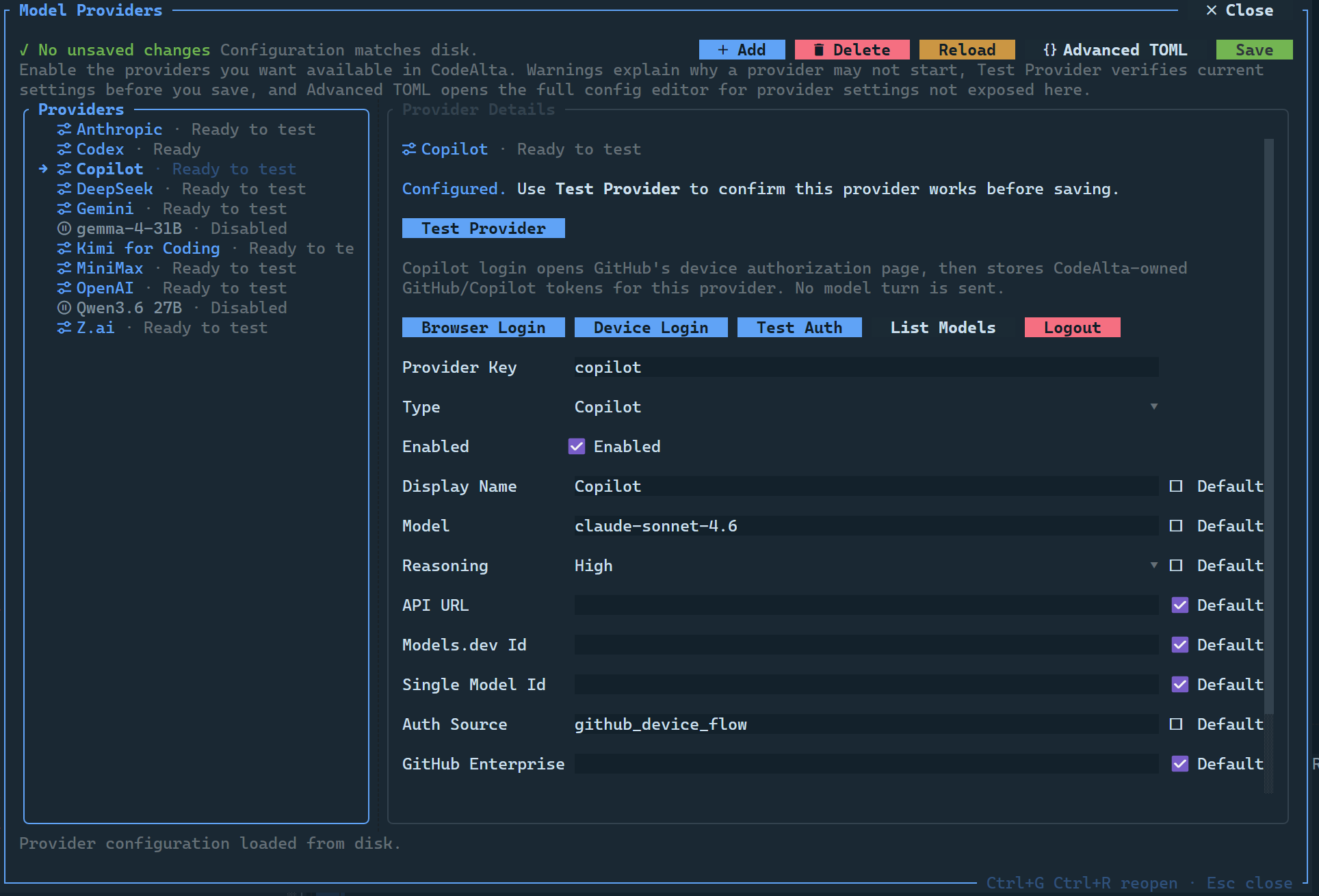
Open it with Ctrl+G Ctrl+R, /model_providers, or the provider summary. Use it to enable providers, enter credentials, test endpoints, handle Codex/Copilot login flows, refresh saved provider availability, and edit advanced TOML safely.
Prompt manager
Open it with Ctrl+G Ctrl+H or /prompt. The dialog opens on Agent Prompts, which lists built-in modes such as Default and Plan plus global/project custom prompts, shows which prompts are shadowed by overrides, and edits the selected prompt on the right. Agent prompt properties are name, description, system, and the Markdown body. The System Prompt tab lists system prompt files with the same override rules and lets you edit only global/project override bodies. Built-in prompts are displayed for inspection but are read-only; create a global or project prompt/system prompt with the same id to override one. Advanced prompt workflows can combine prompts with sessions, notes, reminders, asks, MCP, and skills; see Advanced Agent Workflows.
Model browser
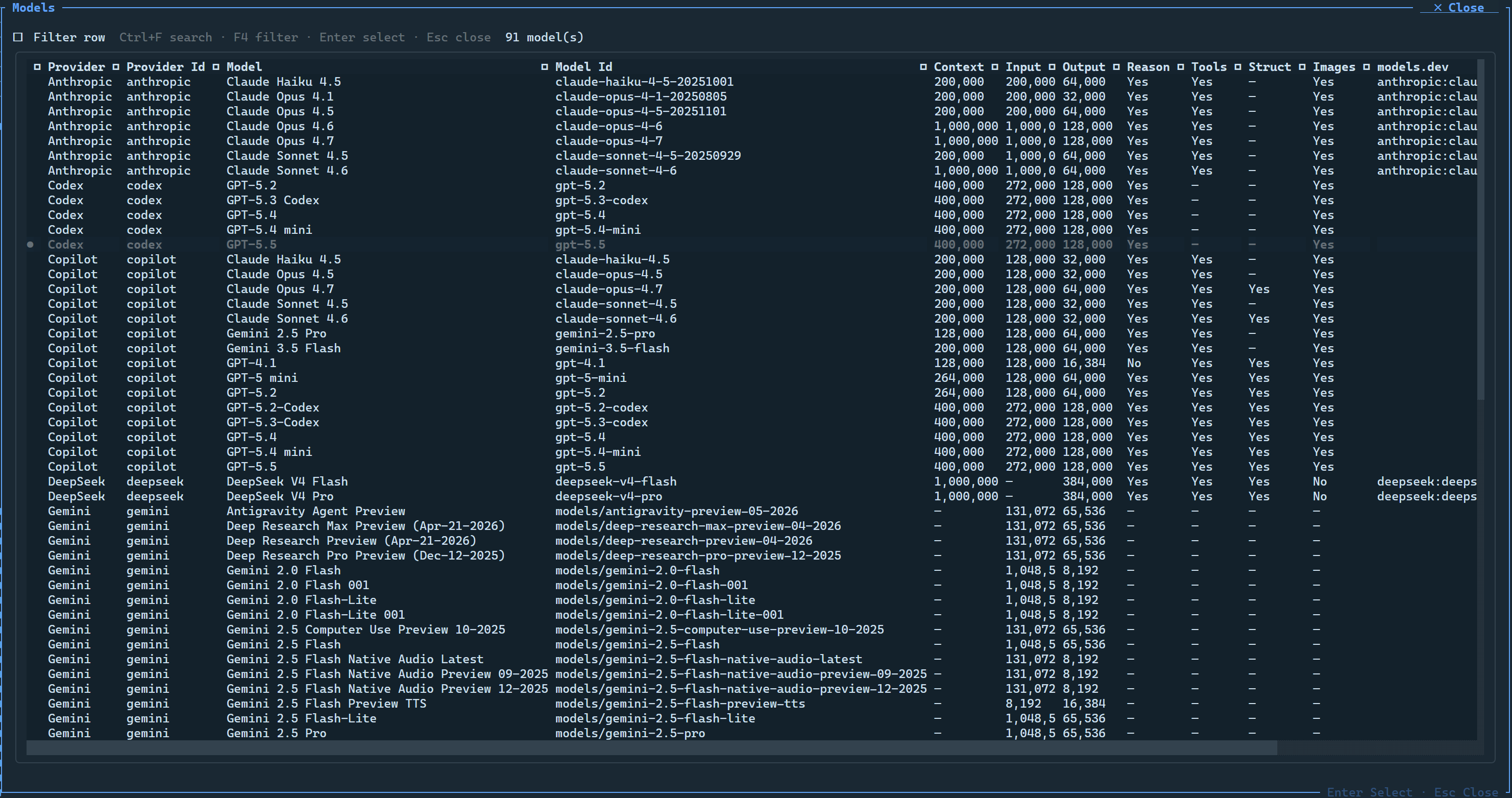
Open it with Ctrl+G Ctrl+O or /models. It shows provider/model metadata and copyable model refs such as codex:gpt-5.5@high. Use it to select the current model and verify whether reasoning/tool-call/image capabilities are available.
Context usage popup
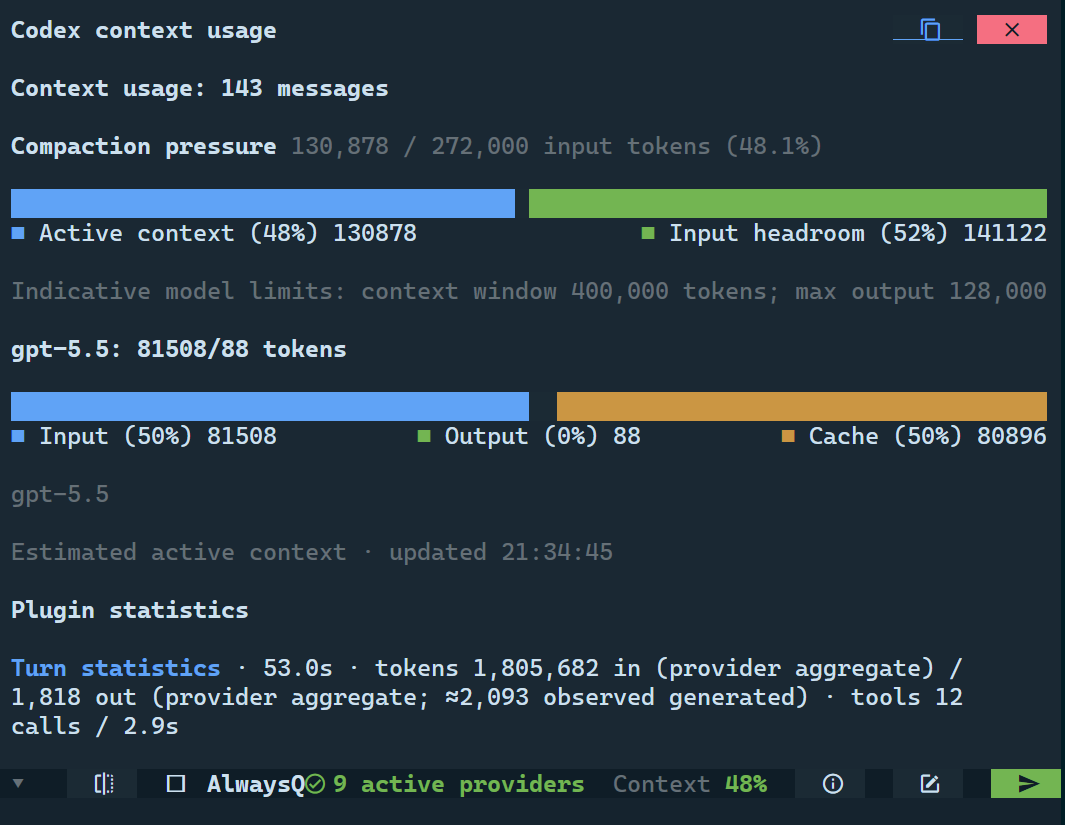
Open it with Ctrl+G Ctrl+U or the footer context indicator. The popup explains the current context denominator, active usage, compaction pressure, recent operation usage, and provider-specific usage details when available.
Session report
Open it with Ctrl+G Ctrl+T or the session info icon. The report summarizes selected-session scope, provider/model state, run status, queue state, and history/session details useful for troubleshooting or handoff.
Workspace settings
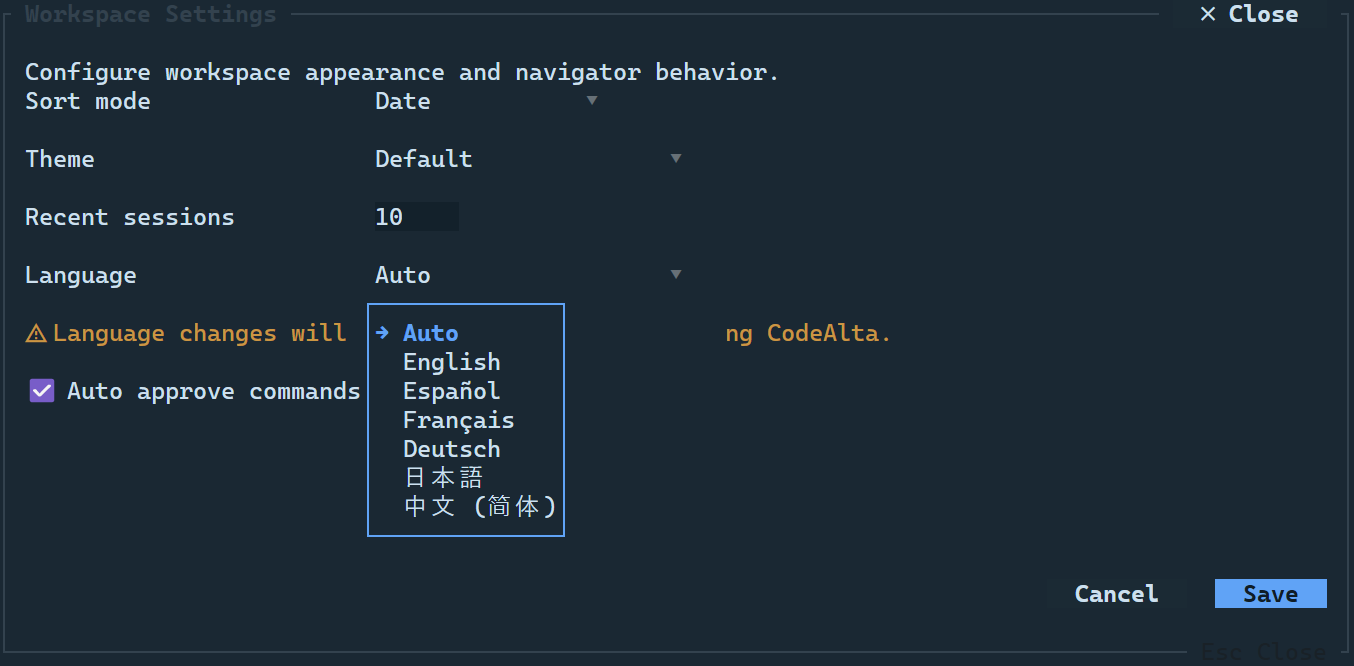
Open it with Ctrl+G Ctrl+W or /settings. Workspace settings cover the selected workspace/project behavior and are separate from the model-provider editor. You can also choose the UI language from Auto, English, Spanish, French, German, Japanese, and Simplified Chinese; language changes are saved with the workspace settings and fully apply after restarting CodeAlta.
About and updates
Open it with Ctrl+G Ctrl+A or /about. The dialog shows the animated CodeAlta logo, current version, copyright, and whether the startup update check found a newer .NET tool package.
New version toast
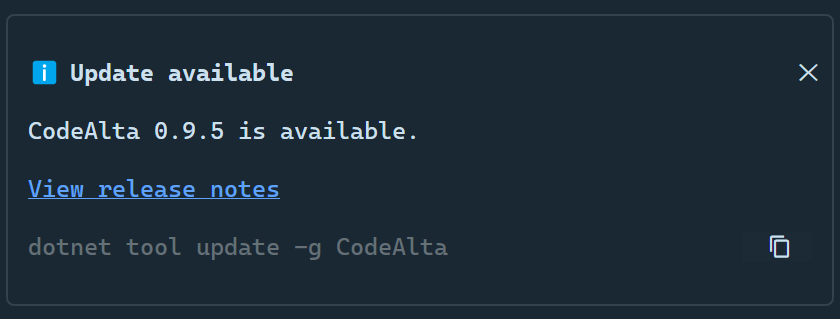
When the startup update check finds a newer CodeAlta package on NuGet, CodeAlta shows a non-blocking toast during the session. The toast includes the latest version and the matching dotnet tool update command, with a copy action for the command. CodeAlta does not update itself automatically; after you exit the terminal UI, it also prints the same command so you can run it in your shell.
Plugin management
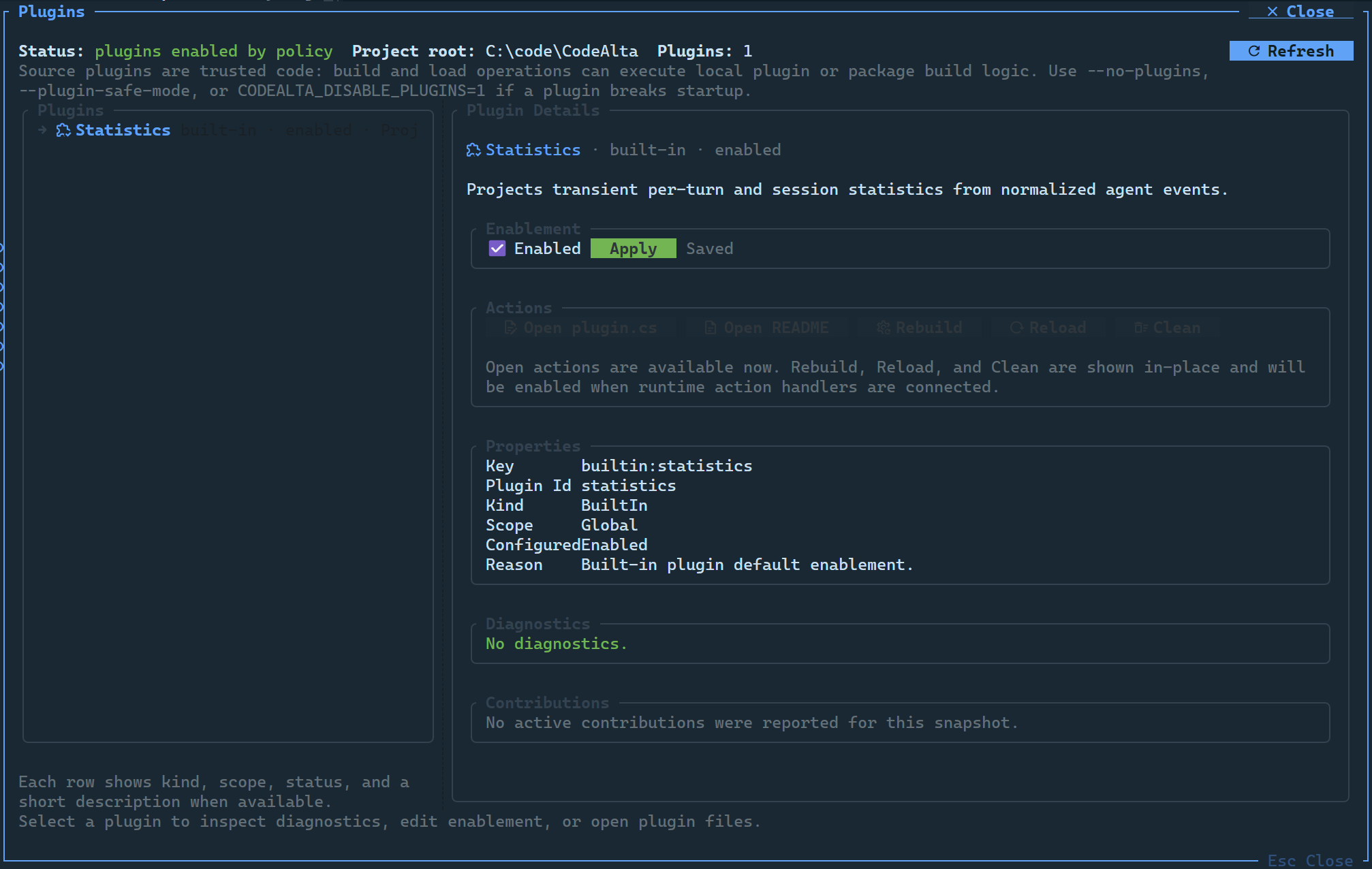
Open it with Ctrl+G Ctrl+N, /plugins, or /plugin. The dialog shows discovered global and project plugins, state, diagnostics, contributions, and actions for source or README files.
Skills management
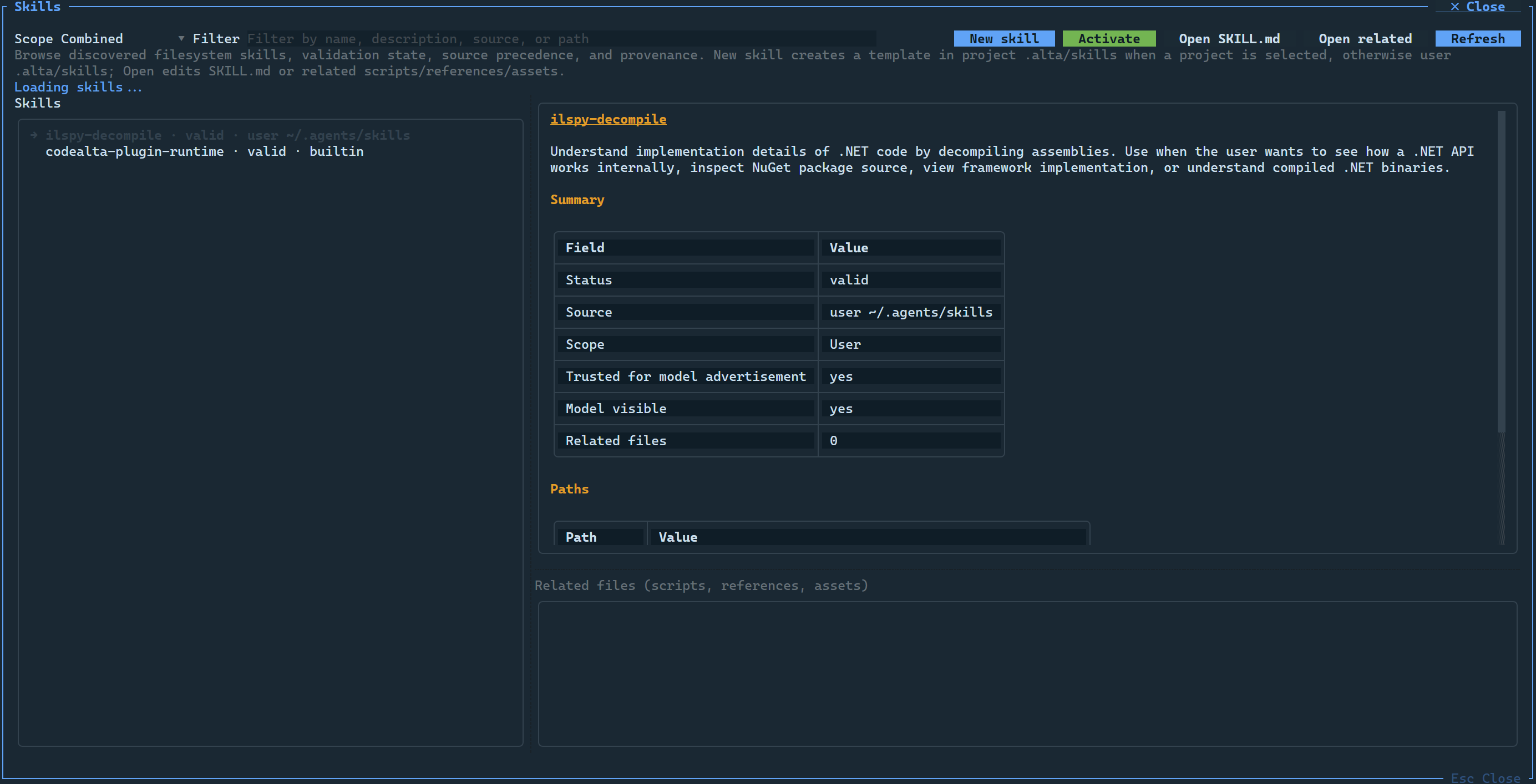
CodeAlta discovers Agent Skills-compatible SKILL.md packages from user and project locations. The skills dialog lets you inspect skills, open related files, activate enabled skills when the selected provider supports injected skill context, and manage enablement. Compact G and P checkboxes disable or enable a skill in global ~/.alta/config.toml or the selected project's .alta/config.toml; bulk actions can enable, disable, or invert the currently shown skills for Global, Project, or Both scopes. Disabled skills remain inspectable in the dialog but are not advertised to models and cannot be activated.
Logs viewer
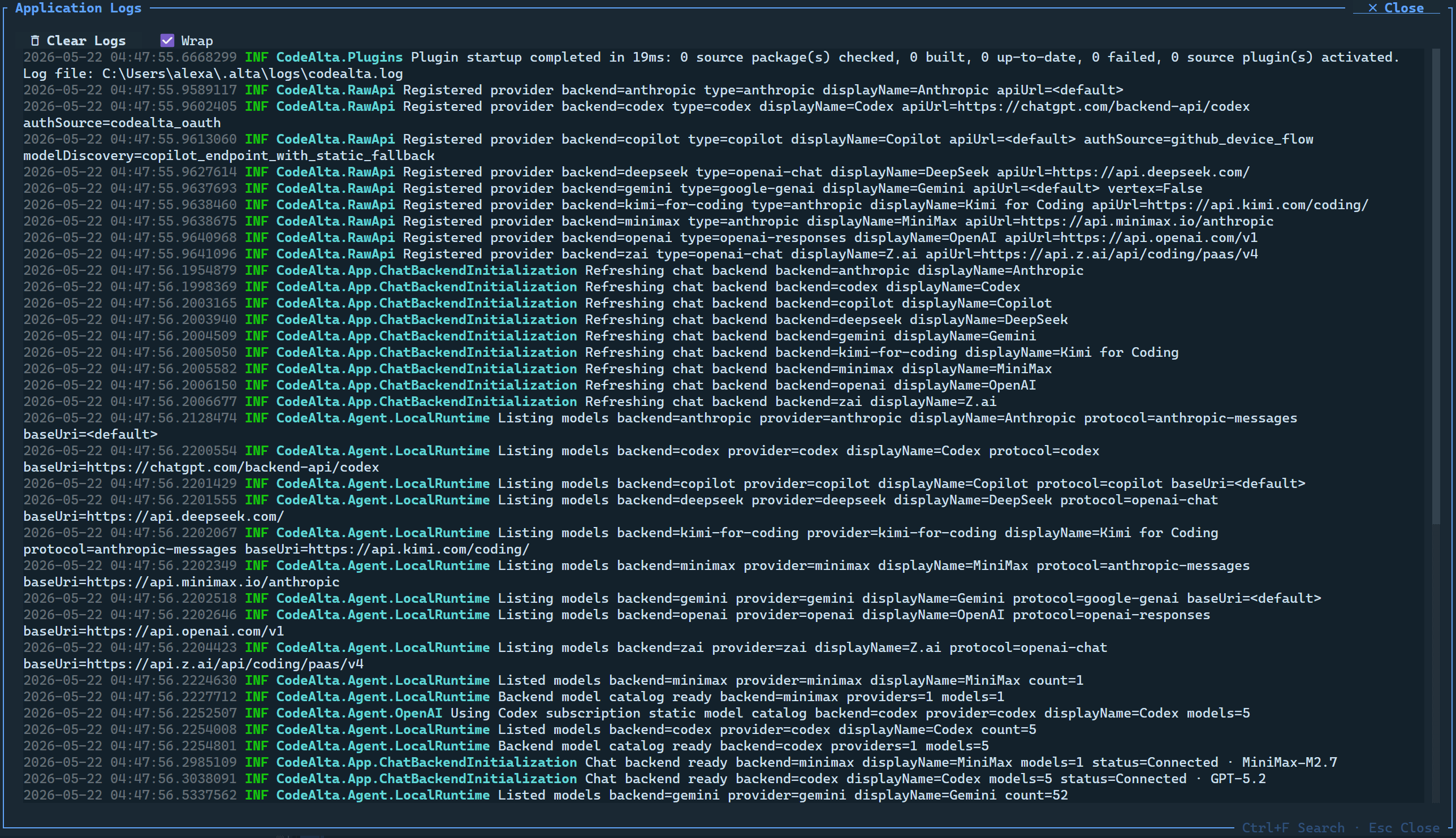
Open logs with Ctrl+G Ctrl+L, /logs, or the navigator footer. The log viewer replays diagnostic output from startup, supports search, wraps by default, and can clear the retained session log buffer.
Config recovery editor
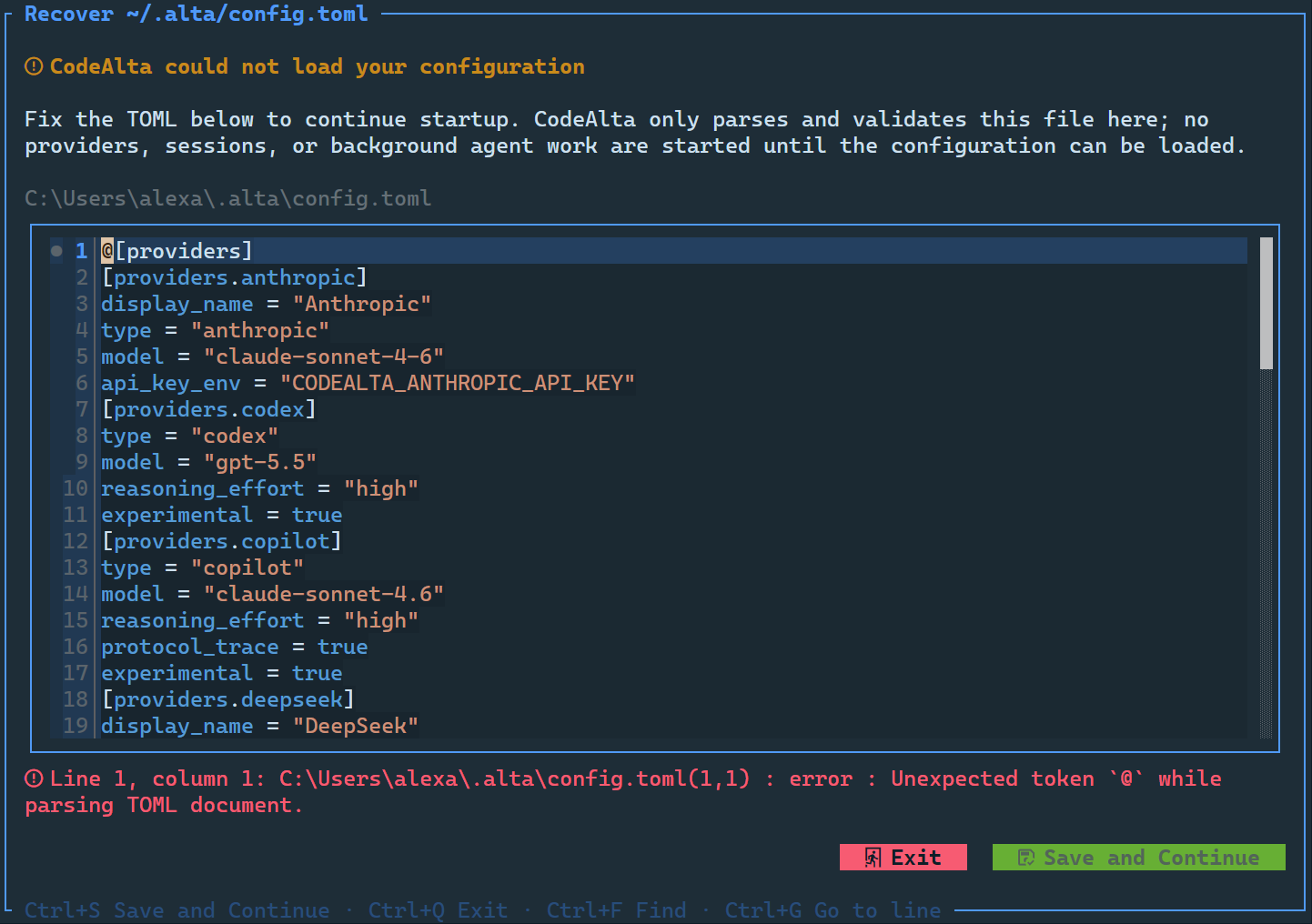
If ~/.alta/config.toml is invalid at startup, CodeAlta opens a recovery editor with TOML highlighting, an error marker, live parse feedback, Ctrl+S Save and Continue when valid, and Ctrl+Q Exit.