Labels
A label groups projects inside a space: Infra, Helm charts, Client X. CodeAlta Desktop lists the projects of the shown space under their labels, so a long list of projects becomes a few short ones.
- A label has a name, an icon and a color for its badge.
- A label can be under another label: Infra › Helm charts.
- A project can have several labels. It is listed under each of them.
- A label is in one space, or in every space. A label under another one is in the space of the label above it.
CodeAlta TUI lists the projects without their labels, and keeps them.
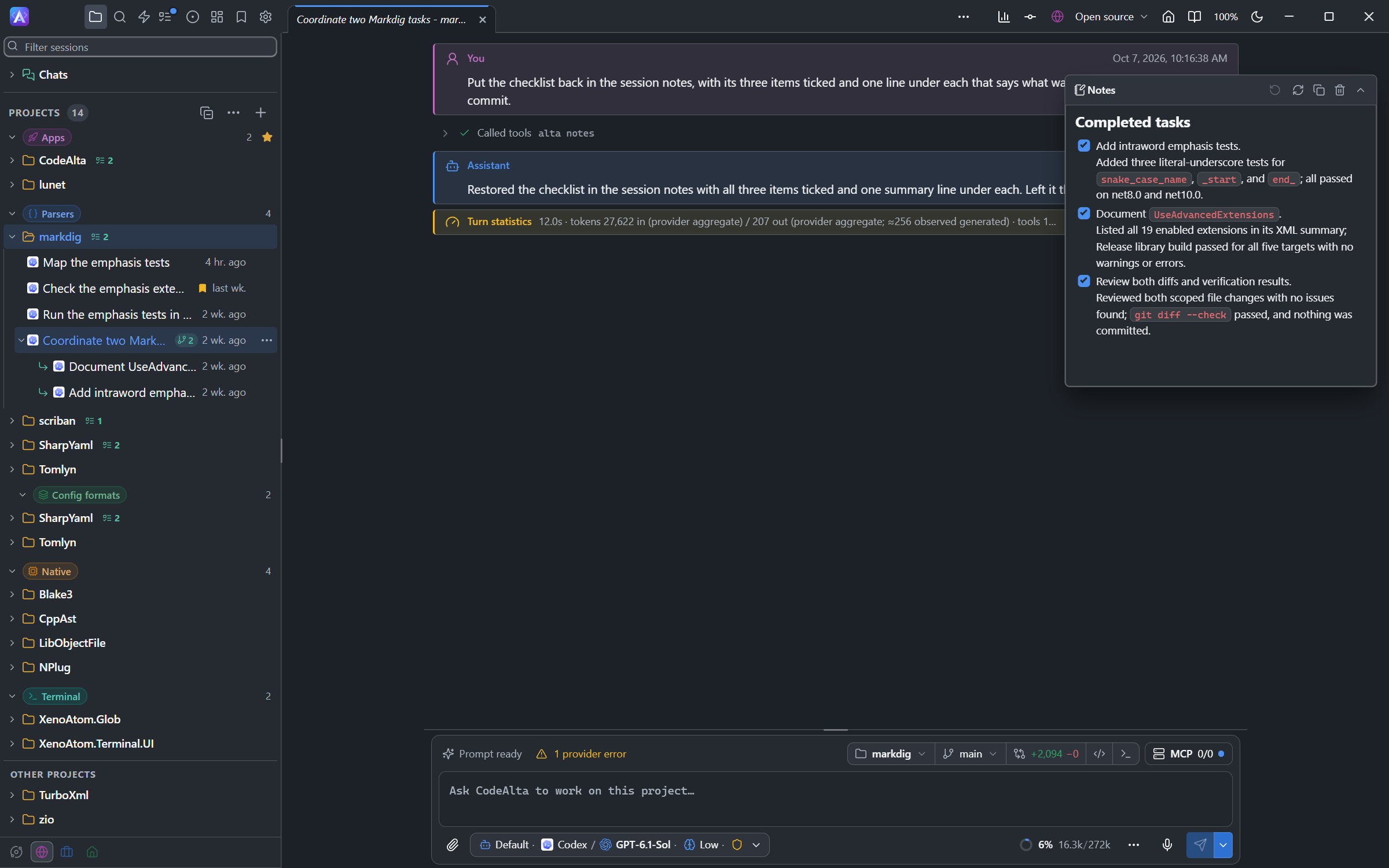
The Explorer
Each label is a title with its badge, above its projects, and the number of projects it has. The projects of a label stay where the other projects are: a label never pushes them to the right. A label under another label steps in a little, once, whatever its depth.
- The chevron of a label folds its projects and the labels under it.
- Favorites come first, then the favorite labels, then the other labels, then Other projects, the projects without a label.
- A favorite label under another label moves up alone and shows its path, such as Infra › Helm charts. Its parent stays in place.
- The filter at the top of the sidebar keeps the labels that have a project that matches.
In the … menu of PROJECTS, One list lists the projects without the titles: each project shows its labels as small badges after its name. Group by labels brings the titles back. This choice belongs to the window.
Organize labels in the Explorer
| To | Do |
|---|---|
| Create a label | … of PROJECTS > New label… |
| Rename it, change its icon or color | ⋯ of the label > Edit label… |
| Create a label under it | ⋯ of the label > New label under it… |
| Keep it on top | The star of the label |
| Move it | Drag its title above or below another label, or onto a label to put it under it. Or Move up, Move down, Move to the top in its menu. |
| Give a label to a project | Drag the project onto the label, or ⋯ of the project > Labels… |
| Move a project to another label | Drag it from one label to the other. Hold Ctrl to keep the first label too. |
| Take a label from a project | Drag the project onto Other projects, or uncheck the label in Labels… |
| Delete a label | ⋯ of the label > Delete label…. Its projects stay, and the labels under it take its place. |
A label created from the Explorer is in the shown space, or in every space when the shown space is Default.
Settings > Labels
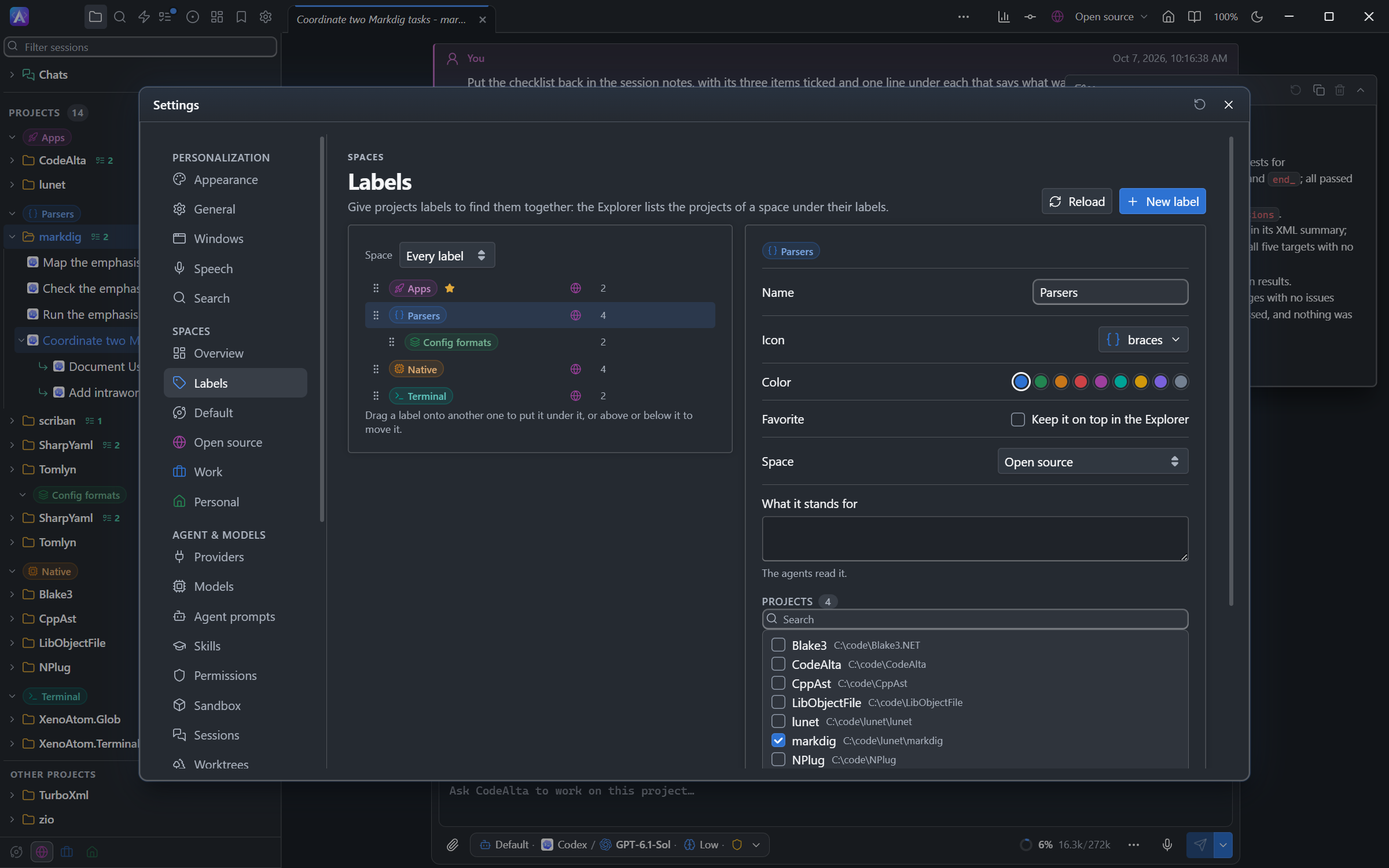
Settings > Labels, under Spaces, shows every label as a tree. Drag a label to move it, or use the arrows of its row: up, down, under the label above, out of its parent. Select a label to change its name, icon, color, space, what it stands for, and its projects.
Deleting a space deletes its labels.
Agents and labels
Agents read and change labels with alta label, and list the projects of a label with alta project list --label. Ask in your own words:
Run the tests of every project labeled Infra.
Label the three Helm projects "Helm charts", under Infra.
- An agent sees the labels of its space and those of every space.
- The labels it creates are in its own space.
- What it stands for helps an agent choose the right label.
Files
Each label is a Markdown file in ~/.alta/labels/, named after its id. The id comes from its first name and does not change when you rename or move it. A project names its labels in its own file, labels: [infra, helm-charts].
---
id: helm-charts
kind: label
name: Helm charts
icon: layers
color: "#238551"
order: 2
parent: infra
---

Helm charts deployed by the platform team.
space is written only for a label at the top, and favorite: true only for a favorite.