Spaces
A space is a named group of projects that you work on together: your job, your personal projects, the open source you contribute to. CodeAlta Desktop shows one space at a time, with its projects, its sessions and its tabs.
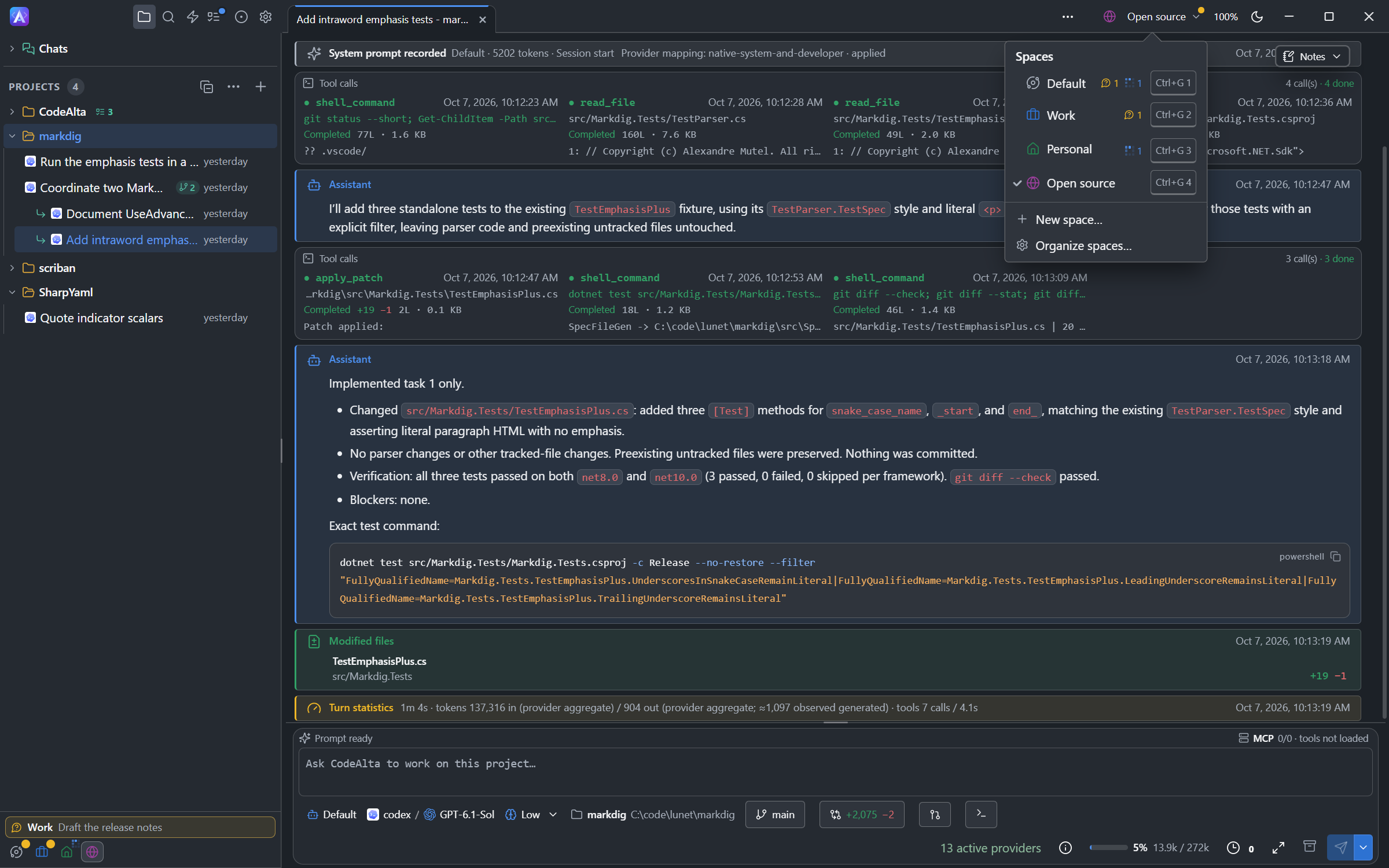
- The Default space holds every project. It is always there and cannot be deleted.
- You create the other spaces. A project can be in several spaces at once.
- A space has a name, an icon, a color and a line that says what it is for.
- Chats, the sessions that belong to no project, are shown in every space.
The first time CodeAlta Desktop starts, it creates two empty spaces, Work and Personal. Fill them, rename them or delete them: a space you delete does not come back.
The space switch
The space switch is in the title bar, before the zoom and the theme switch. It shows the icon and the name of the space the window shows. With the Default space alone, it is an icon.
Click it, or press Ctrl+G Ctrl+V, to open the list of your spaces:
- choose a space to show it. Each space has its key beside it, from
Ctrl+G 1toCtrl+G 9, and marks that say what its sessions are doing; - New space… creates a space;
- Organize spaces… opens Settings > Spaces.
When you show another space, the Explorer lists the projects of that space, and the tabs change to the ones you left there: sessions, code editors, Changes, terminals, and the Work items, Issues and Automations tabs, with their layout. Each space has its own tabs, and they come back when you show the space again, also after a restart.
- Sessions keep running while their space is not shown.
- A prompt you were typing is kept.
- If code editors hold unsaved changes, CodeAlta asks first: Save, Discard or Cancel.
Create a space
Choose New space… in the space switch, or run /new_space.
- A row of ready-made spaces sets a name, an icon and a color in one click: Work, Personal, Open source, Experiments, Learning and Clients. A name you already use is not offered.
- Or type a Name and choose an Icon and a Color. The icons are the general icons and the brand logos.
- What it is for is a line for you and for the agents, for example "Projects of the Contoso contract".
- Tick the projects of the space in the list.
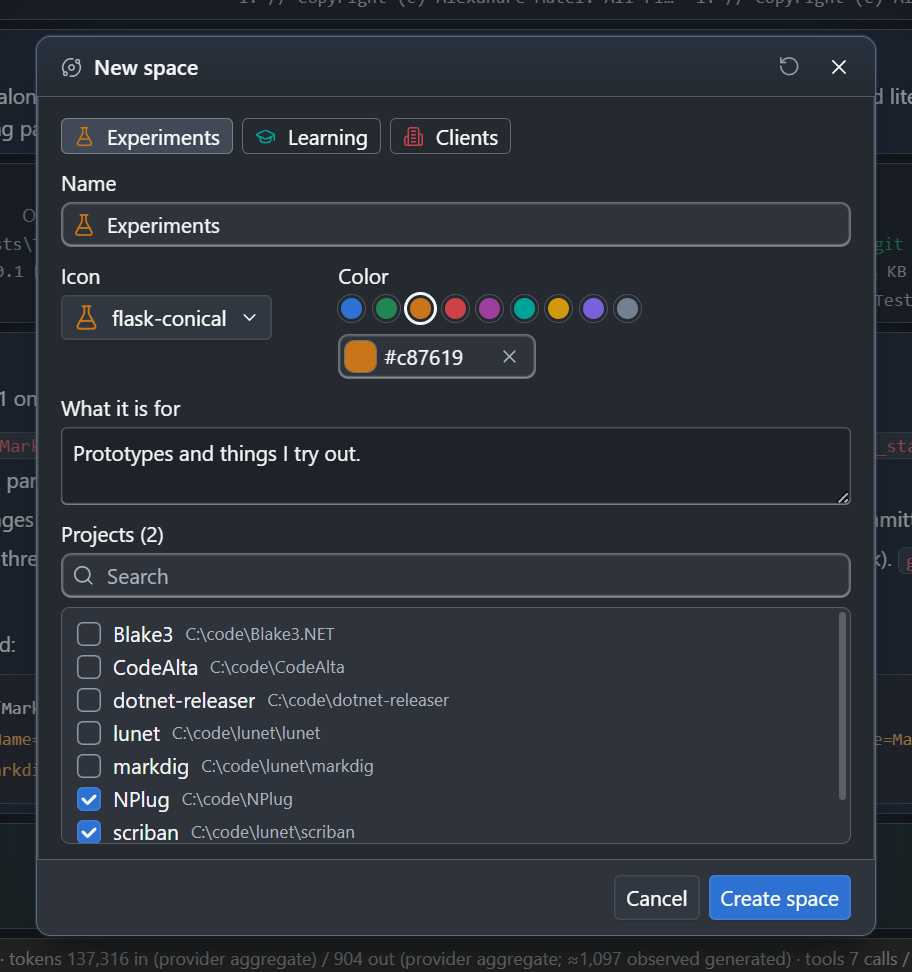
A space created from the title bar is shown at once.
An empty space says No project in this space yet. Its Add projects… button opens Settings > Spaces.
Add a project folder to a space
Add a folder with the + button of the Explorer, or with Open project, while a space is shown: the new project joins that space. A folder that is already a project of another space joins the shown one too.
Organize spaces
Settings > Spaces shows every space with its projects. Open it with Organize spaces… in the space switch, or with /spaces.
- On the left, the Default space lists every project, each with the icons of the spaces it is in.
- On the right, each space has a card: its icon, its name, its color, What it is for, and its projects.
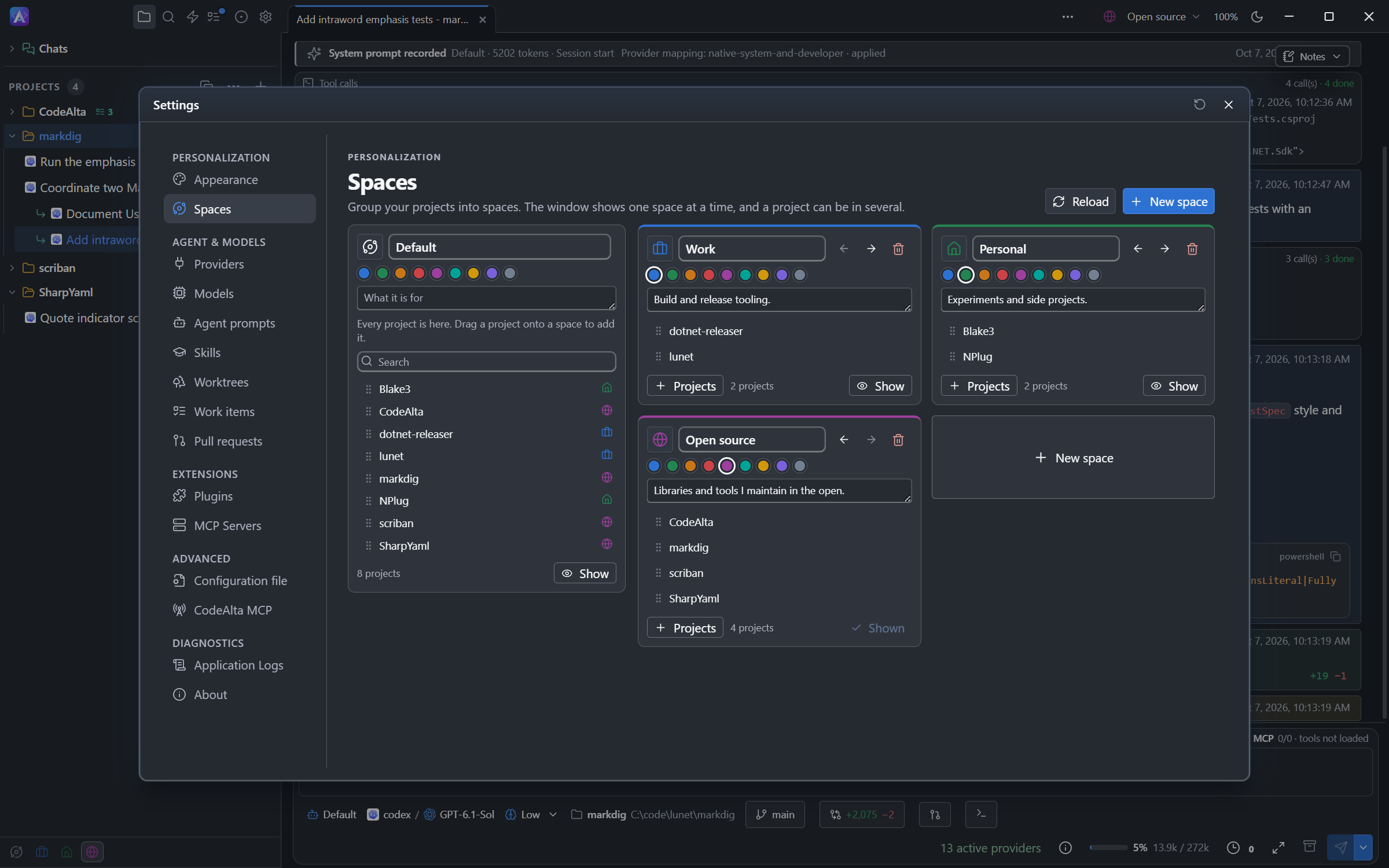
Change the name, the icon, the color or the description on the card. The Default space can be changed the same way. Every change is saved at once.
To choose the projects of a space with the mouse:
| Drag a project | What happens |
|---|---|
| From the list onto a card | The project joins that space. |
| From a card onto another card | The project moves to the other space. With Ctrl or Alt held, it stays in both. |
| From a card back to the list | The project leaves that space. |
With the keyboard, Projects on a card opens a checklist of all the projects: tick the ones the space holds. The × of a project on a card removes it from that space.
A card also has:
- Show, to show that space in the window;
- two arrows, to move the space before or after its neighbor in the list;
- a remove button, which asks before it deletes the space.
Deleting a space leaves its projects, their folders and their sessions alone. The projects stay in the Default space and in their other spaces.
What follows the shown space
Everything the window lists is what the shown space has:
- the Explorer, with the sessions, the terminals and the work item marks of its projects;
- the search (
Ctrl+P): projects, sessions and files; - Open project and the browser of saved sessions;
- All projects in the Work items tab, and the project list of the Issues tab;
- the previous and next project keys.
Automations belong to the application: their tab lists every project in every space.
When you open a session whose project is not in the shown space, from a link, a work item or an automation, the window shows the Default space first.
What happens in the other spaces
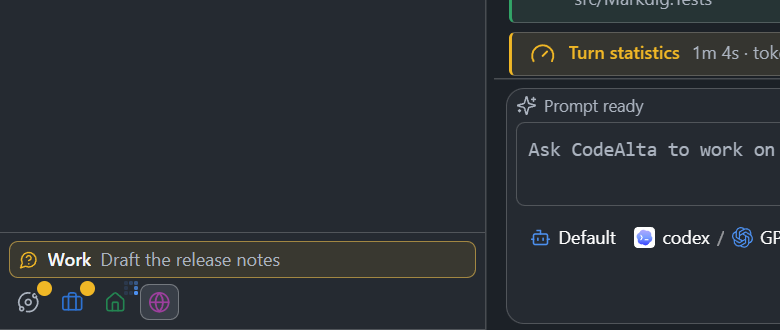
With more than the Default space, the foot of the Explorer has one small button for each space, with its icon. The shown space is marked. Click a button to show its space.
A mark on a button says what the sessions of that space are doing:
| Mark | Meaning |
|---|---|
| Waiting | A session waits for you: a question, a command to review, or a form to fill. |
| Failed | The last run of a session failed. |
| Running | Sessions are running. |
| Background | A provider works in the background. |
When a session waits for you or failed in a space that is not shown:
- a line above the buttons names the space and the session. Click it to show that space and open that session;
- a dot appears on the space switch of the title bar;
- a message says so once when a session starts to wait, with a Show button.
Keys and commands
| Action | Shortcut or command |
|---|---|
| Open the space switch | Ctrl+G Ctrl+V or /space |
| Show the space at a place of the list (Default is 1) | Ctrl+G 1 to Ctrl+G 9 |
| Previous space / next space | Ctrl+Alt+PageUp / Ctrl+Alt+PageDown, or /space_prev / /space_next |
| Create a space | /new_space |
| Organize spaces | /spaces |
The previous and next space keys also work while a terminal has the keyboard. All of these commands are in the search (Ctrl+P) and in the help (F1).
Agents and spaces
Sessions read and change spaces with alta space. Ask in your own words:
Which projects are in my Work space?
Create a space named Clients for the two Contoso projects, and show it.
An agent reads What it is for of each space, so a clear description helps it choose the right projects. When a session lists the projects, it gets those of the space the window shows, unless you ask for another space or for all of them.
An agent shows another space in the window only when you ask for it.
Files
Each space is a Markdown file in ~/.alta/spaces/, named after the id of the space. The id comes from the first name of the space, in lower case with - between words, and stays the same when you rename the space.
---
id: open-source
kind: space
name: Open source
icon: globe
color: "#9d3f9d"
order: 3
---

Libraries I maintain and the projects I contribute to.
The text under the header is What it is for. order is the place of the space in the list. The Default space has a file, default.md, only once you change its name, its icon, its color or its description.
The spaces of a project are written in the file of the project, ~/.alta/projects/<name>.md, as one line of its header that lists the ids of its spaces:
spaces: [work, open-source]
A project that is only in the Default space has no spaces line. An id that no space has is ignored.
Which space the window shows, and the tabs of each space, are kept with the window, like its theme.
CodeAlta TUI
CodeAlta TUI does not show spaces: it lists every project. Its agents still have the alta space commands, to read and organize the spaces that CodeAlta Desktop shows.