Issues and pull requests
CodeAlta Desktop shows the issues and the pull requests of a project where you work, and starts a session on one of them in a click.
It finds the service from the git remote of the project. Nothing has to be configured, except for Jira.
| Service | Issues | Pull requests | Sign-in |
|---|---|---|---|
| GitHub | Issues | Pull requests | gh auth login, or GITHUB_TOKEN |
| GitLab | Issues | Merge requests | glab auth login, or GITLAB_TOKEN |
| Azure DevOps | Work items | Pull requests | az login, or AZURE_DEVOPS_EXT_PAT |
| Bitbucket | Issues | Pull requests | BITBUCKET_ACCESS_TOKEN |
| Jira | Issues | The Jira plugin |
A public repository is read without signing in. A private one needs the sign-in of its service.
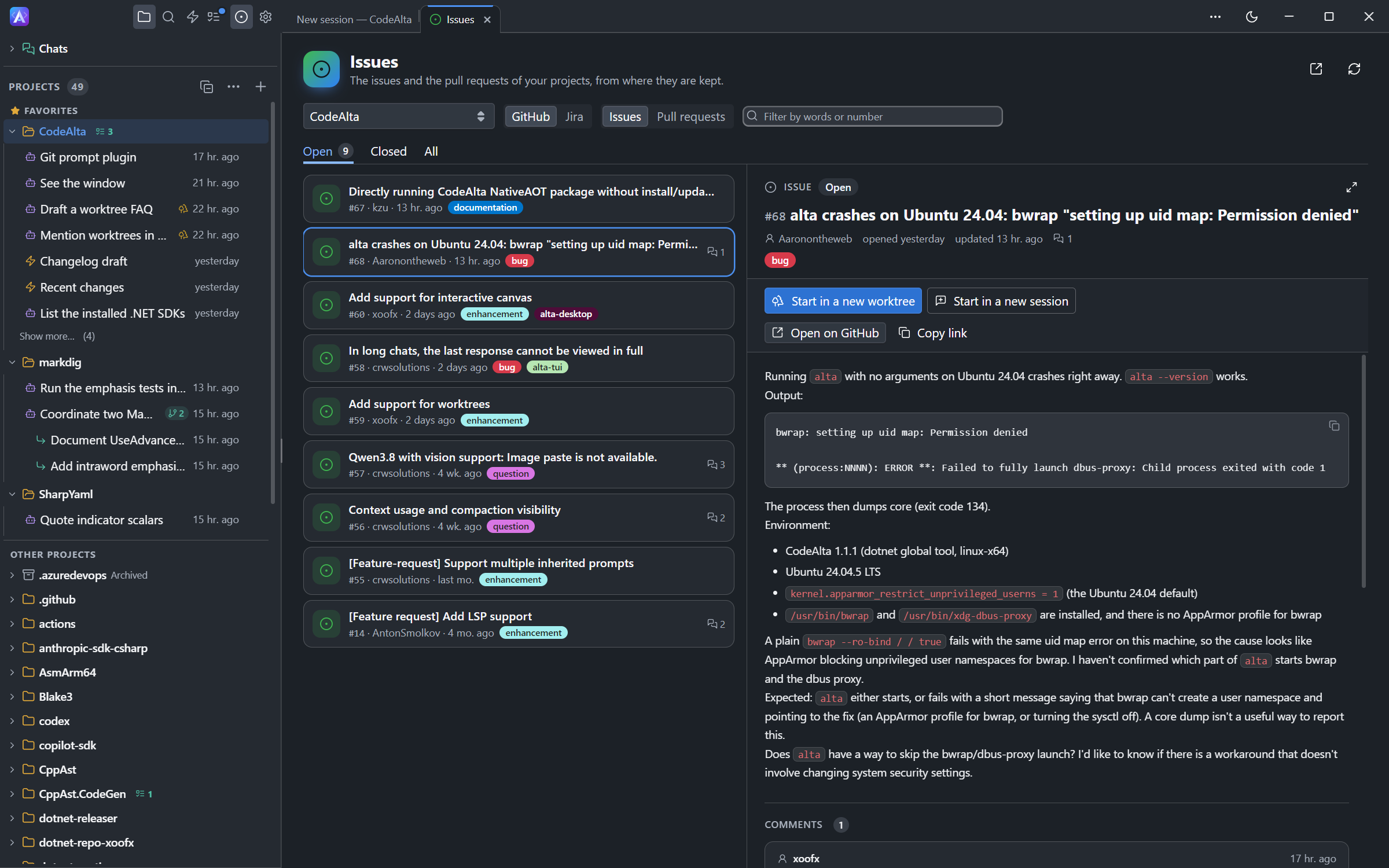
The Issues tab
Open it with the issue icon of the activity bar, or with Ctrl+G Ctrl+B.
- Choose the project, then Issues or Pull requests.
- Open, Closed, Merged and All are separate lists, the most recently updated first.
- Type words or a number to filter the list.
- Select an item to read its description and its comments. Double-click it, or use the expand button, to read it in a larger window.
A project that keeps its code on one service and its issues in Jira shows both: choose the tracker beside the project.
Work on an item
An open item has two buttons:
| Button | What happens |
|---|---|
| Start in a new worktree | A new session works on it in its own worktree, on a new branch. |
| Start in a new session | A new session works on it in the folder of the project. |
The session receives the title, the link and the description of the item. For a pull request it is asked to review it, not to merge it.
Open on GitHub (or the name of the service) opens the item in your browser, and Copy link copies its address.
Create a pull request
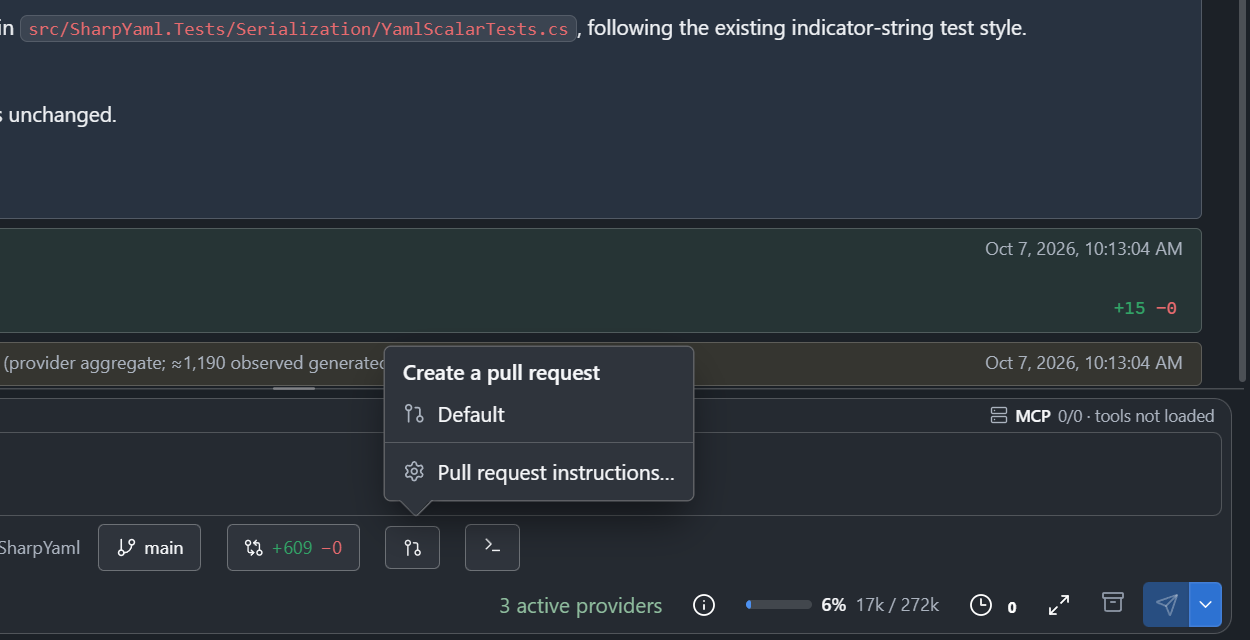
When a session has finished its work, the pull request button under its prompt asks it to open a pull request. The session puts its work on a branch, commits it, pushes it and answers with the link. It never merges.
The button waits until the session is idle and the prompt is empty.
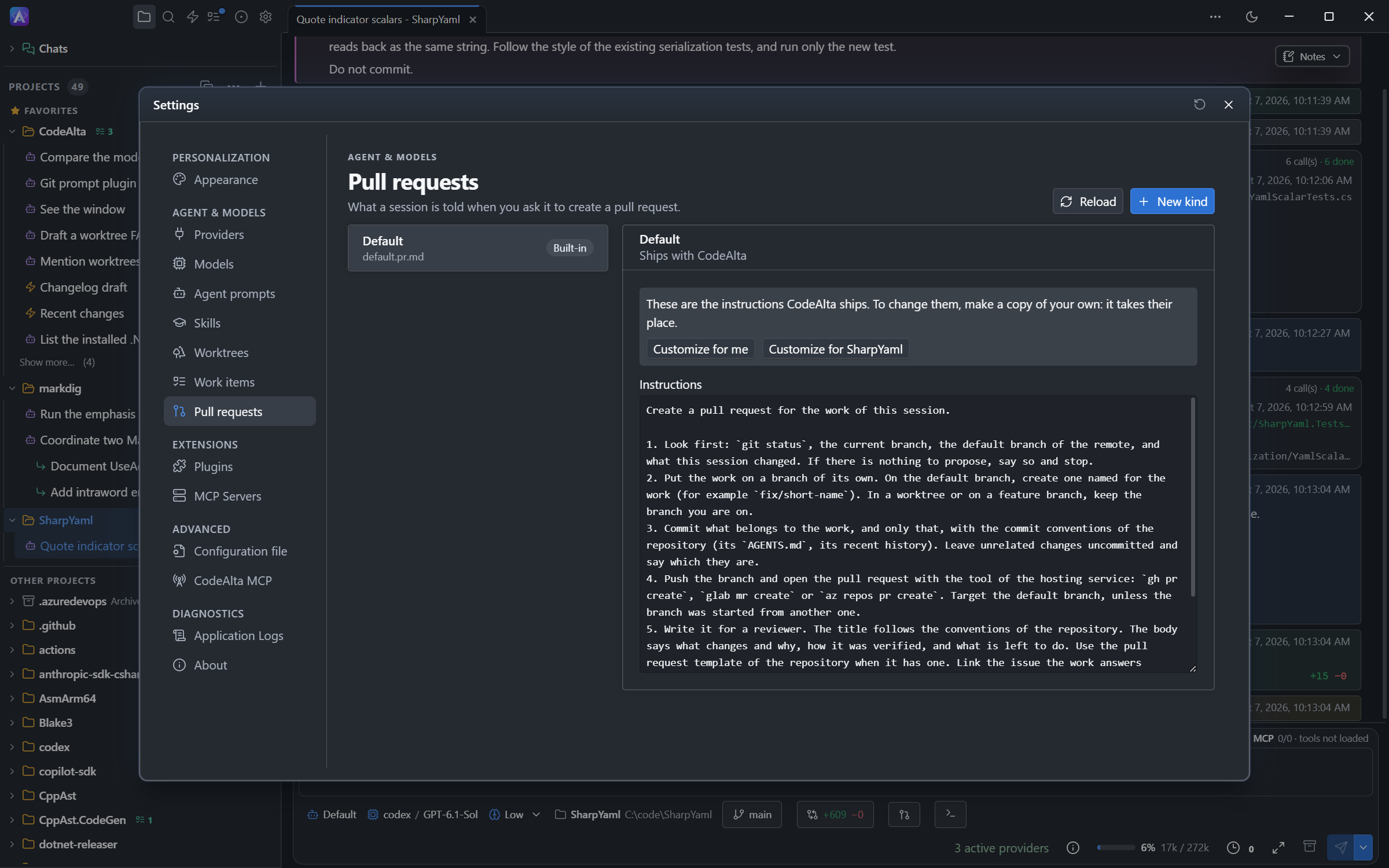
What the session is told is listed in Settings > Pull requests. CodeAlta ships one kind, Default. Add your own kinds there, for you or for one project: a release, a hotfix, the checklist of your team. With several kinds, the button lets you choose.
| Kind | File |
|---|---|
| Yours, for every project | ~/.alta/prompts/pull-requests/<name>.pr.md |
| Of one project | <project>/.alta/prompts/pull-requests/<name>.pr.md |
A file named default.pr.md replaces the built-in instructions. A kind of the project replaces one of yours with the same name.
For agents
A session reads the same issues and pull requests with alta issue, wherever they are kept:
Look at the open issues of this project and pick the ones we can close with the last release.
In a prompt
Type # in a prompt to insert a link to an issue or a pull request of the project. See the Git plugin.