Worktrees
A session can work in a git worktree: a second folder of the same repository, on a branch of its own. The agent changes files there, and your project folder stays as it is. Several sessions can then work on the same project at the same time.
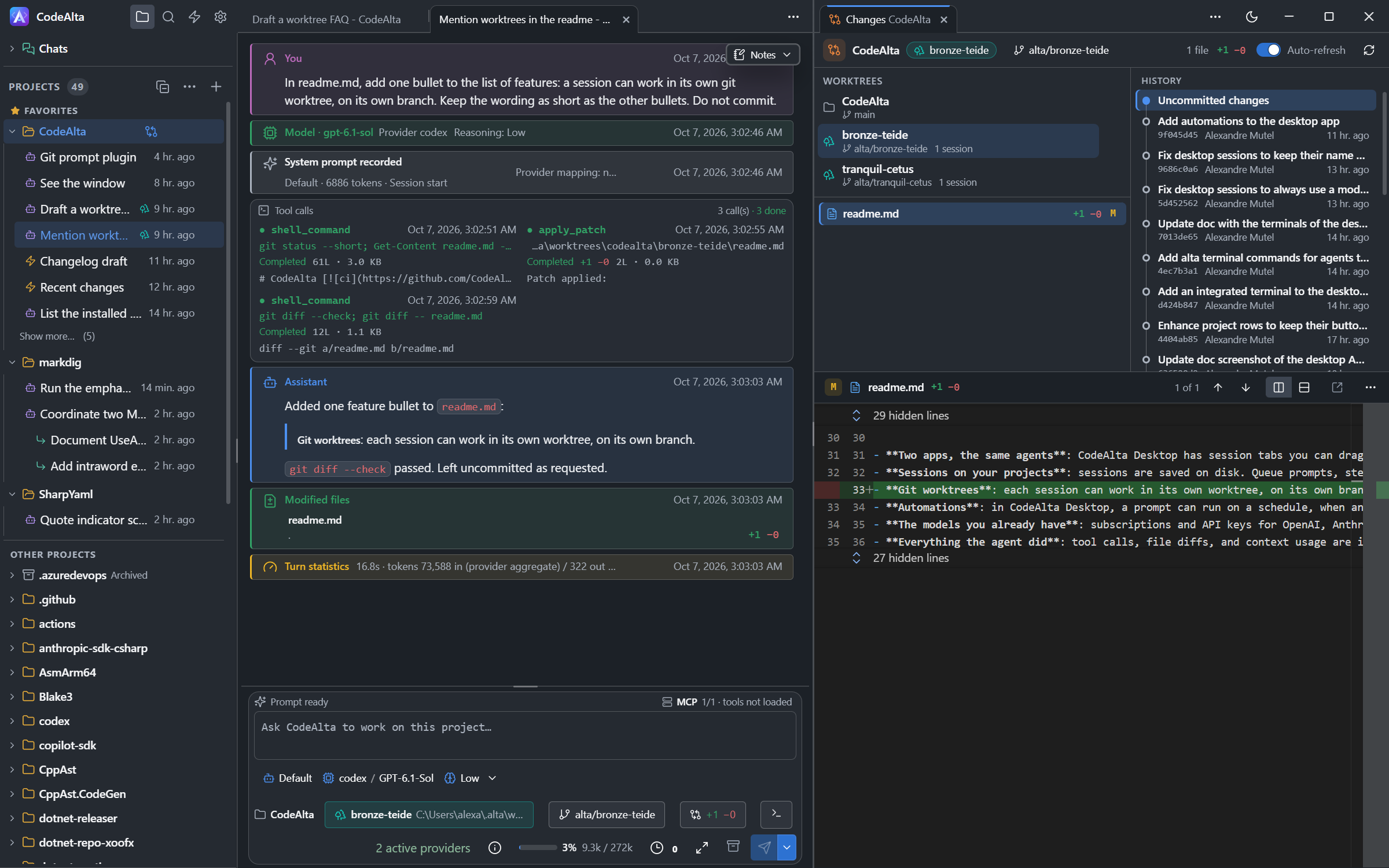
You create and remove worktrees in CodeAlta Desktop. A session that works in one also runs in CodeAlta TUI.
Start a session in a worktree
- Open a new session in a project that is a git repository.
- Under the prompt, click Project folder and choose New worktree.
- Keep Current commit, or choose the branch to start from.
- Send your prompt.
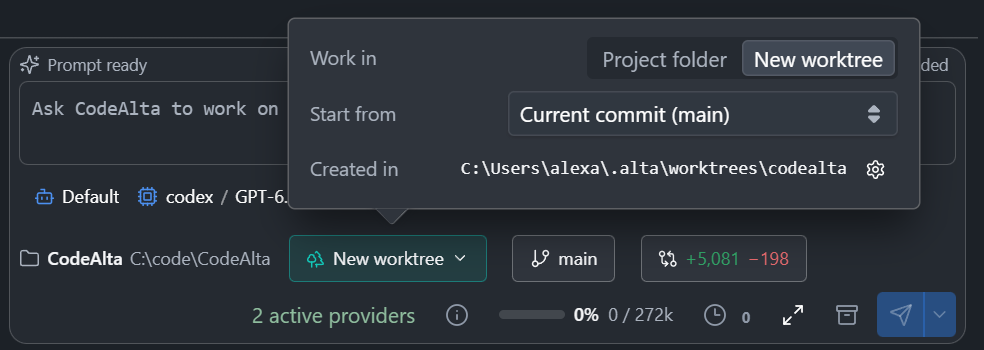
CodeAlta creates the worktree on a new branch, alta/<name>, and starts the session in it. A worktree starts from a commit: changes you have not committed stay in the project folder.
The choice is kept for the project. Choose Project folder to go back.
Know where a session works
- Under the prompt, the worktree, its folder and its branch are shown in turquoise.
- In the sidebar, a session that works in a worktree has a tree mark.
- Session info shows the folder of the worktree.
Manage worktrees
The Changes tab lists the worktrees of the project above the files.
- Click a worktree to see its changes and its commits.
- Click the trash button of a worktree to remove it. CodeAlta asks first, and asks again when the worktree has changes that are not committed.
- Click the branch, there or under the prompt, to switch to another branch or to create one.
You cannot remove a worktree, or change its branch, while a session is working in it.
Where worktrees are stored
Open Settings, then Worktrees.
| Choice | Folder |
|---|---|
| In your CodeAlta folder | ~/.alta/worktrees/<project>/<name> |
| Inside each project | <project>/.alta/worktrees/<name>, which git ignores |
| In a folder you choose | <folder>/<project>/<name> |
A worktree gets a name of two words, such as quiet-heron or amber-denali.
Good to know
- When a worktree is removed, its sessions continue in the project folder.
- The code editor shows the files of the project folder. Use the Changes tab to read the files of a worktree.
- The branch of a removed worktree is kept when it has commits that are in no other branch.
- A session started by an agent that works in a worktree works in the same worktree.
- An agent can start sessions in worktrees. Ask in your own words, for example:
Start two sessions, each in its own worktree: one adds the tests, the other updates the documentation.