Automations
An automation is a prompt that CodeAlta Desktop sends by itself: at a time you choose, when an issue or a pull request is opened, or when you click Run now. Each run starts a new session, so you read the result like any other work.
Automations are in CodeAlta Desktop only.
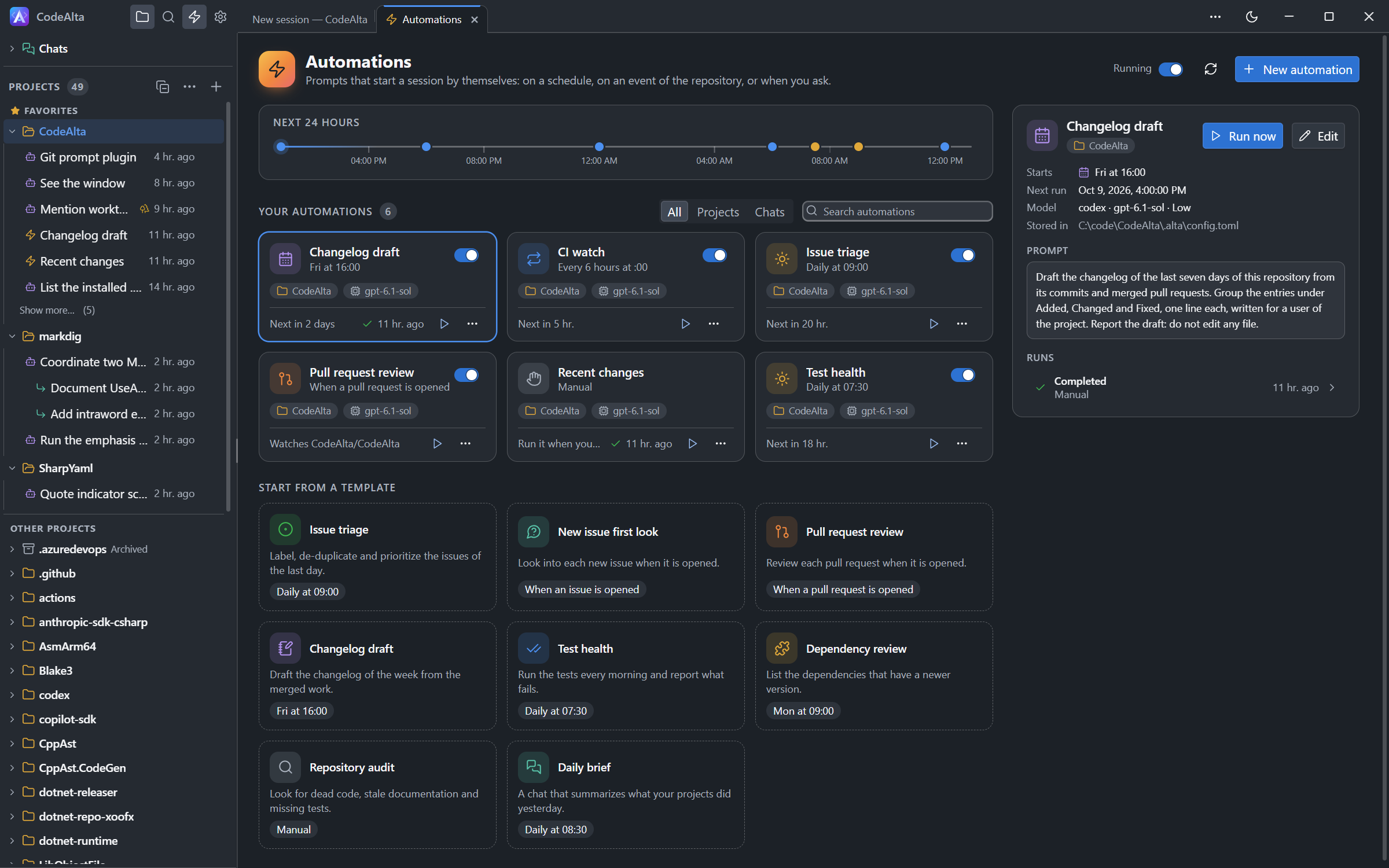
Create an automation
- Click the bolt at the top of the window, or press
Ctrl+GCtrl+M, to open the Automations tab. - Click New automation, or start from a template such as Issue triage or Pull request review.
- Choose where it runs: in a project, or as a chat in no project.
- Add what starts it and write the prompt.
- Click Save, or Save and run to try it right away.
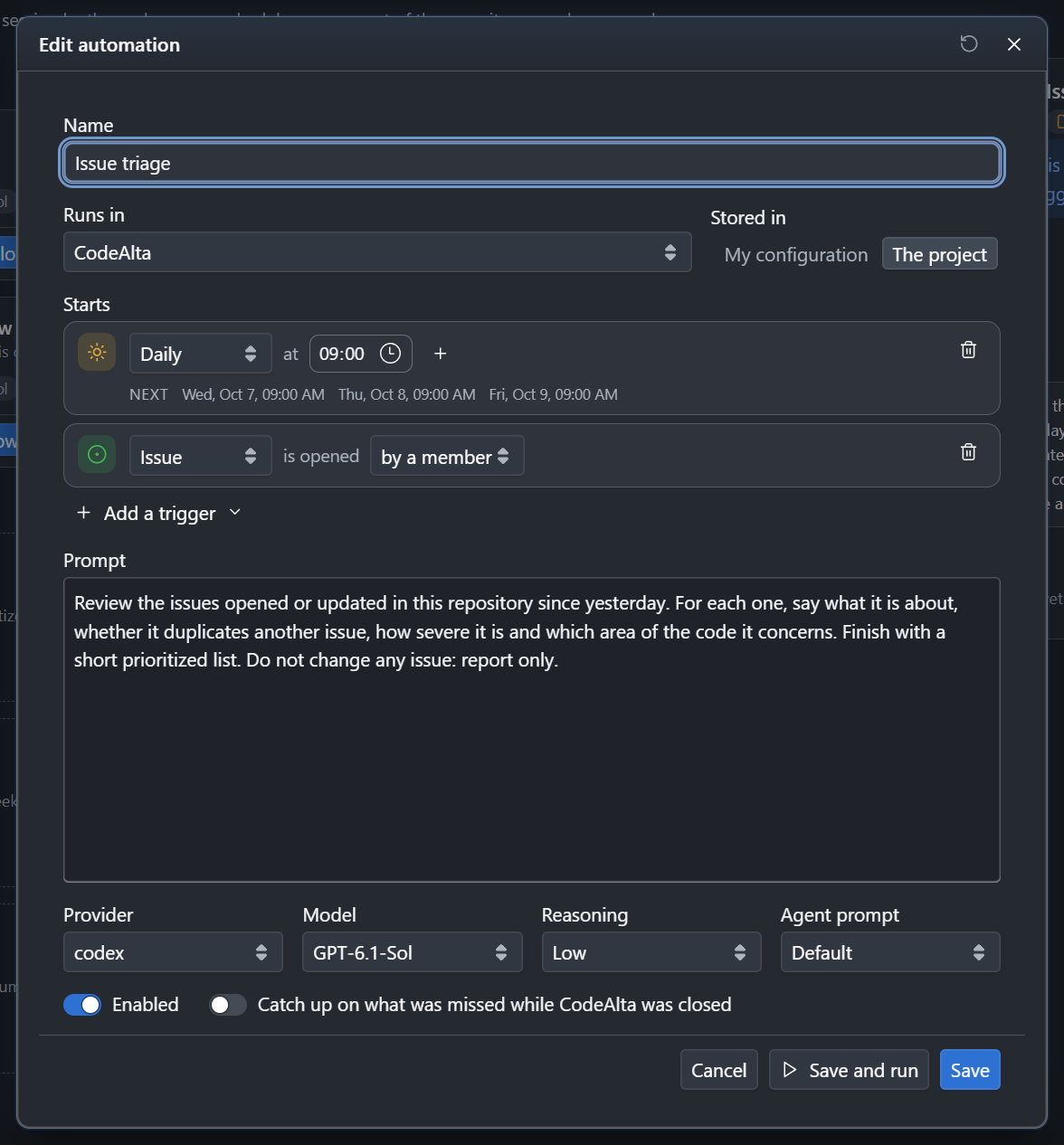
The session starts with nothing but your prompt: say what to look at and what to report.
What starts an automation
| Trigger | When it runs |
|---|---|
| None | When you click Run now. |
| Hourly | Every hour, or every few hours, at the minute you choose. |
| Daily | Every day, at one or more times. |
| Weekly | On the days and at the times you choose. |
| Cron | When a cron expression matches, for example 0 9 * * 1-5. |
| Issue | When an issue is opened in the repository of the project. |
| Pull request | When a pull request is opened, or when it receives commits. |
An automation can have several triggers. Times are read on the clock of your computer.
Issues and pull requests
- They work with GitHub, GitLab and Azure DevOps, with the sign-in of the issue picker.
- CodeAlta looks at the repository every five minutes. The automation shows the repository it watches.
- An automation runs for the issues and pull requests of the members of the repository. Choose by anyone to run for every author.
Follow the runs
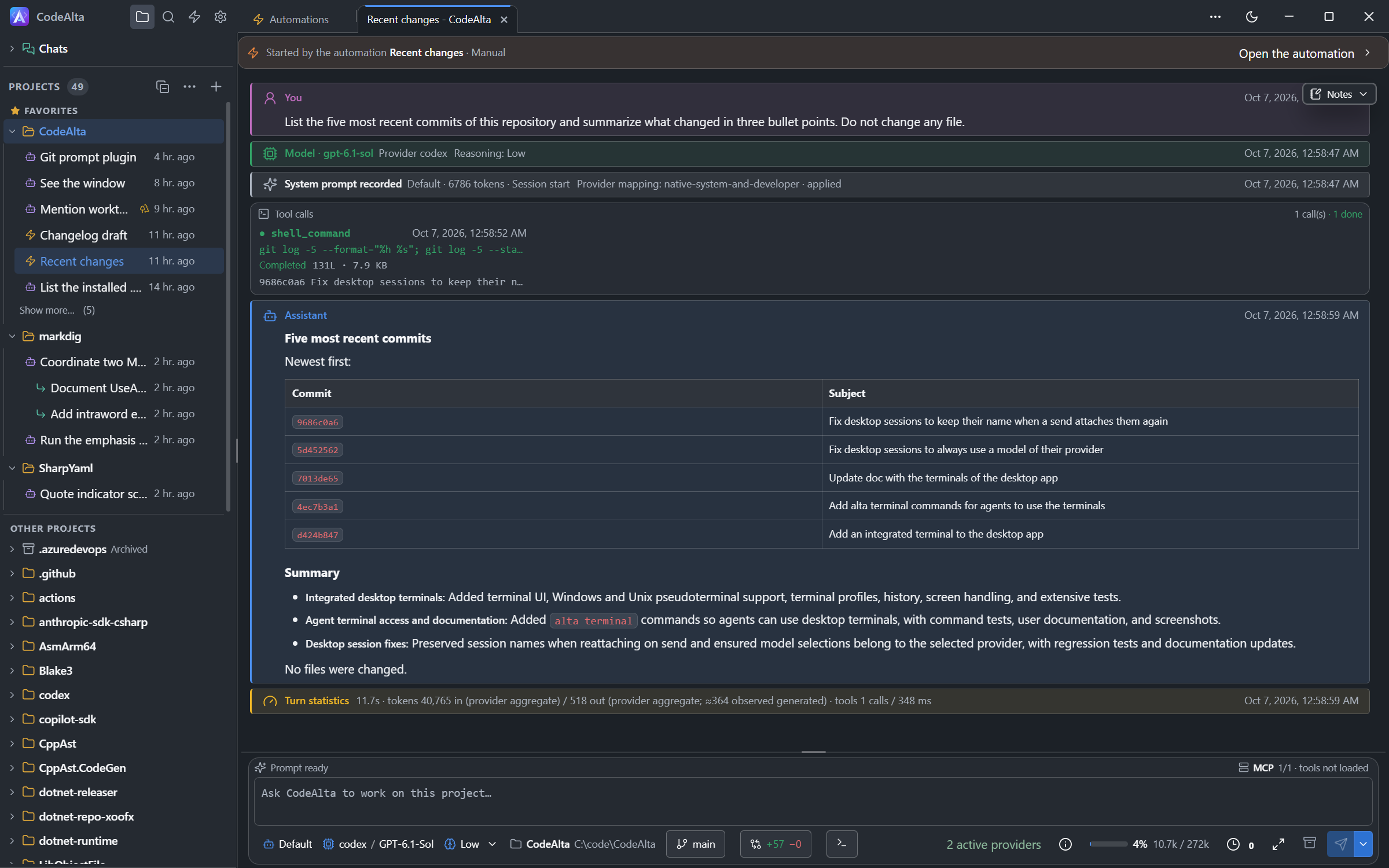
- A session started by an automation has a bolt in the sidebar. The line at its top names the automation and opens it.
- In the Automations tab, select an automation to see its runs. Click a run to open its session.
- The switch of an automation turns its triggers off. The Running switch at the top turns off the triggers of all of them. Run now always works.
Good to know
- Automations run while CodeAlta Desktop is open, also when it stays in the notification area.
- What was due while CodeAlta was closed is skipped. Turn on Catch up on what was missed while CodeAlta was closed in an automation to run it at the next start.
- An automation is stored in My configuration (
~/.alta/config.toml) or in The project (.alta/config.tomlof its folder), which you can commit to share it with your team. - An automation that came with a project, written by someone else, waits for you: read its prompt and click Allow. It asks again when its prompt or its triggers change.
- An agent can list, create and run automations. Ask in your own words, for example:
Create an automation that reviews the open pull requests every morning at 9.