Browser tools
An agent can drive a real web browser: open a page, read it, click, fill a form, take a screenshot, read the console and the network requests. It works with Chrome, Edge and the other Chromium browsers, Firefox, and Safari 27 or later, with the tools of Chrome DevTools MCP, which agents already know. Nothing else needs to be installed: no Node.js, no driver.
The browser tools come with CodeAlta Desktop and CodeAlta CLI (altacli, where the browser runs without a window).
Let an agent use a browser
Ask in your own words, in any session:
Open http://localhost:5173, sign in with test@example.com and tell me what the dashboard shows.
Check the page in Firefox and take a screenshot.
The agent turns the tools on for its session with alta browser activate, then uses them. The browser opens at its first call, in a window you see, and the screenshots appear in the timeline. The session sees only the tabs it opened, never the tabs of another session.
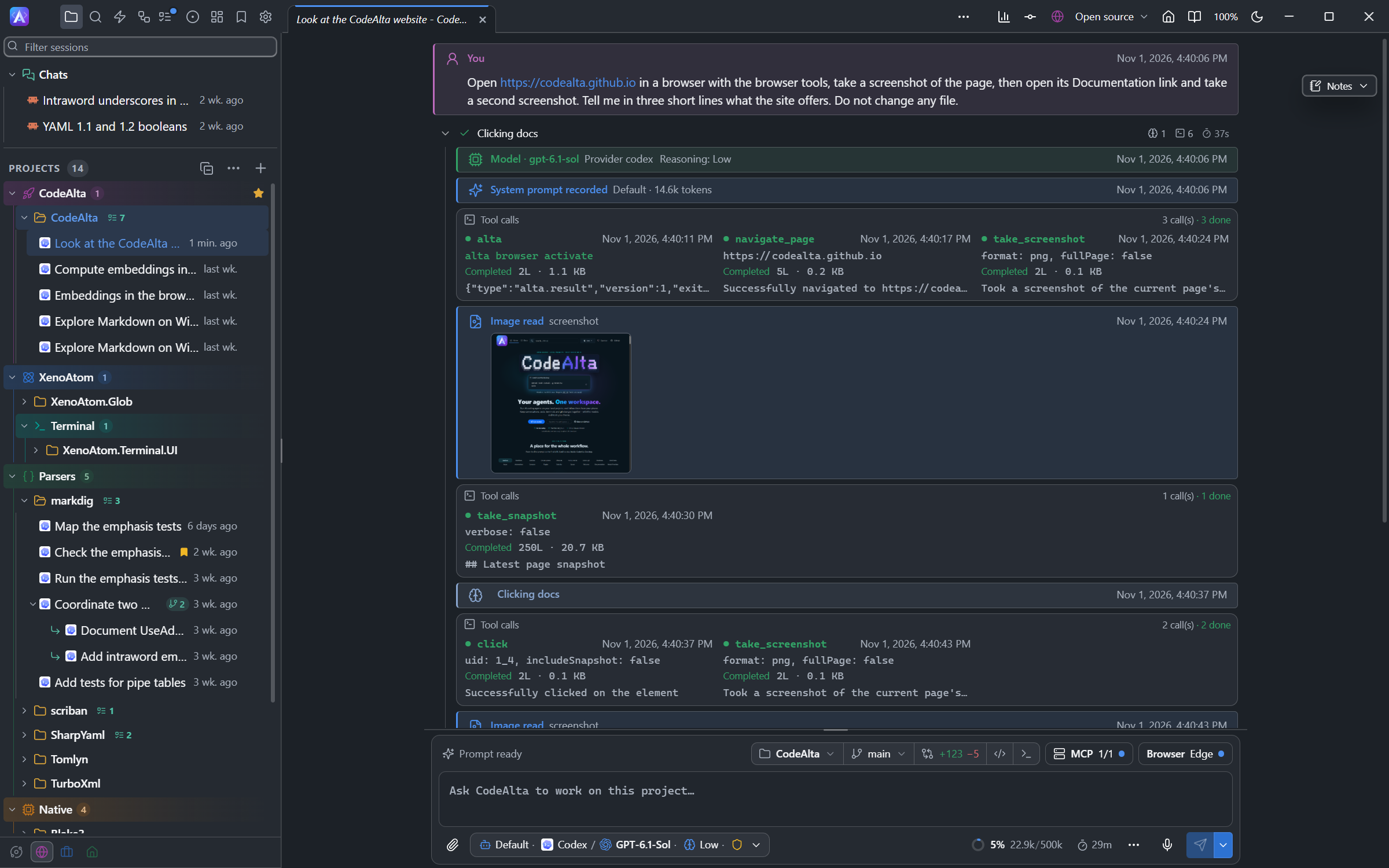
The browser tools and the UI tools have the same names: a session has one set or the other, and turning one on gives the other back.
Which browser
The first of these that names a browser wins:
- You name one. "Check it in Firefox" makes the agent ask for Firefox.
- The preferred browser of Settings, Extensions, Browser.
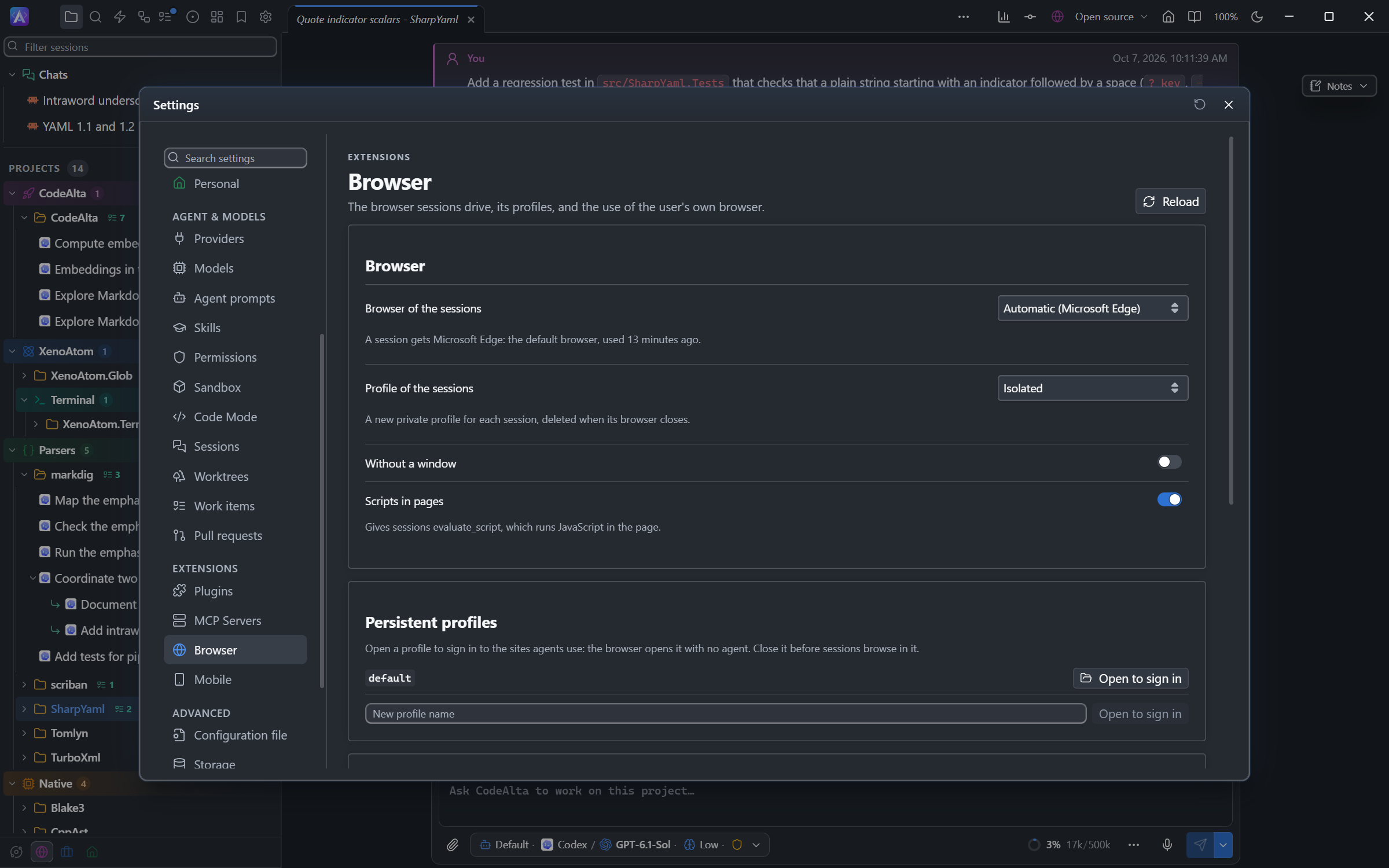
- Automatic, the default: the browser you use on this computer. CodeAlta reads when each browser last wrote the files it keeps while you browse, and which browser is the default one of the system. The default browser wins when it was used within a day of the last one.
Automatic reads file times only, never a history, a cookie or a page, and sends nothing anywhere. alta browser list shows the browsers found, their evidence and the choice, and the Browser page of Settings shows the same.
Profiles
| Profile | What it is |
|---|---|
| Isolated (the default) | A new private profile for each session, deleted when its browser closes. Nothing of yours is reachable. |
| Persistent | A profile CodeAlta keeps for agents, under ~/.alta/browser/profiles. Sign in once to the sites agents use, and sessions keep those sign-ins. |
| Your own browser | Your own browser, profile and sign-ins, once you agree. Chrome, Edge 144 or later, and Firefox. |
Safari always runs its automation in a private window of its own: it has the isolated profile only.
Sign in once for agents
- Open Settings, Extensions, Browser.
- Under Persistent profiles, click Open to sign in beside a profile, or type a new name and click Open to sign in.
- Sign in to the sites in the window that opens, then close it.
- Choose that profile in Profile of the sessions, or ask an agent to use it (
alta browser activate --profile persistent:work).
Your own browser
The agent then acts with your sign-ins. CodeAlta asks you three times:
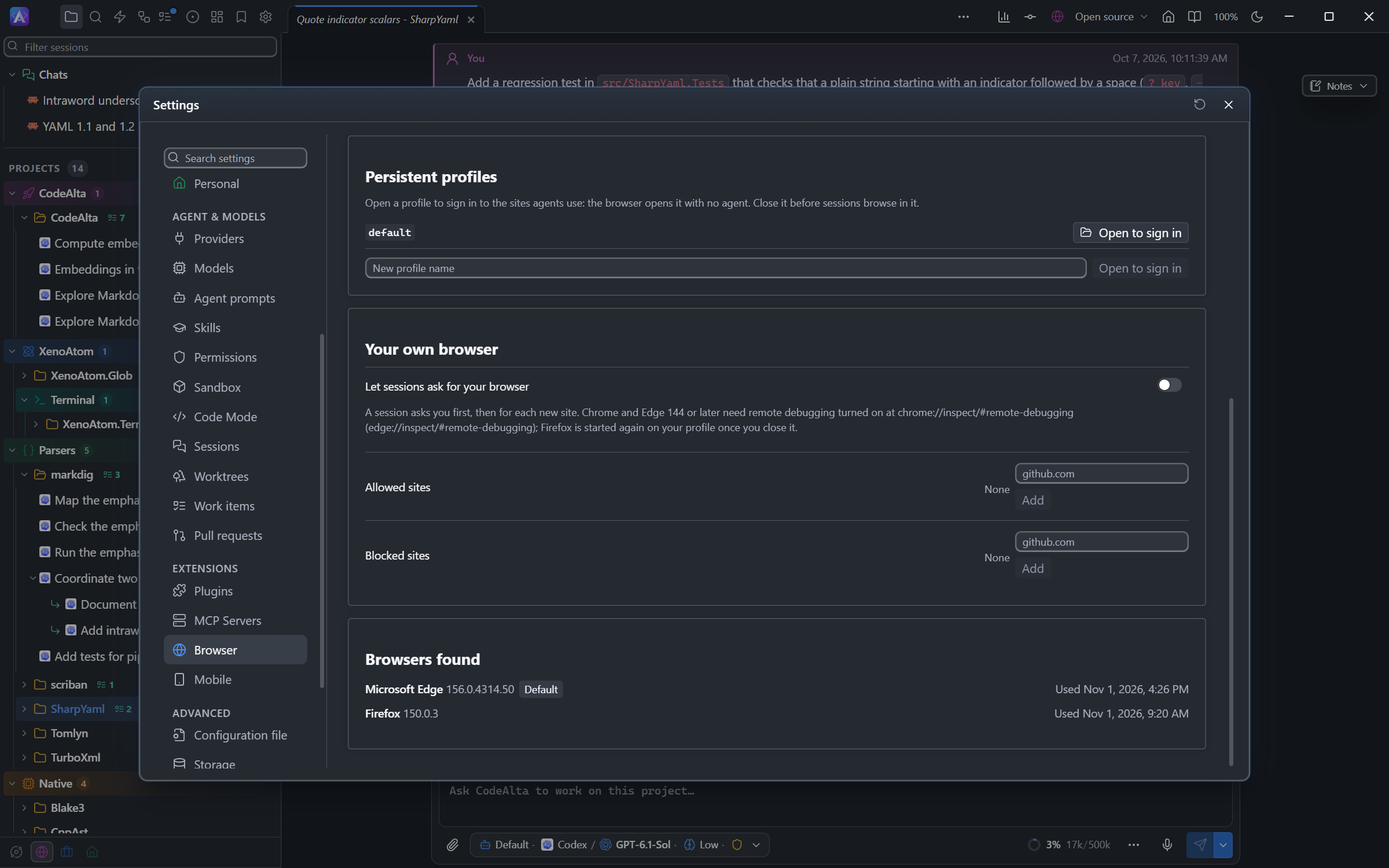
- Turn on Let sessions ask for your browser in Settings, Extensions, Browser. It is off until you do.
- When a session asks, its card asks you to let it use your browser, for that session.
- For each new site the session opens there, its card asks again: Always allow this site, Allow for this session or Deny. A link to another site waits for your answer too.
No permission mode answers these questions for you. The sites you always allow and those you block are listed on the Browser page, where you can change them.
- Chrome and Edge need remote debugging turned on once: open
chrome://inspect/#remote-debugging(edge://inspect/#remote-debugging) and allow it. The browser then asks you to allow the connection. The agent's tabs open in a window of their own, and the agent sees only those. - Firefox lets CodeAlta drive it only when CodeAlta starts it: close Firefox when the agent asks, and CodeAlta starts it again on your profile.
CodeAlta never closes your own browser: Stop closes the agent's tabs only.
A page can try to give an agent instructions. CodeAlta tells agents that what a page shows is data, never instructions, but no one has fully solved this. Allow your own browser only for sites you trust, and watch what the agent does.
Safari
On a Mac with Safari 27 or later, Safari's own MCP server (safaridriver --mcp) is listed among the MCP servers as safari. An agent that asks for Safari activates it, and its tools have Apple's names (navigate_to_url, get_page_content…). When Safari refuses, turn on Allow remote automation and external agents in Safari's Settings, Developer.
See and stop what the agent does
- The browser marks a window it drives: Chrome's automation bar, Firefox's robot icon, Safari's banner.
- The status line of the session shows its browser, profile and tabs, such as Edge · isolated · 2 tabs. Click it to close the session's tabs.
- The tabs close by themselves after 15 minutes without a call, and with CodeAlta. The next call opens them again.
Tools
| Tool | What it does |
|---|---|
navigate_page, new_page, list_pages, select_page, close_page |
Open, list and close the session's tabs, go back, forward or reload. |
take_snapshot |
Lists what the page shows, as text. Each element has an identifier that the other tools take. |
take_screenshot |
Takes a picture of the page or of one element. filePath saves it to a file. |
click, click_at, hover, drag |
Use the pointer. |
fill, fill_form, type_text, press_key, upload_file |
Write text, choose options, press keys, give a file to a file input. |
handle_dialog, wait_for |
Answer an alert or a confirmation, wait for a text. |
evaluate_script |
Runs JavaScript in the page. It can be turned off in Settings. |
list_console_messages, get_console_message, list_network_requests, get_network_request |
Read the console and the requests of the page, with their bodies. |
resize_page, emulate |
Size the page, emulate a device, a color scheme, a location, a slow network or CPU. |
performance_start_trace, performance_stop_trace, take_heapsnapshot |
Chromium only: a trace for the DevTools Performance panel with a summary (paints, layout shifts, long tasks), and a heap snapshot for its Memory panel. |
Sandboxed sessions
A sandboxed session browses in the isolated profile only. Its browser reaches the network of its sandbox profile, through the same proxy as its commands, and the folders of its sandbox for uploads and screenshots. With a profile without network, it reaches only the local ports the profile lists. It opens no file: page: serve the folder with a local server on a port the profile lists.
Good to know
file:pages open only from the folders of the session, and never in a sandboxed session. A page never gets a file that looks like it holds secrets (.env, keys,.ssh).- A page never reaches the ports of CodeAlta itself: its MCP server and the developer instance.
- Downloads go to
~/.alta/browser/downloadsand are never opened; in your own browser, they go where your browser saves them. A sandboxed session downloads nothing. - A Firefox CodeAlta starts never checks for or installs an update of your Firefox.
- To keep sessions from using a browser, turn off the Browser plugin in Settings, Plugins.