Code, Changes and Terminals
CodeAlta Desktop has a code editor, a Changes tab and terminals for each project. They are tabs like sessions: place them beside the session that works on them (see Split panes).
Code editor
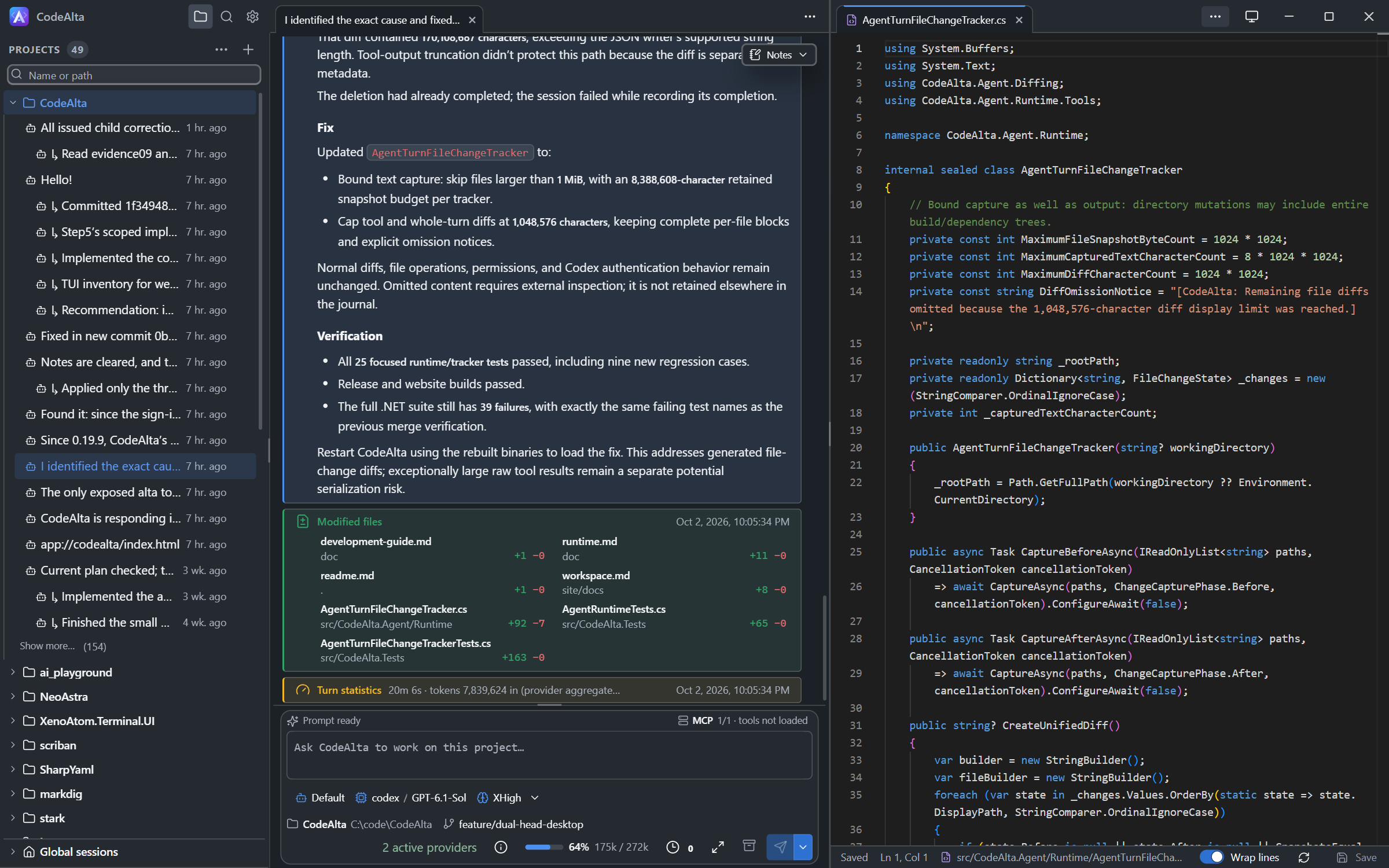
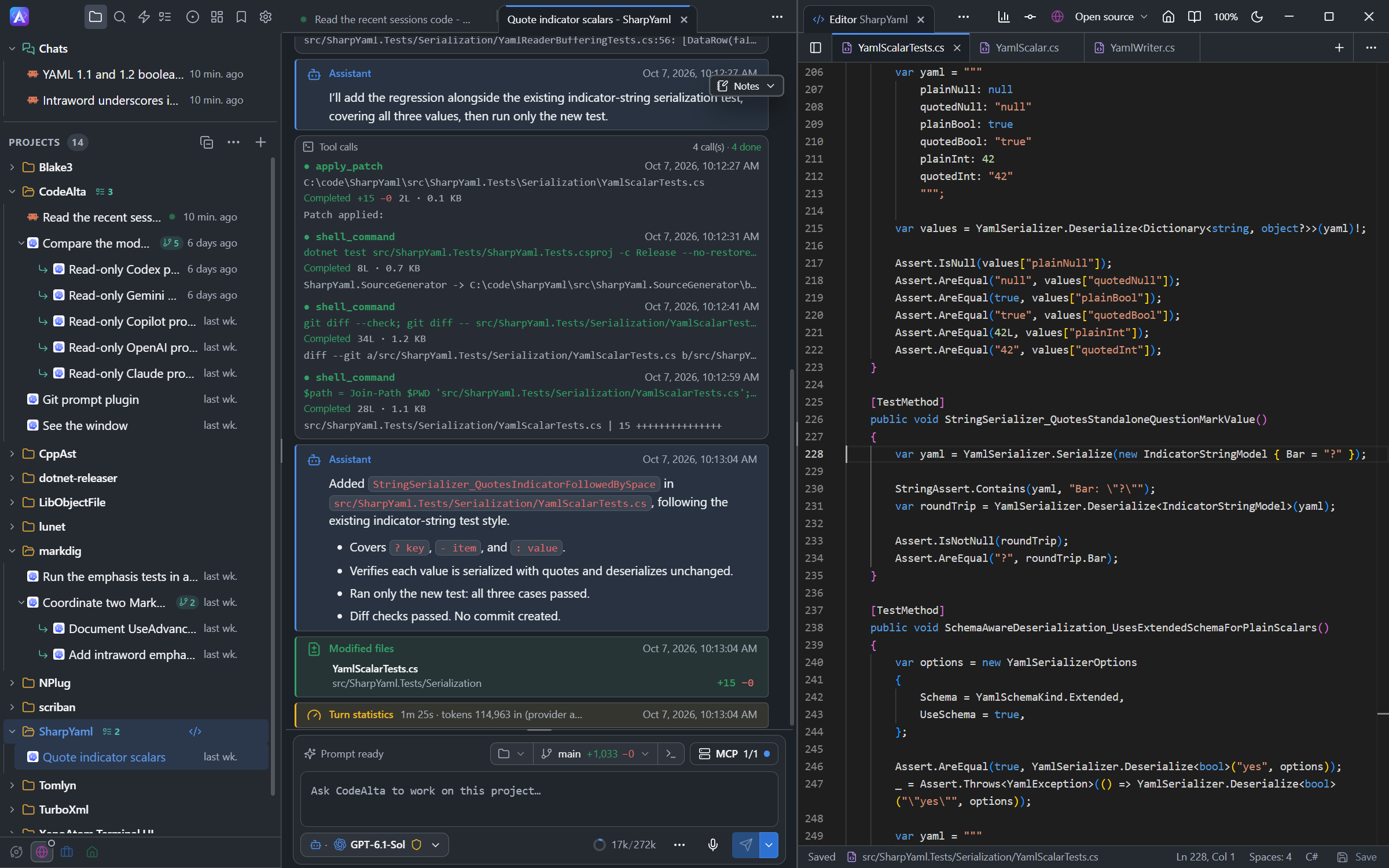
Each project has one code editor tab that holds its files and every file you open. Open it:
- with the
</>button of a project in the Explorer,Ctrl+ECtrl+E, or/editor; on one file withCtrl+Eor/edit; - where a session works, with the editor button of the Workspace chip above the prompt (a worktree gets a tab of its own);
- with Edit in the code editor beside a plugin or a settings file;
- from a link to a file in a message. A file of no project opens on its folder, in an Editor tab without git status.
An agent opens a file for you with alta editor open --file <path> --line <n>.
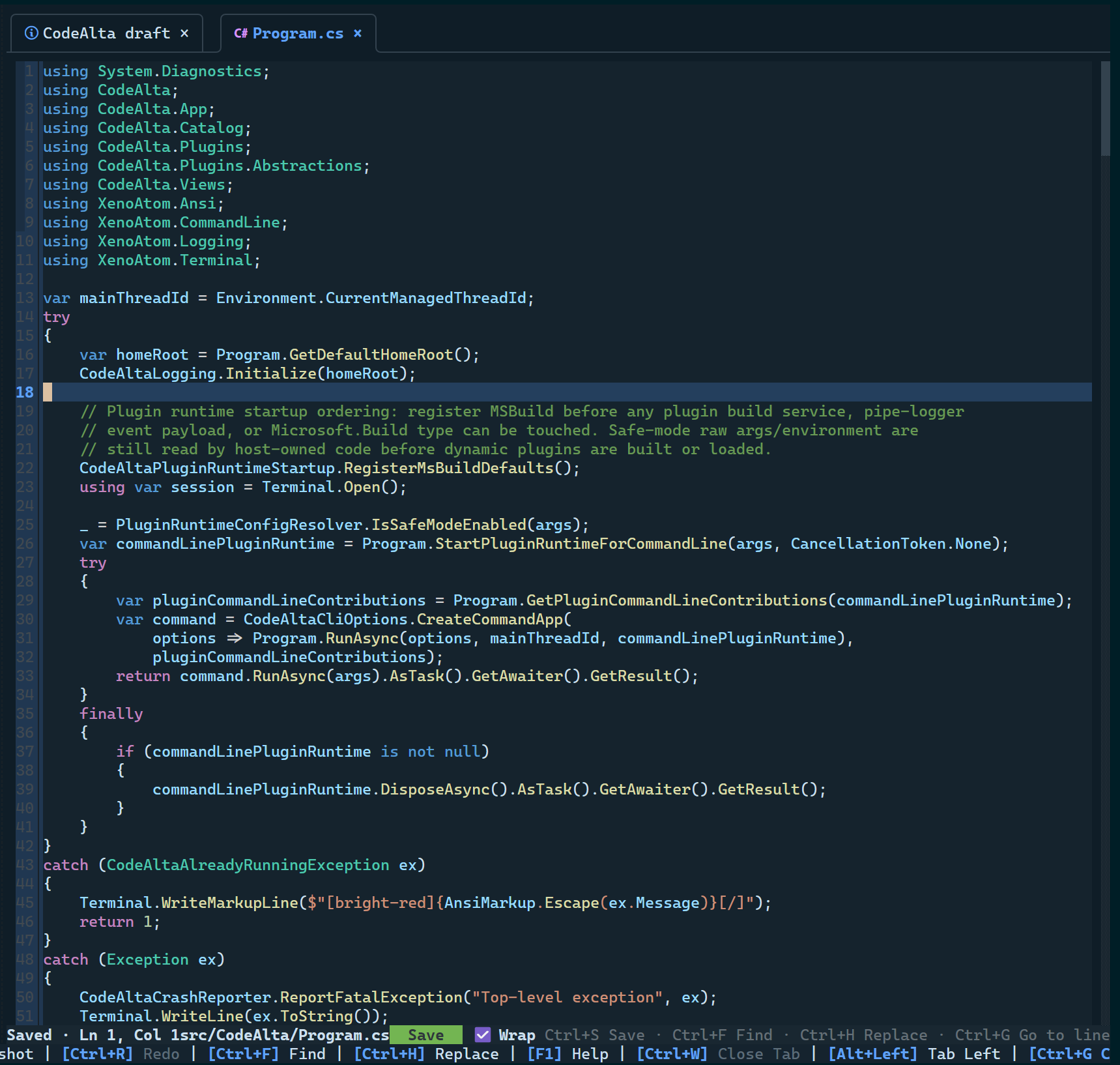
In CodeAlta TUI, Ctrl+E opens a file in an editor tab with syntax highlighting; Ctrl+S saves, and closing asks first when there are unsaved edits.
Files
The Files pane (Ctrl+B shows or hides it) lists the project without what .gitignore excludes. Changed files have the color and letter of their git status. The path of the project is under its name; Copy path in the … menu copies it.
- Click a file to preview it; double-click it, or edit it, to keep its tab.
- New file and New folder are at the top.
F2renames, andDeletemoves to the Recycle Bin or the Trash. - Drag a file or folder onto a folder to move it.
- The menus of a file, a tab and the editor have Reveal in File Explorer (Reveal in Finder on macOS) and Open in your external editor.
Editing
| Action | Shortcut |
|---|---|
| New file | Ctrl+N |
| Save the file / all files | Ctrl+S / Ctrl+Shift+S |
| Select the language of the text | Ctrl+K M |
| Find / replace in the file, also with a regular expression | Ctrl+F / Ctrl+H |
| Go to a line | Ctrl+G |
| Next file / previous file | Ctrl+Tab / Ctrl+Shift+Tab |
| Close the file | Ctrl+W |
| Show the files / search in files | Ctrl+Shift+E / Ctrl+Shift+F |
| Wrap lines | Alt+Z |
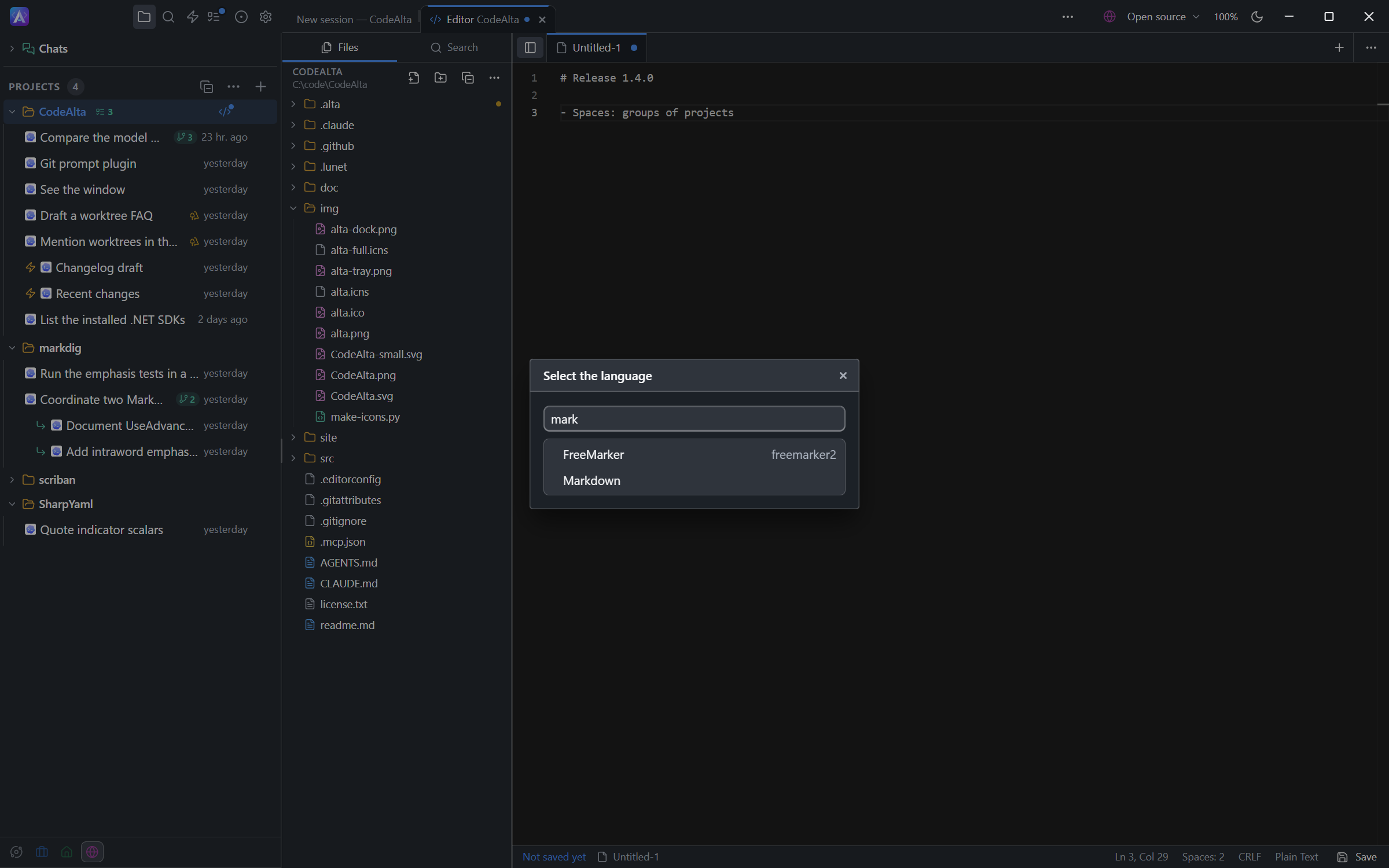
A new file (Ctrl+N, or + beside the tabs) is Untitled-1, plain text, kept in the editor only. Ctrl+S asks for its path in the project and creates missing folders. Choose its language with Ctrl+K M, or click the language in the status bar; this works for any open file.
The status bar shows the path of the file; click it to copy the full path. The editor asks before closing a file with unsaved changes. A file changed by an agent or another program is reloaded, unless you edited it: then you choose.
Search in files
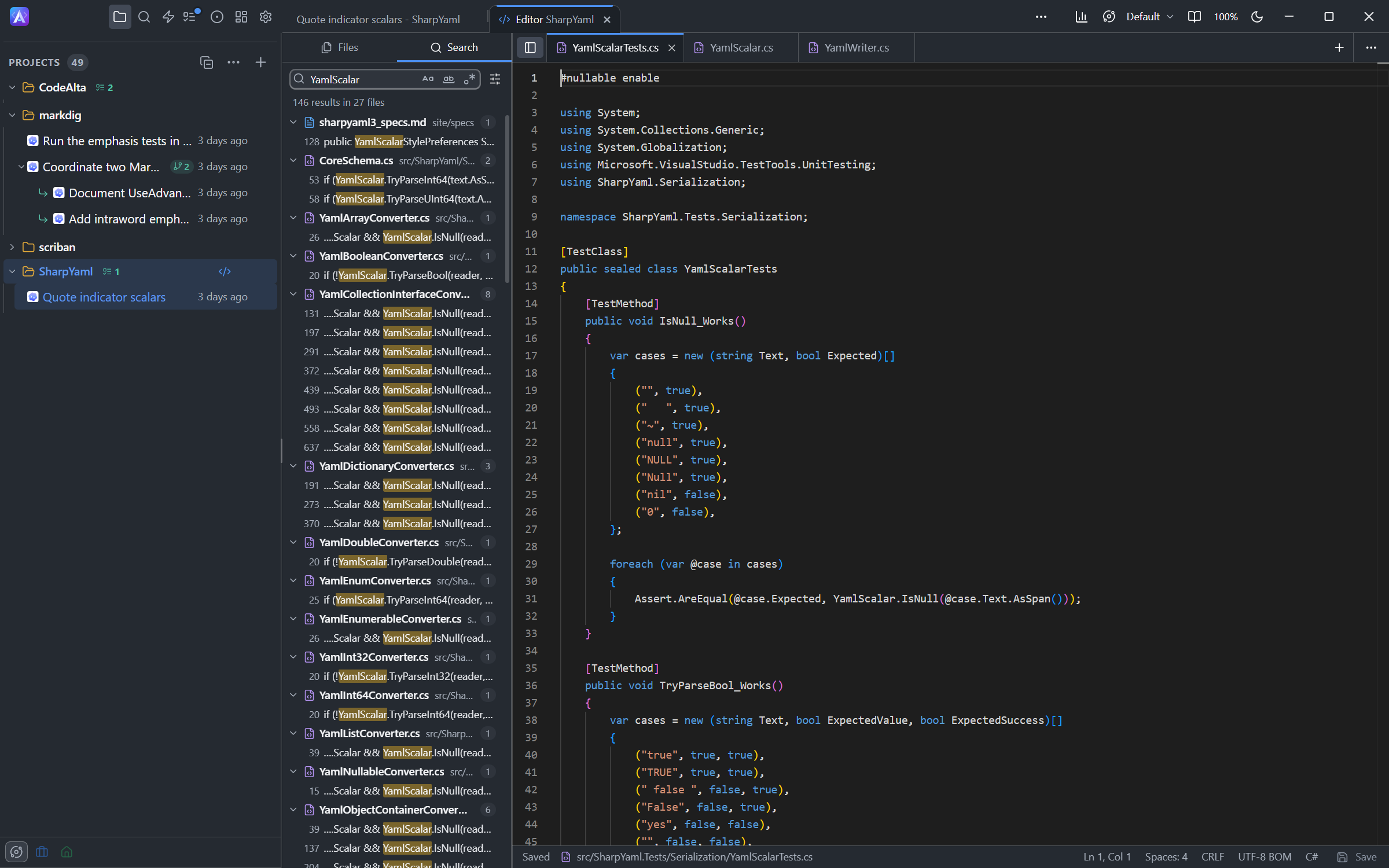
The Search pane (Ctrl+Shift+F) searches the text of the project. It can match the case, whole words or a regular expression, and include or exclude files such as src, *.ts. A click on a result opens the file on the match.
Previews
Pictures open as pictures, and an SVG file as a drawing. A Markdown file can be shown as a page; the buttons at the right of the tabs switch between the preview and the text.
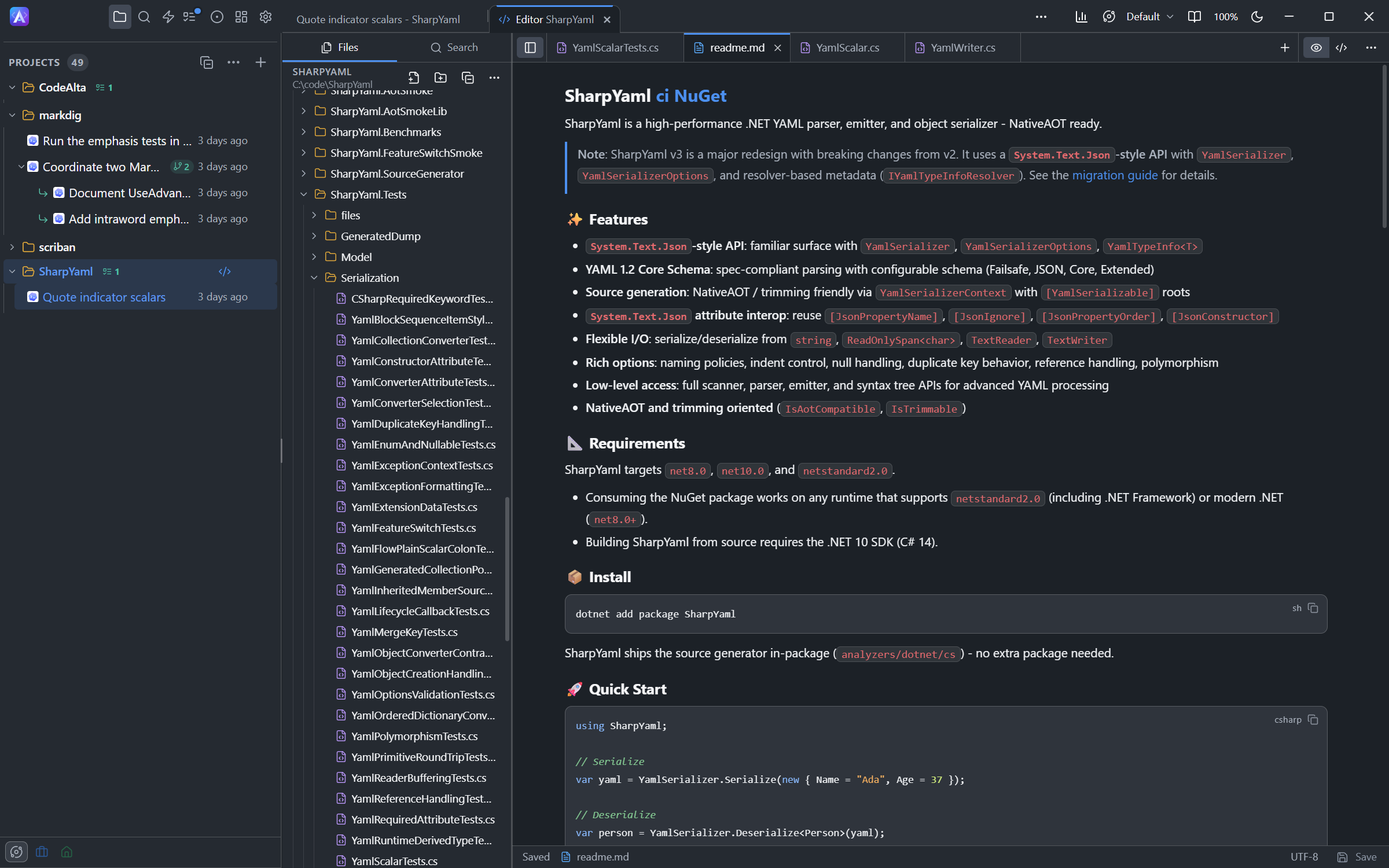
The Markdown page shows the front matter as a table, task lists as check boxes, GitHub alerts in color, highlighted code and mermaid diagrams. A mermaid block Mermaid cannot read stays code, with the reason under it (in a sequence diagram, ; ends a statement; write #59; for one in a message).
Ctrl+F (Cmd+F on macOS) finds a text in the page, as in the Documentation tab, in plans and files you review and in Work items.
Changes
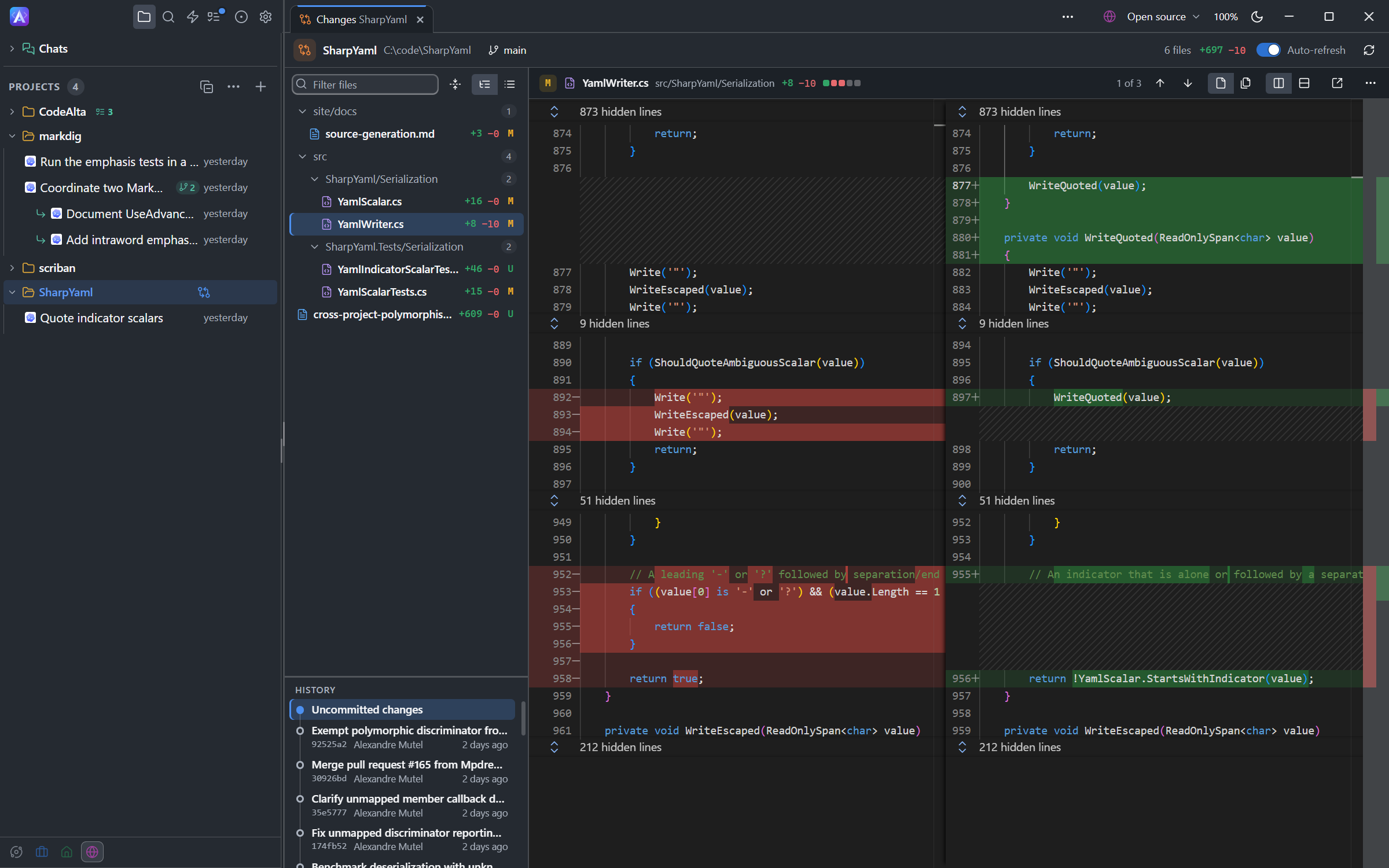
The Changes tab shows what changed in the git repository of a project. Open it with the + / − numbers of the Workspace chip above the prompt, View changes in its popover, or the changes button of a project in the Explorer. Each project has its own Changes tab. An agent opens it for you with alta diff show.
- Worktrees: the worktrees of the project, above the files; click one for its changes.
/worktreelists them all and removes those you no longer need. - Files: the changed files as a tree or a list, with the lines added and removed, and a filter.
- History: Uncommitted changes, the changes of the branch since its base branch, or a recent commit; Load more shows older ones.
- Diff: side by side or inline, highlighted, with unchanged regions folded.
Alt+DownandAlt+Upgo to the next and previous change. - Hide the files, at the left of the header, gives the diff the whole width; Show the files brings them back.
- Auto-refresh reads the changes every five seconds; the refresh button reads them at once.
The … menu of the diff has Hide unchanged lines, Ignore whitespace changes, Wrap lines and Copy path. Open file opens the file in the code editor, and the button beside it in your external editor.
All files in one view
The two buttons in the header of the diff choose One file at a time or All files in one view, which scrolls through every change as in a pull request:
- each file has a header that stays at the top while you scroll; click it to fold the file, or use Collapse all files and Expand all files;
- the list of files follows the scroll; the arrows of the header, or
Alt+UpandAlt+Down, go to the previous and next file; - Side by side, Inline and the
…options apply to every file.
A diff of more than 1000 lines scrolls in its own frame. Settings > Appearance > Changes are shown sets the same choice.
Review the changes
Click Review in the header of the Changes tab to comment on lines of the diff, as in a pull request, and send your comments to a session with a verdict. It reviews what the tab shows: Uncommitted changes or the changes of the branch. An agent asks for your review with alta review request changes; Open review in its session opens this tab in review mode. See Review the changes.
Terminals
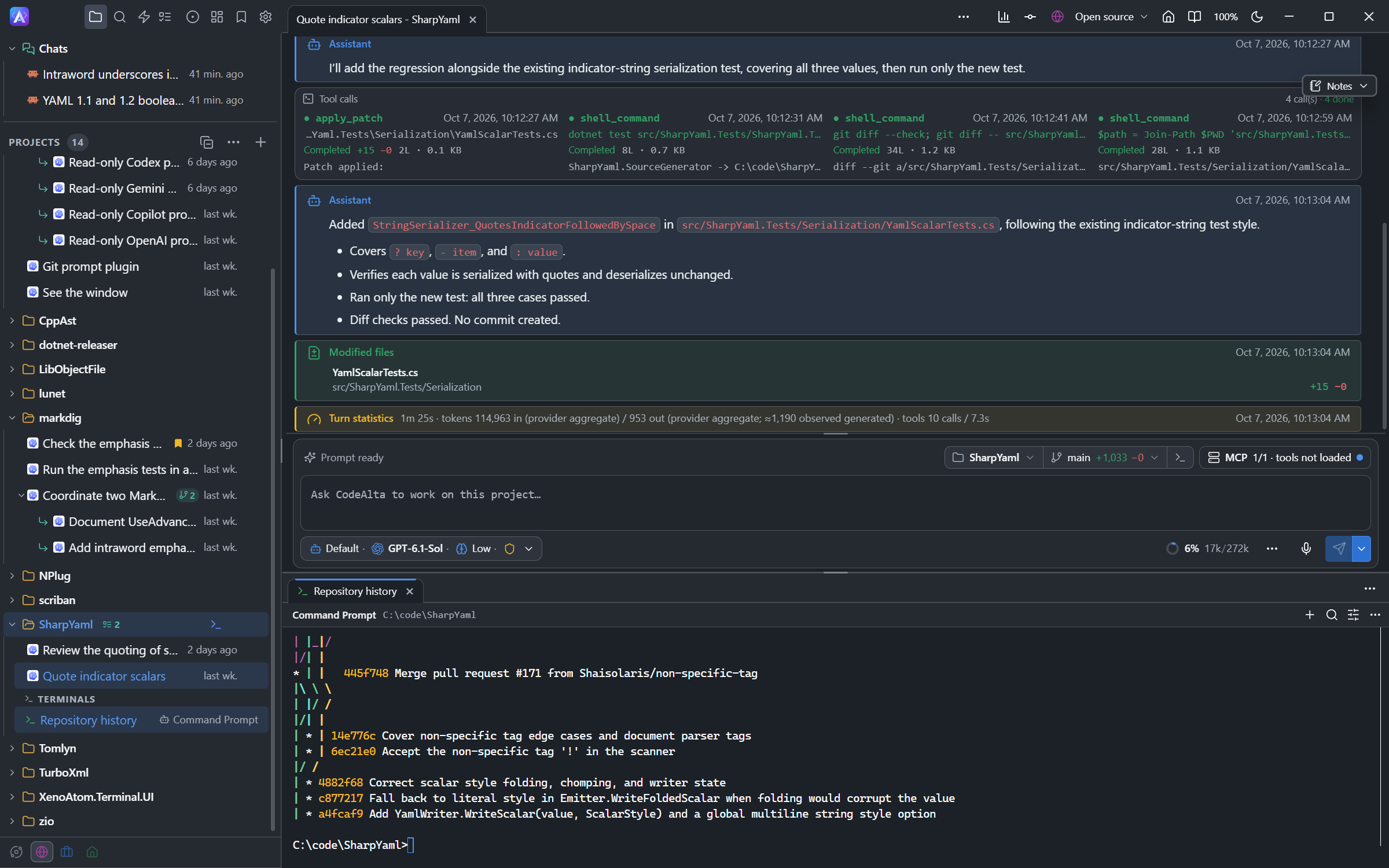
CodeAlta Desktop has terminals: your own shell, in a tab under your sessions.
- Open one in the folder of the project with its terminal button in the Explorer, or
Ctrl+`. The terminal button of the Workspace chip, or Open terminal in its popover, opens one where the session works. - A terminal keeps running when you close its tab. The terminals of a project are listed under its sessions, with their folder and a spinner while a command runs: click one to show it, rename it or end it.
Ctrl+Ccopies the selection, or interrupts when nothing is selected.Ctrl+Vpastes andCtrl+Ffinds text.- The options button sets the cursor, the text size, Copy on select, the lines kept and the shell of new terminals.
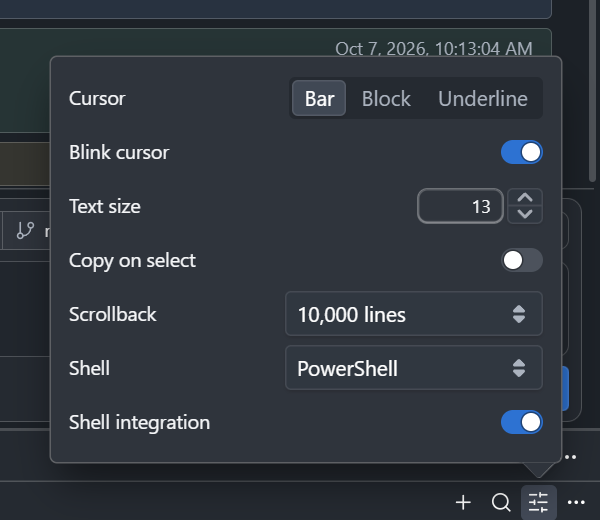
The default shell is PowerShell on Windows and your login shell on macOS and Linux. On Windows you can also choose the Command Prompt, Git Bash or a WSL distribution. The built-in font has the icons many prompts use.
Terminals for agents
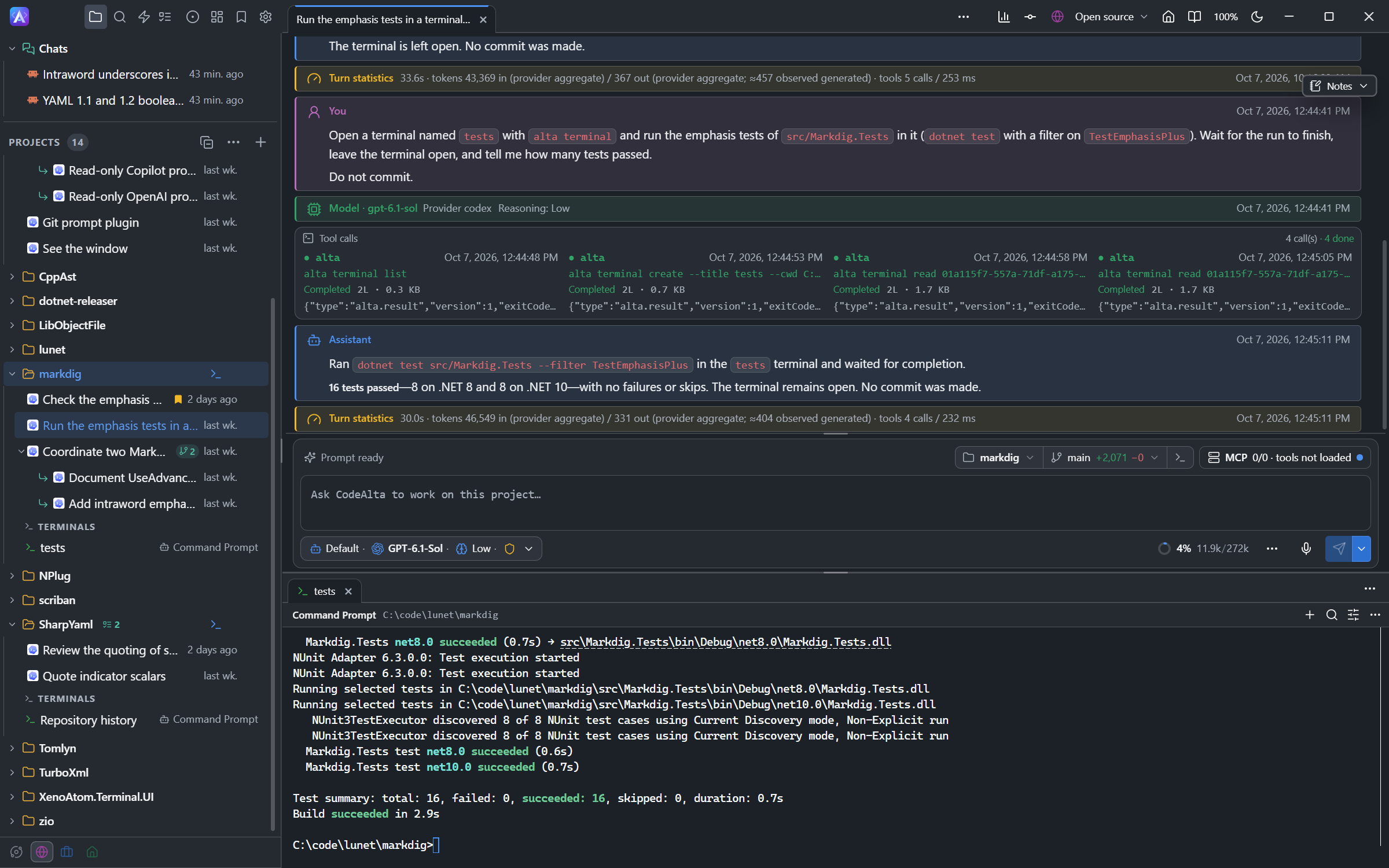
An agent can use the same terminals: create one, type in it, wait for a command and read its output. Ask in your own words:
Start the dev server in a terminal and tell me when it is ready.
You see what the agent types and can type yourself. A terminal an agent created has a small robot mark in the list.
External editor
To work on a folder in another editor, Settings > General > External editor chooses the editor that Open in… and /external_editor start.
CodeAlta Desktop finds Visual Studio Code, Visual Studio Code - Insiders, Cursor, Windsurf, Zed and Sublime Text the first time an action needs them; click Detect again after you install one. It uses Visual Studio Code when present, otherwise the first one found. Custom… takes the full path of a Program and its Arguments, where {folder}, {file}, {line} and {column} are replaced (an argument with {file} is left out when a folder opens; quotes keep spaces):
{folder} "{file}:{line}:{column}"
Give the program itself, not a batch file (.cmd, .bat). Without an editor, the Open in… entries are hidden and /external_editor opens this setting.
| Where | What it opens |
|---|---|
| The menu of a project in the Explorer | The folder of the project |
| The path in the Workspace popover | The folder the session works in |
/external_editor, /file_explorer |
The folder the session works in, or of the project |
| The diff of a file in the Changes tab | The project, on that file |
| A row of the Worktrees window | The folder of the worktree |
| The menus of the code editor | The file or the folder |