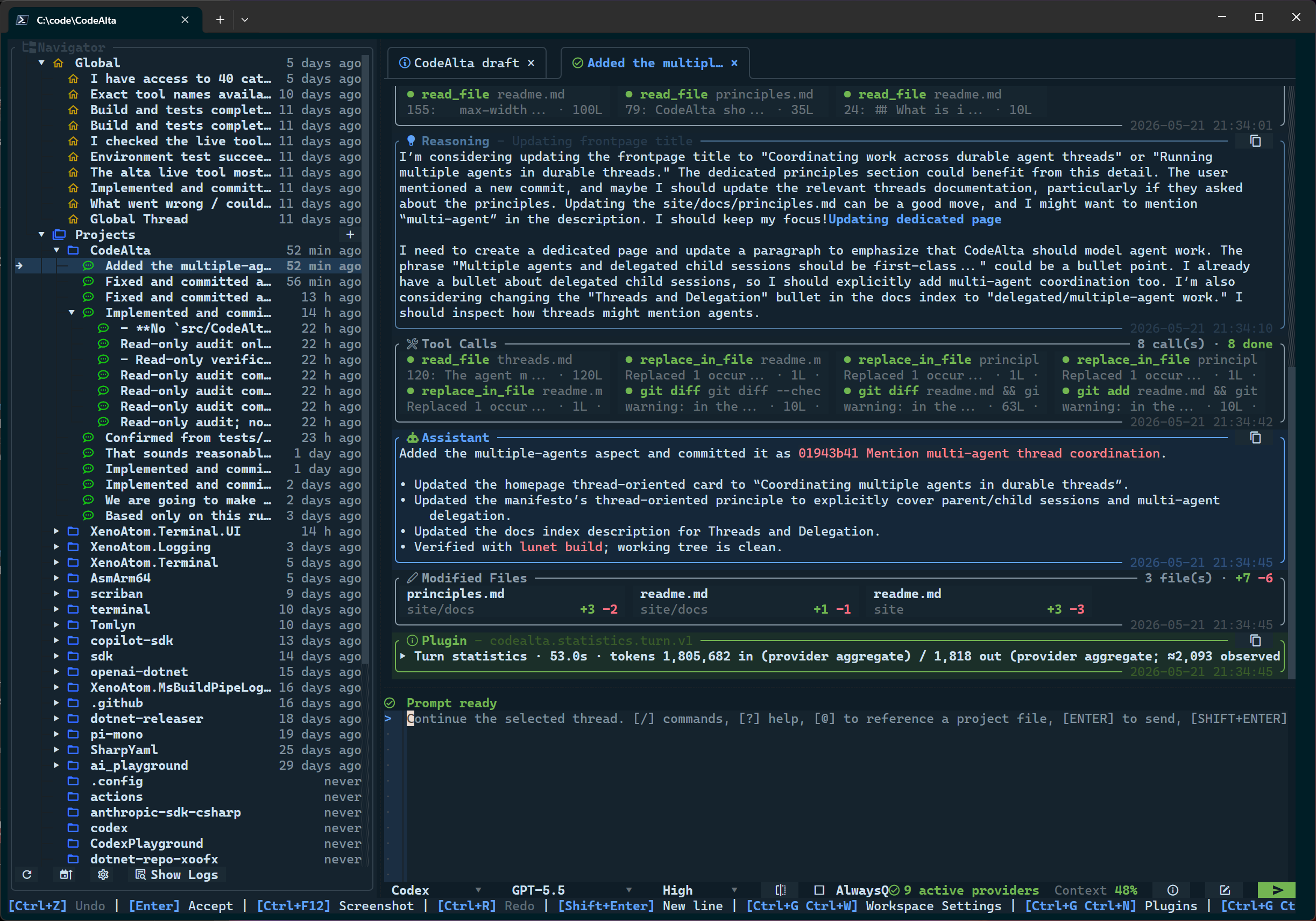
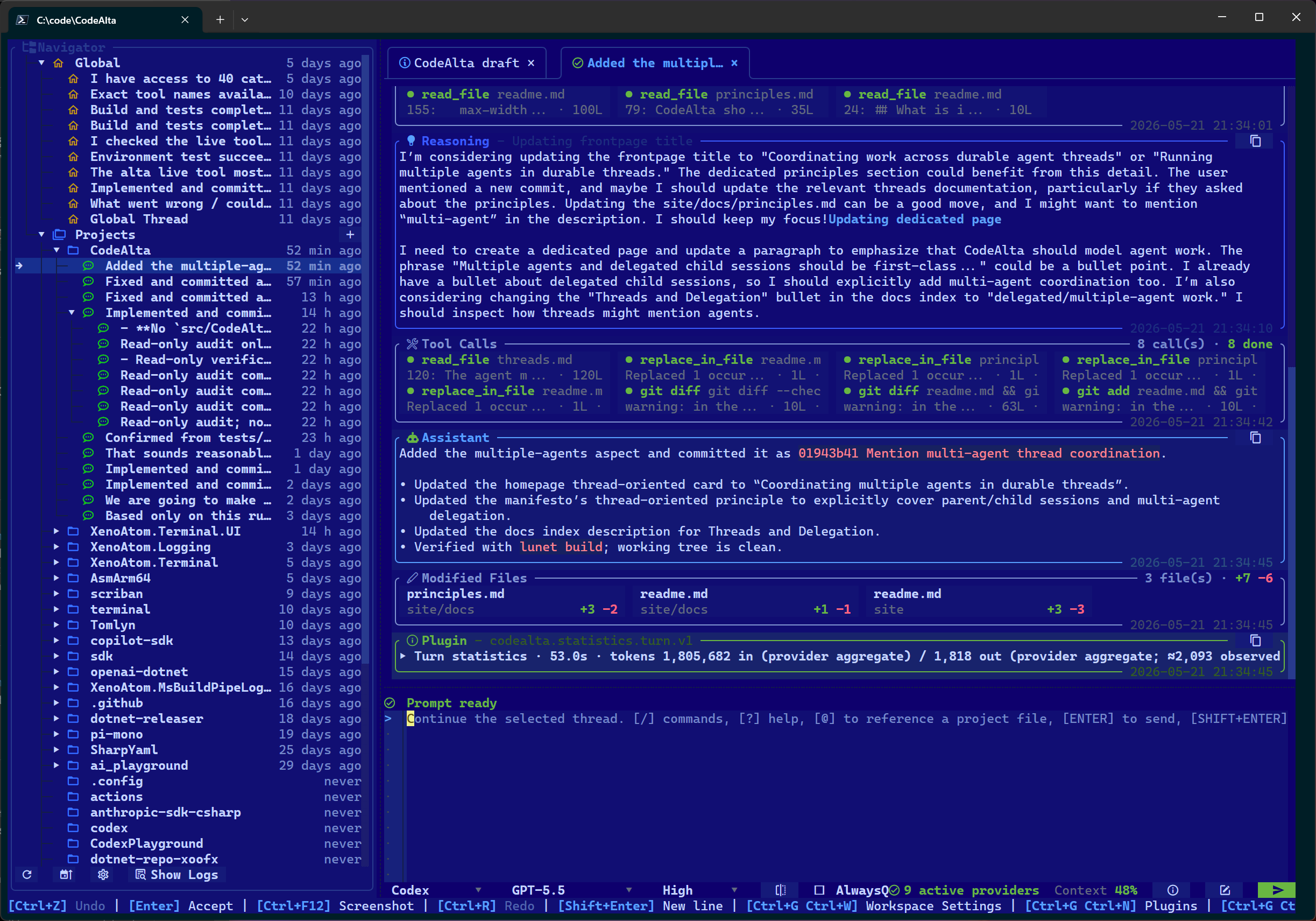
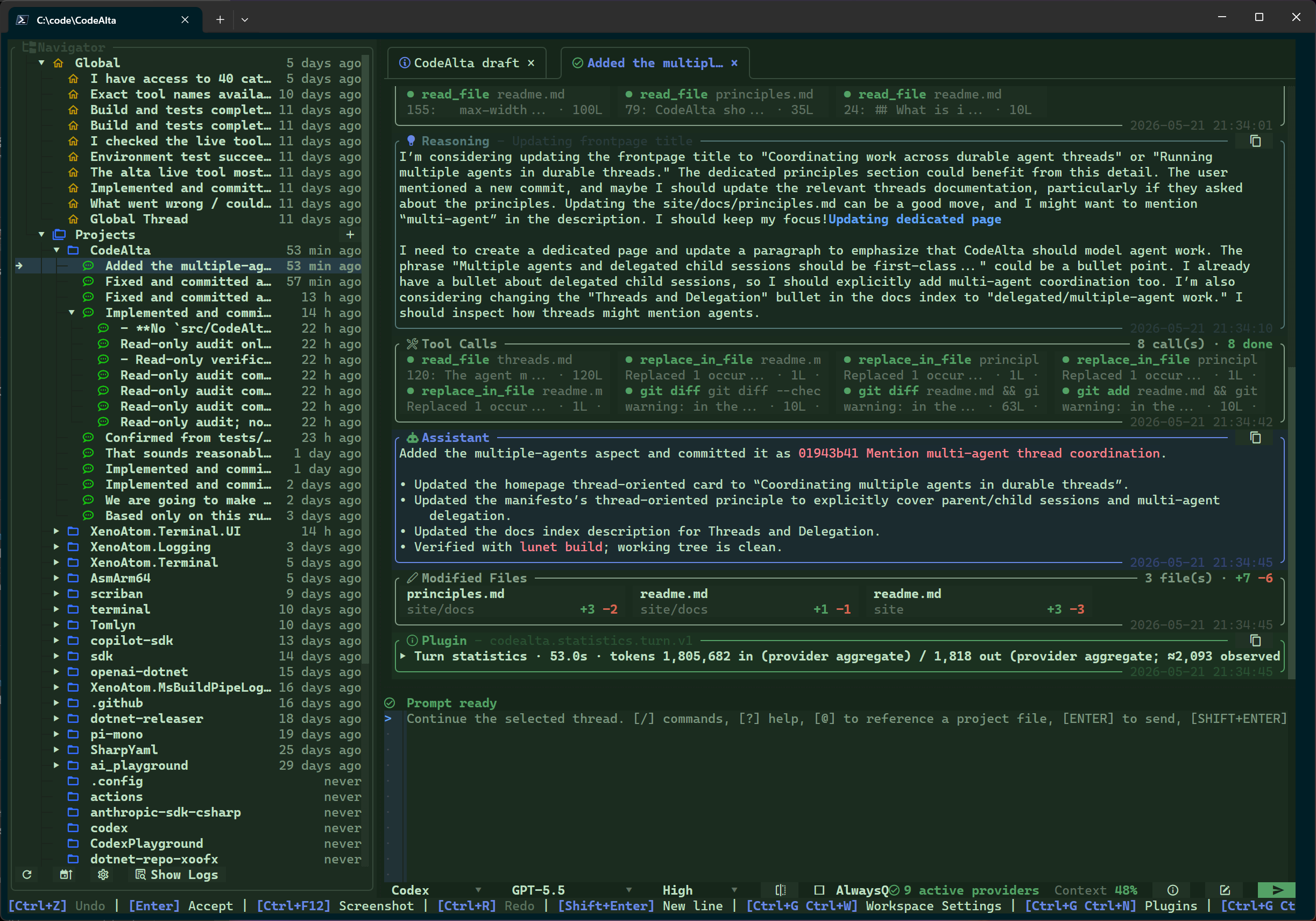
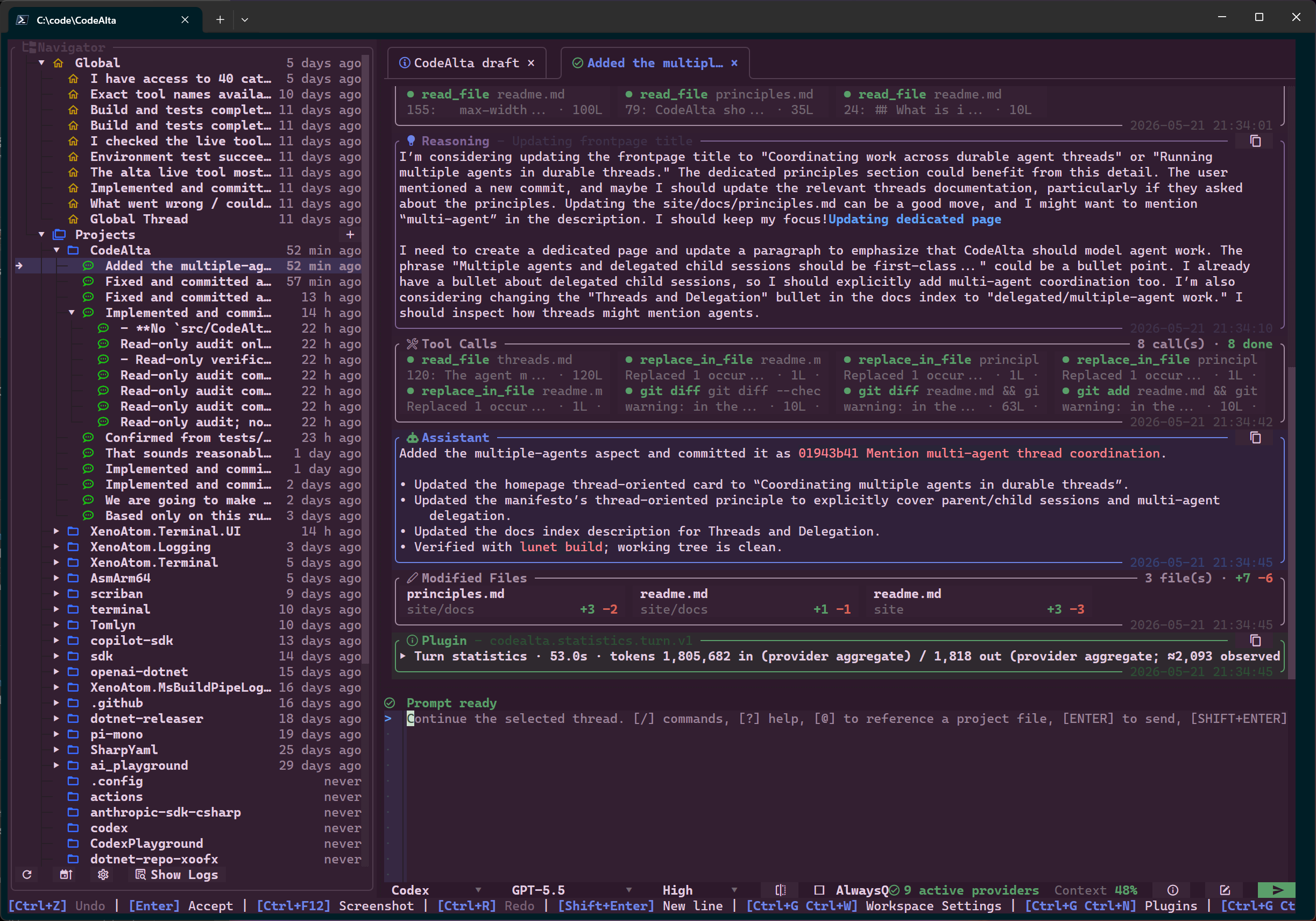
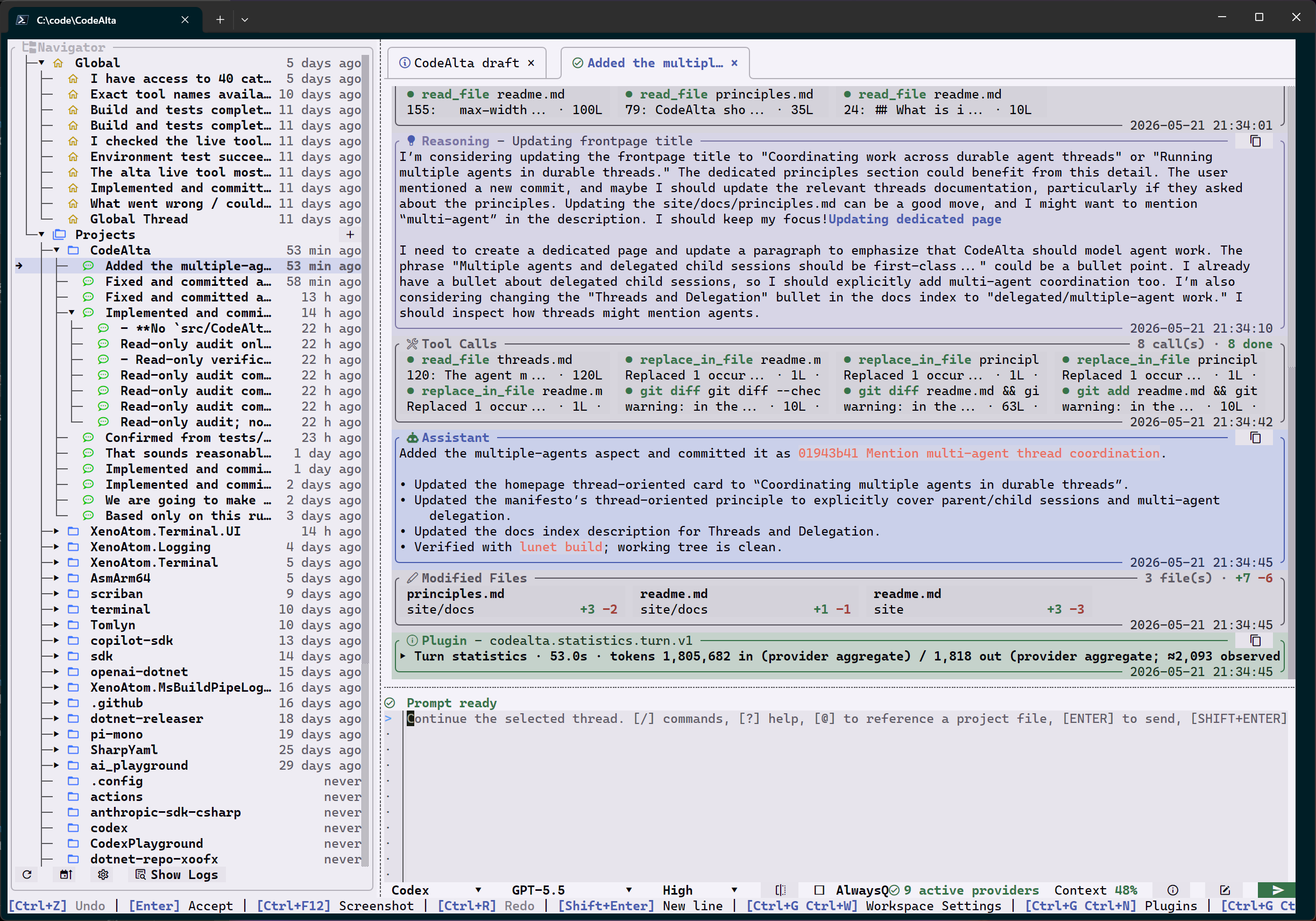
Settings
Settings holds your preferences and the pages that manage providers, models, prompts, skills, plugins, MCP servers and permissions.
Settings window
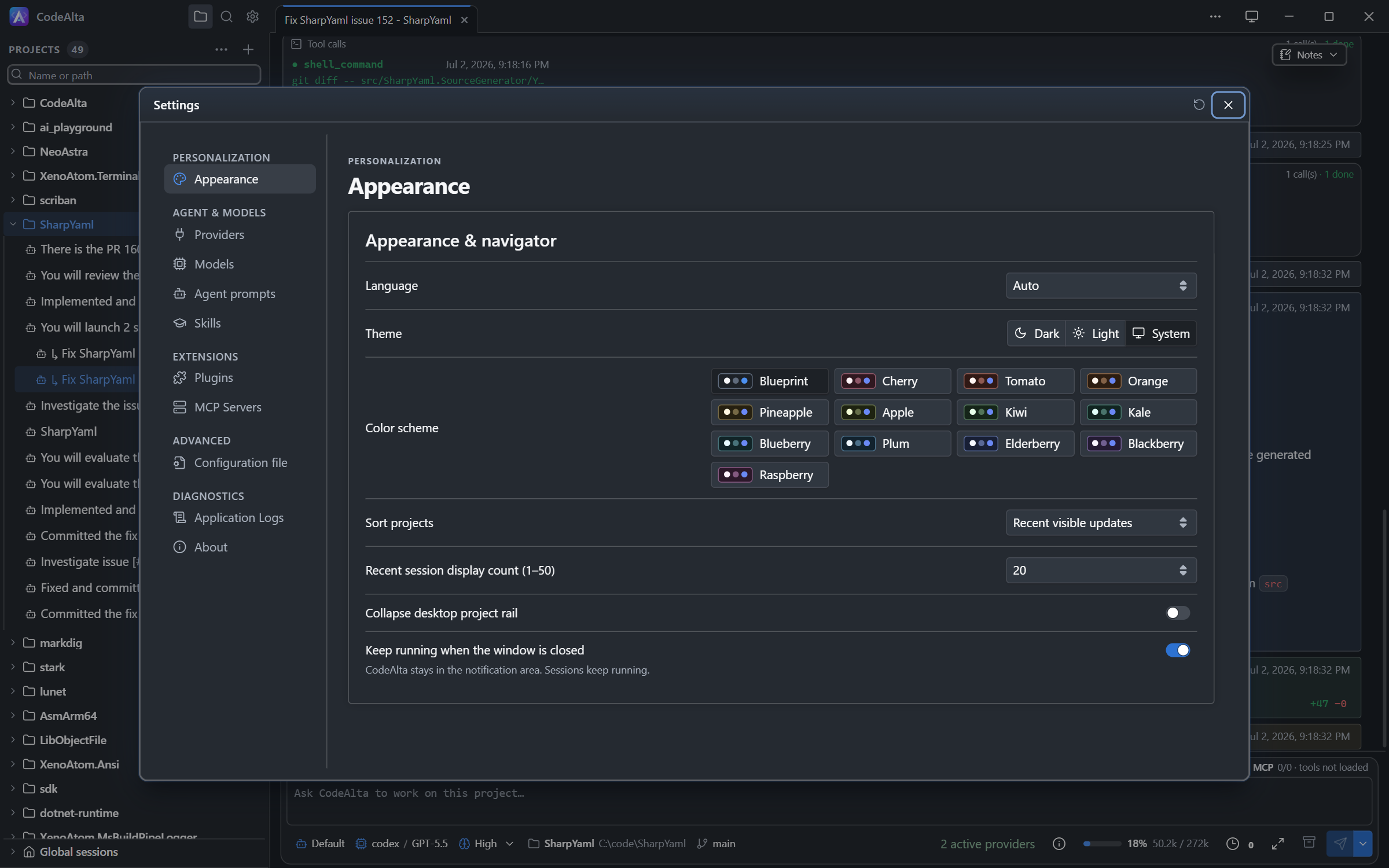
Open it with Ctrl+,, the gear of the title bar, Ctrl+G Ctrl+W or /settings. CodeAlta Desktop has one window with a page per area: Appearance, General, Windows, Speech, Sessions, Permissions, Providers, Models, Agent prompts, Skills, Plugins, MCP Servers, Configuration file, Application Logs and About, plus a page for each space. It opens on Appearance, and closes with Esc, its close button or a click outside it.
What you create in Settings (a prompt, a skill, a plugin, an MCP server, a color scheme, a kind of pull request) has a red Remove button there, which asks first.
The zoom of the window is in the title bar, before the theme switch: click it, or use Ctrl+-, Ctrl+= and Ctrl+0. It is kept for the next start.
Files of the settings
Most settings are files. Each page shows its paths, with Edit in the code editor (opens it in the code editor), Copy path and Reveal in File Explorer (Reveal in Finder on macOS) beside each.
| Page | Files and folders |
|---|---|
| Configuration file | ~/.alta/config.toml, and .alta/config.toml of the selected project |
| Providers, Sessions, Worktrees, Work items | ~/.alta/config.toml |
| MCP Servers | ~/.alta/mcp.json, .alta/mcp.json of the project, and the files of other tools CodeAlta reads |
| Agent prompts | ~/.alta/prompts, .alta/prompts of the project, and the selected prompt |
| Skills | ~/.alta/skills, .alta/skills of the project, and the selected skill |
| Plugins | ~/.alta/plugins, .alta/plugins of the project, and each source plugin |
| Appearance | The folder of your color schemes |
Opening ~/.alta/skills or ~/.alta/plugins lets you work on all of them at once. A file that does not exist yet has no button to open it. config.toml and mcp.json of ~/.alta open alone in their tab.
Appearance
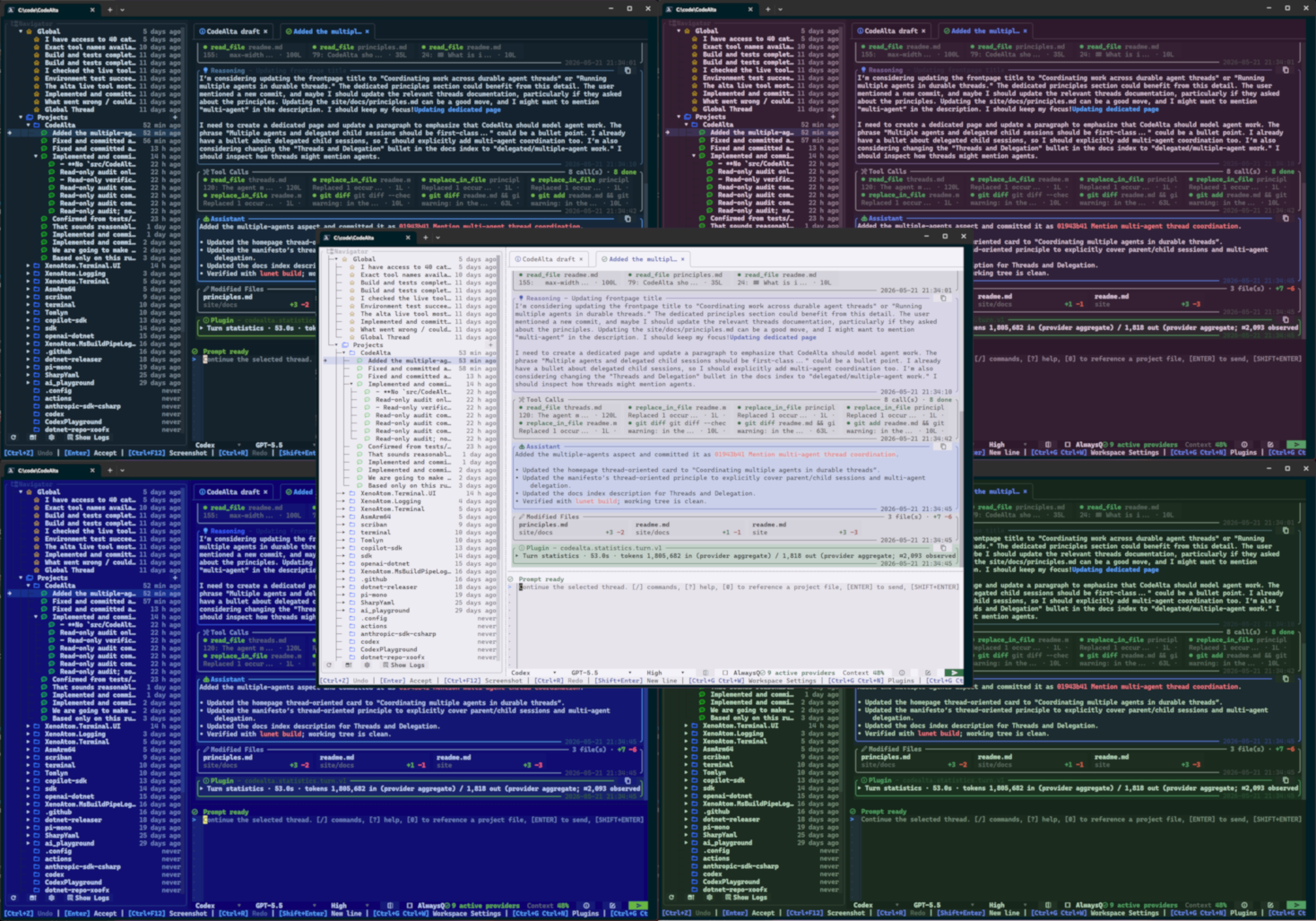
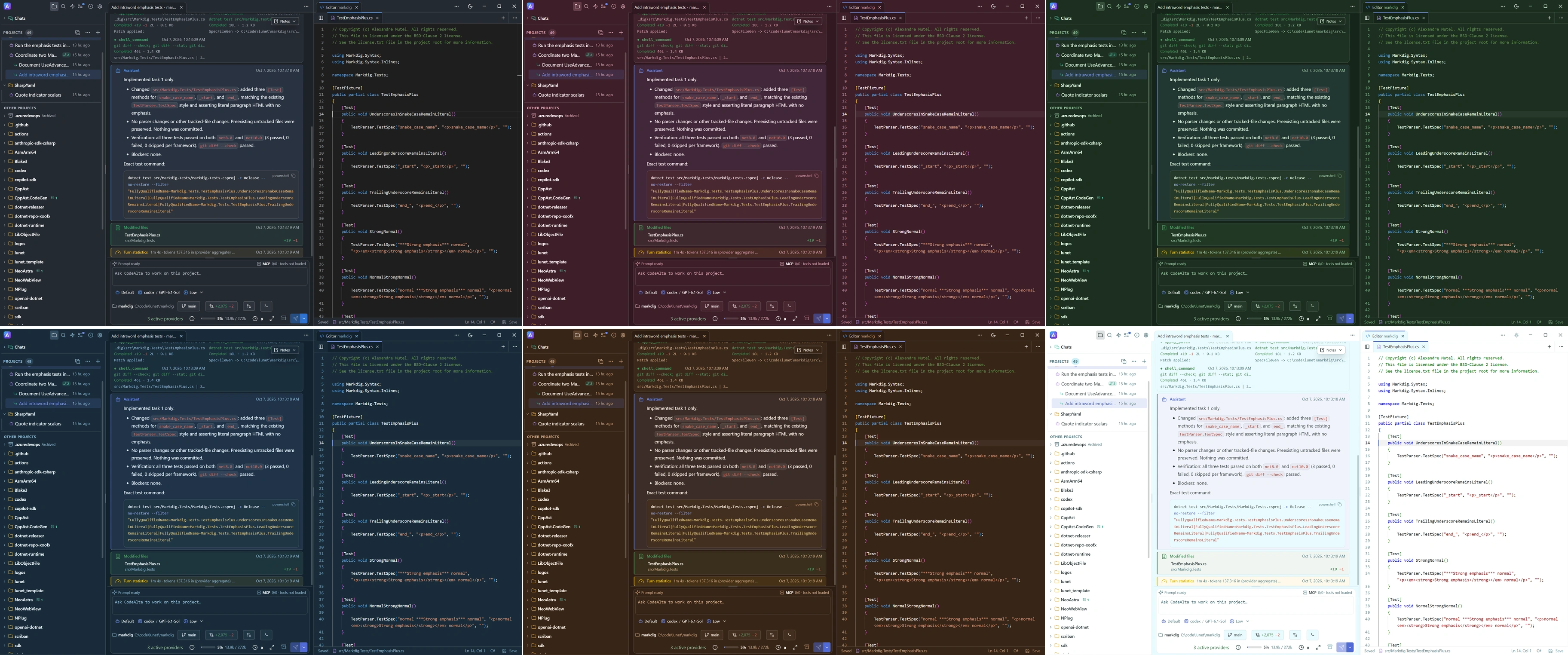
- Theme and colors: Dark, Light or Auto (follows the system), Darker dark theme, and one of 13 color schemes (each with dark, darker and light variants) or your own.
- Fonts: the code font and the prompt font. See Fonts.
- Explorer: project sorting, the number of recent sessions and sub-agents, and whether the project rail is collapsed.
- Conversation and changes: the conversation width, Focused timeline, Images under folded lines, Entry appearance, and whether changes show one file at a time or all at once.
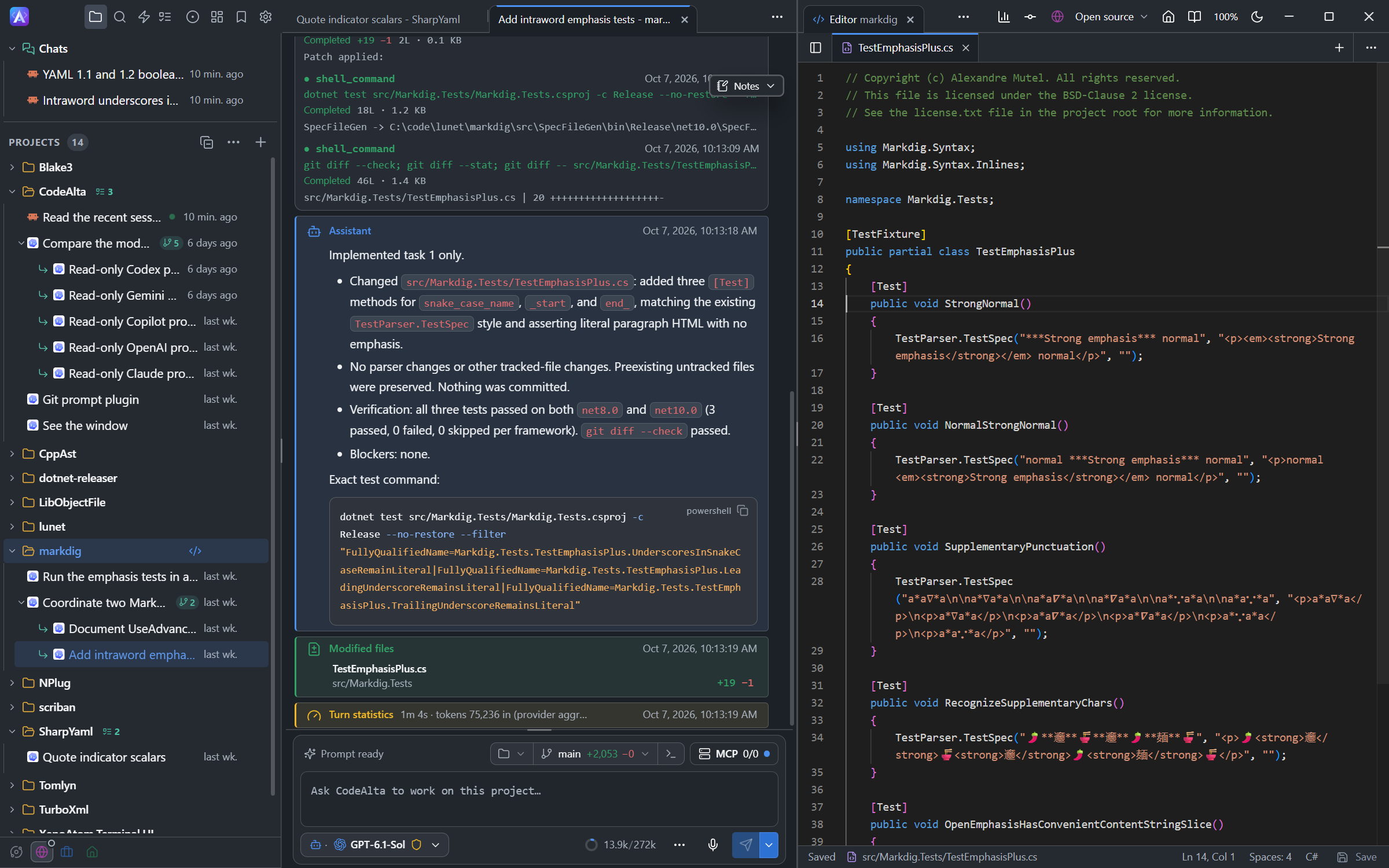
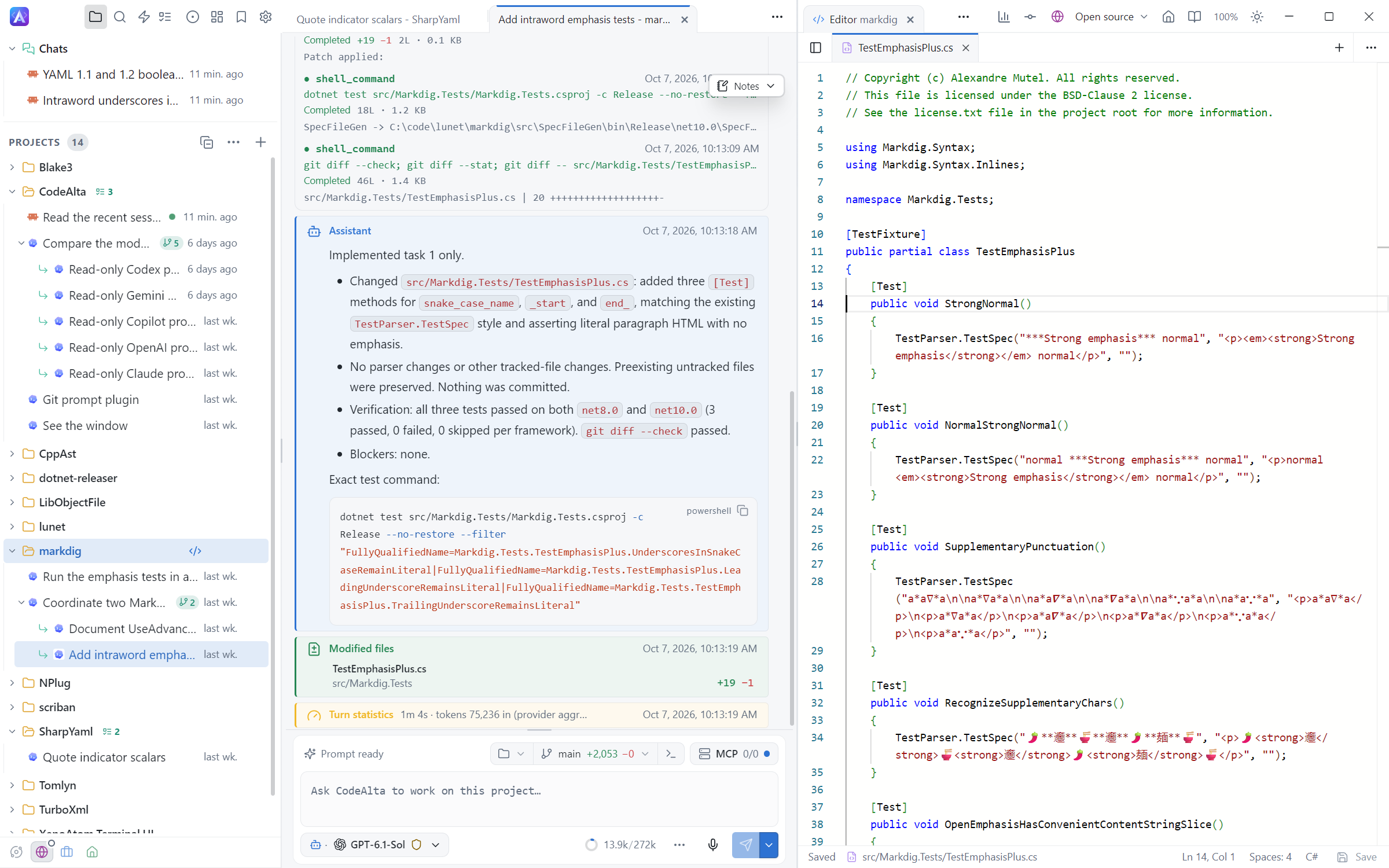
Fonts
CodeAlta Desktop brings its own code font, CaskaydiaCove Nerd Font (Cascadia Code with the Nerd Fonts icons), used by code blocks, the editor, diffs, tool output, terminals and the prompt.
- Code font takes installed font names separated by commas, such as
JetBrains Mono, Sarasa Mono SC; a missing character comes from the next font. On Windows, Installed fonts lists the system fonts. Reset goes back to the built-in font. - Prompt font writes the prompt in the code font (the default) or the Interface font.
Chinese or Japanese text uses the sans-serif font of the system. If a prompt that mixes it with code looks too wide, choose the Interface font for the prompt, or name a monospace font made for your language first.
Your own color scheme
Customize, beside the color scheme, makes a scheme of your own from the selected one. Name it, pick the theme to edit (Light, Dark or Darker), and change any of:
| Color | What it changes |
|---|---|
| Background | The window background; panels follow its tint |
| Text | The text |
| Muted text | Secondary text, icons and borders |
| Accent | Buttons, links and selections |
| Success, Warning, Danger | What succeeded, needs attention or failed |
Click a color for the system color picker, or type #rrggbb; nothing is kept until Save. Colors you leave alone follow the base scheme. Edit opens a scheme of yours again to change, duplicate or remove it.
Your schemes are files in ~/.alta/color-schemes/, which you can copy, share or write by hand:
{
  "name": "Deep Sea",
  "base": "plum",
  "dark": {
    "background": "#0b1d2a",
    "accent": "#33ccff"
  }
}
base is blueprint, cherry, tomato, orange, pineapple, apple, kiwi, kale, blueberry, plum, elderberry, blackberry or raspberry. light, dark and darker hold background, text, muted, accent, success, warning and danger. A file that cannot be used is listed on the Appearance page with the reason.
General and Sessions
General has:
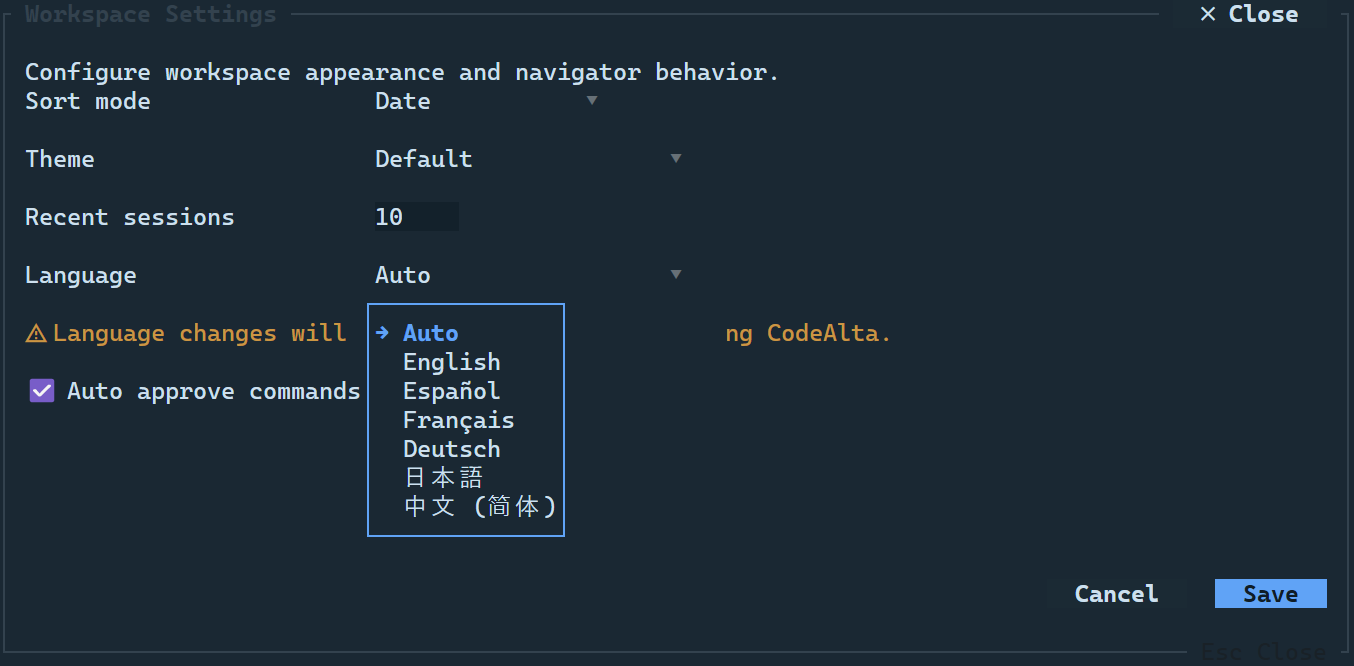
- Language: Auto, English, Spanish, French, German, Japanese or Simplified Chinese.
- Welcome page: whether the welcome page opens at startup and is animated.
- Startup and closing: turn Remote Control back on at startup, what closing the main window does (see Close or keep running), and Keep computer awake when CodeAlta is running.
- External editor: see External editor.
Sessions has Session titles (see Session titles), Suggest the next prompt (see Prompt suggestions), Review changes before commit (see Review before commit), Add CodeAlta as co-author (see CodeAlta as co-author) and Single tab for sessions.
Windows is described in Windows, and Speech in Speech.
Tool permissions
Agents ask before running commands or changing files, depending on the permission mode of the session. Settings > Permissions has:
- Default mode, for sessions without one: Bypass permissions (the default) or Ask first.
- Sessions created by agents: Bypass permissions (the default, so a sub-agent never stops its parent's work with a question), or Same as the session that creates them.
- Tools: the tools turned off for every session.
- Confirmations: ask before deleting a session, archiving a project or stopping a plugin whose agents are at work. Turn one on again here after Do not ask again.
In CodeAlta TUI, Auto approve commands, in the Workspace Settings, is on by default; turn it off to answer each request with Allow Once, Allow for Session or Deny.
An agent runs with your user privileges: a mode decides what you are asked, it is not a sandbox. Approved commands and file changes are not limited to the project folder.
Answer a request
A request appears on top of the prompt of its session, with the command and its folder, or the folder a change writes under.
Enterallows once;2orEscdenies. Or write what the agent should do instead and pressEnter: the request is denied and your text is sent. A denial does not stop the agent: use Stop.- A command longer than 4,096 characters is shown cut, with a red warning: deny it unless you know what it does.
- A session that waits is marked in the Explorer and on its tab, and a message with Show goes to it. A sub-session's request also shows on the sessions above it, where Allow once and Deny answer it.
A session in a mode that asks cannot start a background job, type in a terminal, give an automation a command, create or build a plugin, or use the UI tools.
Tools turned off
A session can do without some built-in tools, such as shell_command when you give the agent specific tools through MCP servers or plugins instead. The tools turned off in three places add up:
| Where | For | File |
|---|---|---|
| Settings > Permissions, Tools | every session | [tools] disabled = ["shell_command"] in ~/.alta/config.toml |
| The page of a space, Tools | the sessions of that space | tools: { disabled: [...] } in the file of the space |
| The editor of an agent prompt, Tools turned off | the sessions of that agent | disabled_tools: [...] in the front matter of the prompt |
Click Turn off a tool to choose a built-in tool, or type the name of another. A change applies from the next turn.
Without shell_command, a session runs no program of its choice:
- no jobs, terminals, plugin builds, new MCP servers or automations that run commands, no UI tools, and plugin tools that run programs (
gh,glab,az) refuse; - its worktree is checked out without git hooks, and its file tools write only in its project, worktree and scratchpad, never in
.git,.claude,.codex,.vscode,.mcp.jsonor.alta(exceptplansandtasks); - a Claude Code session runs the CLI in its restricted mode, without shell, subagents, skills, settings files or other MCP servers.
A session never hands a tool it does without to another session, and does not change agent prompts, spaces, projects or automations: you do that from the window. The MCP servers you turned on stay available.
Storage
Settings > Advanced > Storage has two cards.
Automatic cleanup:
- Clear scratchpad on startup, on by default.
- Delete inactive sessions, After 3 months by default: a number and a unit (days, weeks, months, years), or Never. A session with a bookmark is kept.
Cleanup runs at the next startup, never at once. Session cleanup runs on local Windows storage only; elsewhere the card says why it did not run. A session is inactive since its file was last written (viewing it does not count). Open sessions, drafts and active work are kept, and a session goes only with the sessions it started or that continue it, once all are inactive; its Statistics are saved first. Other files of the sessions folder older than the duration go too. The card shows the progress and result of the last cleanup.
File sizes shows what takes room in your profile (sessions, scratchpads, saved Statistics, database, configuration, extensions, caches and logs), for information only. Refresh measures again.
Providers and models
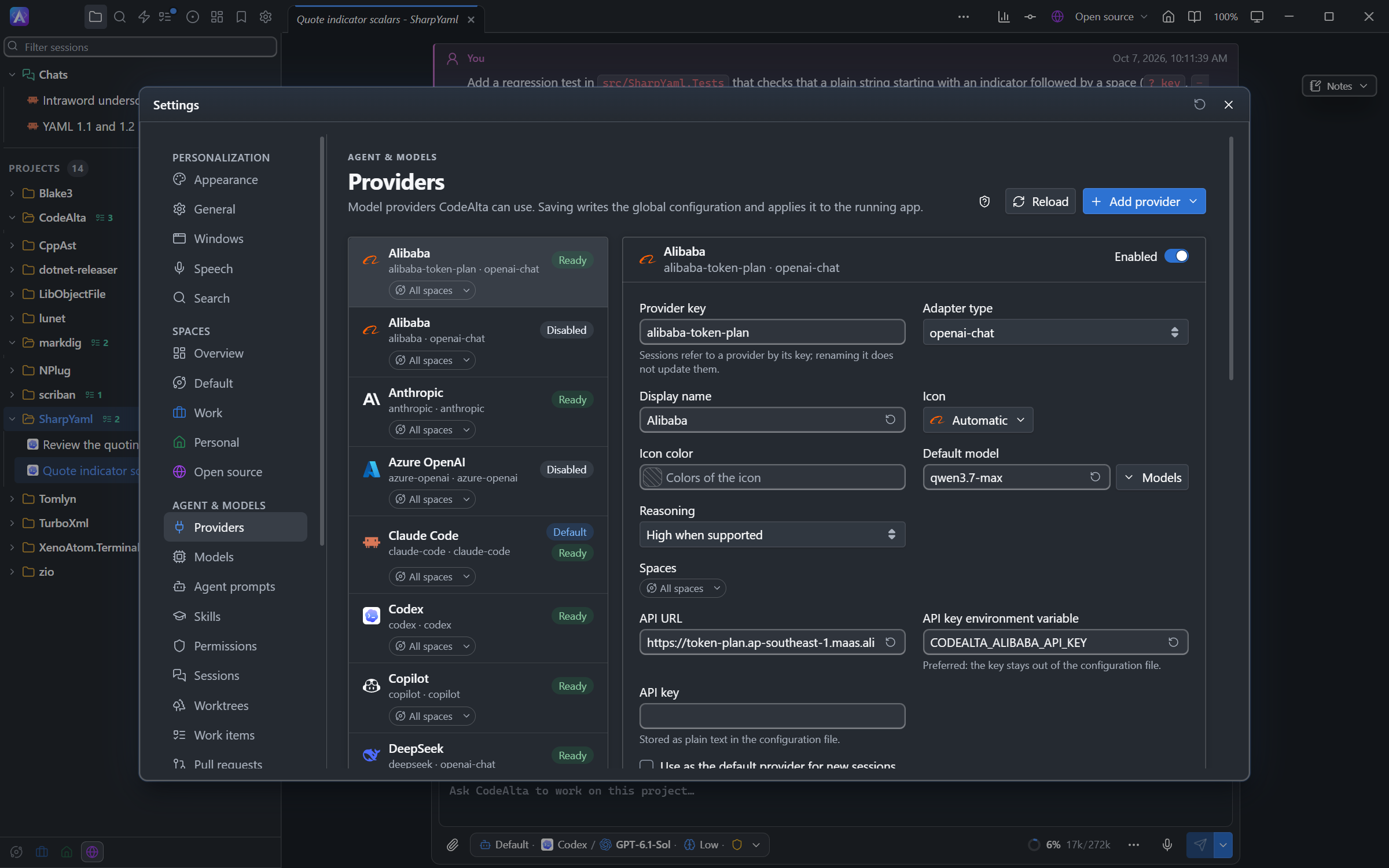
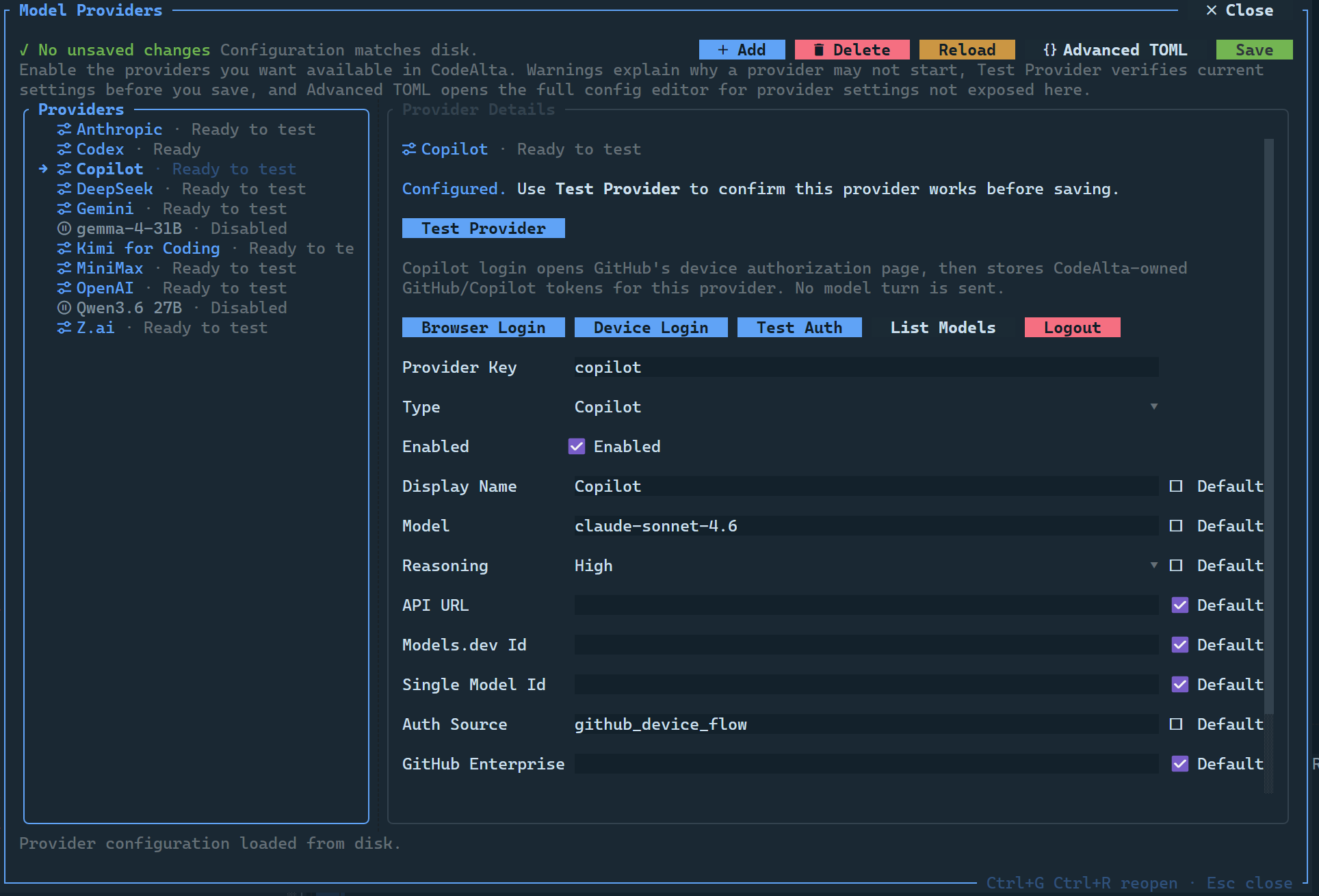
Settings > Providers enables providers, takes their credentials, tests them and signs in to Codex or Copilot. Open it with Ctrl+G Ctrl+R, /model_providers, or N active providers in the ⋯ menu of the prompt (N provider errors above it). See Model Providers.
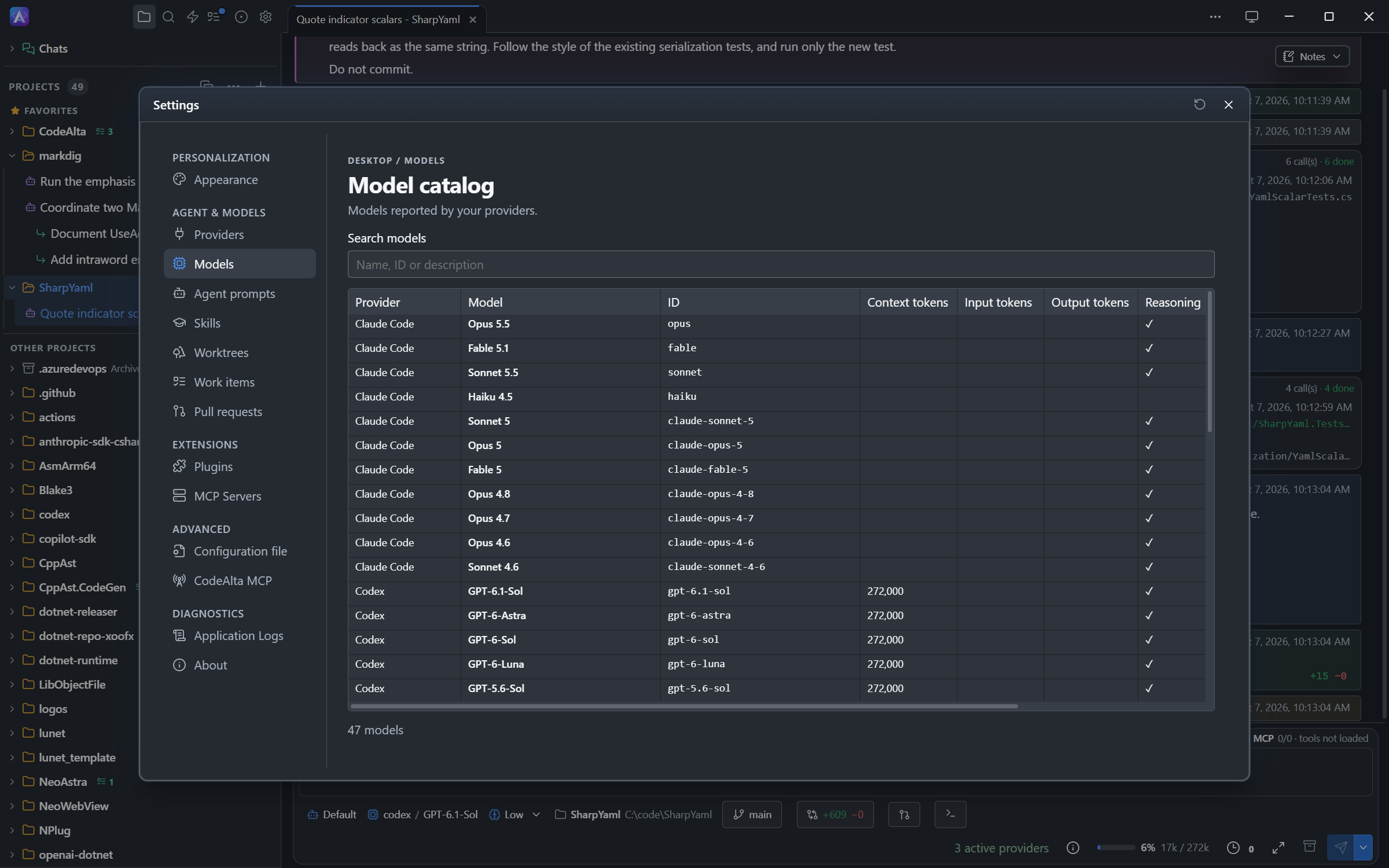
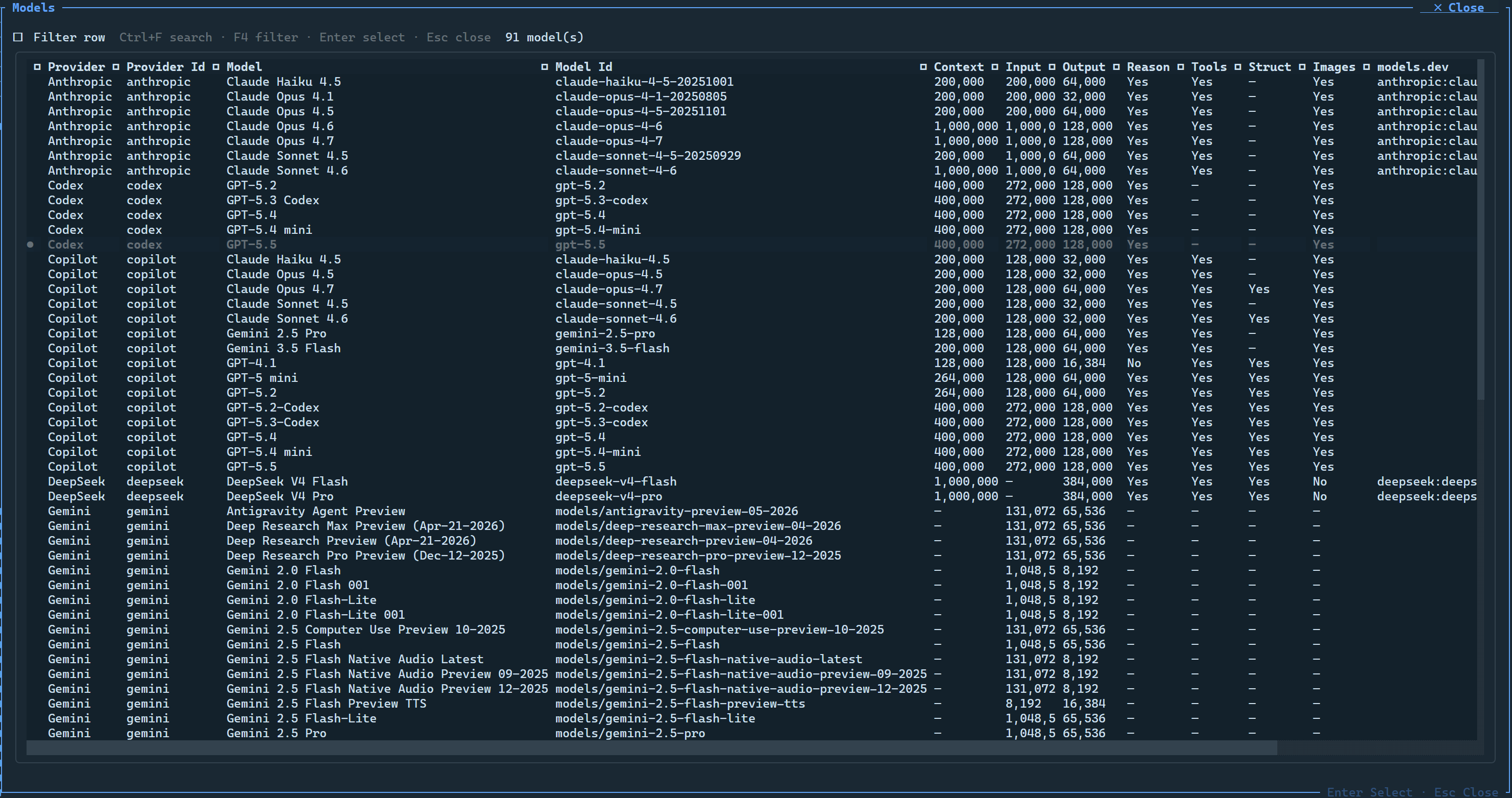
The model browser (Settings > Models, Ctrl+G Ctrl+O or /models) lists the models of every provider with their context size, their capabilities (reasoning, tool calls, images) and their model refs, such as codex:gpt-5.5@high.
Agent prompts
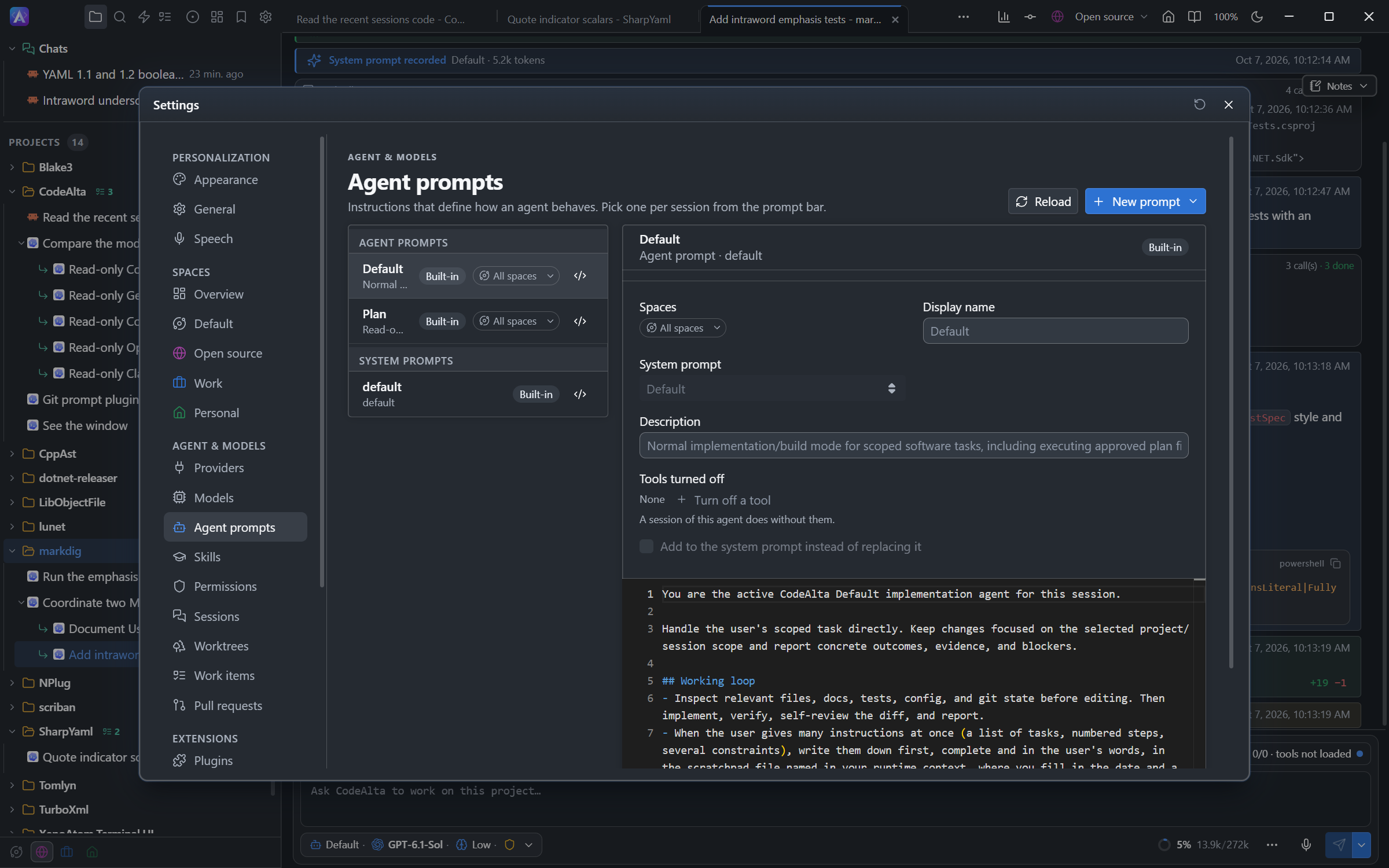
Open the prompt manager with Ctrl+G Ctrl+H or /prompt (Settings > Agent prompts). It lists the built-in prompts, such as Default and Plan, and your global and project prompts, shows which are overridden, and edits the selected one: name, description, system and the Markdown body. Built-in prompts are read-only: Customize a copy, or a prompt with the same id, overrides one. System prompt files follow the same rules. The </> button opens the file of a prompt in the code editor. See Agent Prompts.
Skills management
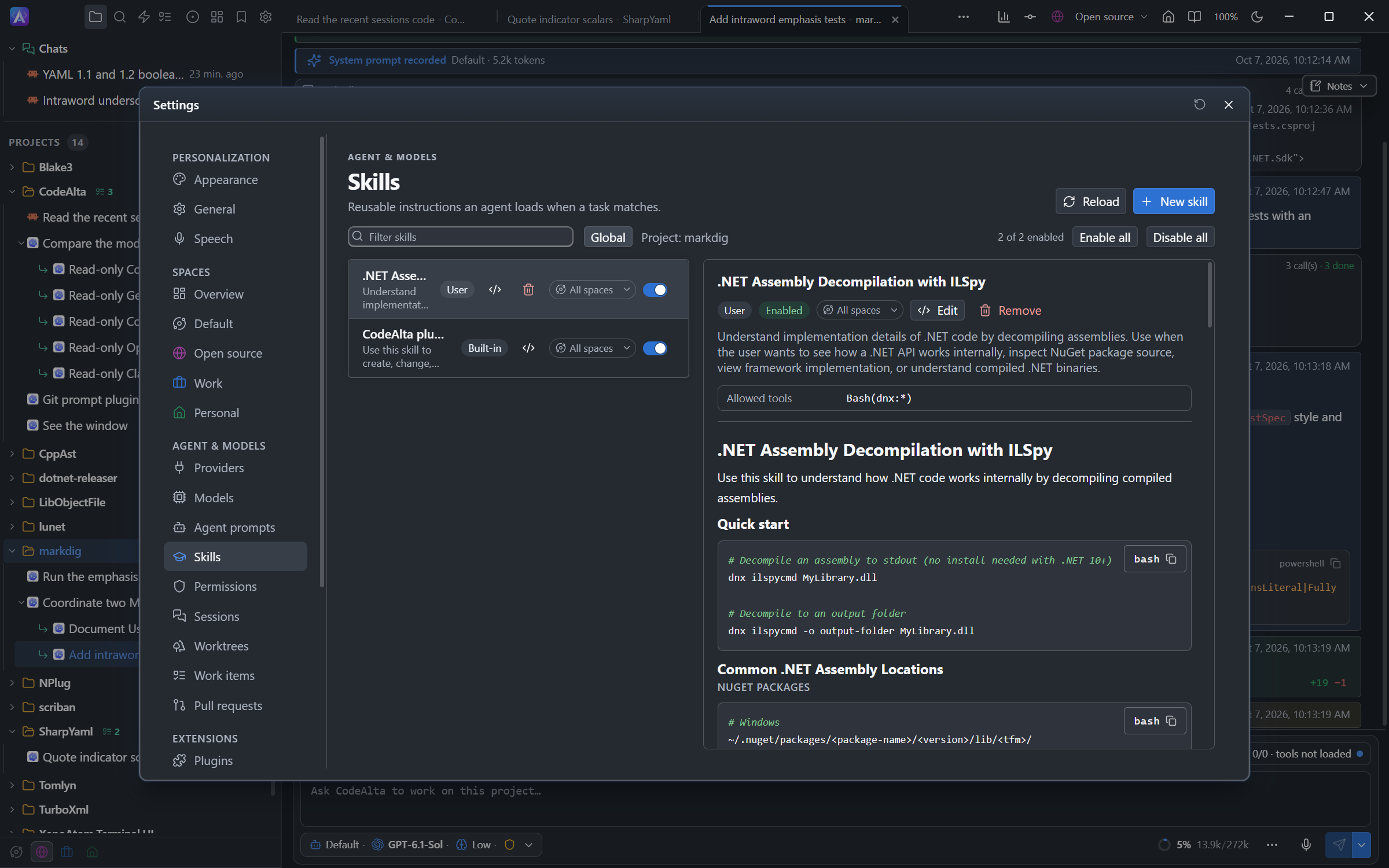
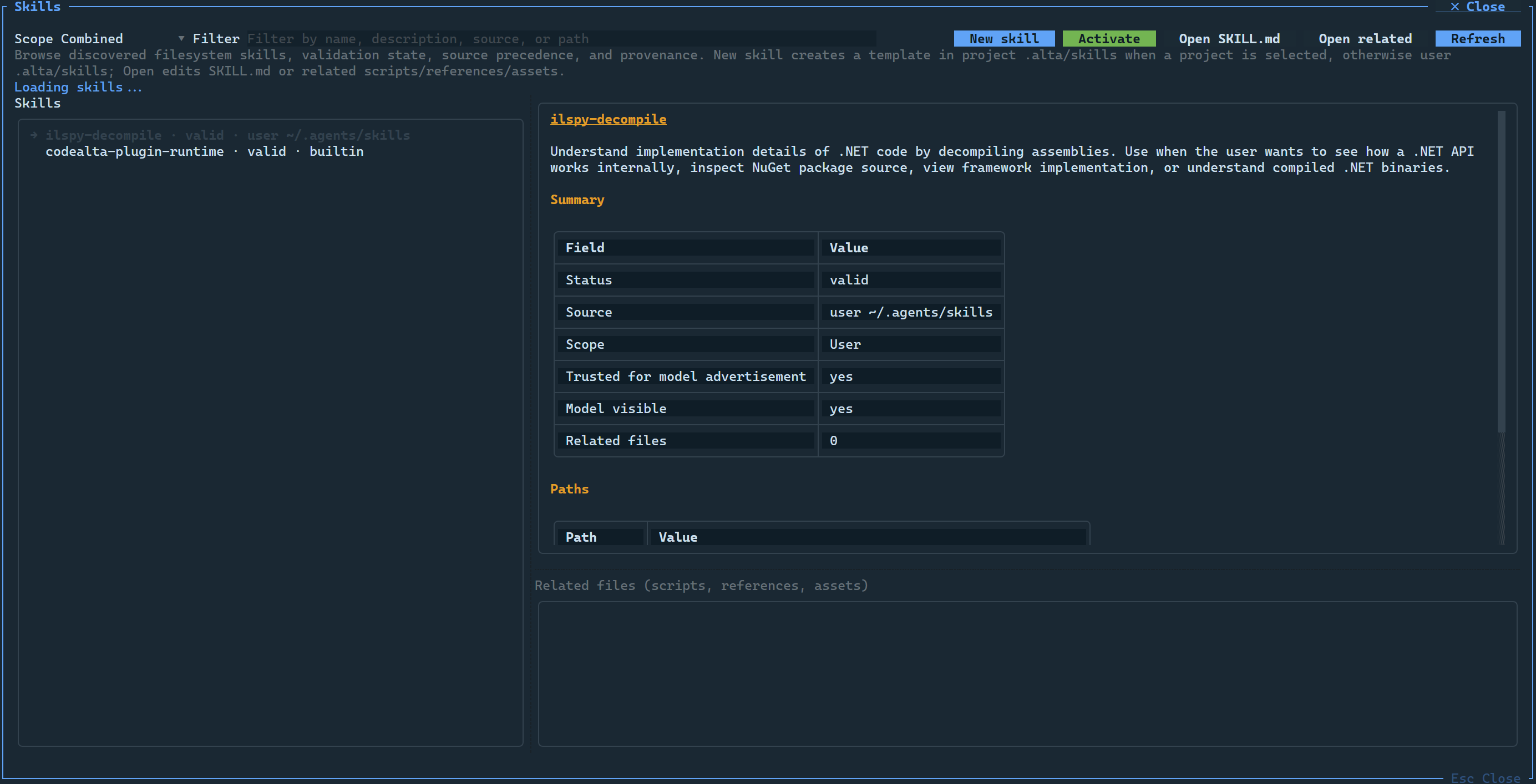
Open it with Ctrl+G Ctrl+K or /skills. CodeAlta finds Agent Skills SKILL.md packages in your folders and the project's. Inspect them, create one with New skill, and enable or disable each for every project (~/.alta/config.toml) or the selected one (.alta/config.toml). A disabled skill is not offered to models. To use a skill yourself, see Use a skill.
- Edit, or the
</>button, opens the folder of a skill in the code editor; built-in and plugin skills have View files (read-only). - Remove moves one of your skills, or one of the project, to the trash after you confirm.
- An Invalid skill (unreadable YAML, a duplicate name) shows its diagnostics and can be removed.
- Enable all and Disable all act on the skills that match the filter.
- With several spaces, a chip shows the spaces a skill of yours is offered in.
- The skills of MCP servers come after yours, read-only, with a switch each.
In SKILL.md, disable-model-invocation: true makes a skill manual: it is used only with / and its name. argument-hint, user-invocable and context are accepted and ignored; any other unknown field makes the skill Invalid, except in a GitHub Copilot folder.
The prompt of a session lists the skills of CodeAlta first, then those used most in the project lately; agents find the others with alta search.
In CodeAlta TUI, the G and P checkboxes set the global and project state, and bulk actions enable, disable or invert the skills shown.
Plugins and MCP servers
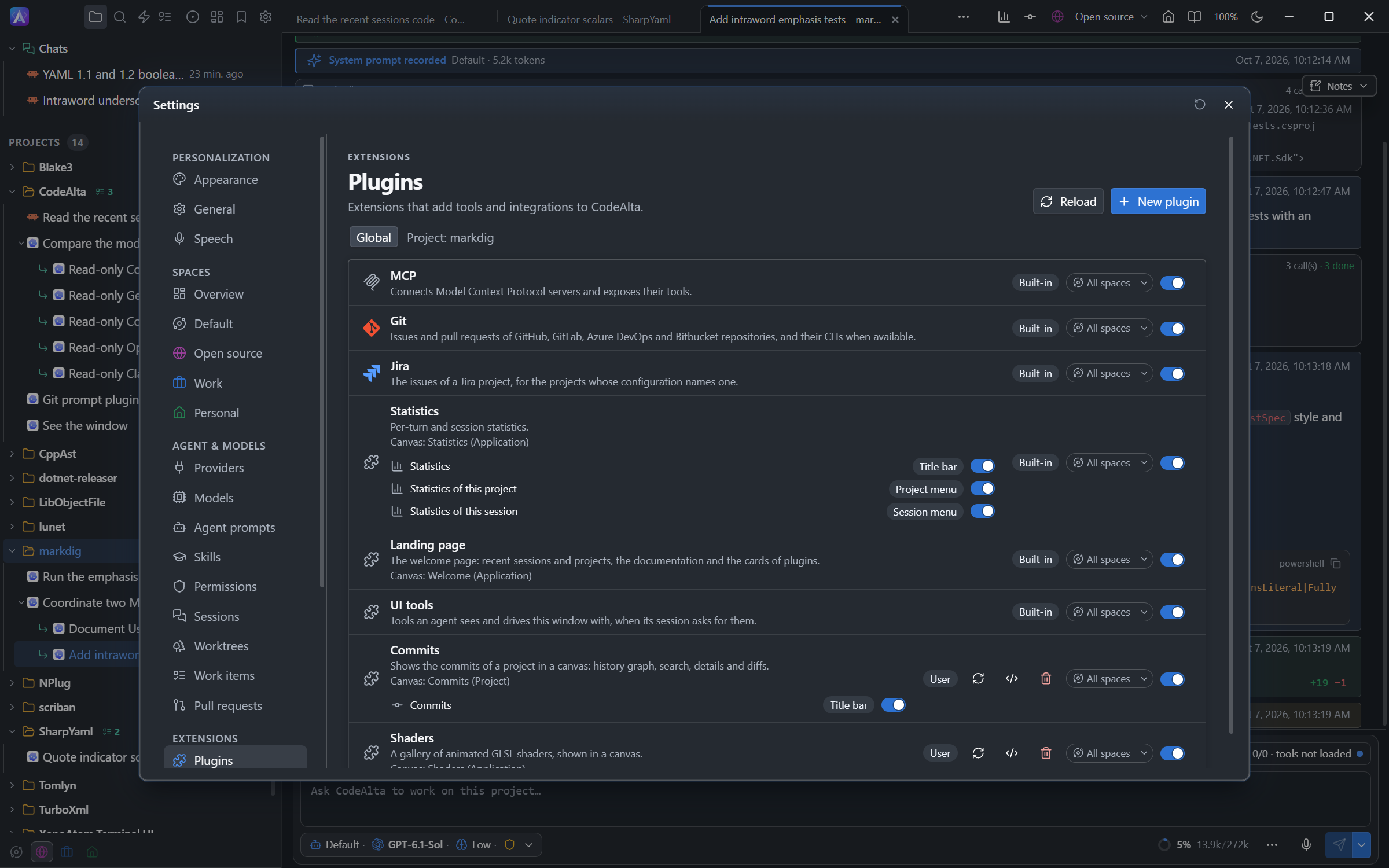
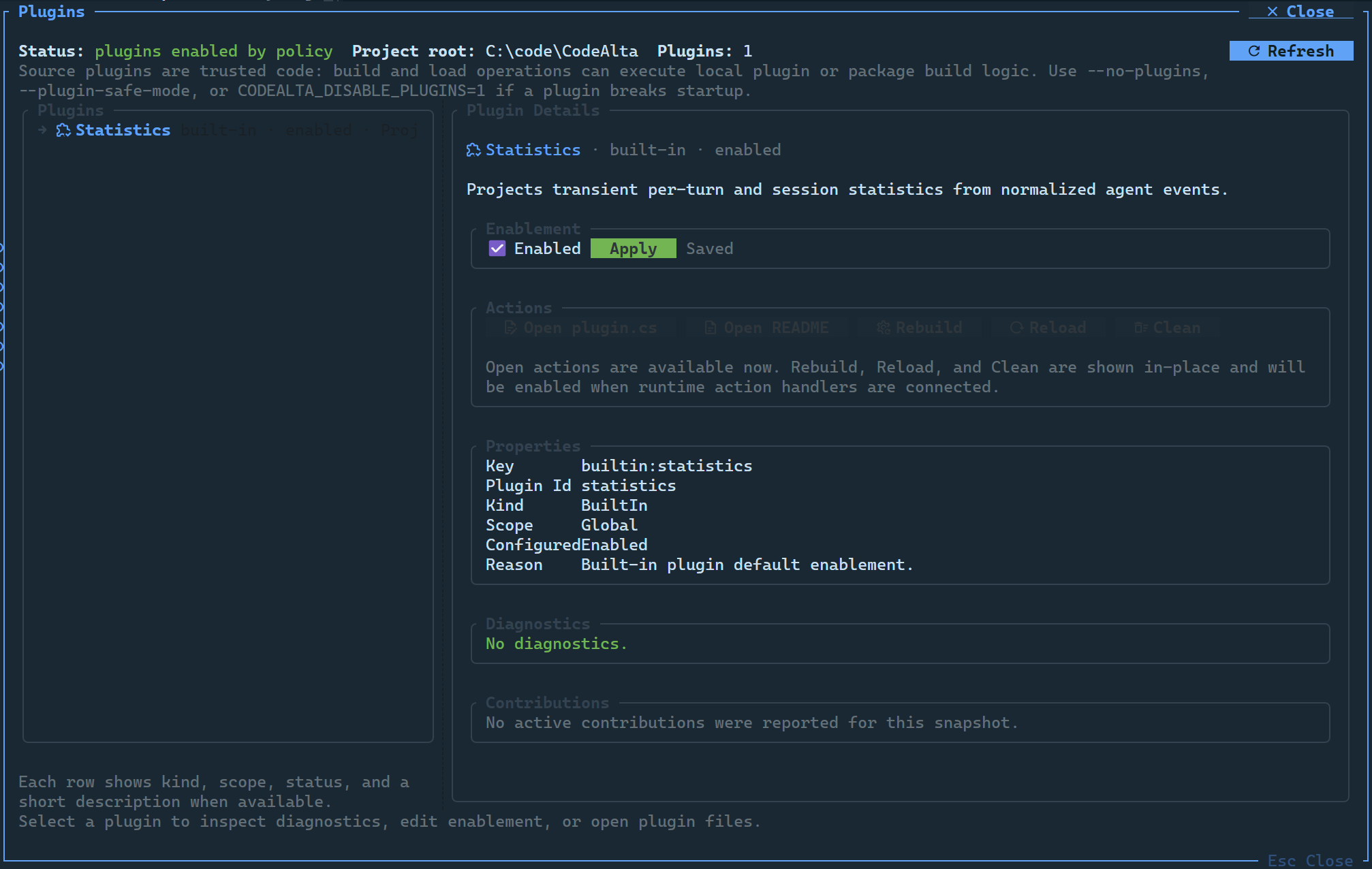
Open Plugins with Ctrl+G Ctrl+N or /plugins. It lists global and project plugins with a switch for each. A source plugin has buttons to build and reload it, edit it in the code editor and remove it; New plugin creates one. See Plugins.
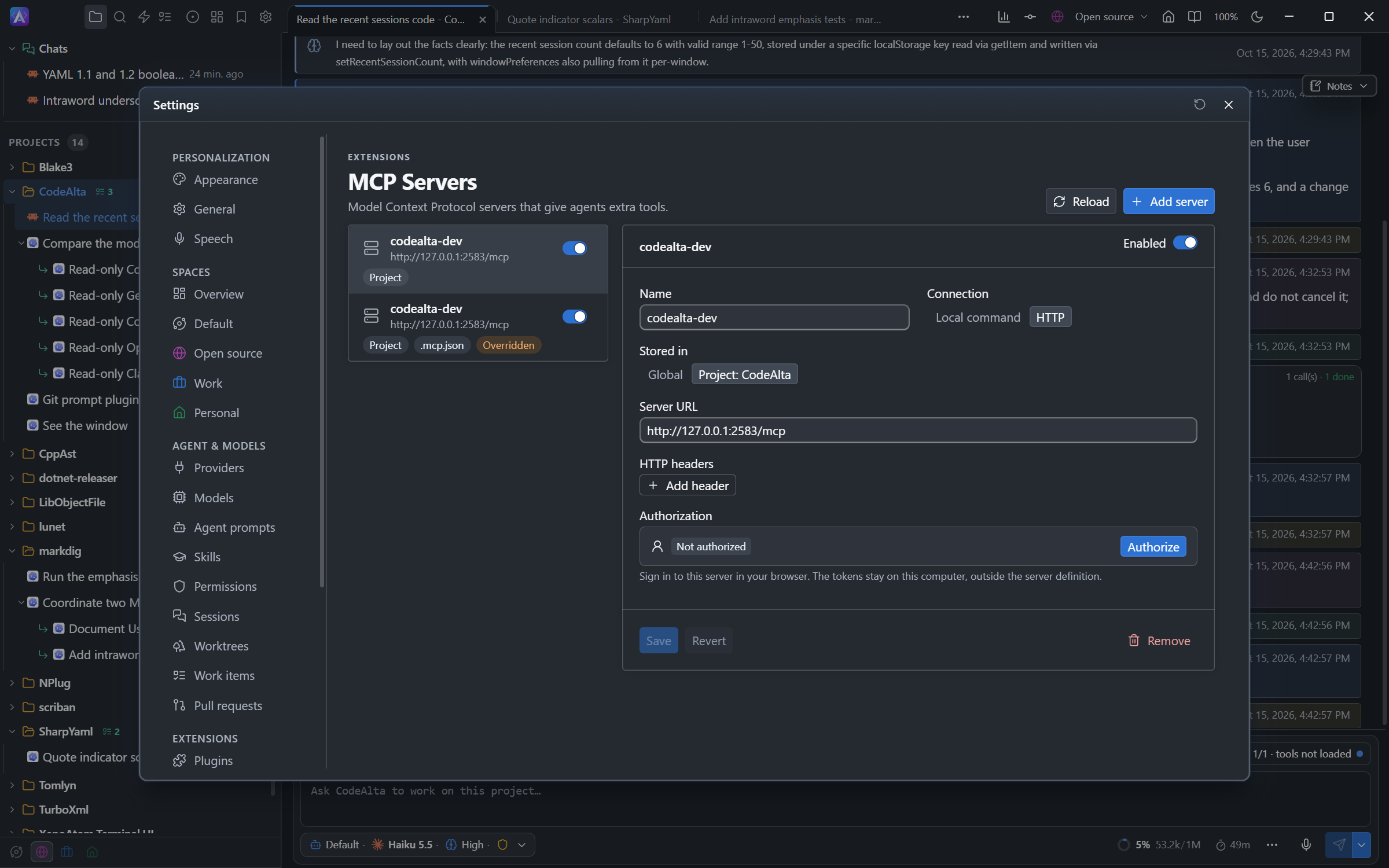
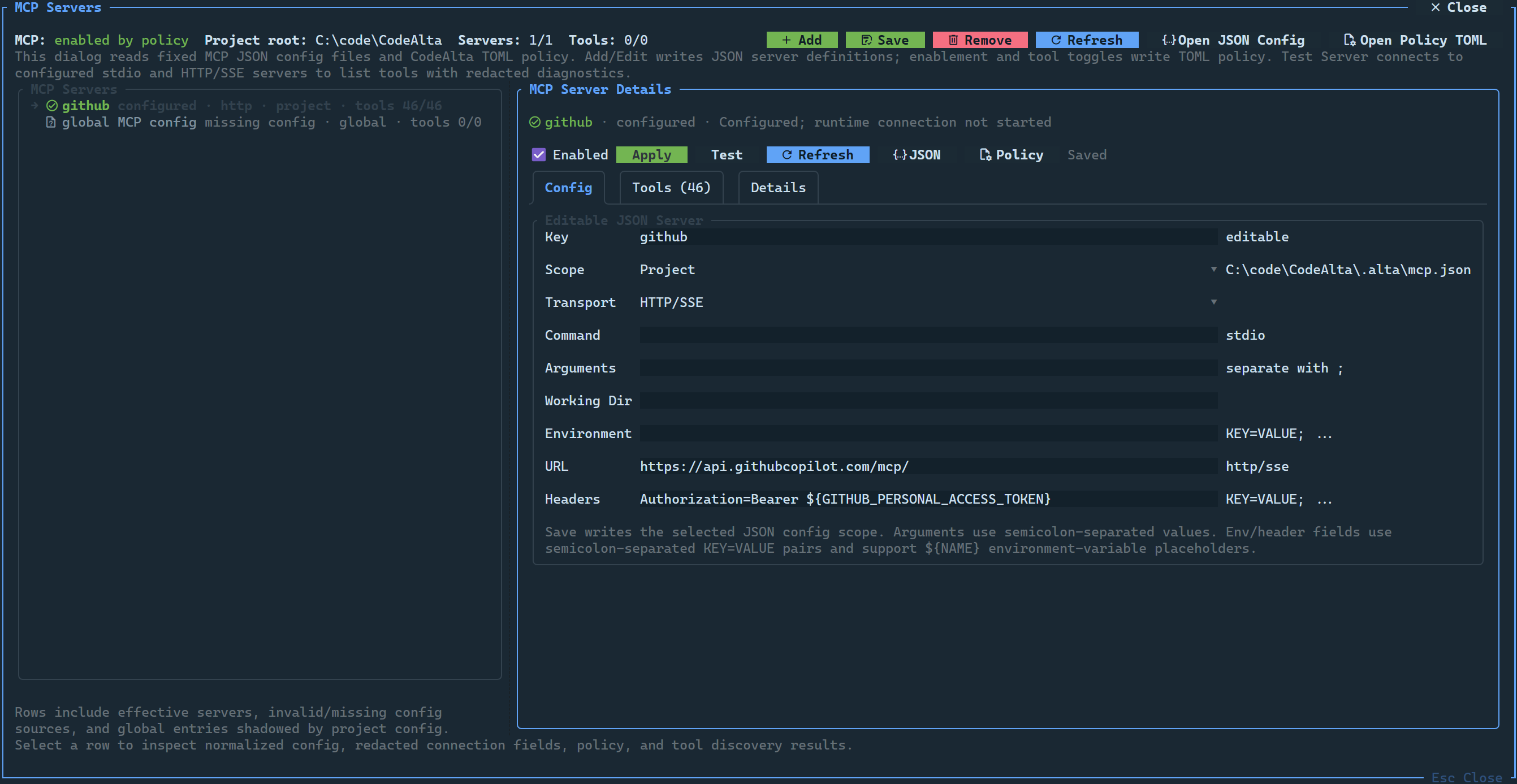
Open MCP Servers with /mcp, or Ctrl+G Ctrl+Y in CodeAlta Desktop. See MCP.
Logs and recovery
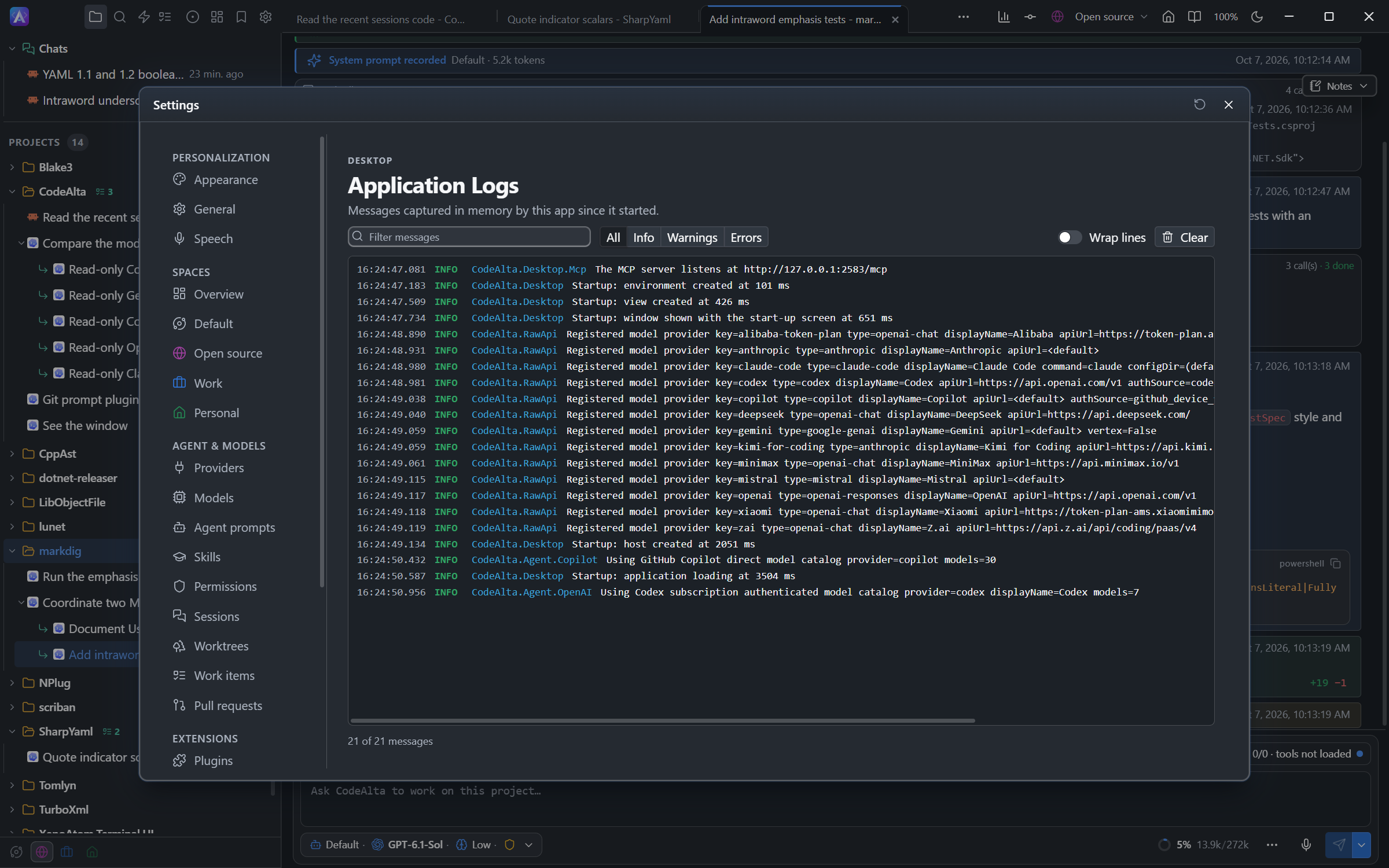
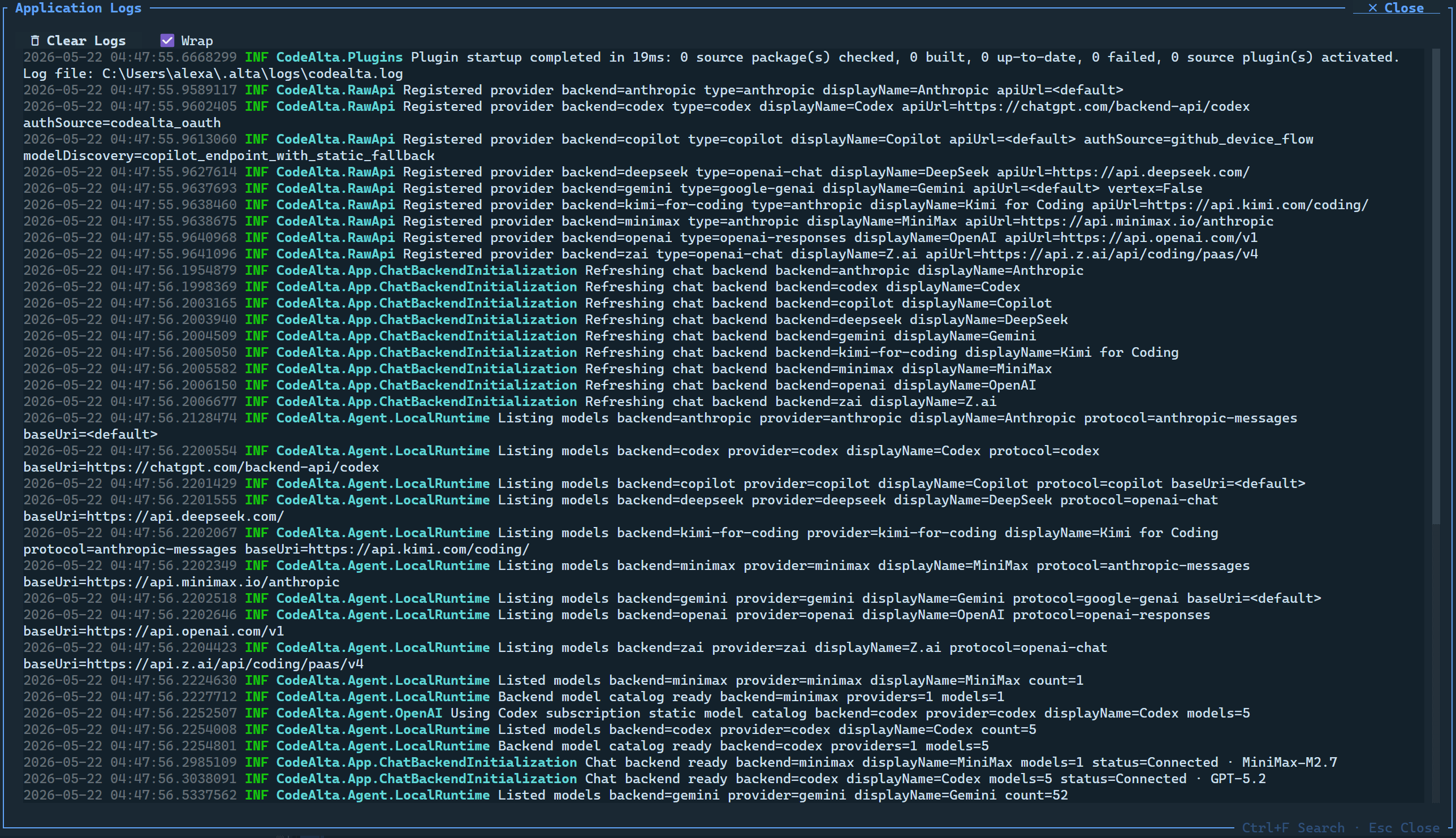
Open the logs with Ctrl+G Ctrl+L or /logs (Settings > Application Logs): startup, provider, credential and plugin messages, with search and level filters.
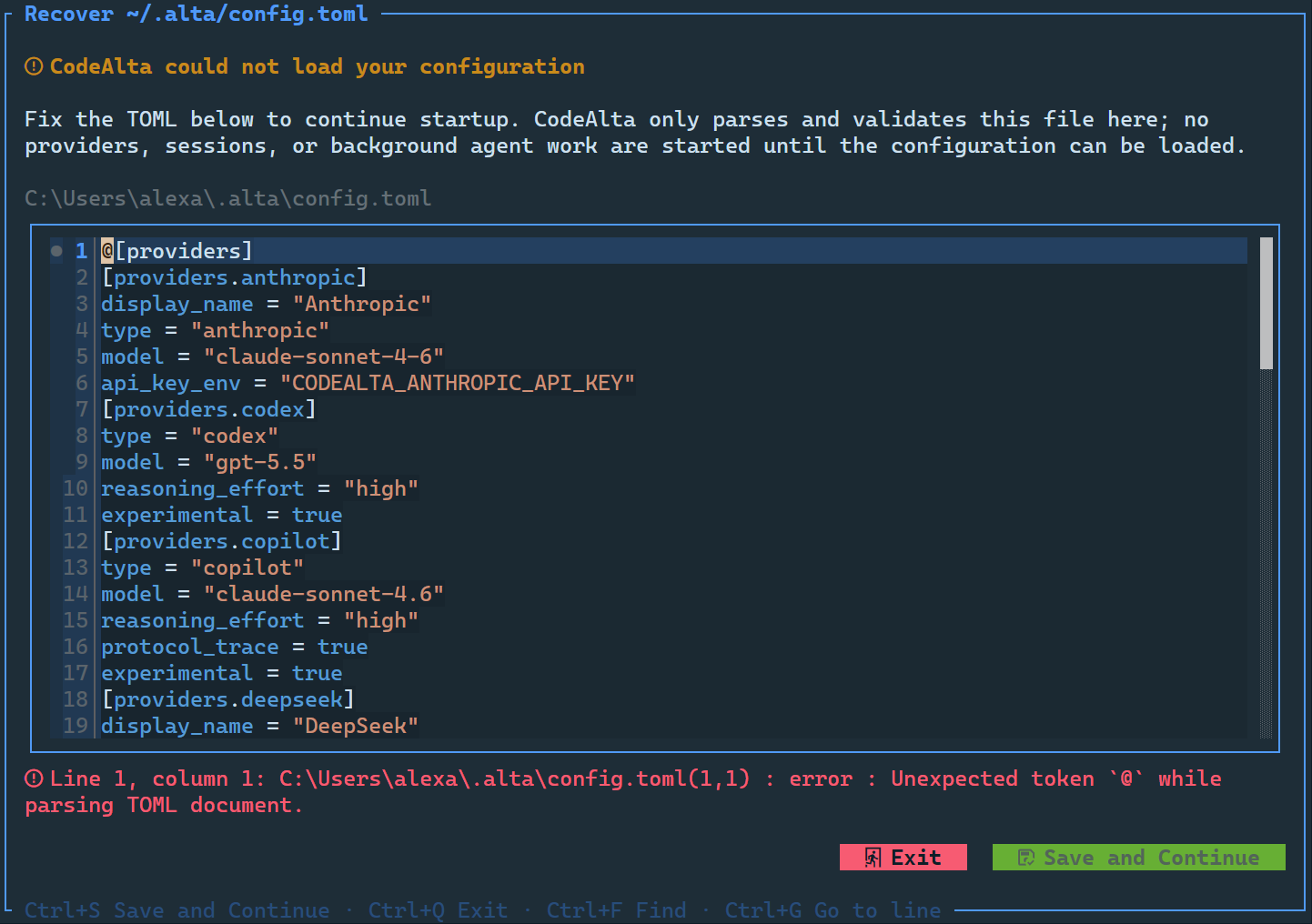
If ~/.alta/config.toml cannot be loaded at startup, CodeAlta opens a recovery editor with TOML highlighting and live errors: fix the file and save to continue. Settings > Configuration file edits it at any time.
TUI settings
In CodeAlta TUI, the Workspace Settings dialog sets the navigator, the theme, the language (applied fully after a restart) and Auto approve commands. Providers have their own editor.