The Prompt and the Timeline
The prompt is where you write to a session; the timeline above it shows what the session does. For starting, steering, compacting and forking sessions, see Sessions.
Send and queue


| Key | Action |
|---|---|
Enter |
Send; while the session works, add the prompt to its queue |
Shift+Enter |
New line |
Ctrl+Enter (Cmd+Enter on macOS) |
Send now: steer the running turn (CodeAlta TUI: Ctrl+Enter) |
F8 |
Stop the running turn |
F6 |
Open the larger prompt editor; Esc or Ctrl+Enter closes it and keeps the draft |
F10 |
Clear the queue |
Queued prompts can be edited, repeated, sent at once to steer, or deleted. When a provider cannot steer a running turn, the prompt waits for the next turn. See Busy sessions and queues.
Above the editor
In CodeAlta Desktop, the line above the editor shows:
- The status: Prompt ready, or Thinking · 4m 13s, and the count of background tasks (click it to see or stop them). N provider errors opens the settings of failing providers.
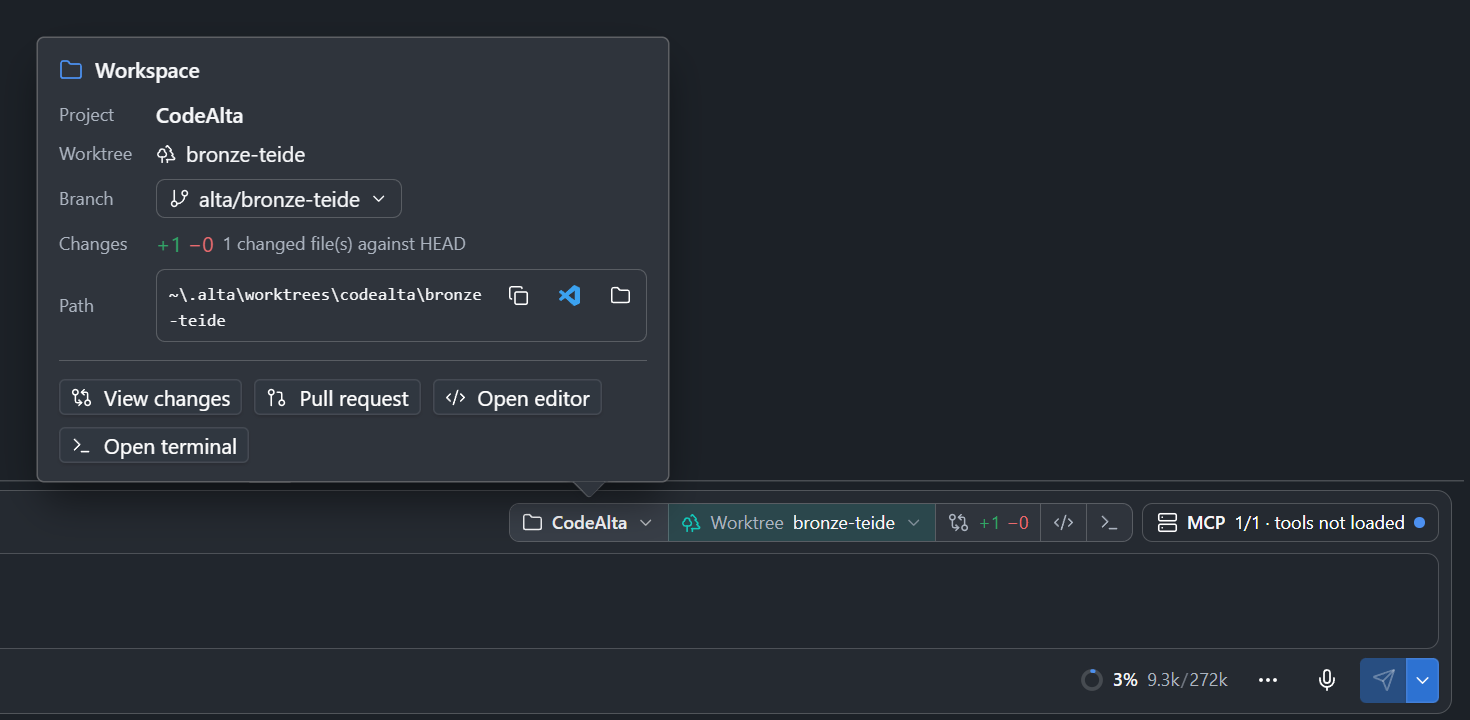
- The Workspace chip: the project, the worktree (in turquoise) or branch, and the lines changed since the last commit (click them for the changes), with buttons for the code editor and a terminal. Before a session starts, it chooses Project folder or New worktree and its base branch.
- The MCP servers: their status; click it for their settings.
Click the project or the branch for the Workspace popover: switch the branch, copy the path or open it in your external editor or file manager, View changes, Pull request (asks the session for one), Open editor and Open terminal.
Below the editor
- The Agent chip, on the left: the agent prompt, the provider and model, the reasoning effort, a shield for the permission mode, and an eye when review before commit is on. Click it to change them (see Agent and model).
- On the right: the sub-agents at work (click for the list), the context ring with the tokens used and the window size (click for context usage), the prompt cache timer, the ⋯ menu, Stop, the microphone and Send.
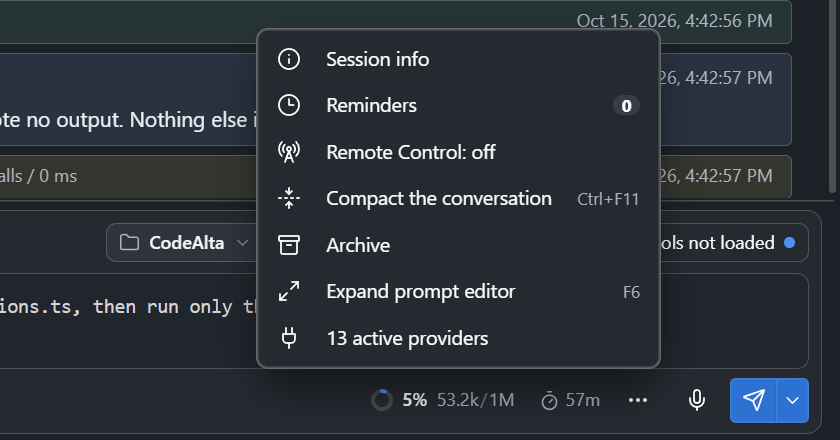
The ⋯ menu holds Session info (a report of the session for troubleshooting or handoff), Reminders, Remote Control, Compact the conversation, Archive, Expand prompt editor, N active providers and, while the session works, Steer the running turn and Enqueue for the next turn. A number or a dot on ⋯ says something inside needs you.
Prompt cache. For Claude Code, the Anthropic API, the Claude models of Copilot, the OpenAI API and Codex, a timer such as 37m says how long the provider keeps the conversation in its cache: a message sent before then costs a fraction of the input price. It turns yellow in its last three minutes, then reads expired. Claude Code keeps the cache one hour, the Anthropic API and Copilot five minutes (one hour with that setting), the OpenAI API and Codex 30 minutes. See Prompt caching.
Agent and model
In CodeAlta Desktop, the Agent chip opens one picker for the agent prompt, the provider, the model, the reasoning effort, the permission mode and review before commit.
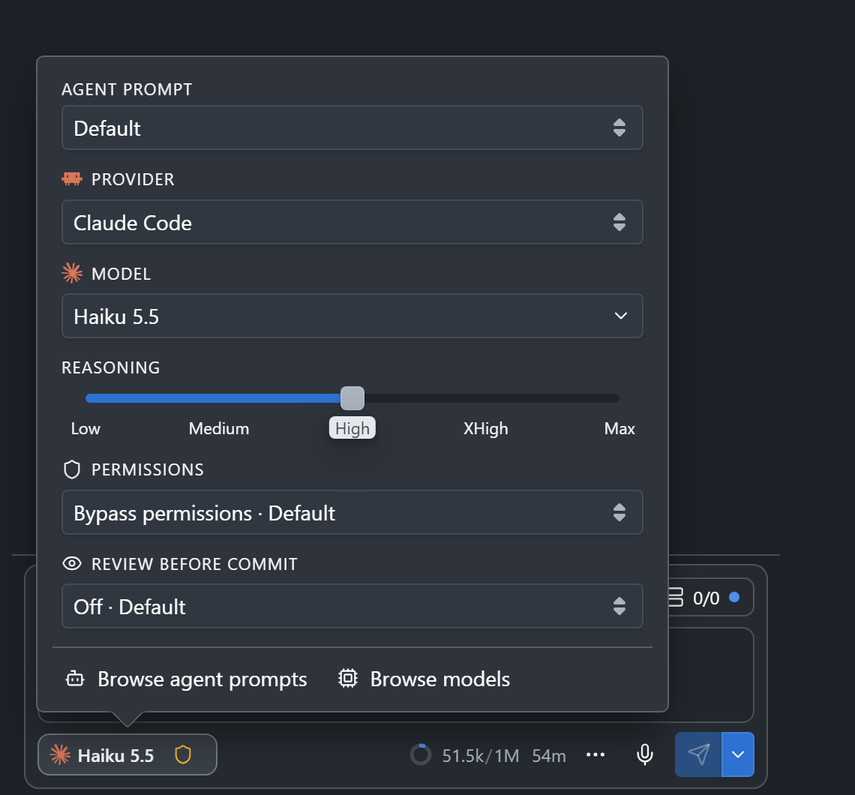
- Agent prompt: built-in prompts, then yours and the project's (see Agent Prompts). A new session starts with the agent prompt of its space, Default unless you changed it; a prompt you pick, such as Plan, is for that session only.
- Model: type part of a name or id in the search box and press
Enter. Model tiers come first, with the model each gives now. Settings > Models sets how many models the list shows. - Reasoning effort: the efforts of the model. For Claude Code, Copilot and the Anthropic API, a model that lists none has none. With other providers, an effort the model does not list is marked Unverified.
- Review before commit: On, Off, or Default (the setting of Settings > Sessions). See Review before commit.
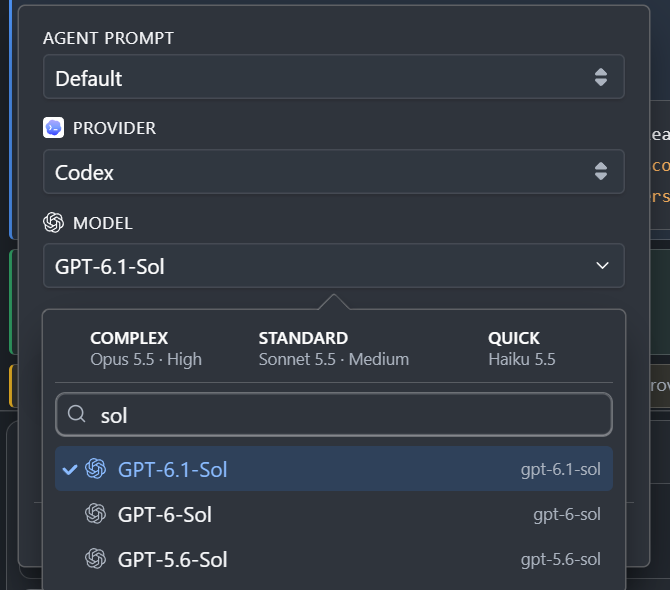
The picker of a new session has the same rows: the session starts with your choices, and the next new session of the project starts from them.
Agents use the same choices: alta session choices <session-id> lists the models, efforts, agent prompts and permission modes of a session, and alta session send and alta session queue take --model, --reasoning, --prompt-id and --permission-mode.
Permission modes
The Permissions row of the picker sets what the session asks before it acts. The shield on the chip is green for Ask first, blue for Accept edits and Auto, yellow for the modes that ask nothing.
| Mode | What the session does |
|---|---|
| Ask first | Asks before it runs a command or changes a file |
| Accept edits | Changes files without asking; asks before commands |
| Bypass permissions | Runs commands and changes files without asking |
| Auto (Claude Code only) | Claude Code decides for each request |
| Don't ask (Claude Code only) | Runs what Claude Code's own settings allow and refuses the rest |
- Default is the mode of the provider, or else that of Settings > Permissions (see Tool permissions).
- A mode applies at once, also to a running turn and to a request that waits. It stays with the session until you switch provider.
- An agent sets the mode of a session it creates with
alta session create --permission-mode <mode>(default,acceptEdits,bypassPermissions, and for Claude CodeautoanddontAsk), never one that asks less than its own.
Attachments
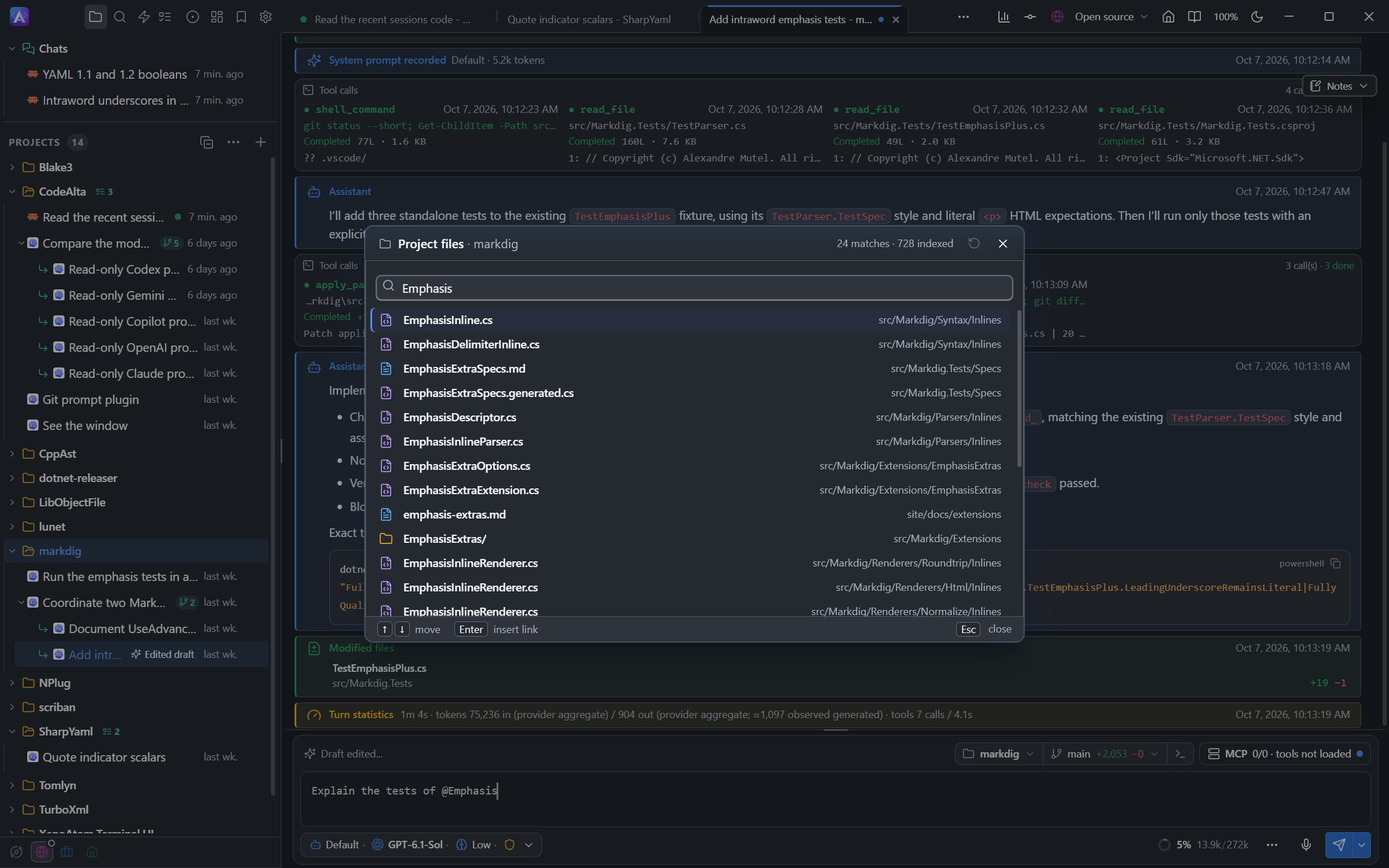
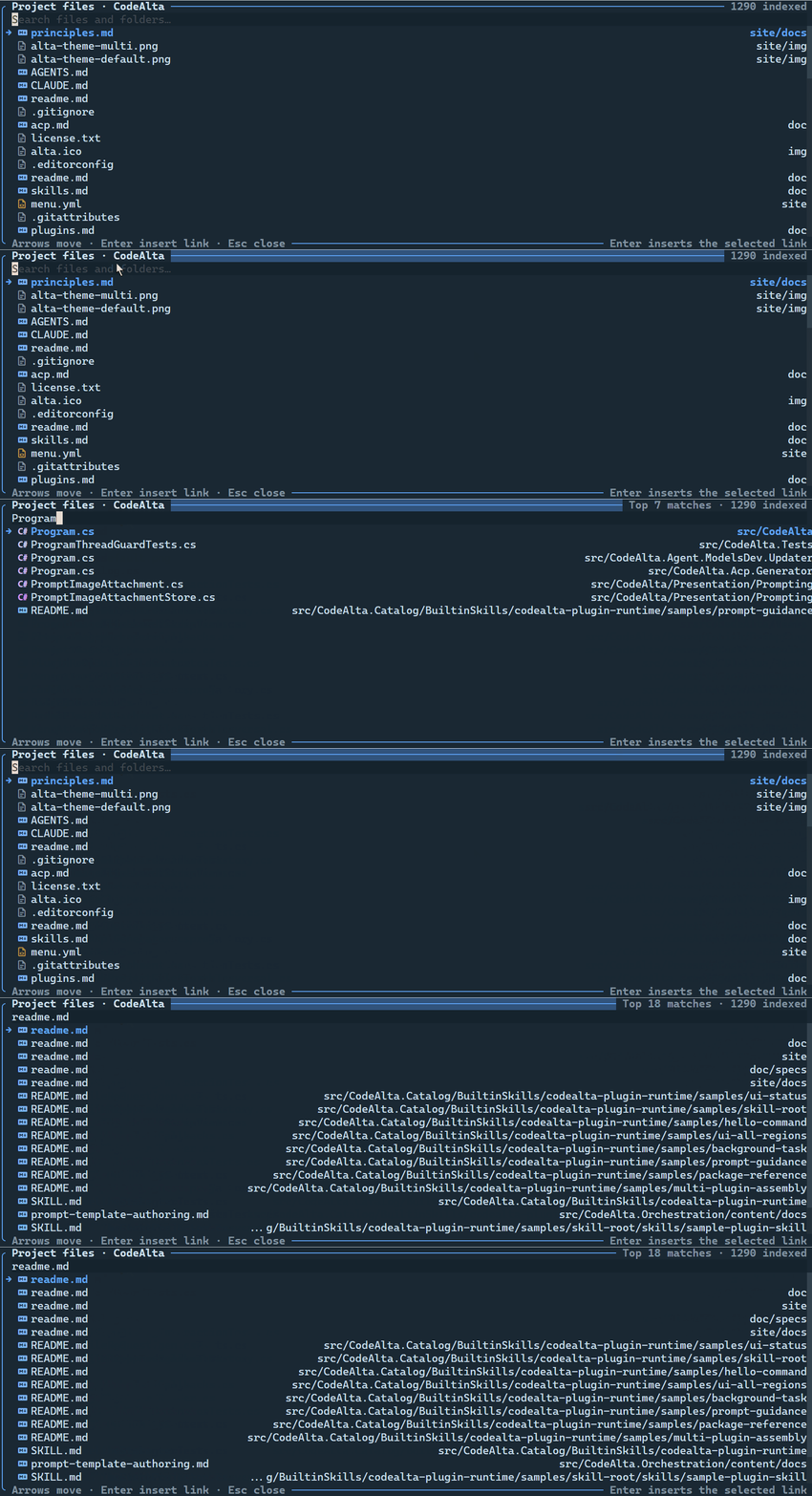
@ picker searches project files and folders, then inserts accepted entries as structured prompt attachments.Type @ in the prompt to search the files and folders of the project. An accepted entry becomes a Markdown link and is sent as an attachment. You can also type references, with an optional line range:
@src/CodeAlta.Tui/Program.cs
@"src/path with spaces/file.cs":10-40
Esc closes the picker for that @; put the caret right after it and press Ctrl+Space to open it again. The # issue picker works the same way. Ctrl+E or /edit opens the same picker to edit a file in the code editor.
Attach only what the task needs: focused context is easier to review and compacts less often.
Remote Control
A Claude Code session can be followed and driven from claude.ai or the Claude app on your phone. Turn it on with Remote Control in the ⋯ menu of the prompt or in the menu of the session. Its icon is green when on and red when failed. Its popover has the link of the session, a QR code for your phone, and Turn off.
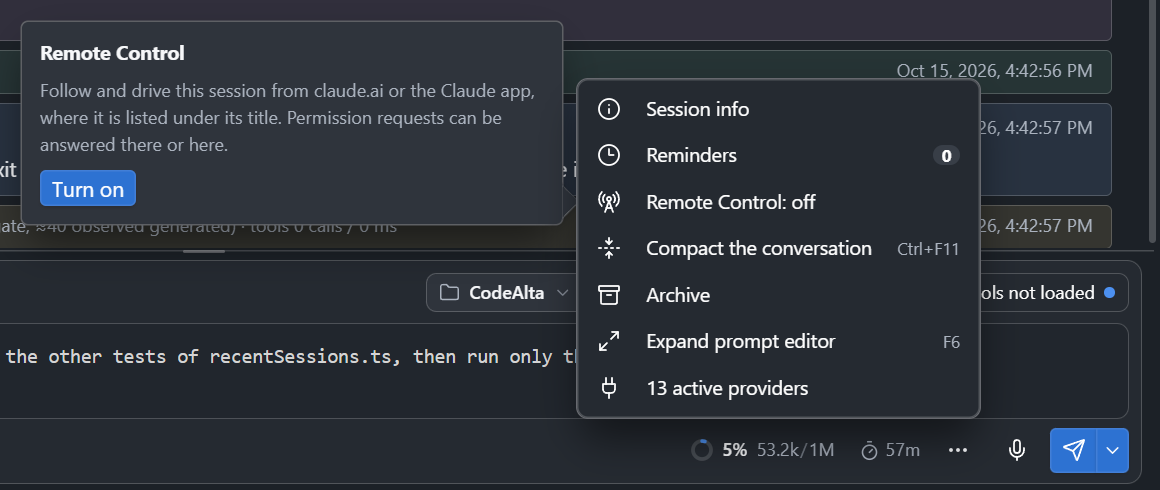
While it is on, a prompt sent from claude.ai runs as yours, a permission request is asked on both sides (the first answer wins), and stopping there stops the session; questions of the agent are asked in CodeAlta only. If Claude Code stops, your next prompt or Try again connects again.
Remote Control needs Claude Code signed in with your claude.ai account, not an API key. Closing CodeAlta ends it, and the session stays offline in claude.ai until you archive it there. Settings > General > Startup and closing can turn it back on at startup.
Timeline
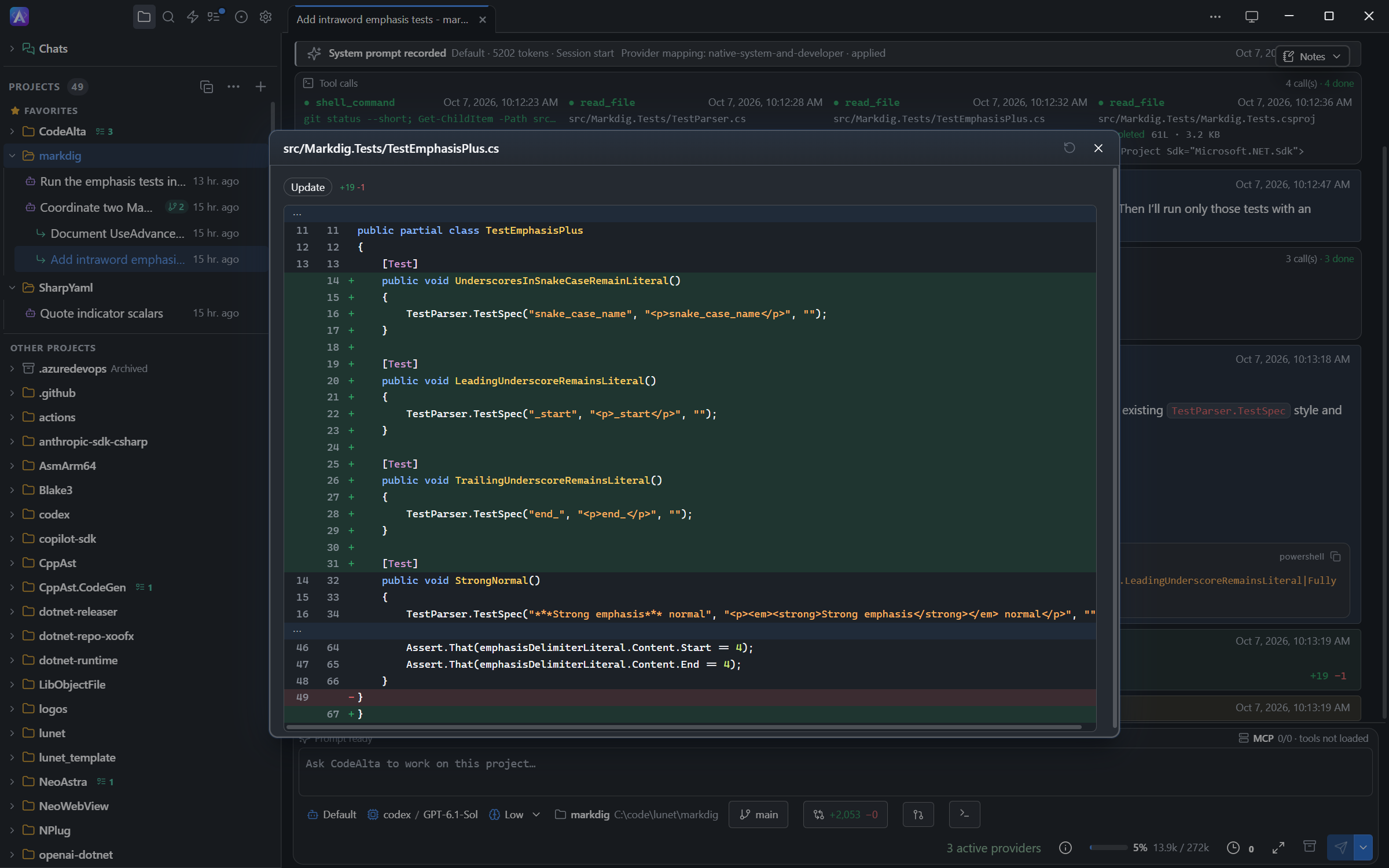
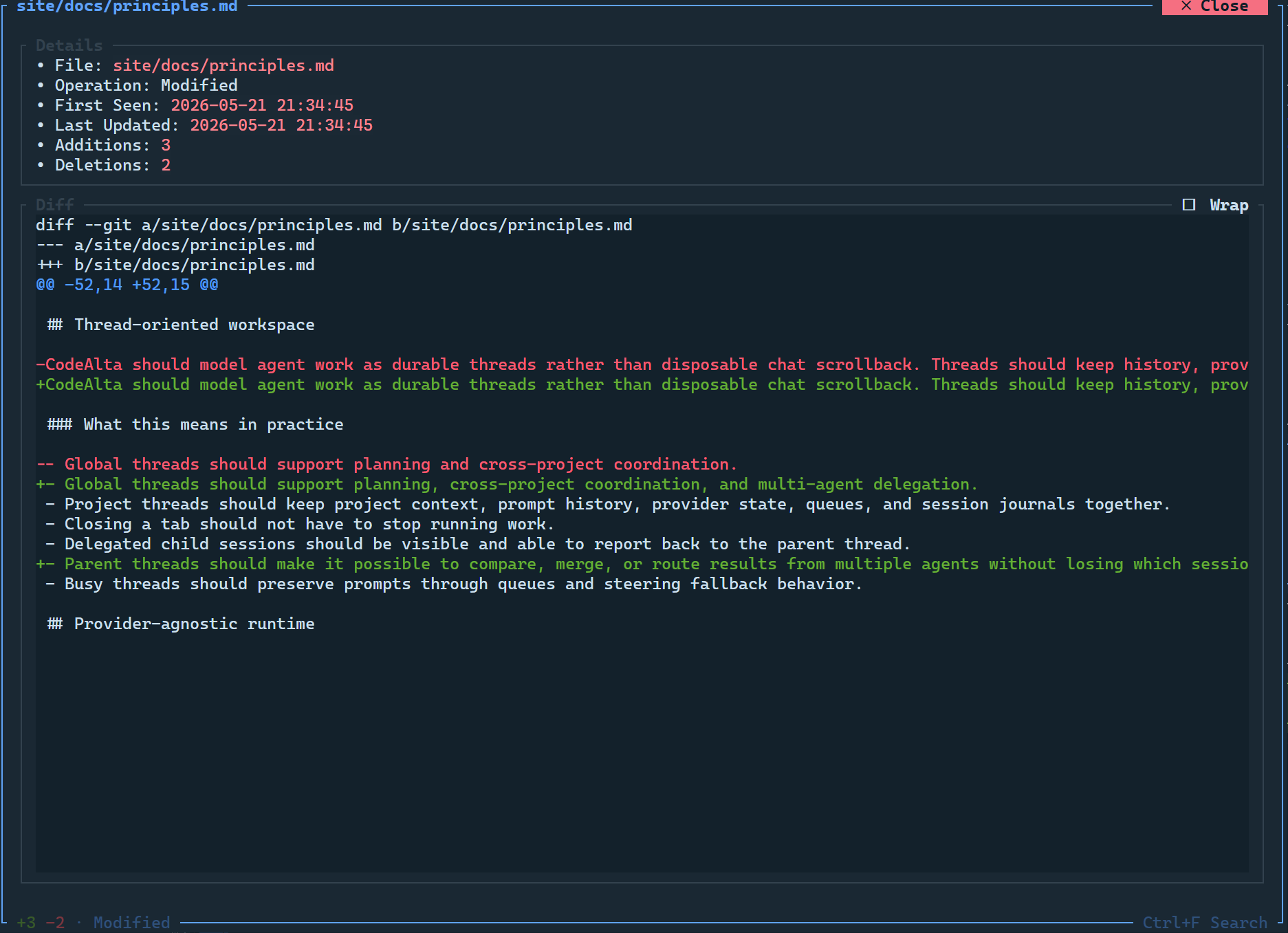
The timeline shows:
- messages in Markdown; in CodeAlta Desktop a code block has a copy button and a
mermaidblock is drawn as a diagram (or stays code, with the reason, when Mermaid cannot read it); - reasoning and status messages;
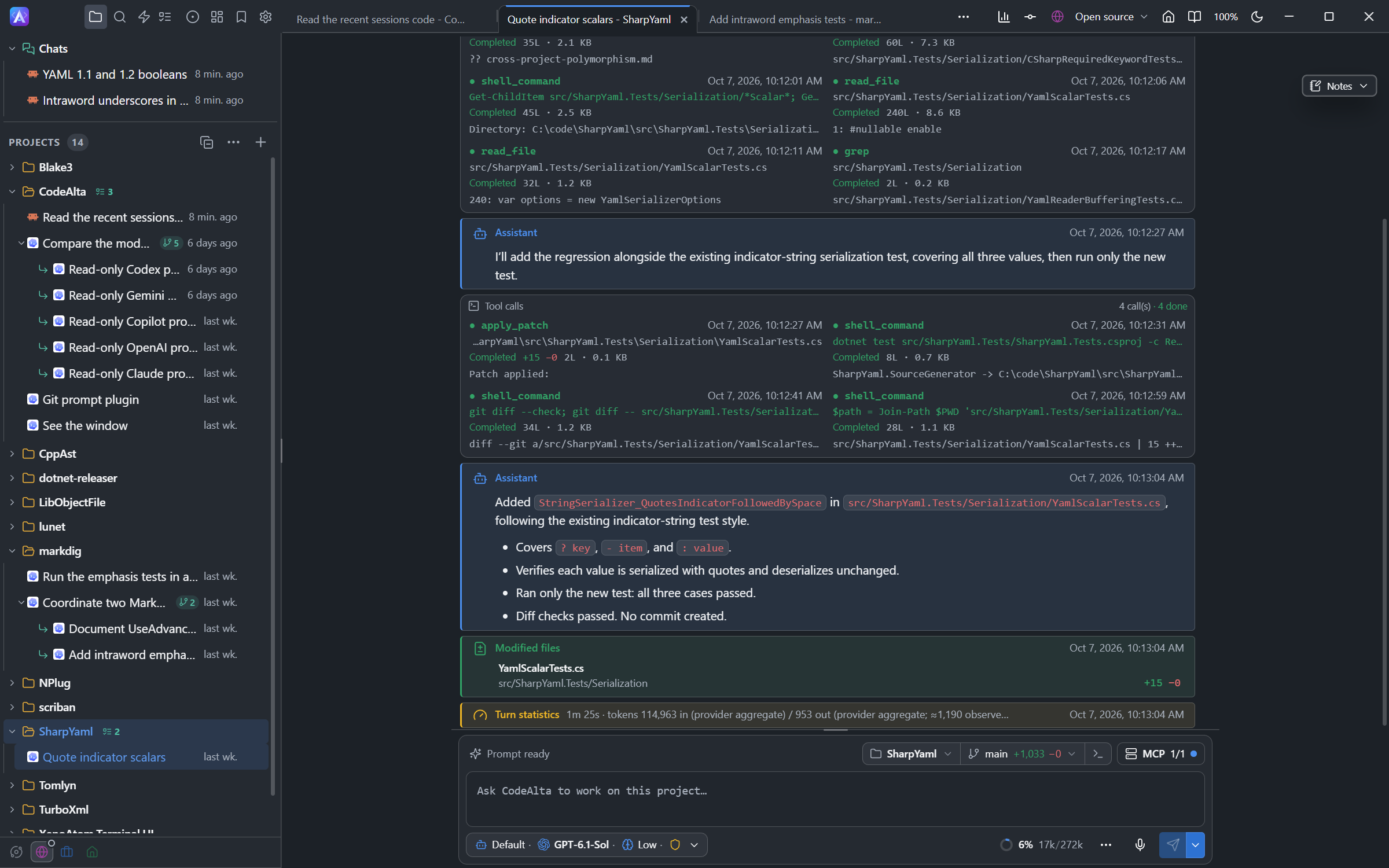
- tool calls as compact tiles;
- the modified-files card, with the lines added and removed per file and their diffs;
- statistics cards: timing, tools, usage and plugin details.
| Key | Action |
|---|---|
F3 / F4 |
Previous / next message |
Ctrl+F3 / Ctrl+F4 |
First message / back to the bottom |
Arrows, Page Up, Page Down, Home, End |
Scroll, after a click in the timeline (desktop) |
CodeAlta Desktop opens a session on its latest messages; earlier turns load as you scroll up. Load all messages, at the top, loads them all; Stop keeps what was loaded.
Focused timeline
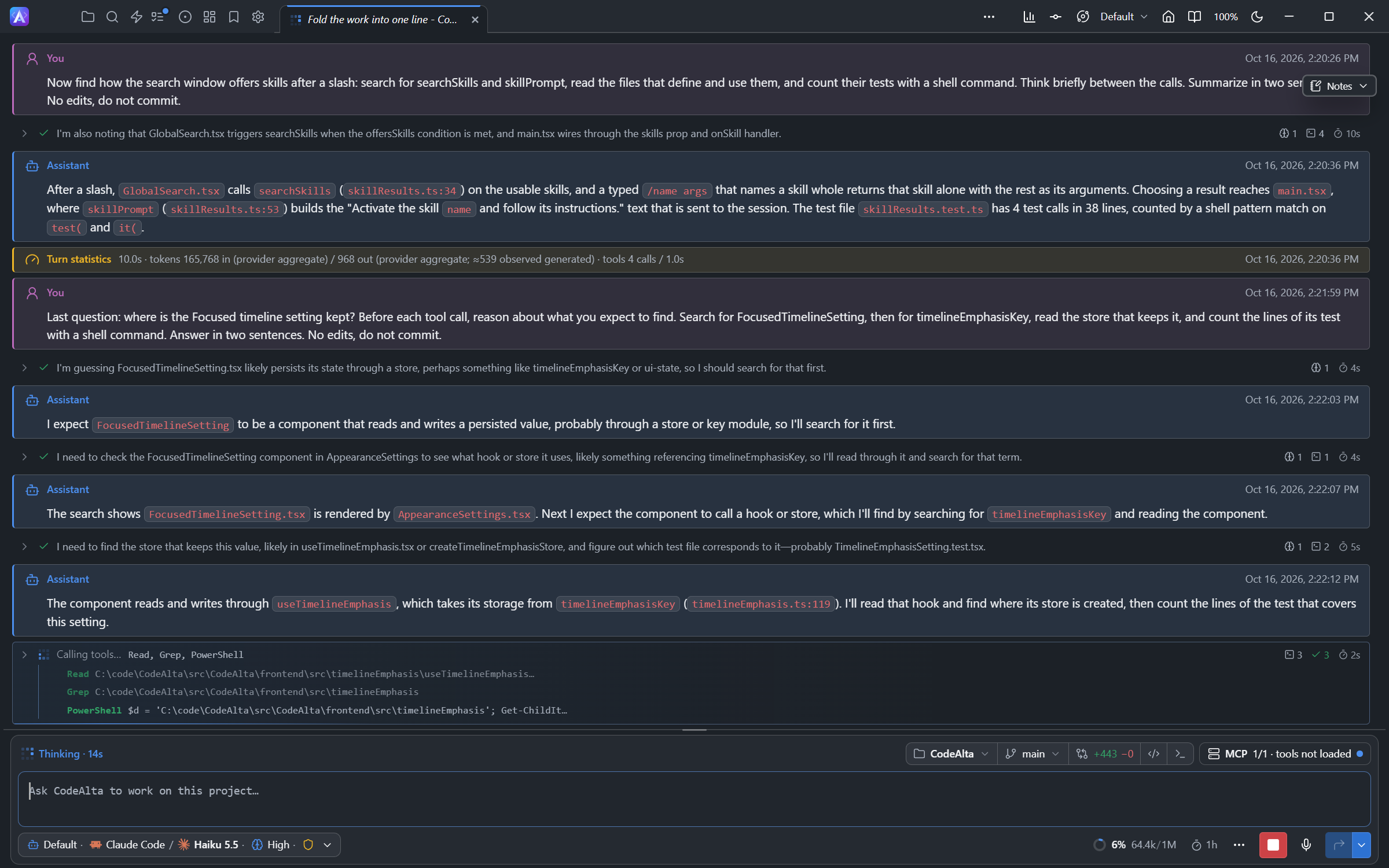
In CodeAlta Desktop, the work between two messages (reasoning, tool calls, jobs) takes one line, with the latest thought of the model and counts of thoughts, calls, failures, lines changed and time. While the agent works, it shows the last three steps. Images the model read show under it as thumbnails. Click the line to unfold it. Settings > Appearance turns off Focused timeline and Images under folded lines.
Entry appearance
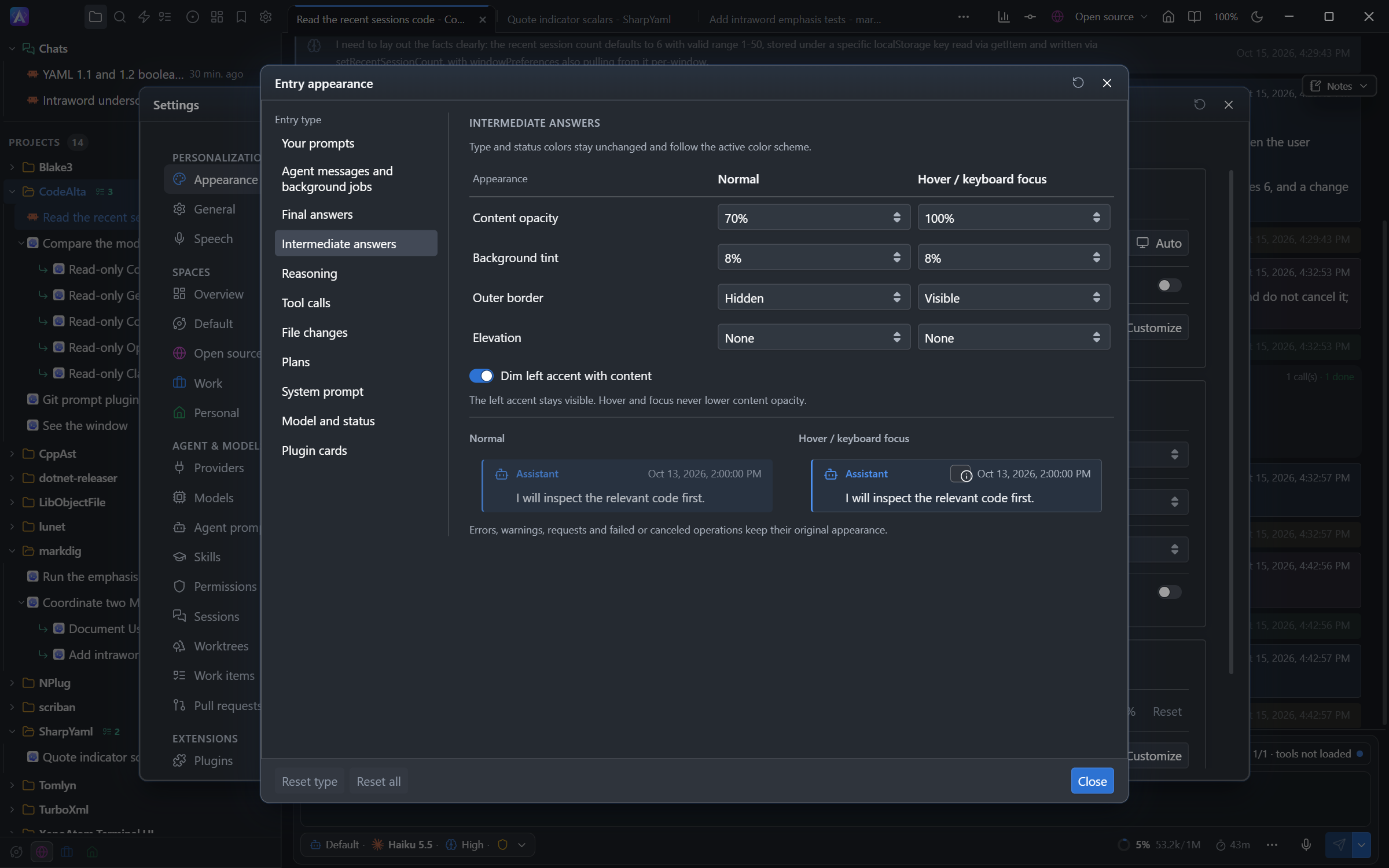
Settings > Appearance > Entry appearance (off by default) dims the entries you read less: its preset shows intermediate answers and tool calls at 70%, and reasoning, system prompts, status and plugin cards at 50%, at full strength under the pointer. Errors and requests that need you are never dimmed. Customize sets the opacity, tint, border and shadow of each entry type; Reset all restores the preset.
Conversation width
In CodeAlta Desktop, drag an edge of the prompt to narrow or widen the conversation, which stays centered; double-click it for the whole width. The width, 75% by default, is the same for every session (Settings > Appearance > Width of the conversation). An agent you ask ("show this conversation at 70%") changes its own session only.
Tool calls
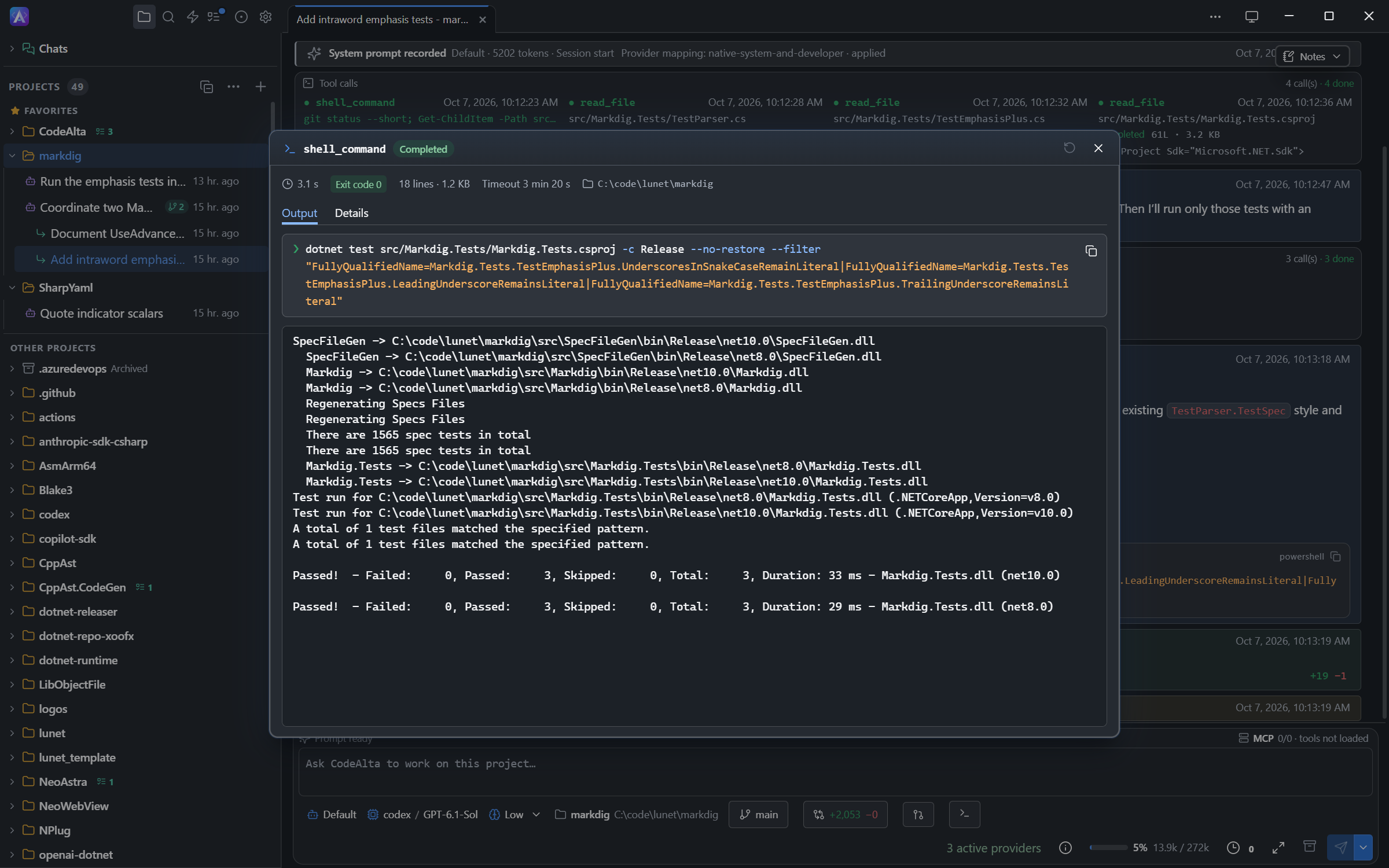
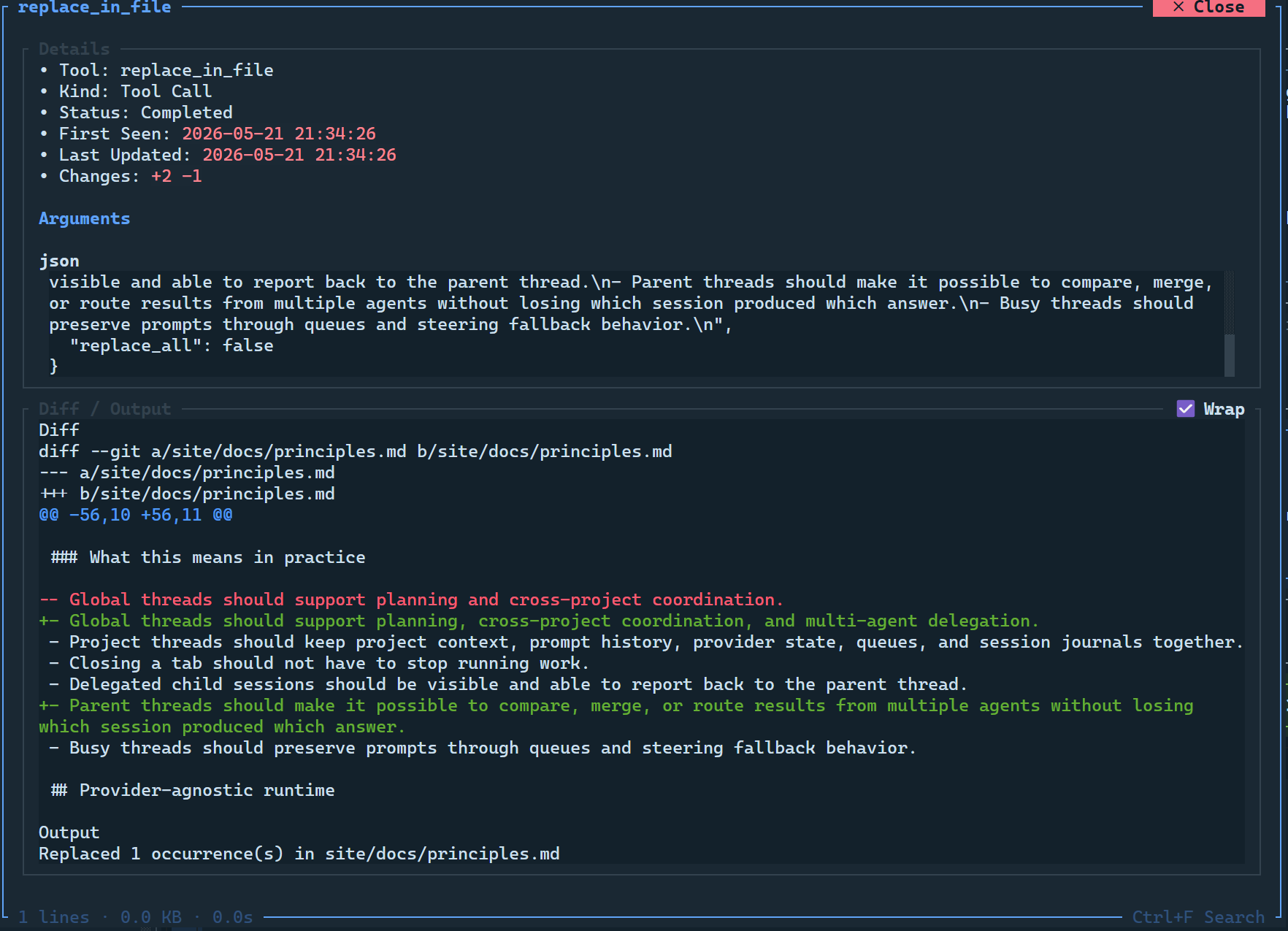
A tool call has one tile showing the tool, what it works on, its state and its output; a running command shows its last line. In CodeAlta Desktop, click a tile to open the call, which follows it while it runs:
- a command: its command line and a terminal with its output;
- a file read: its lines, numbered and colored;
- an edit: the diff, with a tab per file for a patch;
- a search: its matches by file; another tool: its arguments and result.
The line under the title gives the duration, the exit code and the lines changed. Details shows the raw arguments and result. In CodeAlta TUI, a tile opens a dialog with the details and output.
System prompts
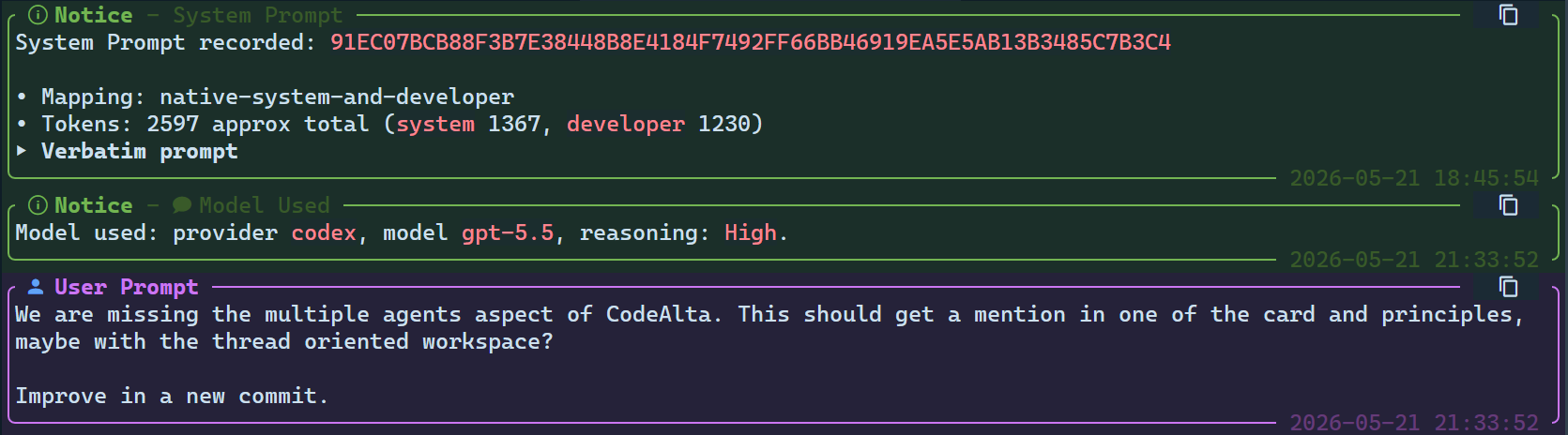
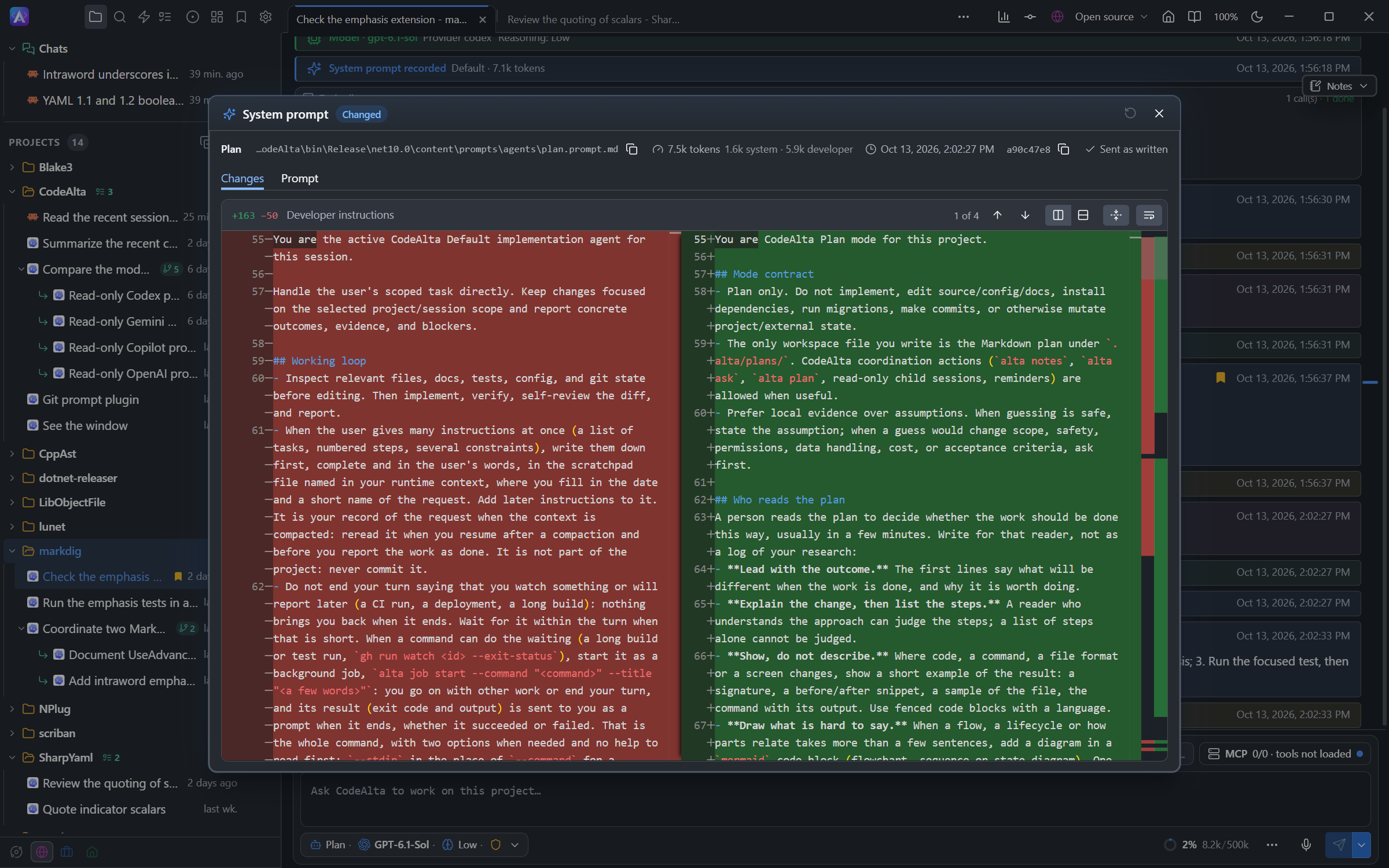
The timeline has a line for the system prompt of the session, and one each time it changes, with the agent prompt, its size in tokens and the lines changed. In CodeAlta Desktop, click it: Changes compares it with the one before, and Prompt shows what was sent, with a button to copy it as Markdown.
Session notes
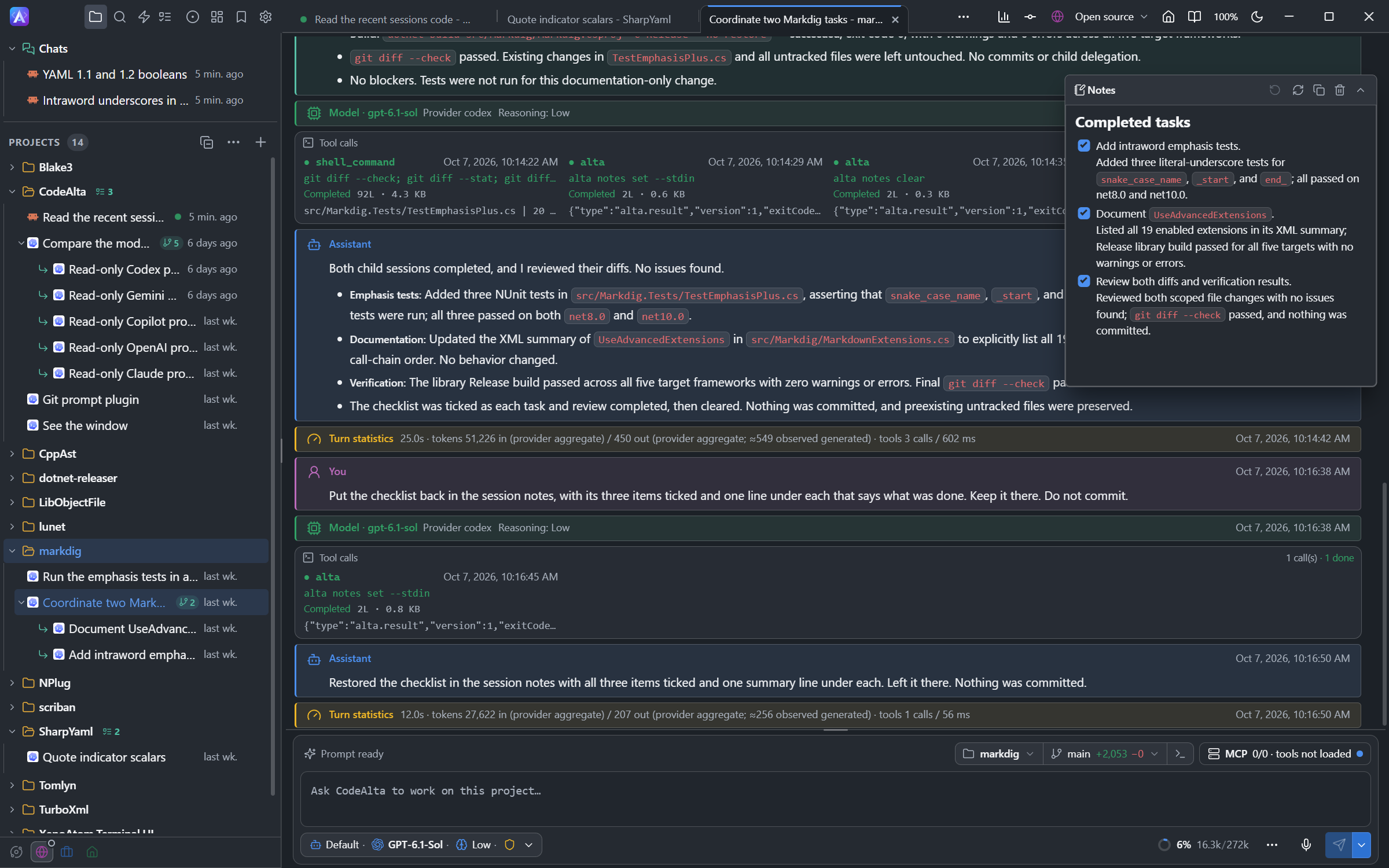
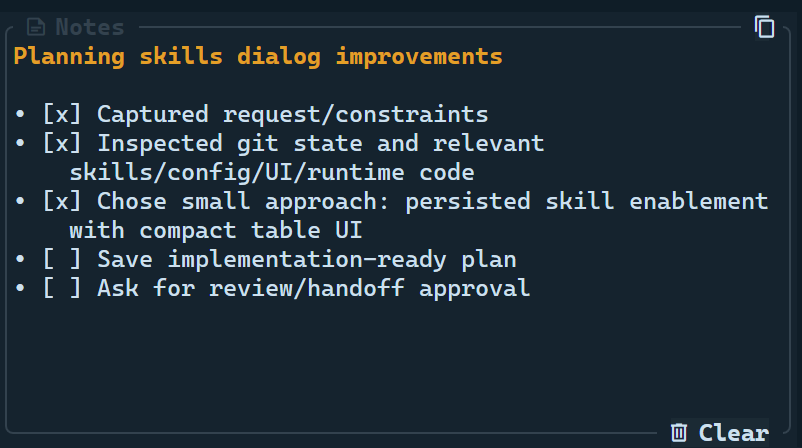
Each session has Markdown notes its agent keeps up to date: a checklist, a status, next actions. CodeAlta Desktop shows them in a Notes window over the timeline that you can move, resize, collapse into a tab, copy and clear; Ctrl+Shift+N or /notes hides or shows them. CodeAlta TUI shows them in the Notes panel of the sidebar.
Context usage
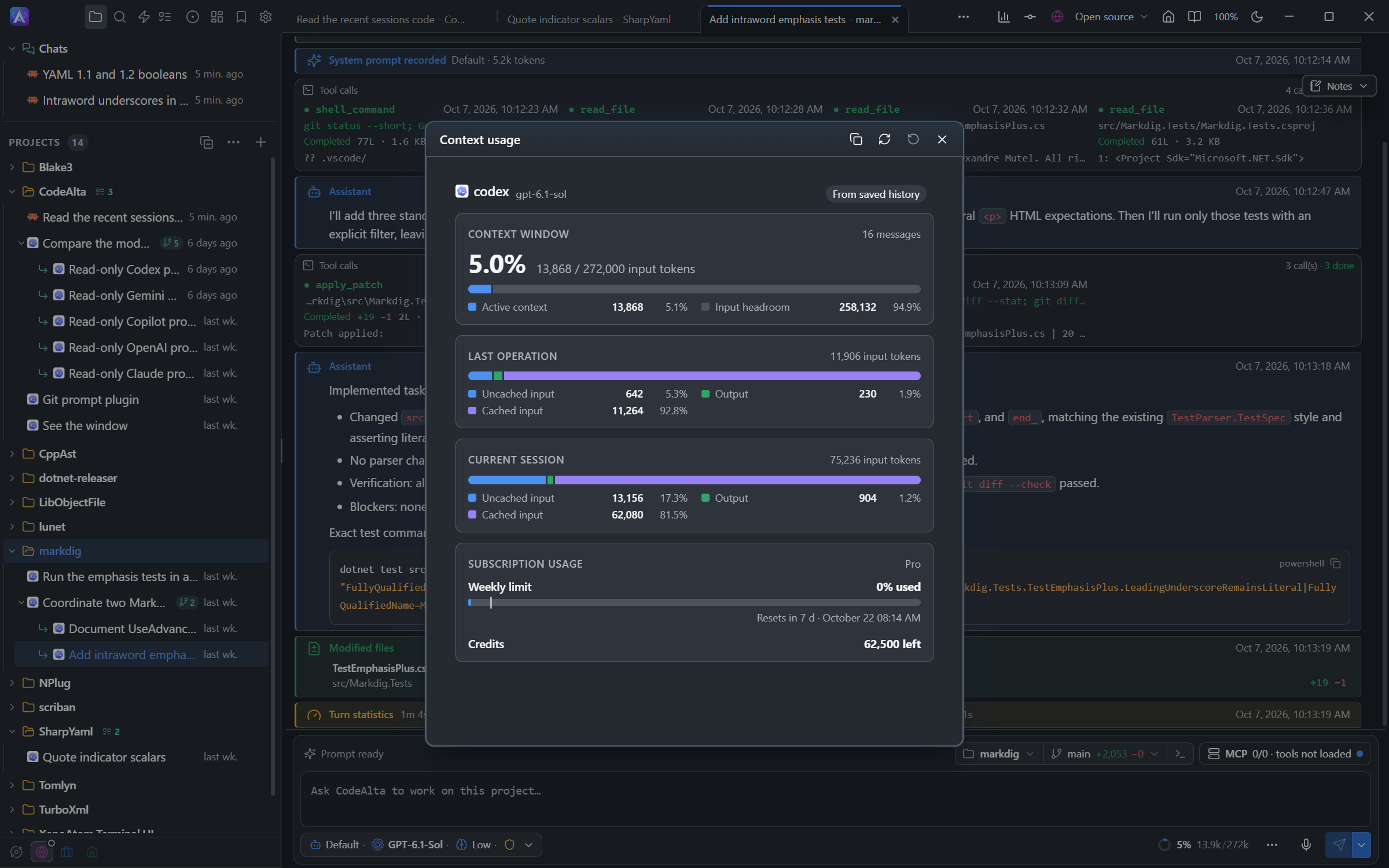
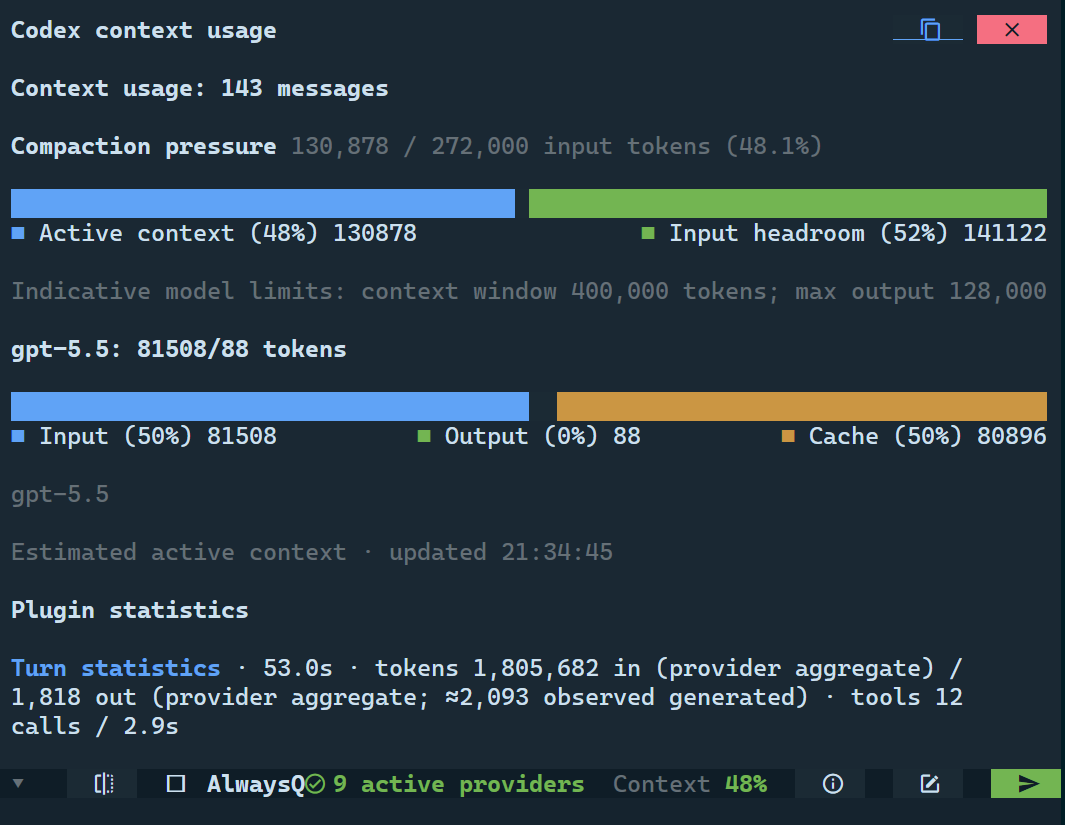
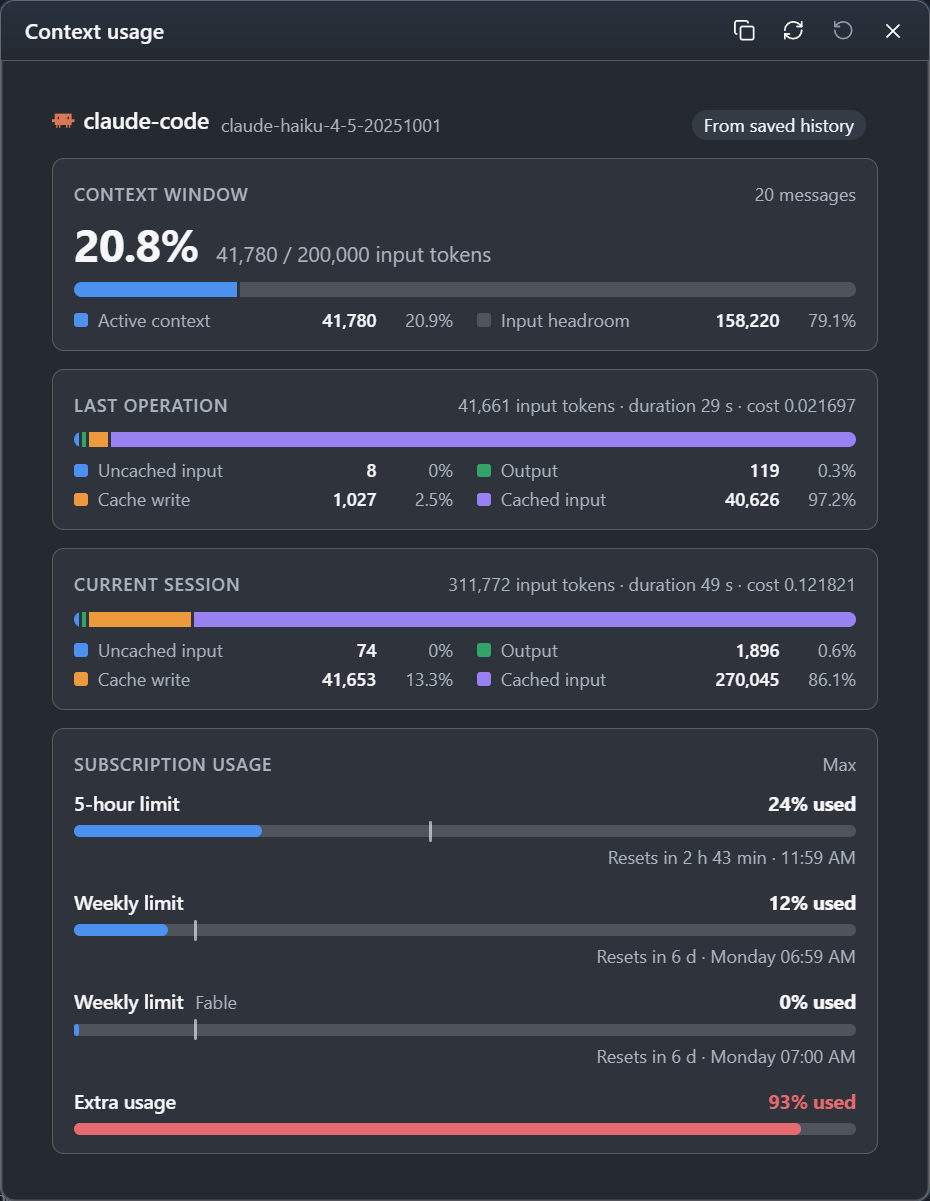
Open it with the context ring below the prompt, or Ctrl+G Ctrl+U. It shows the size of the context window, what is used, how close the session is to compaction, and what the provider reports.
- Last operation: the tokens of the last request (cache reads, cache writes, other input, output, reasoning), with its cost in AI credits for Copilot. See Prompt caching.
- Current session (desktop): the same for the whole session, with the time and the cost; a fork counts from the fork. Copy as Markdown copies it.
- Subscription usage (desktop; Codex, Copilot and Claude Code): the limits of your plan and when they reset. See Usage of a subscription.
When the provider reports no token usage, as some ACP agents do, CodeAlta estimates the context from the conversation: the count starts with ~ and the window says Estimated.
Session info, in the ⋯ menu (or Ctrl+G Ctrl+T), reports the scope, provider and model, run and queue state and history of the session, for troubleshooting or a handoff.