Mobile plugin
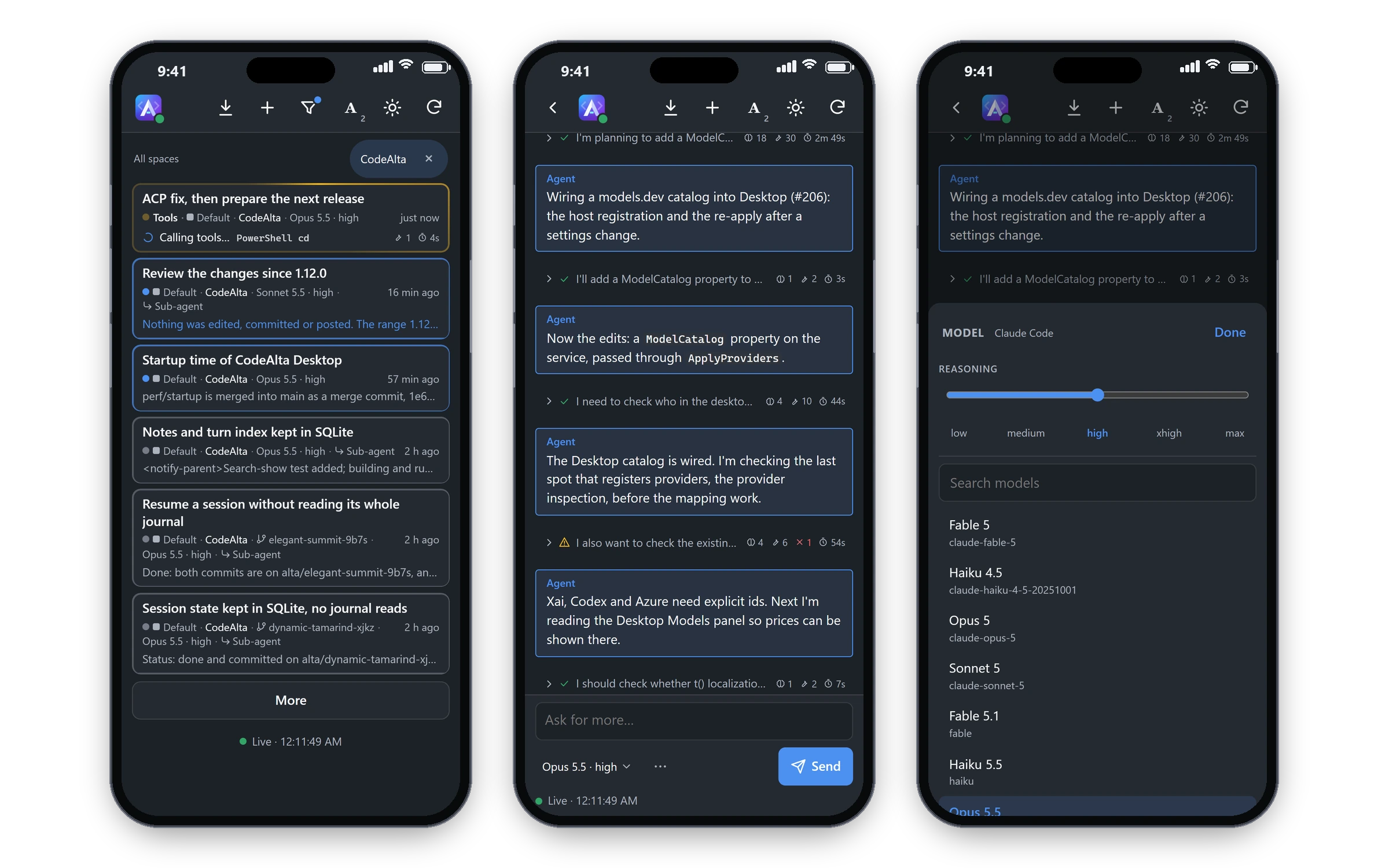
The built-in Mobile plugin of CodeAlta Desktop shows the sessions of your computer on a phone. You follow a session as it runs, read its timeline, answer it, steer a turn that runs, stop it, and start a new session, from the phone. The phone reaches the computer through Tailscale, on your own tailnet.
What you need
- CodeAlta Desktop on the computer.
- Tailscale on the computer and on the phone, signed in to the same tailnet.
- On the tailnet, MagicDNS, HTTPS certificates and Tailscale Serve. The DNS page of the Tailscale admin console turns on the first two. The first time the plugin publishes the computer, Tailscale gives a link that turns on Serve: the Mobile tab shows it.
Turn it on
The plugin is off until you turn it on: it publishes your computer on your tailnet.
- Open Settings > Plugins and turn on Mobile.
- Open the Mobile tab with the phone button of the title bar,
Ctrl+G M, or Mobile: connect a phone in the search of the window (Ctrl+P). - Scan the QR code with the camera of the phone.
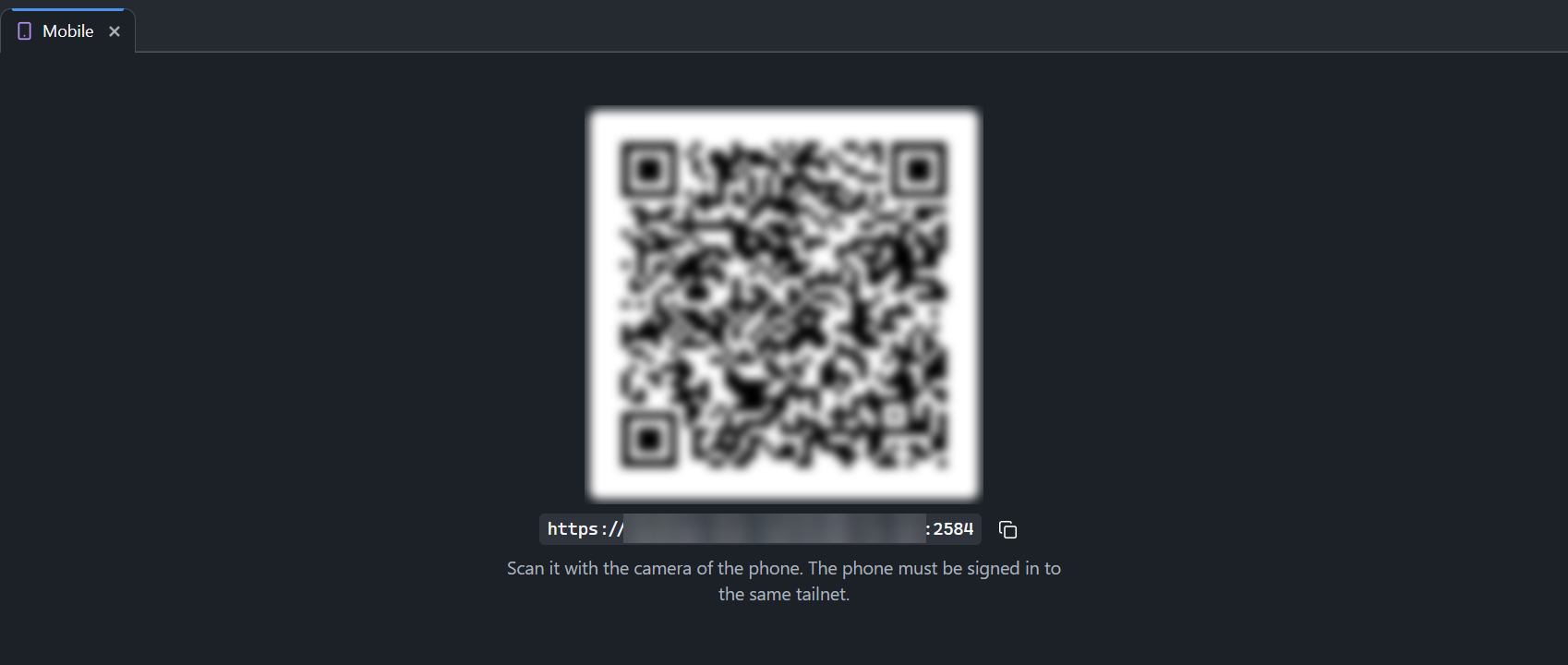
The phone opens the page of the sessions and stays signed in. Add it to the home screen to open it as an app.
When something keeps a phone from connecting, the Mobile tab says what it is and how to fix it: Tailscale is not installed, not signed in, Serve is not enabled on the tailnet, or the port is used by something else. Try again asks Tailscale again once it is fixed.
On the phone
- The sessions, latest activity first, six at a time, each with a dot and a line that show what it does: working, calling tools, thinking, writing. Project keeps the list to one project.
- A session: its timeline, with the messages, the thoughts, the tool calls (without their output) and the diagrams. A diagram opens in a tab of its own, where you can zoom.
- The prompt sends to an idle session. While a turn runs, Steer sends into that turn, Queue keeps the prompt until the turn ends, and Stop stops the turn.
- The model chip, beside the prompt buttons, shows the session's model and effort, such as
GPT-6.1 Sol · low. Tap it to choose another model of the provider and its effort. ⋯ holds the agent prompt, the permissions (when the provider has modes), and Queue rather than steer while it works, which makes Queue the first button during a turn. A choice shows in blue until the next prompt takes it, and the session keeps it. A steered prompt changes none of these. - A new session: the project and the prompt, then the model chip beside Start: a tier of the settings or a model, and its effort. ⋯ holds the agent prompt, the provider, the permissions and a worktree of its own. The choices are remembered for each project.
- Archive a session by swiping it to the right, or with the archive button of its page; Restore brings it back.
Spaces
With more than the Default space, the Mobile row of Settings > Plugins has a chip with its spaces. The phone then lists, opens and acts on the sessions of those spaces only, and a new session goes to one of them. A plugin in every space shows every session.
Security
- The page is served by CodeAlta on
127.0.0.1only. Tailscale Serve publishes it athttps://<computer>.<tailnet>.ts.net:2584to the devices of your tailnet, with a certificate of Tailscale. No other device of your network reaches it. - The QR code holds an access token. The phone keeps it, and every request needs it. Reset access, in Settings > Extensions > Mobile, makes a new one: every phone has to scan the new code.
- The plugin publishes one port of the computer on the tailnet, 2584 unless you change it, and nothing else. It never changes what you serve with Tailscale Serve on other ports, and when the port already serves something else, it leaves it and says so.
- Turn the plugin off in Settings > Plugins: the page stops, and Tailscale no longer serves it.
Settings
Settings > Extensions > Mobile is there while the plugin is on. The gear button of the Mobile row of Settings > Plugins goes to it too.
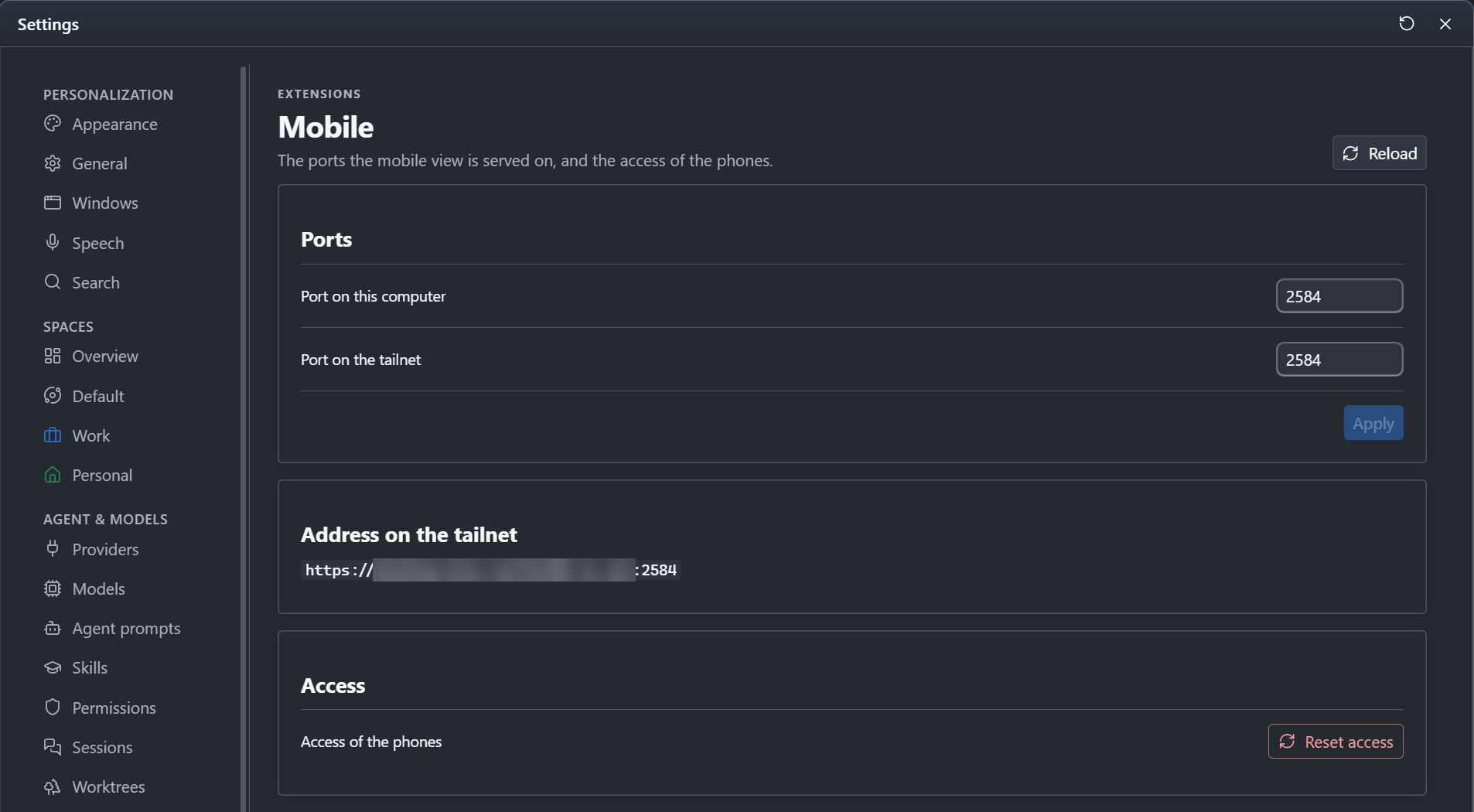
- Port on this computer: the port of the page on
127.0.0.1, 2584 at first. - Port on the tailnet: the HTTPS port Tailscale Serve publishes the page on, 2584 at first.
- Address on the tailnet: the address of the page while Tailscale serves it.
- Reset access: a new access token. Every phone has to scan the new code.
Apply moves the page to the new ports at once: Tailscale stops serving the old port and publishes the new one, and phones scan the new QR code of the Mobile tab. A port is a number from 1024 to 65535.