Plugin development
A source plugin is one C# file that CodeAlta builds and loads. CodeAlta Desktop builds it again while it runs, so a change shows at once. The same plugin runs in CodeAlta Desktop and in CodeAlta TUI.
Build and load only plugins you trust. Building runs the .NET SDK, NuGet and MSBuild; loading runs the plugin's code inside CodeAlta.
The plugin API can change between CodeAlta releases.
Ask an agent to write it
In CodeAlta Desktop, ask a session in your own words:
Write a plugin that shows the current git branch beside the prompt, with a command that lists the last ten commits in a dialog.
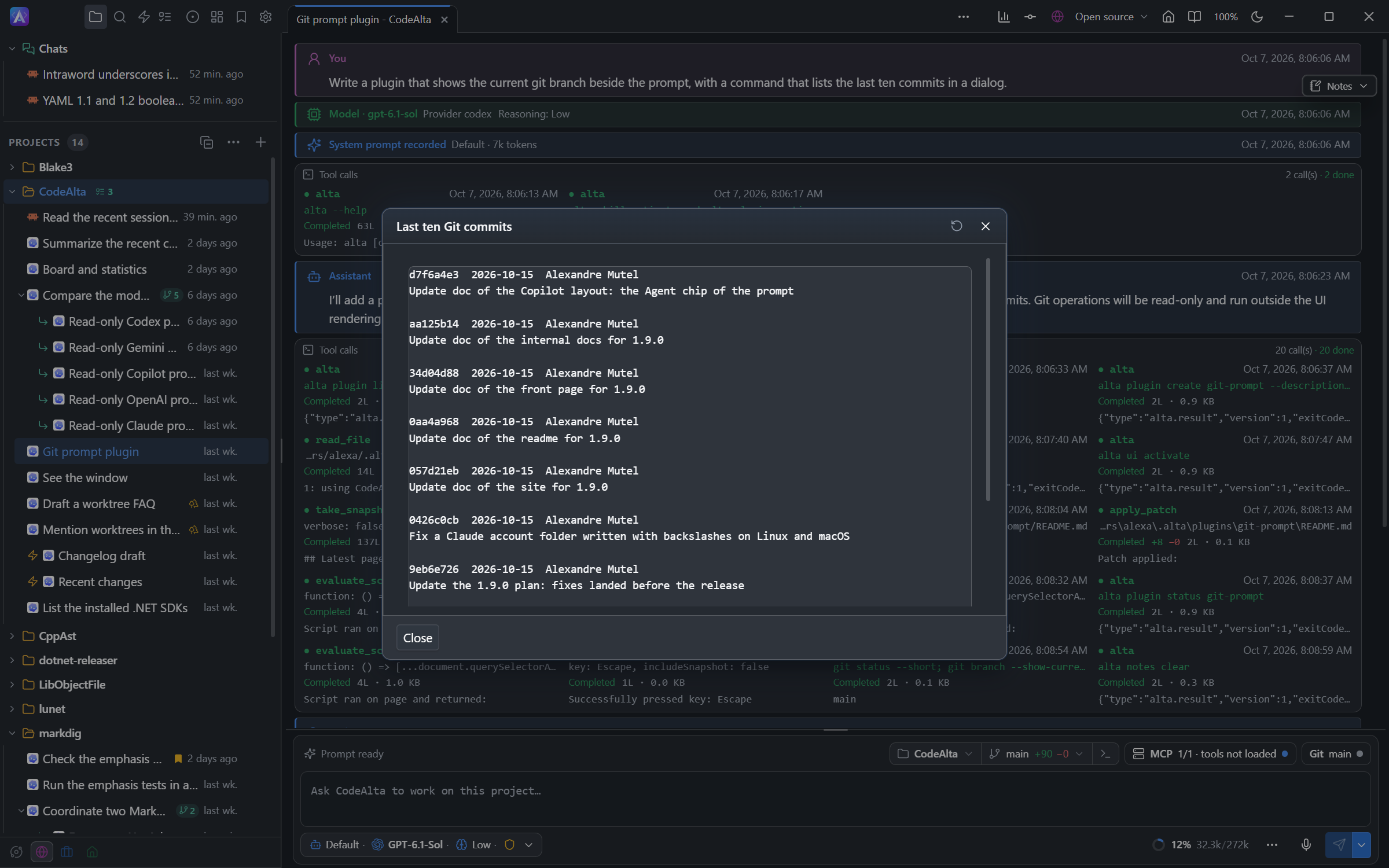
The plugin is for all your projects: the agent creates it under ~/.alta/plugins. Ask for a plugin for this project to keep it in the project instead, under .alta/plugins. Everything on this page works the same for both.
The agent reads the codealta-plugin-runtime skill, which ships with CodeAlta and has this guidance with sample plugins. Its script API reference covers JavaScript props, callbacks, hooks, theme and host methods. Its library index lists the imports, exact versions, exports, upstream API and GitHub links for React, Blueprint, FlexLayout and Lucide. alta plugin api covers C# types, not JavaScript exports. Then it works with the alta plugin commands of its session:
| Command | What it does |
|---|---|
alta plugin create <id> |
Writes a first plugin.cs under ~/.alta/plugins/<id>, builds it and starts it. With --project, the plugin is created in the project. |
alta plugin reload <id> |
Builds the file again and replaces the plugin that runs. A build that fails returns the compiler errors, and the version that ran keeps running. |
alta plugin status <id> |
Shows the state of the plugin, its last build, what it adds and the errors it raised. |
alta plugin api <name> |
Shows a type of the plugin API with its members. |
alta plugin open <id> |
Shows the plugin to you in the code editor. |
The agent calls a tool its plugin adds in the same turn. With the UI tools, it also runs the command of the plugin in the window and checks what it shows.
CodeAlta TUI loads plugins when it starts: there the agent writes the file and you restart. A session whose permission mode asks before commands cannot create or build a plugin, since a plugin runs its code.
Create a plugin
In CodeAlta Desktop, open Settings > Plugins and click New plugin. Enter an id: CodeAlta creates the folder with a first plugin.cs, starts the plugin and opens it in the code editor. The plugin is for all your projects; choose Project at the top of the page first to create it in the selected project.
You can also create the folder yourself. A plugin is one folder with a plugin.cs file:
| Scope | File |
|---|---|
| All projects | ~/.alta/plugins/<package-id>/plugin.cs |
| One project | <project>/.alta/plugins/<package-id>/plugin.cs |
The package id uses letters, digits, ., _ and -, and starts with a letter or digit.
using CodeAlta.Plugins.Abstractions;

[Plugin("hello", DisplayName = "Hello", Description = "Adds a /hello command.")]
public sealed class HelloPlugin : PluginBase
{
    public override IEnumerable<PluginCommandContribution> GetCommands()
    {
        yield return Command.Shell("hello", "Says hello.", static async (context, cancellationToken) =>
        {
            await context.Ui.NotifyAsync("Hello from a plugin.", cancellationToken);
            return PluginCommandResult.Handled;
        });
    }
}
In CodeAlta Desktop, click Build and reload on the row of the plugin in Settings > Plugins: CodeAlta builds the plugin and loads it, and /hello appears among the commands of the search (Ctrl+P). In CodeAlta TUI, restart.
A plugin is a public class that inherits PluginBase and has a public parameterless constructor. The [Plugin] attribute is optional. One file can declare several plugins.
What CodeAlta does with the folder
- It runs
dotnet build plugin.cswith the .NET 10 SDK. No project file is needed. - It writes
Directory.Build.props,Directory.Build.targets,Directory.Packages.propsandglobal.jsonin the plugin root. Do not create or edit them. - It writes a
.gitignorebeside them, so a project keeps only the sources of its plugins in git. - It references
CodeAlta.Plugins.Abstractions,CodeAlta.Plugins.Tuiand theXenoAtom.Terminal.UIpackages for you, in both apps. - When it starts, it builds again a plugin whose source changed.
Add NuGet packages with #:package Name@Version at the top of plugin.cs, and more source files with #:include. An optional README.md beside plugin.cs describes the plugin in the plugin list.
A project plugin is loaded when CodeAlta is started in that project.
Edit, build and reload
In CodeAlta Desktop, Settings > Plugins is where you work on a source plugin, whether it is for all your projects (User) or for one (Project).
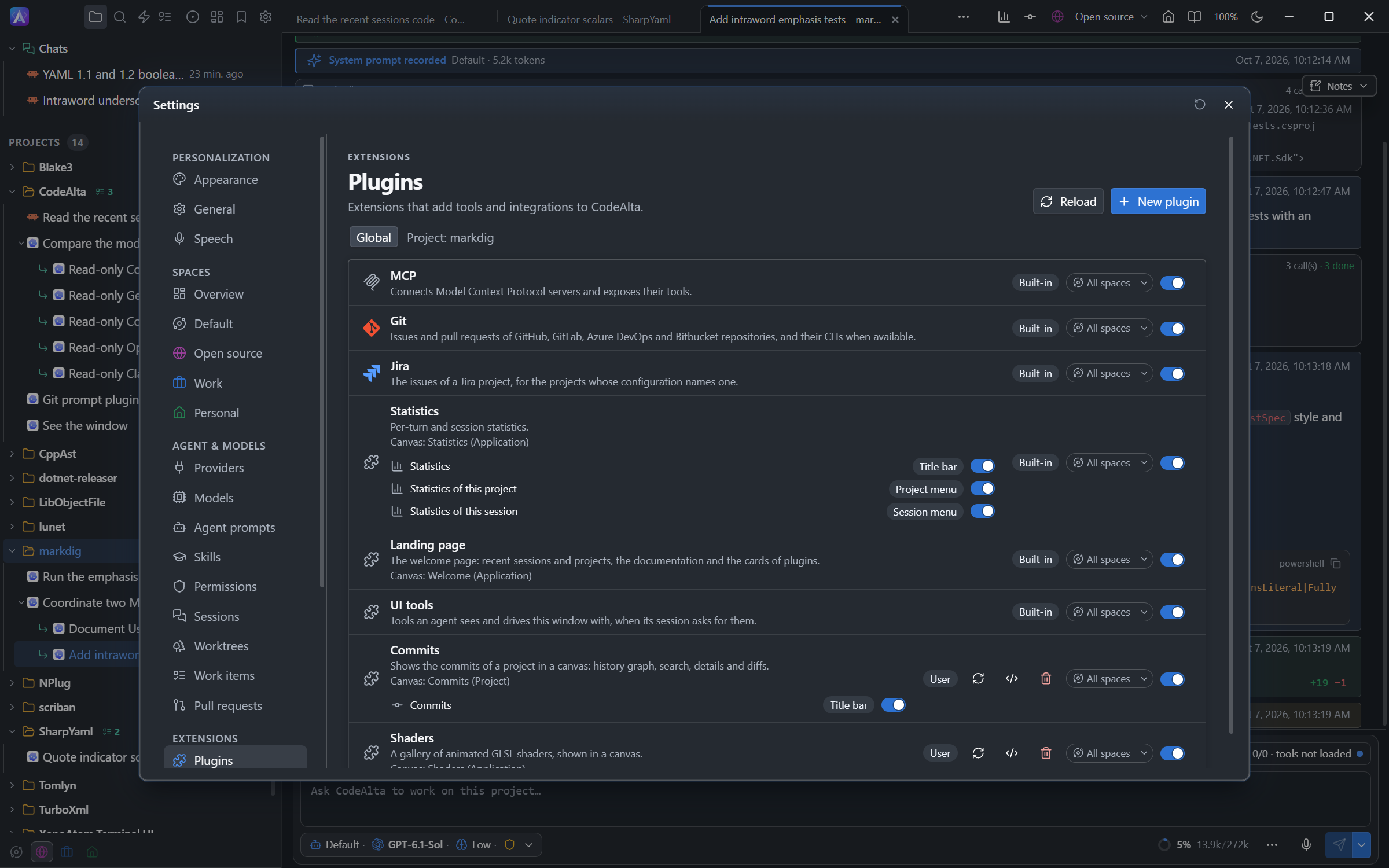
The row of a source plugin has the path of its folder, three buttons and a switch:
- Build and reload builds the plugin and replaces the one that runs. Its commands, shortcuts, status items and pickers change at once.
- Edit in the code editor opens the folder of the plugin in the code editor, in a Plugin tab.
- The red Remove button stops the plugin and moves its folder to the trash of your system, after you confirm. The plugins that ship with CodeAlta cannot be removed: turn them off with their switch.
- The switch starts or stops the plugin at once.
When a build fails, the page shows the compiler errors under the plugin, with their line, and the version that ran keeps running. Source changed marks a plugin whose file is not the one that runs.
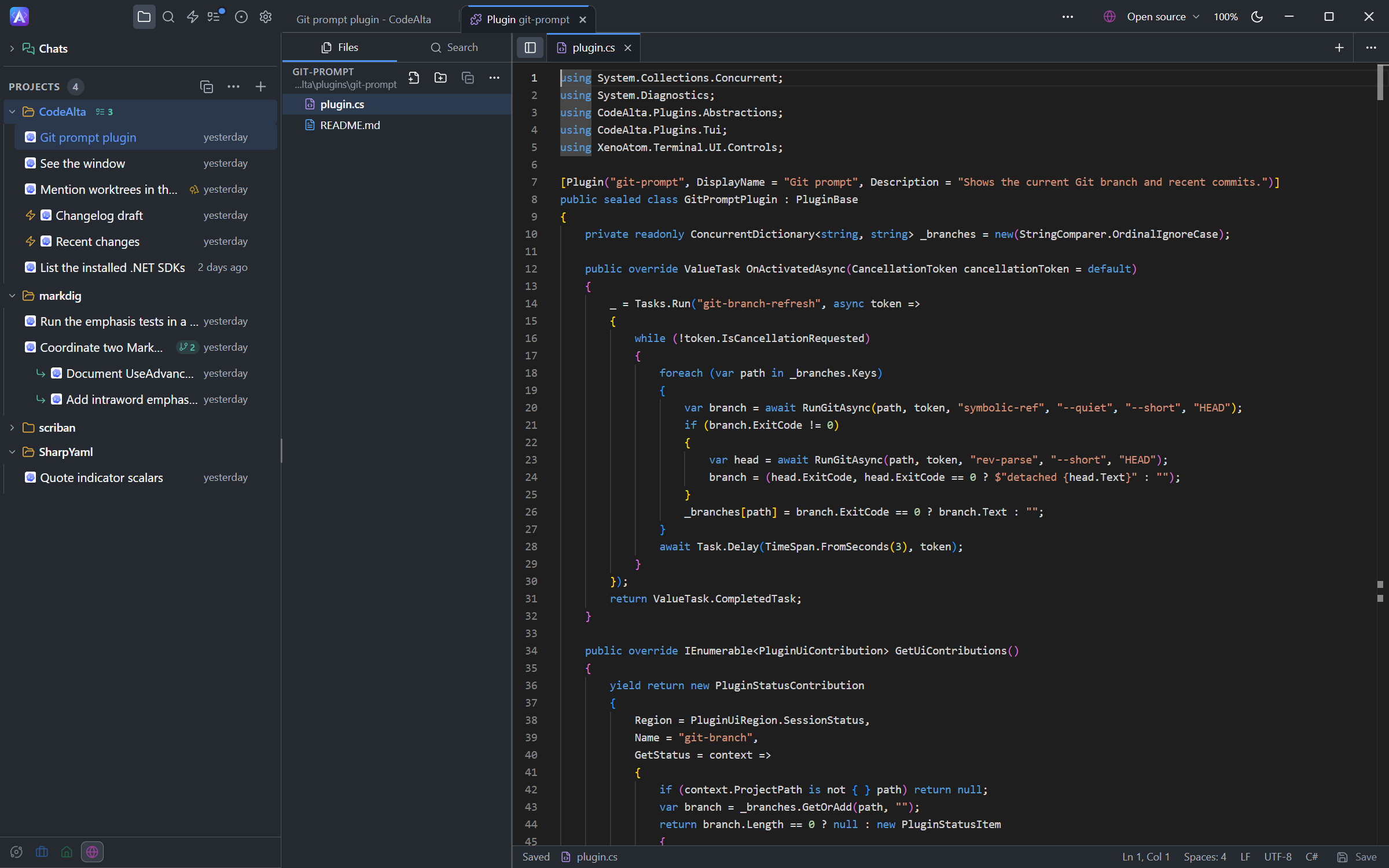
A reload starts the plugin again: the fields of its class are new. Keep data with Services.State (see Lifecycle, background work and data).
One plugin, two apps
A plugin starts in both apps unless it says otherwise:
[Plugin("notes", Frontends = PluginFrontends.Desktop)] // or Terminal; the default is All
An app does not start a plugin that does not support it, and says so in its plugin list.
Most of the API is portable: you write it once and each app shows it its own way. Where the look matters, you give two forms: an HTML fragment for the desktop app and XenoAtom.Terminal.UI controls for the TUI. Context.Host.Frontend tells which app is running.
| What | Portable | Desktop form | TUI form |
|---|---|---|---|
| Notification, confirm, input, selection, text editor | context.Ui.NotifyAsync, ConfirmAsync, InputAsync, SelectAsync, EditTextAsync |
||
| Dialog with your own content | PluginUi.HtmlDialog |
PluginTui.CustomDialog |
|
| Content around the prompt | PluginUi.Content with Markdown or text |
PluginRenderResult.FromHtml |
PluginTui.Visual |
| Status item | PluginStatusContribution |
Command makes it clickable |
|
| Button | PluginUi.Button, with a Command or a Canvas |
||
| Prompt picker | PluginUi.PromptPicker |
||
| Timeline card | PluginDerivedSessionEvent.Markdown |
Html |
PluginTerminalDerivedSessionEvent.VisualFactory |
The desktop app ignores terminal controls and the TUI ignores HTML, so a result that carries both forms works in both.
Contribution points
Override only the methods the plugin needs.
| Method | Adds | Desktop | TUI |
|---|---|---|---|
GetCommands() |
Commands for the search or the palette, the / menu and shortcuts |
yes | yes |
GetUiContributions() |
Status items and content around the prompt; buttons in the window | yes | yes (no buttons) |
GetPromptPickers() |
A picker opened by a character typed in the prompt | yes | yes |
GetSessionEventProjections() |
Cards in the session timeline | yes | yes |
GetAgentTools() |
Tools the model can call | yes | yes |
GetAltaCommands() |
Commands under the in-session alta tool |
yes | yes |
GetSystemPromptContributions() |
Text added to the system or developer prompt | yes | yes |
GetInstructionProcessors() |
Changes to the final instructions of a session | yes | yes |
GetResources() |
Skills shipped with the plugin | yes | yes |
OnBeforeAgentRunAsync |
Tools and messages for one run; can cancel the run | yes | yes |
OnAgentEventAsync |
Sees the events of the sessions | yes | yes |
OnToolCallAsync, OnToolResultAsync |
Sees and changes the calls of the tools that plugins add | yes | yes |
GetPromptProcessors() |
Changes a prompt before it is sent | no | yes |
GetCompactionContributions() |
Hooks of a manual compaction | no | yes |
GetCommandLineContributions() |
Commands of the altatui command line |
no | yes |
A contribution method is called once when the plugin starts. The factories Command, PluginUi, PluginTui, Prompt, AgentTool, Resources and Startup build the common contributions.
To look a type up, ask a session for alta plugin api <name>: it prints the type with its members, from the version of CodeAlta that runs.
Commands
yield return Command.Shell("note-add", "Adds a note.", AddNoteAsync) with
{
    Label = "Notes: add",
    KeyBinding = new PluginKeyBinding(new PluginKeyGesture(PluginKey.F9)),
};
Command.Shellis always available,Command.Sessionneeds a selected session, andCommand.Promptbelongs to the prompt editor.- A command takes no arguments. Ask the user with
context.Ui. - Return
PluginCommandResult.Handled,Cancelled, orMessage("…")to show a message. SetPromptTextto send a prompt, withEnqueuePrompt = trueto queue it. context.Sessionsandcontext.Promptsgive the session and the prompt draft the command was started from.- A key binding is one stroke, or
Ctrl+Gfollowed by a second stroke. A key CodeAlta already uses keeps its meaning. On the desktop a single letter needsCtrlorAlt.
Dialogs
The portable dialogs work in both apps:
if (!await context.Ui.ConfirmAsync("Notes", "Delete all notes?", cancellationToken)) return PluginCommandResult.Cancelled;
var title = await context.Ui.InputAsync("Title", "Untitled", cancellationToken);   // null when cancelled
var kind = await context.Ui.SelectAsync("Kind", items, cancellationToken);
var text = await context.Ui.EditTextAsync("Note", "First line", cancellationToken);
For a dialog with its own content, build the request for the running app:
var request = Context.Host.Frontend == PluginFrontends.Desktop
    ? PluginUi.HtmlDialog("Notes", html, closeButton) with { OnAction = HandleActionAsync }
    : PluginTui.CustomDialog("Notes", visual) with { Buttons = [closeButton] };
var response = await context.Ui.ShowDialogForResultAsync(request, cancellationToken);
response.ButtonName is the button that closed the dialog. response.Values holds the named fields of an HTML dialog. In the TUI, read your own controls.
HTML fragments in the desktop app
A fragment is plain HTML that CodeAlta inserts in its window. Before that, CodeAlta sanitizes it and gives its elements the look of the app's own components:
| Write | Shown as |
|---|---|
<button> |
A button of the app; with a tone class, in that tone |
<input>, <textarea>, <select> |
A field of the app |
<table> |
A compact table |
class="alta-tag", class="alta-callout", class="alta-card" |
A tag, a callout, a card |
PluginHtml.Markdown(text) |
Markdown rendered as in the timeline: headings, lists, tables |
PluginHtml.Code(code, "csharp") |
Source code with the colors of its language |
PluginHtml.Diagram(text) |
A Mermaid diagram |
Nothing in a fragment runs: scripts, styles, event handlers, images and forms are removed (a plugin that wants JavaScript gives it next to the fragment, as described below), and a link only opens a web page (http or https) in the browser of the user. A fragment asks the window to act with attributes, and the plugin answers in C#:
| Attribute | Effect |
|---|---|
data-alta-command="name" |
A click runs the command name of the plugin. Works wherever a fragment is shown. |
data-alta-action="name" |
In a dialog, a click, Enter in a field, or a changed select calls OnAction with that name. |
data-alta-value="…" |
The value passed with the action. |
name="…" on a field |
The field is returned in Values: text, true or false for a checkbox, the chosen radio value. |
OnAction runs in the plugin and returns what the dialog does next:
OnAction = (action, cancellationToken) =>
{
    if (action.Name == "remove") notes.RemoveAt(int.Parse(action.Value!));
    return ValueTask.FromResult(PluginDialogActionResult.Update(BuildHtml()));   // or KeepOpen, or CloseDialog("button")
},
Classes you can use:
| Class | Effect |
|---|---|
alta-row, alta-column |
Lay out children in a row or a column |
alta-grow |
In a row, takes the space that is left: a field beside a button |
alta-field |
On a label: the label above its field, which takes the width |
alta-primary, alta-success, alta-warning, alta-danger, alta-muted |
Tone of a button, a tag, a callout or text |
alta-tag |
A small rounded label |
alta-callout |
A highlighted block |
alta-card |
A bordered block |
alta-stat |
One figure above its label, written by PluginHtml.Stat(value, label); several in an alta-row make a line of figures |
Other classes are removed. Allowed elements are text and structure (p, div, span, headings, lists, table, pre, code, details, a, …) and fields (button, input, select, textarea, label, fieldset, progress, meter).
Write text with PluginHtml.Encode(text). PluginHtml.CommandButton and PluginHtml.ActionButton write the two kinds of buttons.
Markdown, code and diagrams
A fragment cannot load a library. For Markdown, highlighted code and diagrams it uses those of the window (and for charts, PluginHtml.Chart(optionJson, label), which draws a chart with the colors of the window from a JSON description):
var html = $"""
    <div class="alta-column">
      {PluginHtml.Markdown("## Build report\n\n| Step | Result |\n|---|---|\n| Test | **2 failed** |")}
      {PluginHtml.Diagram("flowchart LR\n  build[Build] --> test[Test] -->|2 failed| fix[Fix]")}
      {PluginHtml.Code(failingTest, "csharp")}
    </div>
    """;
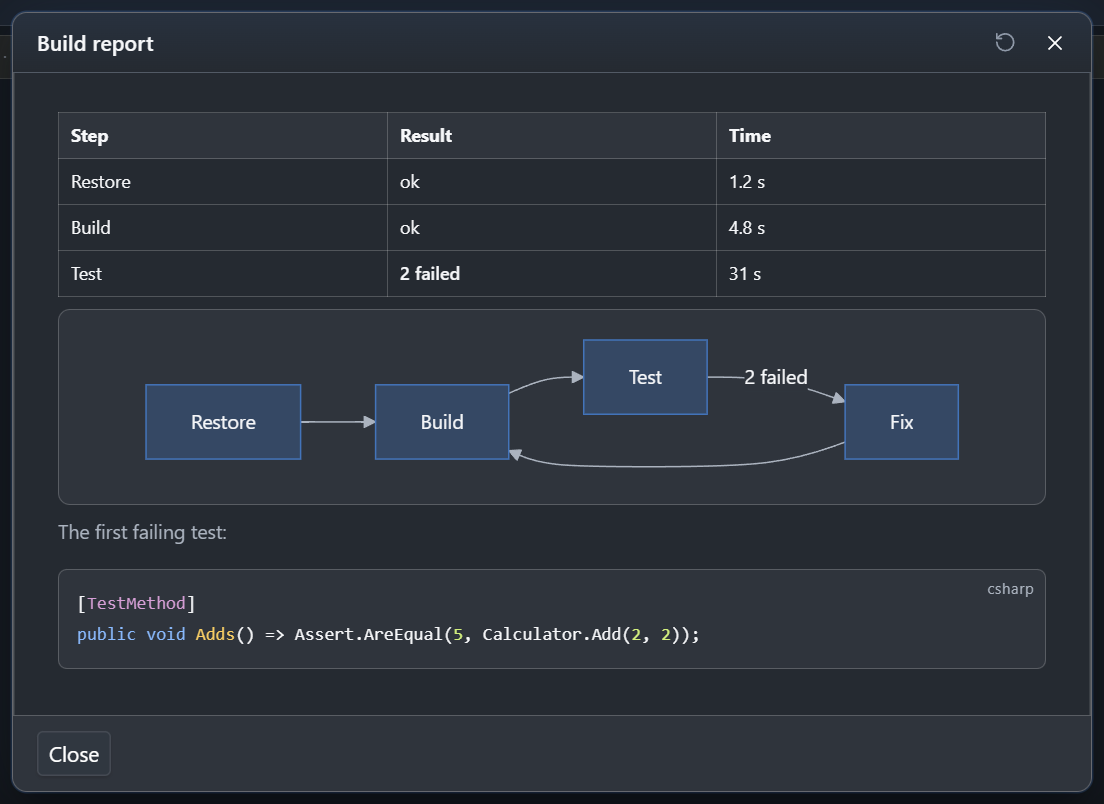
Each helper writes an element of class alta-markdown whose text is Markdown, which you can also write yourself. The links of that Markdown are followed as in a message: a web link opens in the browser, and a link to a file in the code editor. The code editor, the terminal, tabs, trees, icons and images of the app are not available to a fragment.
Content around the prompt and timeline cards also take Markdown directly, in both apps: PluginRenderResult.Markdown, PluginDerivedSessionEvent.Markdown.
Script in the window
CodeAlta Desktop can run JavaScript that a plugin brings. This is how a plugin draws a board, a dashboard or a viewer in a tab, with the same components as the window. The script is a module that the plugin gives next to some HTML: for the tab of a canvas (PluginCanvasView.Script), a dialog (PluginDialogRequest.Script), content around the prompt (PluginRenderResult.Script) or a card of the timeline (PluginDerivedSessionEvent.Script). CodeAlta TUI ignores it.
yield return new PluginCanvasContribution
{
    Id = "board", Title = "Board",
    Open = (canvas, ct) => ValueTask.FromResult(
        PluginCanvasView.Html("<p class=\"alta-muted\">Loading…</p>") with { Script = PluginScript.File("ui/board.js") }),
};
PluginScript.File("ui/board.js") is a file of the plugin folder. PluginScript.Inline(code) (or PluginHtml.Script(code)) gives the module as text, so that a plugin of one file stays one file. The module is one of two things:
// ui/board.js: no build step
import { Button } from "@blueprintjs/core";
import { html, useAlta } from "codealta";

export default function Board() {          // a React component that CodeAlta draws in its own window
    const alta = useAlta();
    return html`<${Button} onClick=${() => alta.host.notify("Hello")}>Hello<//>`;
}
or export async function mount(root, alta), which fills the element that holds the HTML and may return a function that is called when the content goes away.
The libraries are CodeAlta's own. A script imports react, react-dom, @blueprintjs/core, @blueprintjs/table, flexlayout-react and lucide-react by their usual names and gets the very ones the window runs, so a menu or a popover opens above the tabs, and the theme, the color scheme and the zoom apply with no work. The price is their versions: when CodeAlta moves to a new major version of one, a script that used what changed needs an update. alta.versions tells the versions; the skill's library index links their exports and upstream references. Use PopoverNext for popovers. What stays the same from one release to the next is the HTML described above and the codealta module.
The codealta module gives html (JSX written as a template), Markdown, Code and Diagram, Icon and BrandIcon, FileLink and SessionLink, the charts of the window (Chart, Sparkline, StatTile, CalendarHeatmap, histograms and box plots), and the hooks useAlta, useVisible and useTheme.
The alta object is what a script is given to reach the window:
| Member | What it is |
|---|---|
alta.context |
The plugin, the canvas, the project, the session, the key, and the input the canvas was opened with |
alta.visible |
Whether the content is shown, with an event. A script pauses its timers and reads while it is not |
alta.closed |
An AbortSignal that aborts when the content goes away: the tab closed, the plugin reloaded |
alta.host |
Opens a file in the code editor at a line, the changes of a project, a session, another canvas, this guide or a web page; shows a notice; runs a command of the plugin; sets the title, the status and the mark of the tab |
alta.theme |
The colors of the window as values, with an event, for what a script paints itself |
alta.html(text) |
Cleans a string of HTML as fragments are cleaned. Use it to put a string in the page, never innerHTML alone |
alta.rpc |
Calls, streams and events of your own C# handlers (below). Only the script of a canvas has it |
alta.versions |
The versions of the libraries and of this interface |
When the plugin is built again, or a file of the module changes, the tab mounts the new module and lets the old one go. A tab that is hidden keeps what it drew until it is shown. A script that fails shows its error in its tab, with a button to copy it, and the rest of the window goes on. HTML written as a string still has no script: <script> and onclick in it are removed, and alta.html and the sanitizer keep text that comes from outside from ever becoming script.
Talking to your plugin
The script of a canvas reaches the C# of its plugin with alta.rpc. You register handlers in the Open handler of the canvas, and the script calls them by name:
Open = (canvas, ct) =>
{
    canvas.Rpc.Handle<GetBoard, Board>("board.get", (request, ct) => ValueTask.FromResult(_board.Read()));
    canvas.Rpc.Handle<MoveCard>("board.move", async (request, ct) => await _board.MoveAsync(request, ct));
    canvas.Rpc.Stream<WatchBoard, BoardChange>("board.watch", (request, ct) => _board.WatchAsync(ct));
    return ValueTask.FromResult(PluginCanvasView.Html("<p>Loading…</p>") with { Script = PluginScript.File("ui/board.js") });
}
// Later: await canvas.Rpc.PublishAsync("board.changed", new BoardChanged(2));
const board = await alta.rpc.invoke("board.get");                                             // useRpc("board.get") in a component
for await (const change of await alta.rpc.stream("board.watch")) draw(change);               // useStream("board.watch")
const stop = await alta.rpc.subscribe("board.changed", change => refresh());
Requests and results are ordinary C# records, read and written as camelCase JSON. A stream is an IAsyncEnumerable that the window reads one item at a time, so a slow script slows it down and a hidden tab pauses it. An event is not kept: subscribe, then read the state with a call. To fail on purpose, throw PluginRpcException("not_found", "No such card."): the script gets an AltaError with that code. Any other exception reaches the script as internal_error, with its text in the log of the plugin. Each handler gets a token that is cancelled when the script cancels the call, when it takes more than 30 seconds, when the tab closes, or when the plugin is reloaded.
A connection that ends when the plugin is reloaded fails what was pending with connection_closed, and the next call connects again. A script that only listens (a subscribe and no calls) reads alta.rpc.connected and subscribes again when it turns false. useRpc asks again a few times by itself.
A frame is at most 1 MiB; a script can have 8 calls running, 8 streams and 8 subscriptions open and make about 200 calls a second. Past a limit the call fails with too_many_requests or payload_too_large, and a script that keeps being refused loses its connection and connects again with its next call. Dialogs, prompt content and cards of the timeline have no alta.rpc: they act through alta.host and the commands of the plugin.
The canvas-board sample is a React canvas with Blueprint tabs and a menu, a chart and alta.host, whose board lives in the plugin: the script reads it with a call and a stream, changes it with calls, and hears an event; alta board add --title ... changes it from a terminal.
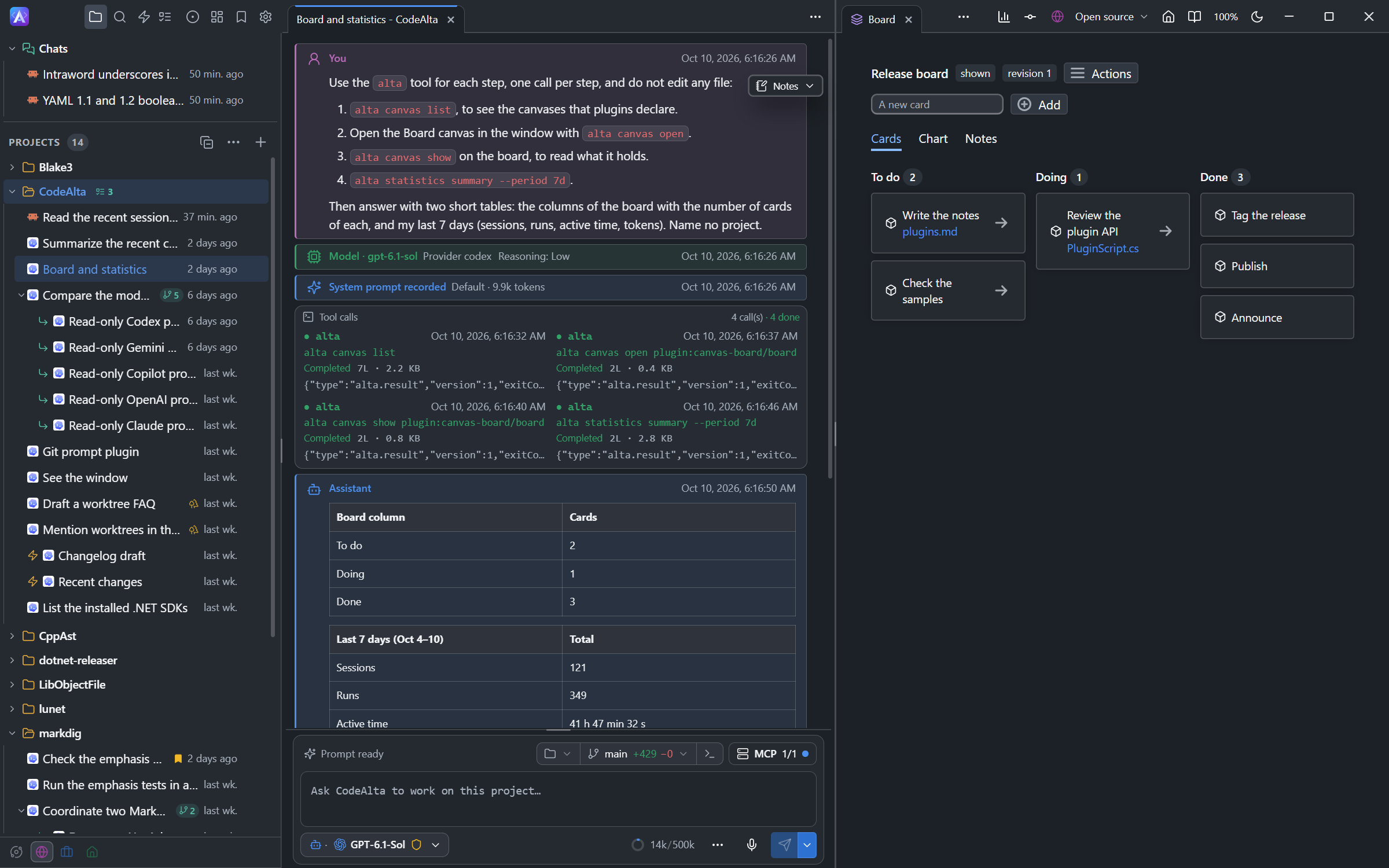
canvas-board sample beside the session whose agent opened and read it.Status items and content around the prompt
yield return new PluginStatusContribution
{
    Region = PluginUiRegion.SessionStatus,
    Name = "notes-count",
    GetStatus = _ => new PluginStatusItem { Label = "Notes", Text = "3", Command = "notes" },
};

yield return PluginTui.Visual(PluginUiRegion.SessionFooter,
    _ => new Markup("[dim]3 notes[/]"),                                                       // TUI
    _ => PluginRenderResult.FromHtml("<span class=\"alta-tag\">3 notes</span>", "3 notes"),   // desktop
    "notes-footer");
SessionFooter is above the prompt. CommandBar and SessionStatus are in the status line. A PluginRenderResult is shown in its richest form: Html on the desktop, then Markdown, then Text. Return null to show nothing.
These callbacks run often. Keep them fast and do no I/O in them.
Buttons in the window
CodeAlta Desktop lets a plugin put its own buttons in the window. A button has an icon and a label, and it runs a command of your plugin or opens a canvas of your plugin. CodeAlta TUI draws no button; the command stays in its palette.
public override IEnumerable<PluginUiContribution> GetUiContributions()
{
    yield return PluginUi.Button(PluginButtonPlace.TitleBar, "notes", icon: "notebook-pen", label: "Notes") with
    {
        Command = "notes",
        GetState = _ => new PluginButtonState { Badge = Open.Count },
    };
}
| Place | Where | Limit for one plugin |
|---|---|---|
TitleBar |
At the top right, before the space switch, the zoom and the theme | 2 |
Rail |
In the navigation rail, after Issues and before Settings | 1 |
ProjectMenu |
A line in the menu of a project in the Explorer, asked about that project | 6 |
SessionMenu |
A line in the menu of a session, asked about that session | 6 |
Name exactly one of Command (a command of the same plugin) and Canvas (a canvas of the same plugin; no code runs, the window opens it for the project and session of the button). GetState gives a badge (a number, PluginButtonBadge.Dot, or PluginButtonBadge.Busy for a small ring), a tone, and whether the button is hidden or disabled. Like status items, it runs often: read a field, do no I/O. The window reads it when a project, session or space is selected, when a command of your plugin ends, and when you call Services.Ui.InvalidateButtons().
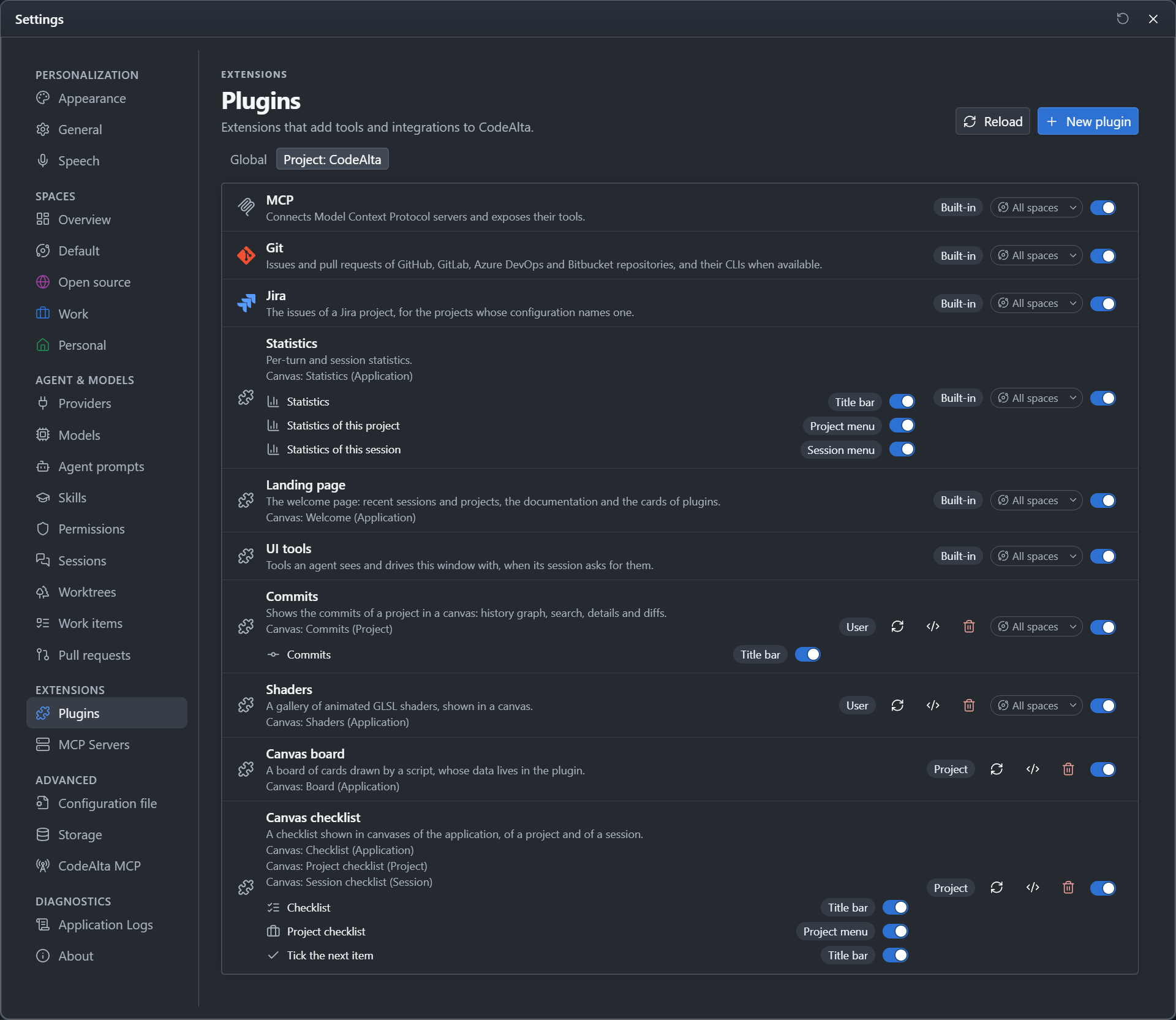
The icon is the name of any Lucide icon, the name of a brand logo, or an SVG file of your plugin folder such as icons/notes.svg (at most 32 KiB, drawn in the color of the text). A button that is invalid or over its limit is left out, and alta plugin status says why.
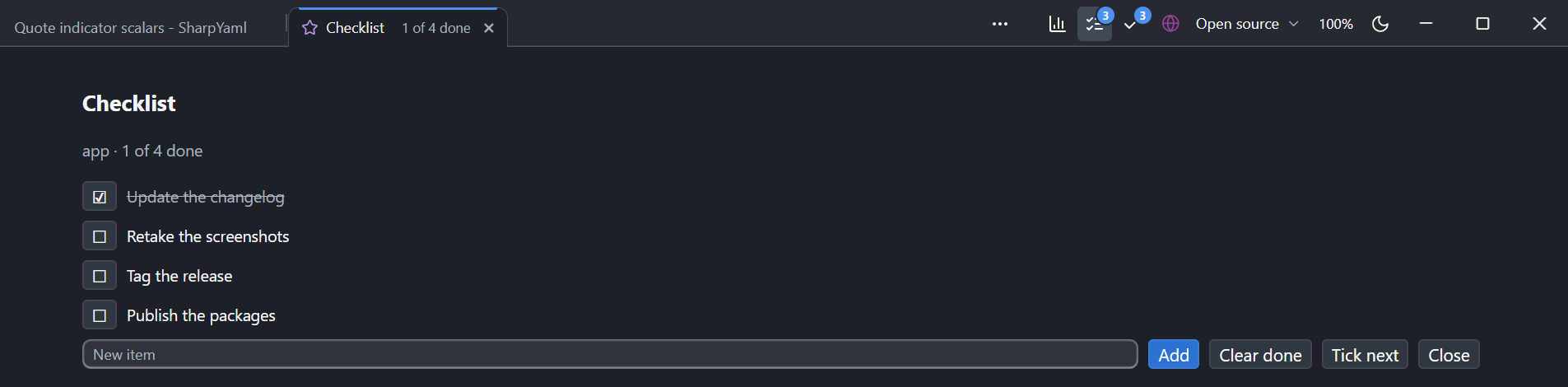
canvas-checklist sample with the number of items left.People can hide any button with a right click, and turn each one back on in Settings > Plugins. In a narrow window the buttons fold into one menu.
Cards on the welcome page
CodeAlta Desktop has a welcome page, and a plugin can pin a card on it: a title, an icon, a short piece of HTML and up to three buttons. CodeAlta TUI has no such page.
public override IEnumerable<PluginLandingCardContribution> GetLandingCards()
{
    yield return new PluginLandingCardContribution
    {
        Id = "notes", Title = "Notes", Icon = "notebook-pen",
        GetCard = async (context, cancellationToken) =>
        {
            var notes = await ReadAsync(cancellationToken);
            if (notes.Count == 0) return null;                                   // nothing to say: no card for now
            return PluginLandingCard.Of($"<p>{PluginHtml.Encode(notes[^1].Title)}</p>",
                PluginLandingCardAction.OpenCanvas("Open", "notes") with { Primary = true },
                PluginLandingCardAction.RunCommand("Add", "notes-add")) with { Status = $"{notes.Count} notes" };
        },
    };
}
| Part | What it is |
|---|---|
Id, Title, Icon, Order |
The card. One plugin pins at most 2 cards |
GetCard |
Returns what the card shows now, or null to leave it out. It may read a file or a database, within 5 seconds |
Html |
A fragment like the ones of dialogs and canvases. PluginHtml.Stat("128", "Sessions") writes a figure above its label; put several in a <div class="alta-row"> |
Status, Tone |
A short text beside the title, and its color |
Actions |
Up to 3 buttons. Each runs a command of your plugin (RunCommand) or opens a canvas of your plugin (OpenCanvas) |
context.SpaceId is the space the page is shown in. A plugin of a project folder also gets context.ProjectId: its card is shown only in the spaces that have that project, and its commands run for it.
The page asks for the card when it is shown, when a command of your plugin ends, and when you call Services.Ui.InvalidateLandingCards() after a change. A card that throws, or is too slow, is shown as a card that could not be loaded; the page and the other cards are not affected. Honor the cancellation token: each wait for a card is limited to five seconds, but your plugin cannot finish stopping until its card callback returns. Cards of an archived or removed project are not asked for.
The landing-card sample of the codealta-plugin-runtime skill is a complete plugin with a card, two commands and a canvas.
Prompt pickers
public override IEnumerable<PluginPromptPickerContribution> GetPromptPickers()
{
    yield return PluginUi.PromptPicker("notes", '!', "Notes", async (context, cancellationToken) =>
        [.. (await FindAsync(context.Query, cancellationToken)).Select(note => new PluginPromptPickerItem { Label = note.Title, InsertText = note.Title + " " })],
        "[!] to insert a note");
}
Typing the character at the start of a word opens the picker in both apps. The chosen item replaces the token with InsertText. The trigger is a punctuation character other than @, # and /, which CodeAlta uses.
Timeline cards
GetSessionEventProjections() returns cards computed from the events of a session. They are shown in the timeline and are not written to the conversation.
new PluginDerivedSessionEvent
{
    EventId = $"notes:{context.SessionId}",
    Markdown = "**Notes** · 3 added",                     // the bold start is the card title
    Html = "<span class=\"alta-tag\">3 added</span>",        // desktop: shown after the title
    DetailSections = [new PluginDerivedSessionEventDetailSection { Header = "Added", Markdown = "- one\n- two" }],
}
Keep the EventId stable for the same turn so the card is updated, not duplicated. A detail section can also carry Html. A data-alta-command element of a card runs its command for the session of the card. For a native TUI card, use PluginTerminalDerivedSessionEvent with a VisualFactory.
Canvases
In CodeAlta Desktop a plugin can provide canvases: tabs that it fills and keeps up to date, such as a checklist, a board or a report. The plugin declares them in GetCanvases() and holds their state, so closing a tab loses nothing. The canvas-checklist sample is a complete one.
You do not write anything to make a canvas easy to find:
- The Canvases page, opened with the button of the title bar after Issues, has a card for each canvas, with what is open in the space you look at. Open opens it for the project or the session in front, or for the one you pick on its card. New canvas starts a request for an agent to write one.
- The search (
Ctrl+P) has a command "Open canvas:" for each canvas.</li> <li>The menu of a project row lists the canvases about a project, and the menu of a session row those about a session.</li> <li>Settings > Plugins lists the canvases of each plugin.</li> </ul> <figure class="alta-figure my-4"> <img src="/img/alta-desktop-canvases.webp" alt="The Canvases page of CodeAlta Desktop: a card for Statistics, for the board and for the three checklists of the samples, each with its scope, Application, Project or Session, and an Open button" loading="lazy"> <figcaption class="small text-secondary mt-2">The Canvases page: one card for each canvas, with its scope and <strong>Open</strong>.</figcaption> </figure> <p>Agents use <code>alta canvas</code>: <code>list</code> and <code>show</code> read what canvases exist and what each shows, <code>invoke</code> runs an action, and <code>open</code>, <code>focus</code> and <code>close</code> act on a tab. A tab belongs to a space. When an agent opens a canvas for a space that you are not looking at, the tab is added to that space and the window stays where it is.</p> <h2 id="agent-tools-and-alta-commands">Agent tools and <code>alta</code> commands</h2> <p><code>GetAgentTools()</code> adds tools the model can call: wrap an <code>AgentToolDefinition</code> with <code>AgentTool.Create</code>. <code>OnToolCallAsync</code> and <code>OnToolResultAsync</code> see and change the calls of the tools that plugins add.</p> <p>A session has the tools of a plugin from its next prompt. The session that created or reloaded the plugin has them in the same turn.</p> <p><code>GetAltaCommands()</code> adds commands under the in-session <code>alta</code> tool. A plugin can also run <code>alta</code> commands:</p> <pre><code class="language-csharp">var result = await Services.Alta.InvokeAsync(["session", "create", "--project", projectId], cancellationToken: cancellationToken); </code></pre> <p>The result has the JSONL output, the exit code and an error summary.</p> <h2 id="prompts-and-instructions">Prompts and instructions</h2> <ul> <li><code>GetSystemPromptContributions()</code> adds text to the system or developer prompt: <code>Prompt.Developer("…")</code>.</li> <li><code>GetPromptProcessors()</code> can change or cancel the user's prompt before it is sent, in CodeAlta TUI.</li> <li><code>GetInstructionProcessors()</code> can change the final instructions after CodeAlta has composed them. CodeAlta records which plugin changed them.</li> </ul> <p>Keep added text short: it uses model context on every turn.</p> <h2 id="resources">Resources</h2> <pre><code class="language-csharp">public override IEnumerable<PluginResourceContribution> GetResources() { yield return Resources.SkillRoot("skills"); } </code></pre> <p>Paths are relative to the plugin folder. The resources of a project plugin apply to that project only.</p> <h2 id="lifecycle-background-work-and-data">Lifecycle, background work and data</h2> <p>Override <code>InitializeAsync</code>, <code>OnActivatedAsync</code>, <code>OnDeactivatingAsync</code> and <code>DisposeAsync</code> only when the plugin owns something to set up or release.</p> <ul> <li><p>Start background work with <code>Tasks.Run(...)</code> so CodeAlta can cancel it when the plugin is reloaded or unloaded. Do not use an untracked <code>Task.Run</code>. Tasks normally protect sessions from automatic retention until their original work and cancellation cleanup finish. Explicit retained-dependency failures (even nested in another exception) keep that protection: a failed release is not proof that dependent work terminated. The same rule applies to runtime startup, desktop commands and dialog actions. Use <code>PluginTaskOptions.SessionRetentionIndependent = true</code> only for work that never starts, resumes, queues or changes sessions or their lineage, nor hands off such work. Any journal reads must tolerate concurrent retirement and missing sources. This is an explicit safety contract, not a scheduling hint; leave it false when uncertain. Starting ordinary work can throw <code>InvalidOperationException</code> if retirement already owns a session.</p> </li> <li><p><code>Services.State</code> keeps the data of the plugin as JSON, between runs and reloads:</p> <pre><code class="language-csharp">var notes = await Services.State.ReadJsonAsync<List<string>>(PluginStateScope.User, "notes", cancellationToken) ?? []; await Services.State.WriteJsonAsync(PluginStateScope.User, "notes", notes, cancellationToken); </code></pre> <p><code>PluginStateScope.User</code> stores under <code>~/.alta/plugin-data/</code>, and <code>PluginStateScope.Project</code> under <code><project>/.alta/plugin-data/</code>.</p> </li> <li><p><code>Services.Database</code> gives the plugin tables of its own in the SQLite database of CodeAlta, for data that is queried or that grows. Every table name starts with <code>Services.Database.TablePrefix</code>, which CodeAlta derives from the plugin, and <code>MigrateAsync</code> runs the changes to the tables once for each version:</p> <pre><code class="language-csharp">var database = Services.Database; await database.MigrateAsync(1, async (connection, from, to, token) => { await using var command = connection.CreateCommand(); command.CommandText = $"CREATE TABLE {database.TablePrefix}notes (id INTEGER PRIMARY KEY, text TEXT)"; await command.ExecuteNonQueryAsync(token); }, cancellationToken); </code></pre> <p><code>ReadAsync</code> reads without waiting for anyone, and <code>WriteAsync</code> writes in one transaction, in turn with the other writers: keep a write short. The data is kept when the plugin is turned off.</p> </li> <li><p><code>Logger</code> writes to the CodeAlta log.</p> </li> <li><p>Do not keep static references to host objects, and do not put secrets in plugin source.</p> </li> </ul> <h2 id="when-a-plugin-does-not-start">When a plugin does not start</h2> <table class="table"> <thead> <tr> <th></th> <th>Desktop</th> <th>TUI</th> </tr> </thead> <tbody> <tr> <td>While it builds</td> <td>The start-up screen names the plugin being built</td> <td>The console shows the build before the interface</td> </tr> <tr> <td>Build or load failure</td> <td>A notice at start, and the compiler errors under the plugin in <strong>Settings > Plugins</strong></td> <td>The error in the console and in <code>/plugins</code></td> </tr> <tr> <td>Not supported in this app</td> <td>Marked in <strong>Settings > Plugins</strong></td> <td>Listed in <code>/plugins</code></td> </tr> <tr> <td>Full log</td> <td><strong>Settings > Application Logs</strong></td> <td><code>~/.alta/logs/codealta.log</code></td> </tr> </tbody> </table> <p>In a session, <code>alta plugin status <id></code> returns the same errors with their file, line and column.</p> <p>Disable one plugin in the plugin list or in the configuration:</p> <pre><code class="language-toml">[plugins.hello] enabled = false </code></pre> <p>To start without any plugin, set <code>CODEALTA_DISABLE_PLUGINS=1</code>. The TUI also accepts <code>--no-plugins</code> and <code>--plugin-safe-mode</code>.</p> <h2 id="samples">Samples</h2> <p>The <code>codealta-plugin-runtime</code> skill ships complete plugins that CodeAlta's tests build and load:</p> <table class="table"> <thead> <tr> <th>Sample</th> <th>Shows</th> </tr> </thead> <tbody> <tr> <td><code>todo</code></td> <td>A complete plugin: commands, an HTML dialog with actions, a status item, a picker, tools, an <code>alta</code> command, prompt text, saved data</td> </tr> <tr> <td><code>hello-command</code></td> <td>A command</td> </tr> <tr> <td><code>desktop-and-terminal</code></td> <td>One plugin for both apps: portable dialogs, an HTML dialog with actions, a status item, content above the prompt, a prompt picker</td> </tr> <tr> <td><code>saved-data</code></td> <td>Data kept between runs with <code>Services.State</code></td> </tr> <tr> <td><code>canvas-checklist</code></td> <td>A tab that the plugin provides, found from the Canvases page, the search and <code>alta canvas</code>: a checklist of the application, of a project and of a session, ticked from the page, a command or an agent; buttons in the title bar and in the menu of a project</td> </tr> <tr> <td><code>canvas-board</code></td> <td>A tab drawn by a script of the package folder: a React component with Blueprint tabs and menus, a chart, Markdown, links and <code>alta.host</code>, whose board lives in the plugin and is read with <code>alta.rpc</code> (a call, a stream, an event)</td> </tr> <tr> <td><code>report-dialog</code></td> <td>A dialog with Markdown, a diagram and highlighted code</td> </tr> <tr> <td><code>agent-tool</code></td> <td>A tool the model calls</td> </tr> <tr> <td><code>alta-command</code></td> <td>A command of the <code>alta</code> tool</td> </tr> <tr> <td><code>timeline-card</code></td> <td>A card in the timeline, computed from the events of a session</td> </tr> <tr> <td><code>ui-status</code>, <code>ui-all-regions</code></td> <td>Status items and content in every region</td> </tr> <tr> <td><code>prompt-guidance</code></td> <td>Text added to the prompt</td> </tr> <tr> <td><code>instruction-path-normalizer</code></td> <td>A change to the final instructions</td> </tr> <tr> <td><code>background-task</code></td> <td>Tracked background work</td> </tr> <tr> <td><code>package-reference</code></td> <td>A NuGet package</td> </tr> <tr> <td><code>skill-root</code></td> <td>A skill shipped by a plugin</td> </tr> <tr> <td><code>multi-plugin-assembly</code></td> <td>Several plugins in one file</td> </tr> </tbody> </table> </div> </div> </div> </section> <footer> <hr> <p>Copyright © 2026, Alexandre Mutel aka <a href="https://xoofx.github.io">xoofx</a> - Content licensed under the Creative Commons <a href="http://creativecommons.org/licenses/by/2.5/">CC BY 2.5</a> | Site generated by <a href="https://github.com/lunet-io/lunet">lunet</a> hosted on <a href="https://pages.github.com/">GitHub Pages</a></p> </footer> </div> </div> </body> </html>