MCP plugin
The built-in MCP plugin connects CodeAlta to configured Model Context Protocol servers. It supports stdio servers and remote HTTP/SSE servers, exposes MCP tools, adds the alta mcp live-tool command root, provides compact prompt guidance for active/inactive servers, and includes the MCP Servers dialog.
Typical flow
The alta mcp ... surface is an in-session live tool for the agent/LLM. Users cannot invoke those live-tool commands directly from the terminal. Instead, edit MCP files yourself, use the MCP Servers dialog, or ask the agent to perform MCP operations in a prompt. For the broader live-tool workflow model, see Advanced Agent Workflows.
Add server connection definitions to
~/.alta/mcp.jsonor<project>/.alta/mcp.json, or ask the agent to add one:Add a project MCP server named memory that runs npx -y @modelcontextprotocol/server-memory.Ask the agent to inspect configuration without connecting to servers:
Check which MCP servers are configured and show me the config sources.Ask the agent to discover tools or call a tool on demand:
Search the memory MCP server for graph tools.Ask the agent to activate servers for the current session and to use them, in one prompt:
Activate the memory MCP server and summarize the graph.The tools of an activated server are available at once: the agent calls them in the same turn. The server stays active for the session.
Configuration paths and overlay
CodeAlta keeps MCP connection definitions in two JSON files:
| Scope | File | Notes |
|---|---|---|
| Global | ~/.alta/mcp.json |
Available in every project. |
| Project | <project>/.alta/mcp.json |
For that project only. |
Server keys and tool names are matched exactly and case-sensitively. When two files define the same server key, one definition is used and the others are shown as overridden and are not connected: a project comes before your global file.
New files created by CodeAlta use the mcpServers root. Existing supported formats are detected and preserved when CodeAlta edits a file. Unknown root/server fields are preserved, but CodeAlta only uses the fields documented below.
Servers of other tools
CodeAlta also reads the MCP files other tools keep. A server you defined for GitHub Copilot, Visual Studio Code or Claude Code works in CodeAlta without being copied.
| Scope | File | Kept by |
|---|---|---|
| Project | <project>/.mcp.json |
GitHub Copilot CLI, Visual Studio Code, Claude Code |
| Project | <project>/.github/mcp.json |
GitHub Copilot CLI |
| Project | <project>/.vscode/mcp.json |
Visual Studio Code |
| Global | ~/.copilot/mcp-config.json |
GitHub Copilot CLI, Visual Studio Code |
These servers are listed with the others, with the name of their file, or the Copilot mark for the two files of GitHub Copilot. You enable, disable, activate and authorize them like any server.
CodeAlta never changes these files:
- A server of such a file has no Remove. Disable it, or remove it in the tool it belongs to.
- When you edit one and save it, CodeAlta writes a server of the same name to its own file. That one is used from then on, and the other is shown as overridden. Remove yours to go back to the original.
When several files define the same server, the file of CodeAlta comes first, then .mcp.json, .github/mcp.json and .vscode/mcp.json. The files of a project come before the global ones.
A file of another tool can contain comments and trailing commas, as Visual Studio Code writes them. A server of a project starts in the folder of the project. The variables of these files work as follows:
| Variable | In CodeAlta |
|---|---|
${env:NAME}, ${NAME}, ${NAME:-default} |
The environment variable NAME of the CodeAlta process, or the default. |
${workspaceFolder}, ${workspaceFolderBasename} |
The folder of the project, and its name. |
${userHome} |
Your home folder. |
${input:...} |
The server is not loaded: only Visual Studio Code can ask for this value. |
A server that uses ${input:...}, an envFile or another variable CodeAlta does not know is listed as Not supported, with the reason. To use it, add a server of the same name to CodeAlta with the value it needs, for example from an environment variable.
The tools list of a GitHub Copilot file is not applied. To limit the tools of a server, use the TOML policy or the tool switches of the MCP Servers dialog of CodeAlta TUI.
Supported JSON formats
Each MCP JSON file of CodeAlta must be a JSON object with exactly one supported server-map root. JSON comments are not allowed in it.
| Format detected by CodeAlta | Root key | How it is detected | Notes when CodeAlta writes it |
|---|---|---|---|
| CodeAlta/default | mcpServers |
No Copilot tools entries, no explicit stdio type, and no untyped URL-only server. |
New files use this format. Remote servers are written with type = "http" in JSON. |
| GitHub Copilot-style | mcpServers |
At least one server object contains tools. |
Existing tools fields are preserved; new servers get "tools": ["*"] when needed to keep the flavor. CodeAlta MCP policy still comes from TOML, not this tools field. |
| VS Code-style | servers |
The file uses the servers root. |
Stdio servers are written with type = "stdio"; remote servers keep type = "http" if already HTTP, otherwise type = "sse". |
| Claude-style | mcpServers |
At least one server has type = "stdio". |
Stdio servers keep type = "stdio"; remote servers are written with type = "http". |
| IntelliJ-style | mcpServers |
At least one URL server has no type. |
Remote servers are written without adding type. |
A single file containing both mcpServers and servers is invalid because the root format would be ambiguous.
Supported server fields
A server entry must be an object under the selected root key. It must define exactly one transport: stdio with command, or remote HTTP/SSE with url.
| Field | Type | Used with | Meaning |
|---|---|---|---|
command |
string | stdio | Executable or command to launch. Required for stdio servers and mutually exclusive with url. May reference environment variables with ${NAME}. |
args |
array of strings | stdio | Arguments passed as separate argument values. Use this instead of embedding arguments in command. Values may reference environment variables with ${NAME}. |
cwd |
string | stdio | Working directory passed to the stdio transport. May reference environment variables with ${NAME}. |
env |
object with string values | stdio | Environment variables for the launched server. Values may reference process environment variables with ${NAME}. |
url |
string | HTTP/SSE | Remote MCP endpoint. Runtime validation requires an absolute http or https URL. Mutually exclusive with command. May reference environment variables with ${NAME}. |
headers |
object with string values | HTTP/SSE | Static HTTP headers for remote servers. Values may reference process environment variables with ${NAME}. Header names must be valid HTTP token names; values cannot contain CR/LF after expansion. |
auth |
object | HTTP/SSE | Optional CodeAlta OAuth/Authv2 browser-login settings. Use { "type": "oauth" } for dynamic client registration, or include clientId, optional clientSecret, scopes, and redirectUri when the authorization server requires a pre-registered client. Tokens are not stored in MCP JSON. |
type |
string | both | Optional transport hint. Supported values are stdio, local (the name GitHub Copilot CLI gives to stdio), http, and sse. command can only be combined with stdio or local; url cannot be combined with them. |
tools |
any existing JSON value | Copilot-style files | Preserved for flavor compatibility. CodeAlta does not use it to enable/disable tools; use TOML policy instead. |
Array and map fields are strict: args must be an array of strings, and env/headers must be objects whose values are strings.
CodeAlta/default examples
Stdio server:
{
  "mcpServers": {
    "memory": {
      "command": "npx",
      "args": ["-y", "@modelcontextprotocol/server-memory"],
      "env": {
        "MEMORY_TOKEN": "${MEMORY_TOKEN}"
      }
    }
  }
}
Remote server:
{
  "mcpServers": {
    "docs": {
      "type": "http",
      "url": "https://example.test/mcp",
      "headers": {
        "Authorization": "Bearer ${MCP_TOKEN}"
      }
    }
  }
}
${NAME} placeholders are expanded in command, args, cwd, url, env values and headers values. ${NAME:-default} uses the default when the variable is not set. If a referenced environment variable is missing and has no default, CodeAlta reports an environment_variable_not_found diagnostic and does not send the literal placeholder to the server.
Remote OAuth/Authv2 browser login
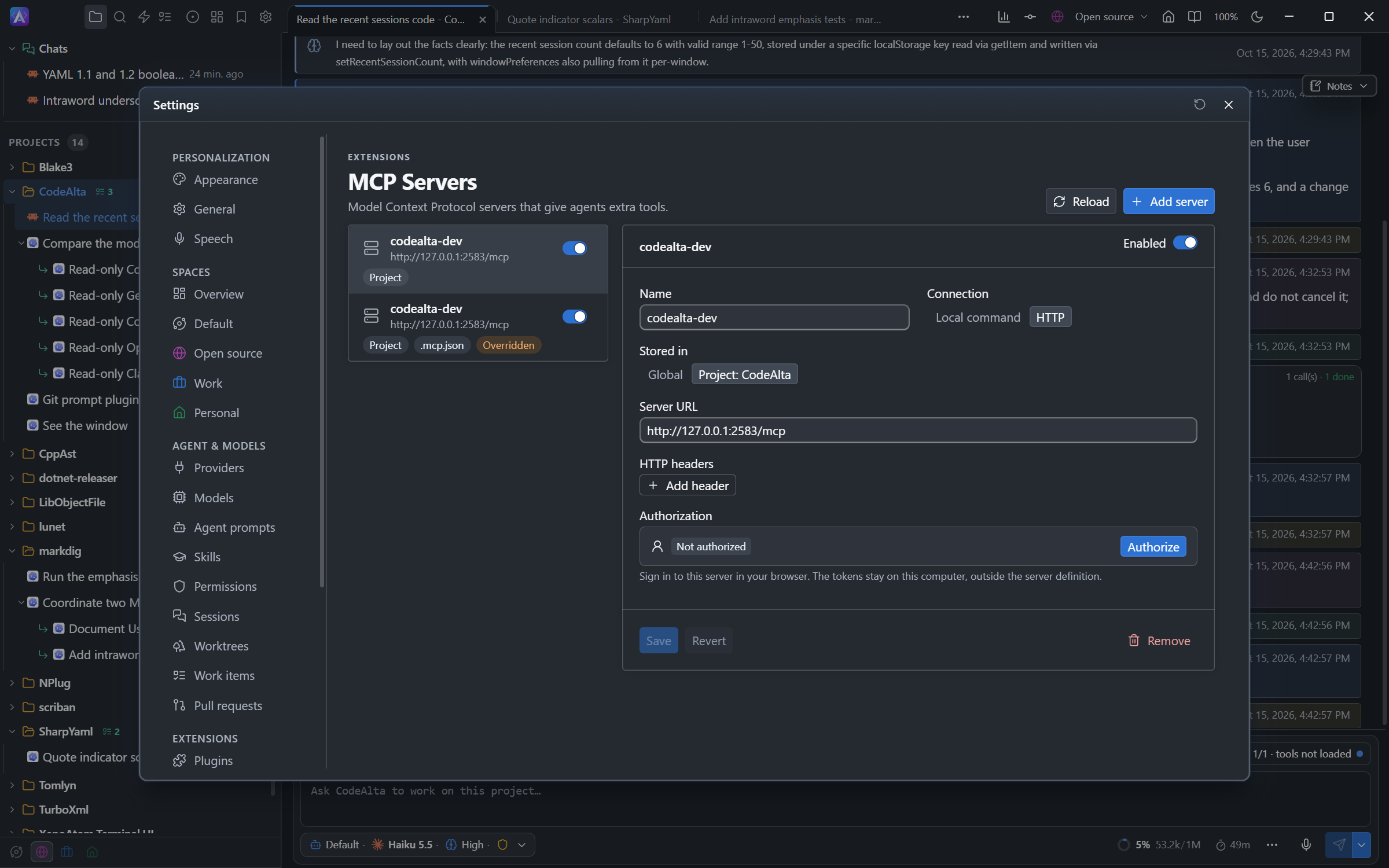
For HTTP/SSE MCP servers that follow the MCP authorization flow, prefer CodeAlta-managed browser login over committing bearer tokens to JSON. Configure the server with an OAuth auth block, then use the MCP Servers dialog Authorize/Login action (Authorize on the MCP Servers page of the desktop app) or ask the agent to run alta mcp auth login <server>:
{
  "mcpServers": {
    "docs": {
      "type": "http",
      "url": "https://example.test/mcp",
      "auth": {
        "type": "oauth",
        "scopes": ["read", "search"]
      }
    }
  }
}
CodeAlta stores OAuth access/refresh tokens in local user state under ~/.alta/auth/mcp/; it does not write tokens, authorization codes, or refresh tokens to .alta/mcp.json or TOML policy. Browser login uses a loopback callback with a per-login state value and an ephemeral port by default; set redirectUri only when an authorization server requires a pre-registered fixed callback. CodeAlta waits 5 minutes for the browser to come back to that callback; after that the login stops and you start it again. The time left is shown while you sign in: in the login dialog's text, with a countdown on the desktop page, and as expiresAt in the progress record of alta mcp auth login. The MCP Servers dialog opens a small modal login dialog for Authorize/Login, shows/copies the login URL when available, and supports Cancel Login (Esc or Ctrl+G Ctrl+C) for stuck browser flows. In the desktop app, the form of a saved HTTP server has an Authorization block: Authorize opens the browser and shows the address to copy, Cancel stops a login that is stuck, and Sign out removes the stored tokens. Save the server and enable it first. Dialogs and alta mcp auth status show only cache status and expiry. Non-interactive agent runs and ordinary MCP tool commands use cached/refreshable tokens only and will not open a browser unexpectedly. Use Logout in the dialog or alta mcp auth logout <server> to delete cached tokens.
GitHub MCP server example
The GitHub MCP server can run as
a remote HTTP server. A CodeAlta project can configure it like this in
.alta/mcp.json:
{
  "mcpServers": {
    "github": {
      "type": "http",
      "url": "https://api.githubcopilot.com/mcp/",
      "headers": {
        "Authorization": "Bearer ${GITHUB_PERSONAL_ACCESS_TOKEN}"
      }
    }
  }
}
Store the token outside the JSON file. If the GitHub CLI is already authenticated, you can reuse its token for the CodeAlta process:
$env:GITHUB_PERSONAL_ACCESS_TOKEN = gh auth token
alta      # or altatui
export GITHUB_PERSONAL_ACCESS_TOKEN="$(gh auth token)"
alta      # or altatui
Environment variables set this way are only available to that shell and the CodeAlta process launched from it. Use your operating system's secret storage or environment-variable configuration when you need persistence, and never commit the resolved token to MCP JSON.
For many GitHub tasks, installing and authenticating gh is simpler than
adding the GitHub MCP server. CodeAlta's Git plugin can expose gh as an
agent tool, and GitHub operations can then go through the official CLI. Use
the GitHub MCP server when you specifically want its MCP toolsets.
TOML policy fields
Connection fields stay in JSON. Enablement, tool filtering, prompt limits, timeouts, and direct-tool policy live in config.toml under [plugins.mcp] and [plugins.mcp.servers.<server>]:
| Scope | File |
|---|---|
| Global policy | ~/.alta/config.toml |
| Project policy | <project>/.alta/config.toml |
Project policy overlays global policy. Server policy keys are matched to the raw MCP server key.
[plugins.mcp]
enabled = true
startup_timeout_ms = 30000
tool_timeout_ms = 60000
max_tool_output_chars = 120000
discover_in_prompt = true
prompt_max_servers = 10
prompt_max_tools = 20

[plugins.mcp.servers.memory]
enabled = true
allowed_tools = ["read_graph", "write_graph"]
disabled_tools = ["delete_graph"]
startup_timeout_ms = 10000
tool_timeout_ms = 30000
| Global key | Default | Effect |
|---|---|---|
enabled |
true |
Disables MCP runtime exposure when false. |
startup_timeout_ms |
30000 |
Maximum time for server startup and tool discovery. Non-positive values fall back to the default. |
tool_timeout_ms |
60000 |
Maximum time for one MCP tool call. Non-positive values fall back to the default. |
max_tool_output_chars |
120000 |
Character budget for MCP tool text/structured output before truncation. |
discover_in_prompt |
true |
Adds compact active/inactive MCP server guidance to the developer prompt. |
prompt_max_servers |
10 |
Maximum number of server keys shown in prompt guidance. |
prompt_max_tools |
20 |
Loaded and shown in management policy state; current prompt guidance lists servers, not individual tools. |
direct_exposure |
"auto" |
Accepted values: "none", "allowlist", "auto", "all". Retained for non-progressive direct-tool selection; normal session activation exposes tools from activated servers after server/tool policy. |
direct_tool_threshold |
40 |
Threshold used by the non-progressive direct_exposure = "auto" path. |
| Server key | Effect |
|---|---|
enabled |
When false, the server is not connected and reports server_disabled. |
allowed_tools |
If non-empty, only these raw MCP tool names are enabled. |
disabled_tools |
Raw MCP tool names to disable. |
startup_timeout_ms |
Per-server startup/tool-list timeout override. |
tool_timeout_ms |
Per-server tool-call timeout override. |
direct_exposure |
Per-server override for the non-progressive direct exposure mode. |
direct_tools |
Explicit raw tool names for the non-progressive direct exposure allowlist/auto path. |
spaces |
The spaces whose sessions can use the server; absent for every space. Read from the global config.toml only. A session of another space does not see the server, and alta mcp activate and alta mcp server enable refuse it with server_not_in_space; turning a server off is always allowed. |
The loader also accepts compatibility/display keys such as connect_on_startup, config_scopes, preferred_write_scope, and per-server required. Configuration inspection does not connect to servers, MCP tool discovery connects lazily, and agent tools are exposed through session activation. Once a session calls a server's tools, that server stays connected for the session, so a tool can rely on what an earlier call did (a browser snapshot, an opened document). An unused connection is closed after fifteen minutes and opened again at the next call.
Managing servers through prompts
The agent can use MCP live-tool commands to add, update, remove, enable, or disable servers. Phrase the request in terms of the desired result.
Add or update stdio servers by asking, for example:
Add a project MCP server named memory that runs npx with arguments -y
and @modelcontextprotocol/server-memory.

Add a project MCP server named local-docs that runs node server.js from
C:\repo and sets API_TOKEN from ${DOCS_TOKEN}.
Add or update remote servers by asking, for example:
Add a project MCP server named docs at https://example.test/mcp with
Authorization set to Bearer ${MCP_TOKEN}.
By default, the agent writes to project scope when a project is active, otherwise to global scope. Ask explicitly for global or project scope when it matters. Adding/removing servers mutates only JSON MCP config files. Enabling/disabling servers mutates only TOML policy and preserves the JSON server definition:
Disable the memory MCP server in project policy.

Enable the memory MCP server in project policy.
When removing from inside a project, a global-only server requires explicit global scope so a project context does not accidentally delete global user configuration. Ask for that directly: "Remove the global MCP server named memory."
The agent adds and removes servers in the files of CodeAlta only. It can disable a server of another tool, or add a server of the same name that replaces it, but it does not remove it from that tool's file.
Discovering and calling tools through prompts
When you ask the agent to discover MCP tools, it can use its MCP live tool to connect to enabled effective servers, list tools, apply allowed_tools/disabled_tools, and report enabled tools plus diagnostics. Ask for one server or a query when you want a smaller result:
Search the memory MCP server for graph tools.
Tool descriptions and manual tool calls require the raw server key and raw MCP tool name. Prompt examples:
Describe the read_graph tool on the memory MCP server.

Call the read_graph tool on the memory MCP server with an empty JSON
argument object.
The MCP live-tool call operation requires a JSON object argument payload and defaults to {}. Tool-call results preserve MCP isError, include text content when available, summarize image/audio/resource content instead of embedding it, redact likely secrets, and mark output as truncated when it exceeds max_tool_output_chars.
Activating tools for agents
MCP tools are not registered for agents merely because a server is configured. Ask the agent to activate one or more servers for the current session:
Activate the memory MCP server.

Activate the memory and docs MCP servers.
When the agent activates a server, its tools join the running turn: the agent calls them in its next step, and you do not need to send another prompt. You can ask for the activation and the work in one message, such as "Activate the memory MCP server and summarize the graph."
Custom agent prompts can include MCP activation or discovery habits for workflows that use the same servers repeatedly.
Activation records the server keys for the session and lists their tools. The server stays active for that session: each later turn starts with its tools. CodeAlta registers enabled tools as deterministic aliases:
mcp__<server>__<tool>
Alias parts keep ASCII letters and digits and replace other characters with _. If sanitized server or tool names collide, CodeAlta appends a stable hash suffix. The MCP tool input schema is passed through to the agent tool definition when it fits CodeAlta's strict/OpenAI-compatible tool schema subset. If an MCP schema uses dynamic object maps or required names outside local properties, CodeAlta exposes a strict-safe arguments_json string parameter instead; the string must contain the raw MCP argument JSON object and is unwrapped before the MCP call. Direct agent calls delegate to the same runtime path as the MCP live-tool call operation.
When a tool returns an image, such as a browser screenshot, the agent sees it with the text of the result when the selected model supports image input. CodeAlta Desktop shows the image in an Image read card of the timeline, and the CodeAlta TUI shows a line that names it.
A stdio server that a session starts gets, in its environment, the Git and GitHub identity of the session's space. Sessions of two identities do not share a server: each starts its own.
If a server cannot start, connect, authenticate, or list tools, it contributes diagnostics for that request and no agent tools for that run. For protected HTTP servers, complete browser login from the dialog or with alta mcp auth login <server>, or configure static headers in JSON when the provider requires them.
MCP Servers dialog
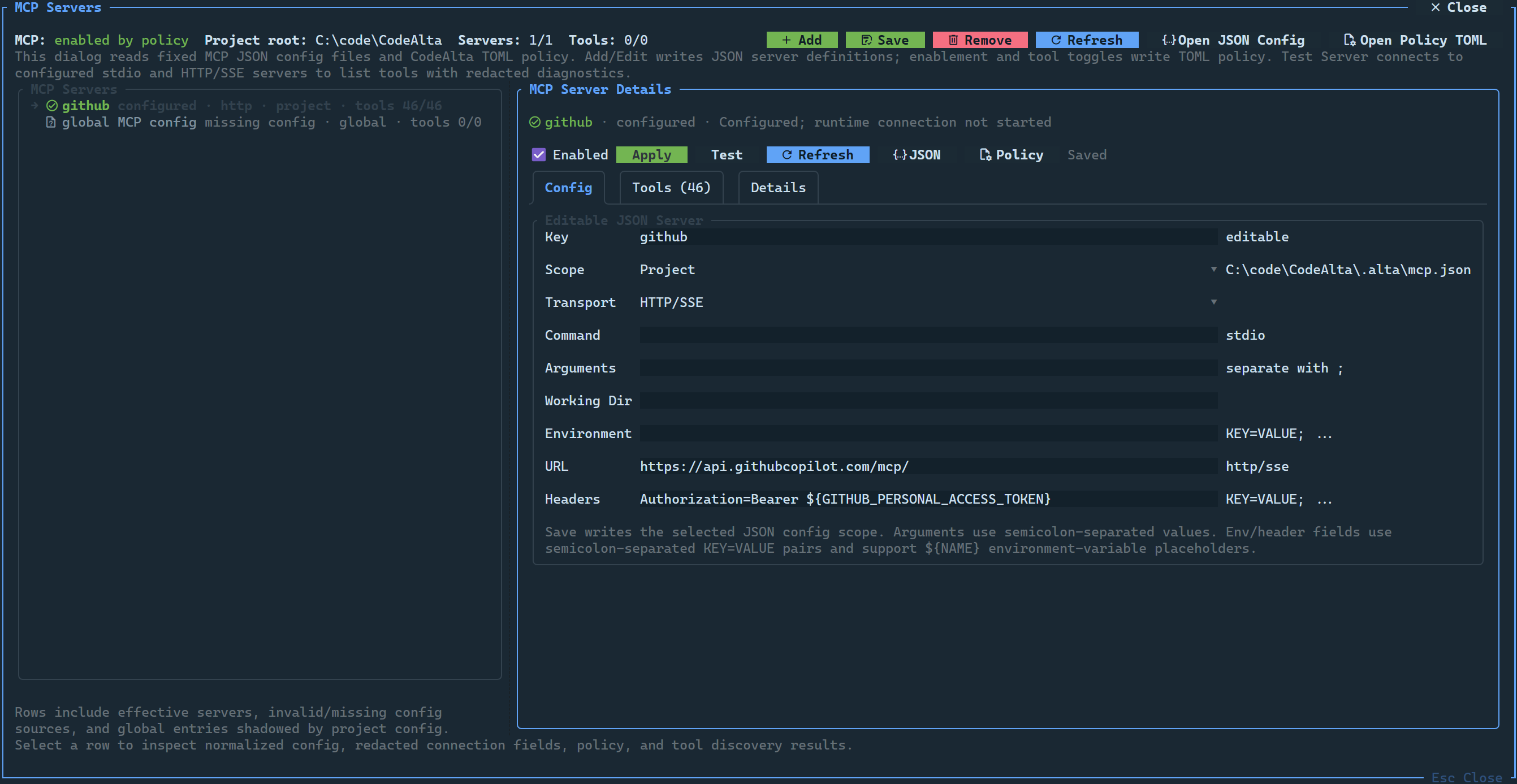
Open it from /mcp, the command MCP Servers, or the MCP status of the prompt (above the editor in CodeAlta Desktop). In CodeAlta Desktop it is the MCP Servers page of Settings (Ctrl+G Ctrl+Y), where you add, edit, enable and remove servers of the global or project scope, and authorize or sign out of an HTTP server. The page lists the files the servers are read from, each with a button to open it in the code editor. With more than the Default space, the chip of a server shows its spaces and changes them; a server of a project follows its project. The TUI dialog can:
- show global and project MCP definitions, the servers of other tools with the file they come from, and the definitions that are overridden;
- add, edit, save, and remove server JSON definitions in the files of CodeAlta;
- toggle server enablement through TOML policy;
- discover tools in the background when a configured server is selected;
- test a server with configured timeouts;
- authorize/login or logout HTTP OAuth/Authv2 servers without storing tokens in MCP JSON;
- toggle individual tools by writing/removing raw tool names in
disabled_tools.
Use Open JSON Config, or ask the agent to add/remove/update MCP servers, for advanced JSON shapes that the dialog form does not expose.
Current boundaries
Current MCP support focuses on tools. MCP resources, prompts, elicitation/user-interaction flows, and automatic tool-list-changed refresh are not part of the shipped user workflow. Diagnostics are redacted before display.
Disable it
Disable MCP runtime exposure and MCP command paths with:
[plugins.mcp]
enabled = false
The MCP plugin remains a built-in trusted plugin, so the global plugin bypasses on the plugins overview are still available for startup recovery.