Sessions and Delegation
A CodeAlta session is a durable work unit with provider/model state, prompt history, queue state, a session journal, and timeline projections. Sessions can be global or project-scoped.
Global vs project sessions
- Global sessions are useful for coordination across projects: planning, triage, comparing work, or creating project-specific child sessions. CodeAlta Desktop calls them Chats and lists them first in the sidebar.
- Project sessions are scoped to one project. They can attach project files, see same-project session context, and use project-local configuration from
<project>/.alta/config.toml. A project session works in the project folder, or in its own git worktree.
The sidebar keeps running sessions visible even when their tab is closed. Closing a tab does not stop active work, and unsent session drafts are saved under ~/.alta/saved_prompts/.
Closing a tab only closes that view. Check the sidebar for running sessions before assuming work has stopped.
Starting and reopening work
Open a project with Ctrl+O, select a provider/model/reasoning combination, and send a prompt. CodeAlta stores provider-independent session journals under ~/.alta/sessions/yyyy/mm/dd/<session-id>.jsonl.
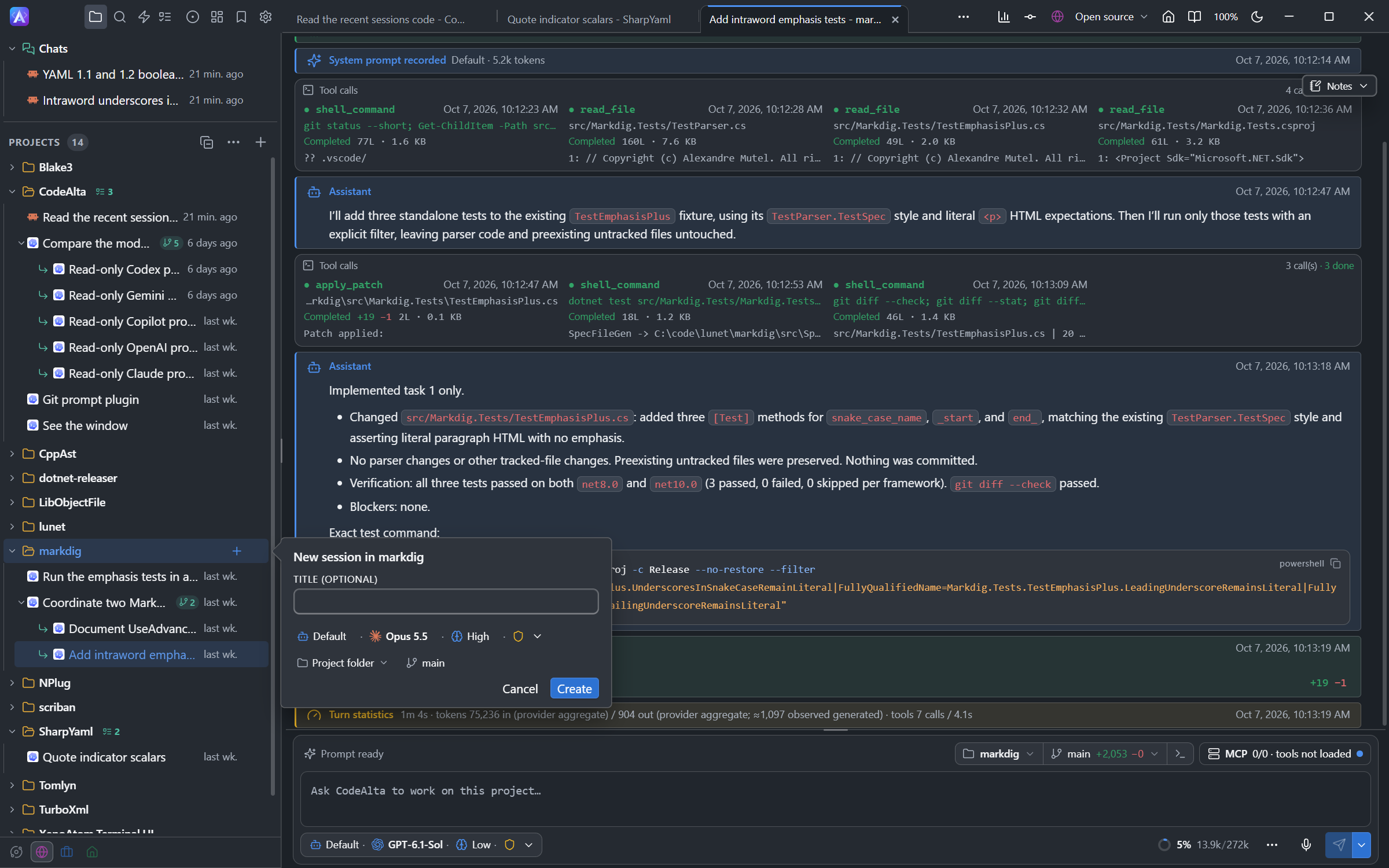
In CodeAlta Desktop, the + on the row of a project, or New session… in its … menu, creates a session without sending a prompt. A small form opens beside the row: give the session a title if you want one, choose the agent, the model (or a tier), the reasoning and the permissions, and whether it works in the project folder or in a new worktree, then click Create. The form closes at once and the session starts in a tab of its own, titled Starting… until it opens: you can go on working meanwhile, and if you went elsewhere, a notice offers to show the new session. For a new worktree, the tab shows each step with its time: the worktree, its files, the session. If a step fails, it shows what went wrong, with Retry and Close. Chats has the same button for a new chat. What you choose is remembered for the next session of that project.
When reopening an existing session, CodeAlta restores local history before provider initialization has to finish. A ready compatible provider can resume or switch a CodeAlta-owned local session while it is idle; provider-native continuation state is reused only when it is safe.
In CodeAlta Desktop, the links of a message work, yours and the agent's:
- A web link opens in your default browser.
- A link to a file opens the file in the code editor, at the line the link names (
src/Program.cs#L42orsrc/Program.cs:42). A relative path is read from the folder the session works in. A file that belongs to no project opens too: the editor then shows the folder of that file, so you can look at its neighbours. A file that is not text is not opened; a picture is. - A
file://link to an HTML page or a PDF opens with what your system shows it in, usually the browser.
Click a link, or press Enter on a link that has the keyboard focus, which Tab moves to. Cmd-click on macOS, Ctrl-click on Windows and Linux, Shift-click and middle click work too. Agents are asked to write the files they name as such links. The same links work in the notes of a session, in issues and pull requests, in work items and in the Markdown preview of the code editor, where a relative path is read from the folder of the document.
Session titles
A title you give stays. Give one when you create the session, or use Rename in the menu of the session. CodeAlta never replaces it.
CodeAlta titles a session you did not name. The session first takes a short title from its first prompt. What happens next is your choice:
| Choice | The title |
|---|---|
| First prompt | Stays the title of the first prompt. |
| Last message | Follows the first line of the last answer. |
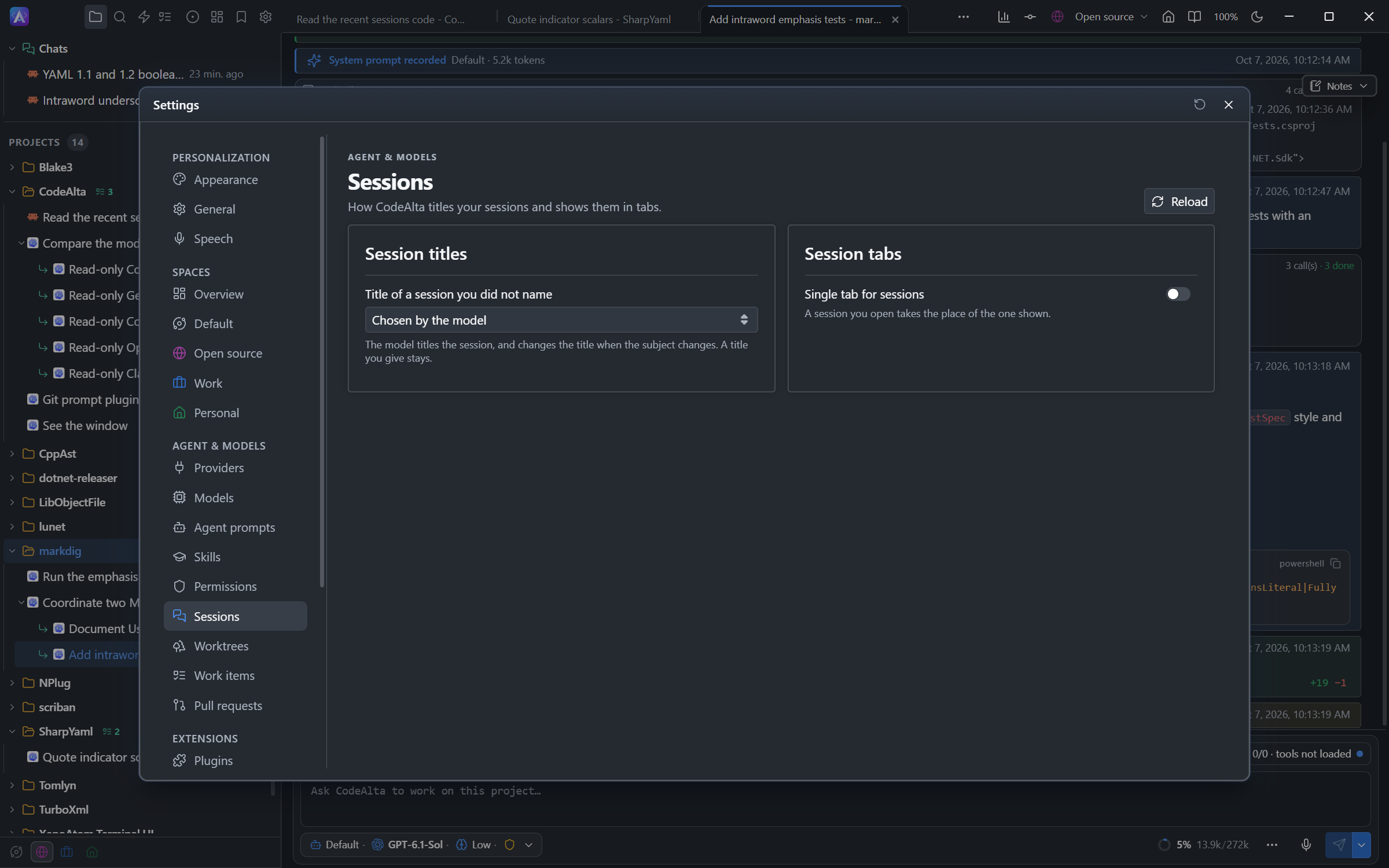
| Chosen by the model | Is given by the model, which changes it when the subject of the session changes. This is the default. |
In CodeAlta Desktop, choose it in Settings > Sessions. The choice is saved in ~/.alta/config.toml:
[sessions]
title = "first_prompt" # or "last_message", or "model"
A session takes the choice with its next prompt. A session you start in CodeAlta TUI is named from its first prompt and keeps that name.
A session can also have a choice of its own. Ask the agent of the session to change it, or to name the session: it does so with the alta session title command.
alta session title                          # the title, who chose it and how the session is titled
alta session title --set "Parser rewrite"   # name the session
alta session title --mode last_message      # the title of this session follows its last message
alta session title --mode default           # this session follows your choice in Settings again
Prompt suggestions
After a turn, Claude Code can suggest what you may write next: a short prompt such as go ahead or run the tests. CodeAlta Desktop shows it in the empty prompt, in place of the usual hint, and the line above the prompt says Tab or → takes the suggestion.
- Press Tab or the right arrow to put the suggestion in the prompt. Nothing is sent: edit it, or press Enter.
- Write something else and the suggestion gives way; empty the prompt and it is back. Sending a prompt ends it: the next turn brings another one, or none.
Only the Claude Code provider suggests prompts, so the choice is a setting of that provider. Suggestions are off by default, because each one is a request of its own to the model after the turn. Turn them on with Suggest the next prompt in the dialog of the provider (Settings > Providers), or in ~/.alta/config.toml:
[providers.claude-code]
type = "claude-code"
prompt_suggestions = true
The sessions of the provider take the choice with their next prompt. CodeAlta TUI shows no suggestions and asks for none, so the setting costs nothing there. Claude Code makes no suggestion after the first turn of a session, nor when it has nothing to propose, and the sub-agents of a session are never asked for one.
Move a session to another project
In CodeAlta Desktop, a project session can move to another project: for example from one git worktree of a repository, added as a project, to another one.
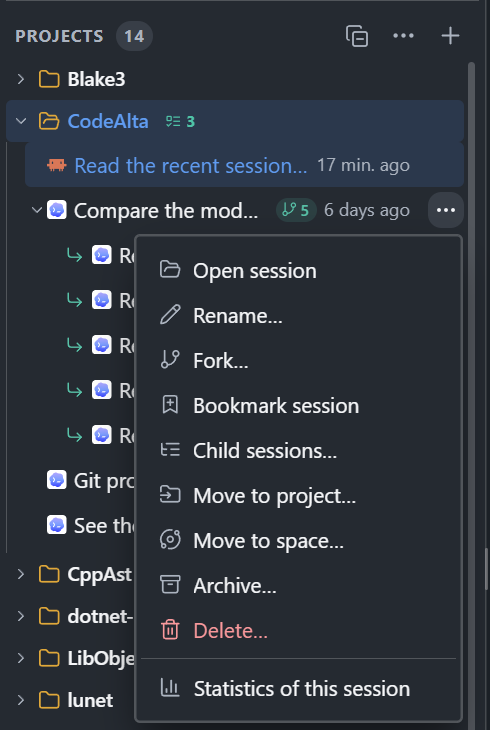
- Choose Move to project… in the menu of the session (or
/move_to_projectin the search), then the project. Or drag the row of the session onto the row of the project in the sidebar. - The sessions it started in its project, its sub-agents, move with it.
- A session can move only while it is idle: not while it runs, waits for an answer, has queued prompts or has background tasks.
- A session with Remote Control on restarts in its new folder with Remote Control on again.
- From then on the session works in the folder of its new project. When the new project is another checkout of the same repository, a session that worked in its own git worktree keeps working there.
- Its history moves with it, and its agent is told where it comes from. Messages from before the move still name the old folder.
- A session of Claude Code goes on with the same conversation: CodeAlta moves the copy Claude Code keeps of it (under
~/.claude/projects/) to the folder of the new project. If that copy cannot be moved, a message says so, and the session goes on in a new conversation of Claude Code that starts with the history. - A session that was never named takes the name of its new project.
Chats cannot be moved to a project, and a project session cannot become a chat.
Archive a session
Archive a session you are done with for now but may come back to. In CodeAlta Desktop:
- Choose Archive in the menu of the session. It leaves the sidebar, and its tab closes. Its history, its project and its space are kept.
- A session that has child sessions asks first, beside its row: Archive with its N child sessions is chosen; choose Archive this session only to leave them where they are.
- A session can be archived only while it is idle, and while the sessions below it are idle: not while one of them runs, waits for an answer or has queued prompts.
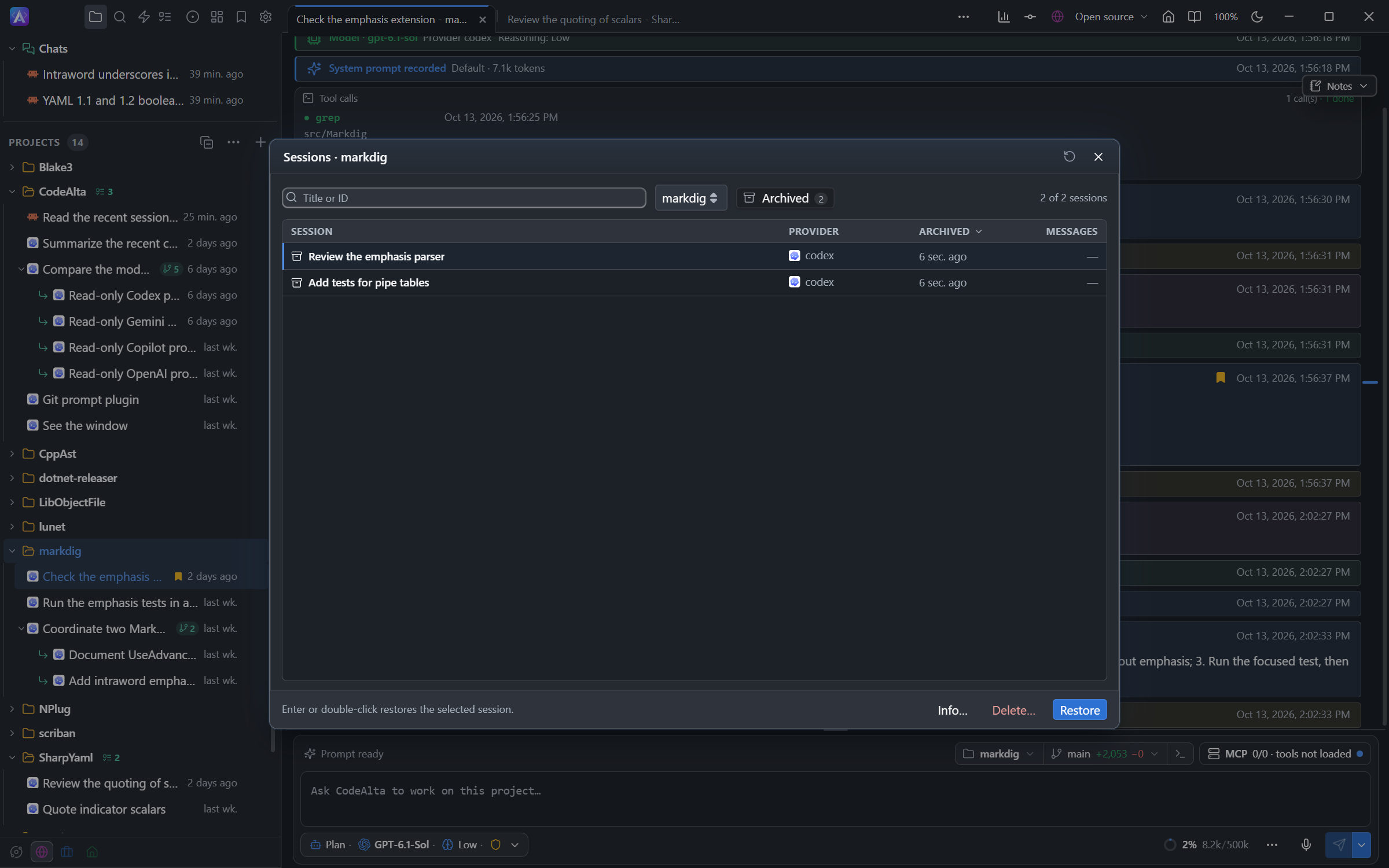
- To find an archived session, click Archived in the session browser (
Ctrl+Alt+B), or type its name in the search (Ctrl+P): archived sessions come last, under Archived sessions. - Restore puts the session back where it was, with the sessions archived below it, and opens it. Restore in the message shown just after an archive does the same.
- In the session browser, Info… shows what is recorded of an archived session, with when it was archived, and Delete deletes it.
- A prompt for an archived session, sent by an agent, a reminder or an automation, brings it back before it runs, with a message Restored to run …: nothing runs in a session you cannot see.
- Statistics keep counting archived sessions: they are not deleted.
An agent archives and restores with alta session archive <id> and alta session restore <id>, with --with-children for the sessions below it, and only for sessions of its own space. alta session list leaves archived sessions out unless --archived is given. CodeAlta TUI does not list archived sessions.
Busy sessions and queues
Enter sends immediately when idle and enqueues when busy, in both Desktop and TUI.
In Desktop, Cmd+Enter on macOS or Ctrl+Enter on Windows/Linux sends now, steering a busy turn.
Choosing Enqueue until idle submits the prompt immediately if already idle.
The waiting list appears above the status line.
In Desktop, the queued prompts of a session are still sent when its tab is closed, or replaced by another session.
Queued prompts can be:
- edited before they run;
- repeated;
- deleted;
- cleared with
F10; - converted to live steering when the provider supports it.
In Desktop, Enter keeps its idle-send / busy-enqueue behavior regardless of the Send options selection.
Send now is labelled Send now (steer) while busy. Use Steer the running turn in the ⋯ menu of
the prompt, with an empty draft, to steer the first queued prompt immediately. In TUI, use Ctrl+Enter.
In Desktop, steering accepts text only. Prompts with pasted images stay in the queue for the next turn, with their attachments intact. Their Steer now button is disabled; its tooltip explains why. To adjust the running turn now, send a separate text-only steering prompt.
Steering
Steering lets you adjust a running turn without waiting for completion.
Focus on the parser only. Do not refactor unrelated files.
If no provider run is active, CodeAlta falls back to a normal send. If the provider does not support live steering, CodeAlta preserves the prompt and queues it for the next turn.
Compaction
Press Ctrl+F11, use /compact, or, in CodeAlta Desktop, choose Compact the conversation in the ⋯ menu of the prompt to compact an idle started session. Manual compaction uses the session's current provider/model/reasoning configuration and emits visible start/completion notices in the timeline.
Local compaction targets a smaller post-compaction context by default so long sessions can continue without immediately hitting the context limit.
A compaction asks the model for a summary, and the provider bills that request like any other. CodeAlta counts it with the requests of the session: the details of the completion notice give what the summary used (input, cached input, output and, for Copilot, the cost in AI credits), and the context usage shows it as the last operation until the next request.
Fork and rewind
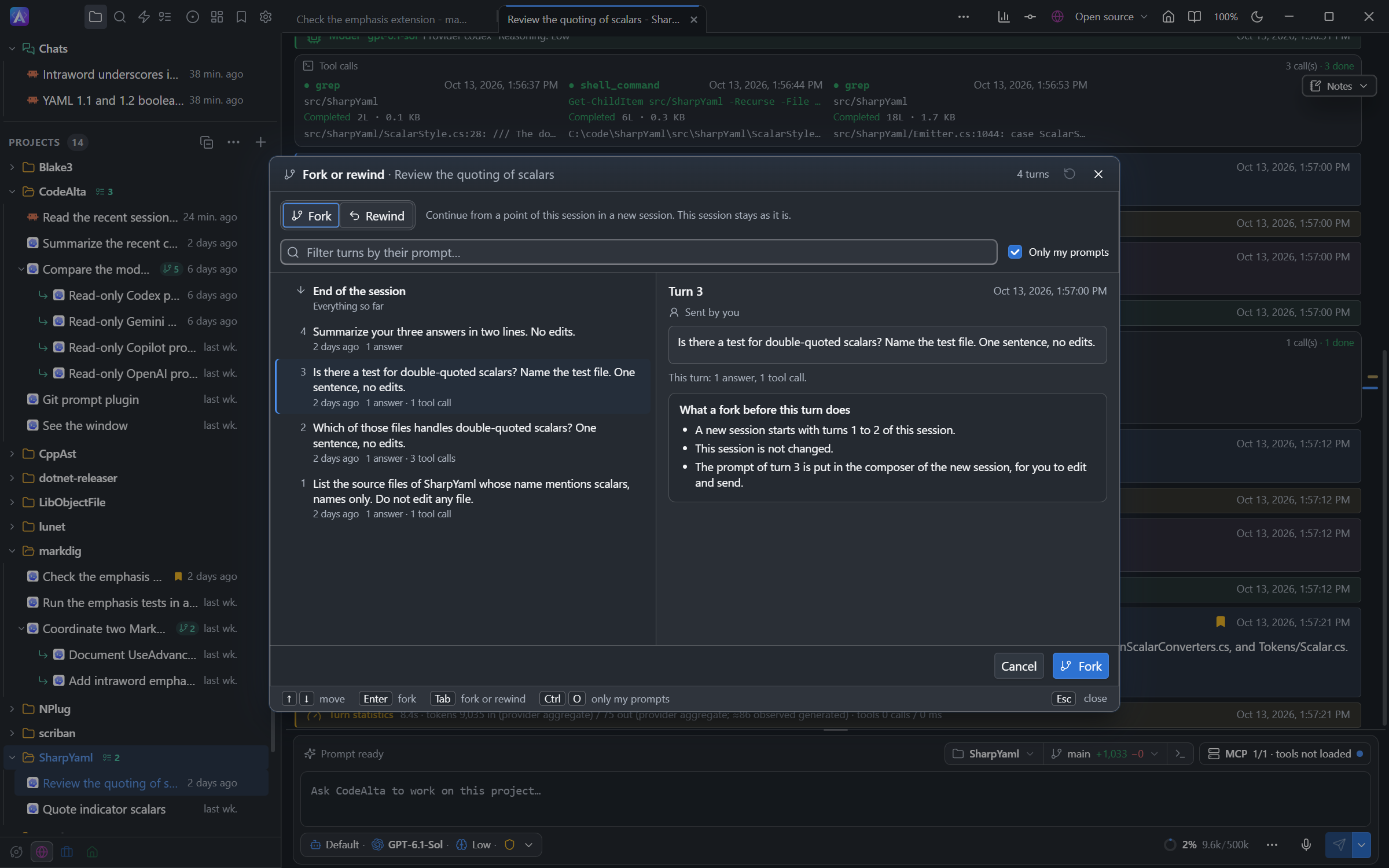
In CodeAlta Desktop, a session can be continued from an earlier point in two ways.
- Fork creates a new session that starts with the turns before a point. The session you fork is not changed, and it may even be working: a turn that is still running is never part of a fork. Fork a review once per finding, for example, and treat each finding in its own session.
- Rewind takes the session itself back: the turn you choose and every later one are removed from it. The session must be idle.
A point is the start of a turn, that is, just before one of its prompts, or the end of the session (for a fork). In both cases the prompt of the turn at the point is put in the composer, of the new session for a fork and of the same session for a rewind, so that you can edit it and send it again.
Three ways lead to the same window:
- the
/forkand/rewindcommands, from the search window or by typing/in an empty prompt; - Fork from here and Rewind to here on one of your prompts in the timeline, beside Copy when the pointer is over the message, or in the menu of a right-click on it;
- Fork… in the Actions menu of a session in the Explorer.
None of them acts at once. The window lists the points of the session, the newest first: End of the session, then one row per turn with its number, its prompt, when it started and what it did. Select a point and the window shows its prompt and says in plain words what the action does there, for example "Turns 4 to 9 (6 turns) are removed from this session". The conversation behind the window scrolls to that prompt when it is loaded.
| Key | Action |
|---|---|
| type | Filter the turns by the text of their prompt |
Up / Down, PageUp / PageDown |
Move the selection |
Tab (in the filter) |
Switch between Fork and Rewind |
Ctrl+O |
List every turn, or Only my prompts |
Enter |
Fork or rewind at the selected point |
Esc |
Close without changing anything |
Only my prompts is on when the window opens: it leaves out the turns that another agent, the answer to a question or the result of a background job started.
After a fork, the new session opens in a tab with the copied conversation, and a line above its timeline says which session it was forked from and how many turns it started with; the title in that line opens the source. A fork is a session of its own, listed beside the others, not a sub-agent of its source. It keeps the provider's prompt cache of its source, so its first request does not pay for the copied turns again.
After a rewind, the session shows the turns that are left, and a message says how many were removed.
- Files are not restored. A rewind removes turns from the conversation. What those turns changed on disk stays as it is: use git, or the Changes tab, to undo edits.
- Nothing is lost by default. Keep the removed turns in a separate session is checked: the session as it was before the rewind is kept as "title (before rewind)", and the message offers to open it. Clear the box and the removed turns are deleted; the button then reads Rewind and delete. Your choice is remembered.
- If the composer already holds a draft, the draft is kept, and the message offers the prompt of the removed turn to copy instead.
When a rewind cannot be made now, the window says why before you ask: the session is working, a question waits for your answer, or a command or a task still runs in its background. A fork remains possible while the session works.
Long instructions
When you give an agent many instructions at once, such as a list of tasks or numbered steps, it first writes them down in a file under ~/.alta/scratchpad/. A long session compacts its context; the file keeps your instructions as you wrote them, and the agent reads it again after a compaction and before it reports the work as done.
The file is the agent's own record. It is not part of your project and is never committed. Scratchpads belong to the running instance: a developer instance (--dev) uses ~/.alta/dev/scratchpad/, while the normal instance keeps ~/.alta/scratchpad/. Existing files and references in old conversations are not moved or rewritten.
Scratchpads are temporary, not permanent notes. Startup clearing is on by default when its configuration and safety checks permit it; it preserves the scratchpad folder and only removes ordinary contents of that instance. Locked, inaccessible or linked entries are left in place and reported. Sessions do not start until the cleanup worker has stopped. A normal instance skips clearing when it cannot exclude an older developer instance that still uses the normal scratchpad path.
The inactive-session policy in Settings > Advanced > Storage defaults to three calendar months and accepts an editable duration or Never. At startup, expired sessions are removed: a session expires when its file has not been written for the chosen duration. Their Statistics are saved first when possible, and a failure to save them never keeps an expired session. Open sessions, drafts and background work are protected, and a session stays while a session it started or that continues it is still recent; unavailable safety checks skip cleanup. Saving a duration does not immediately delete anything. Saved Statistics have separate durable storage and survive Statistics reset; neither Storage settings nor manual session deletion removes that archive.
The current handle-safe cleanup supports fixed local NTFS volumes on Windows. Other platforms, remote paths and unqualified filesystems report a skipped pass rather than using weaker deletion checks.
Branches
In a git repository, an agent that is about to commit on the main branch first creates a branch named for the work, such as fix/quoted-keys, and commits there. The main branch keeps its history, and the branch is ready for a pull request.
- Work that is not committed gets no branch.
- On another branch already, or in a worktree, the agent stays on that branch.
- The agent does not merge the branch, push it or open a pull request by itself. Ask for it, or use the pull request button.
- Once its branch is merged into the main branch and no session uses it any more, the agent removes the worktree it or its sub-agents created and deletes the branch, so that you do not have to. Ask it to keep them if you want to. It never removes a worktree with changes that are not committed, nor a branch that is not merged.
Say "commit on main" or "no branch" in your prompt to keep the work where it is. The instructions of the repository, such as AGENTS.md, can say it for every session.
Agent delegation and self-inspection
CodeAlta-managed agent-runtime sessions include an in-process alta live tool for any configured provider, but it is not a command surface that you normally type into the terminal. It is a tool the selected agent can use when your prompt asks it to inspect CodeAlta state, coordinate with other sessions, or delegate work.
Think of it as CodeAlta giving the agent a safe, scoped way to ask the host questions such as:
This page covers daily session and delegation workflows. For the full command-group atlas and prompt recipes, see Advanced Agent Workflows.
- which projects are known or currently open, and which space each one is in;
- what sessions already exist for this project;
- which model providers and model refs are available;
- whether a related session has finished and what its final result was;
- how to create a child session for another project, provider, model, or reasoning effort;
- how to schedule a later reminder prompt for itself or another session;
- how to run a long command in the background and receive its result when it ends;
- how to update sticky Markdown notes in the sidebar while it works.
Sub-agents
An agent decides by itself when sub-agents help. A sub-agent is a child session with a context of its own, which works in parallel with its parent.
- When the work has independent parts (several modules to look into, a research beside an implementation, a review of a diff), the agent gives each part to a sub-agent and keeps the decisions and the final answer.
- It works directly when the task is small or does not split.
- It gives simple work a lower reasoning effort.
- A sub-agent does its work itself: it does not pass it on to a single sub-agent of its own.
Say so when you want it otherwise: "do not use sub-agents", or "use a sub-agent for each folder".
In CodeAlta Desktop:
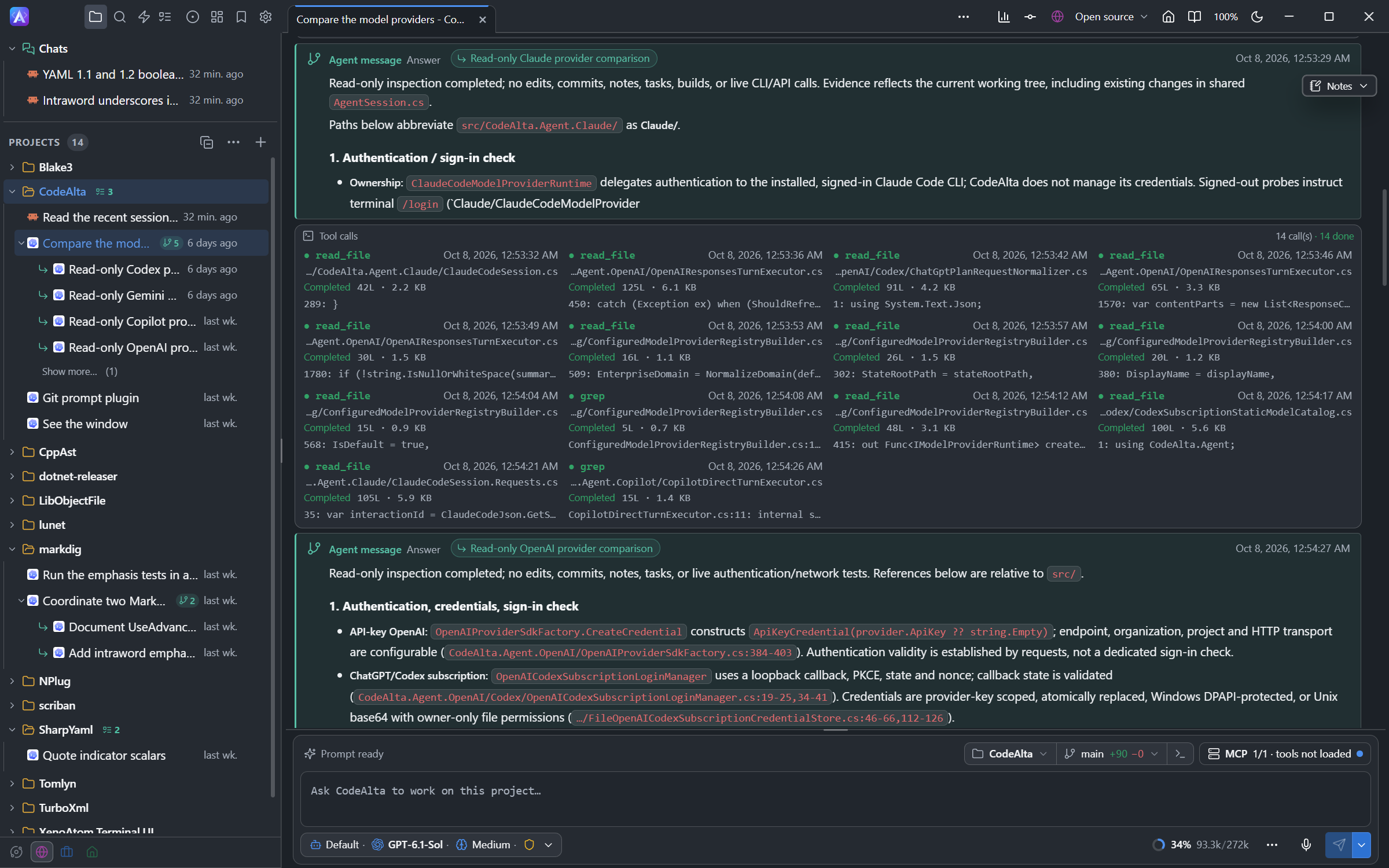
- The sub-agents of a session are listed under it in the sidebar, and the session shows how many it started.
- Click the arrow of a session to hide its sub-agents, and again to show them. CodeAlta keeps them hidden at the next start.
- A session lists its 4 most recent sub-agents, and Show more… under them lists the others. Settings > Appearance sets that number.
- A sub-agent is an ordinary session: open it to follow its work, or to write to it.
- What agents send each other is shown as an Agent message, in its own color: the prompt a sub-agent receives, and the answer it gives back. The message names the session it comes from. Click the name to open that session.
Delete a session and its child sessions
A child session can be in another project, in the chats or in another space than its parent: an agent of a chat can start sessions in projects. Such a child is not listed under its parent: it is listed at the top of its own project.
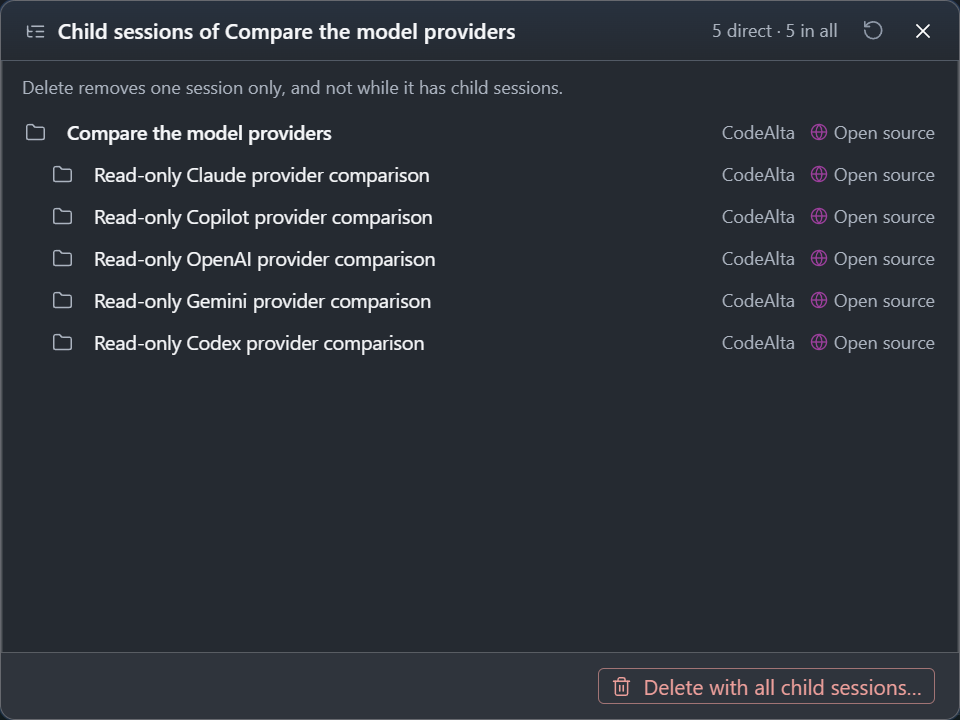
- Child sessions… in the menu of a session lists every session below it, wherever it is: the tree, how many are direct children and how many there are in all, the project or chat and the space of each one, and the ones at work. Click one to open it.
- Open parent session in the menu of a child session opens the session that started it, also in another project or space.
- Delete deletes one session only, and never a session that has child sessions: they would lose their parent. Deleting such a session shows its child sessions instead.
- Delete with all child sessions… in that list deletes the session and every session below it, after a question of its own. Nothing is deleted while one of them is at work: let it finish, or stop it, first. Projects and their files are kept.
Prompting for delegated work
You can also ask the current agent to create and coordinate child sessions for you.
Examples:
Create two child sessions for the current project with the same prompt.
Use Codex high reasoning for one and Anthropic Sonnet for the other.
Ask both to propose the smallest safe fix, then compare their final
answers when they report back.
Start a low-reasoning child session for the current project to inspect
the latest test failure logs while you continue reading the parser code
here. Have the child report only the likely failing assertion and
relevant files.
Create a project-scoped session for `../OtherRepo` using the fastest
available model. Ask it to summarize the public API shape and send the
summary back here.
For parent/child delegated work, CodeAlta uses a notification-based pattern: the child final reply or child-run error is forwarded back to the parent session automatically. The parent agent should yield instead of repeatedly polling while waiting.
Messages between agents follow the same rule as automatic replies: they steer a running recipient, or start a new turn when it is idle. This includes an agent's session send, session message and session request. An agent can explicitly queue work for later instead. Providers without live steering keep the message in the prompt queue.
In CodeAlta Desktop, an agent can show you what changed with alta diff show: it opens the Changes tab of the project, and --file <path> selects a file in it. It can also show you a file with alta editor open --file <path> --line <n>, which opens it in the code editor of the project.
Agents can also ask the live tool to schedule in-process reminder prompts with alta reminder create --duration <seconds> --content .... Reminders default to the calling session, can target another session with --session <session-id>, can repeat with --repeat <count>, and can be inspected or removed with alta reminder list and alta reminder delete <reminder-id>. In the TUI, use the compact clock button in the prompt bar or /reminder (Ctrl+G Ctrl+D) to create, delete, and edit reminder messages for the selected session.
An agent that waits for something that takes long, such as a CI run or a deployment, starts a background job when a command can do the waiting, or sets a reminder to come back and check it, and says so in its answer. The reminder is listed in Reminders until it fires. A reminder that fires while the session is working is given to the running turn in CodeAlta Desktop, and starts the next turn in CodeAlta TUI. Reminders are not kept when CodeAlta restarts.
Background jobs
An agent can start a command without waiting for it: a long build or test run, or a command that waits for something, such as gh run watch <run> --exit-status. CodeAlta runs the command as a background job of the session. The agent goes on with other work or ends its turn, and when the command ends CodeAlta gives the session its result: the exit code and the end of what the command wrote, whether it succeeded or failed. A session that had stopped starts a new turn with it; a session that is working receives it in the turn that runs.
In CodeAlta Desktop the line above the prompt shows the background tasks after the run status, alongside Thinking when the agent is also working: a cog with a spinner and N in the background. Only running tasks count. Select it to see Running and Recent jobs with their duration and result. Click anywhere on a job's row to open its command and output as it arrives. Stop is a separate button. A job stays in the list for ten minutes after it ended. When only recent results remain, the spinner stops and it reads N ended.
In the conversation, the result appears as a compact Background job card. Select it to open the same window, with the command, result, elapsed time and recorded output. Its Details tab shows the job's identity and recorded facts. You can copy the command or result; press Escape to return to the card or the task-list button.
The agent uses the alta job commands for this: start (with --timeout for a command that could hang, and --notify success or never to change when the result is sent), list, status, output and cancel. Jobs end when CodeAlta exits, and CodeAlta Desktop asks before exiting while one runs. A session whose permission mode asks before commands cannot start a job.
Agents can update the Notes of the current session (the sidebar Notes panel in the TUI, the Notes window in the desktop app) with alta notes set --stdin, read it back with alta notes get, and clear it with alta notes clear. Notes are session-scoped sticky Markdown for plans, checklists, and progress summaries; switching tabs shows the selected session's notes, and reopening a session restores the latest notes set/clear event from that session's journal.
Prompting for CodeAlta self-inspection
You can also ask a session to inspect CodeAlta-managed project/session state before acting. This is useful when you have many open sessions, want to recover prior context, or want to compare work across providers.
Examples:
Look at the 10 most recent sessions for this project and tell me which
ones modified provider configuration docs.
Find the child sessions created from this session and summarize their
final answers, grouped by model.
Which enabled providers can run a high-reasoning model for this project?
Pick two good candidates for a comparison run and explain the tradeoff
before creating sessions.
Before changing files, inspect the recent CodeAlta sessions for this
project and check whether a recent session already investigated the
plugin startup issue.
The agent may use the live tool to gather this information, starting with alta session current when it needs its own session id, but the important user workflow is the prompt: ask for the coordination outcome you want, not for individual low-level commands.
Comparing models on the same task
A powerful workflow is to ask CodeAlta to fan out the same task to several providers or reasoning settings, then bring back a comparison.
Run the same investigation in three child sessions: Codex high,
Copilot high, and Anthropic high. Give each child the same task and ask
them not to edit files. When all replies arrive, compare correctness,
risk, and recommended next step.
This works best when you ask for a bounded result from each child: summary, relevant files, proposed patch outline, test command, or risk assessment. Let one parent session synthesize the answers before you choose what to apply.
Give delegated agents a narrow expected output, such as “do not edit files; return likely cause, files inspected, and one recommended test.” Bounded child results are easier for the parent session to compare.
Scope, visibility, and provenance
Behind these workflows, CodeAlta records scope and provenance:
- global and project-scoped sessions can inspect reachable CodeAlta projects and sessions through host-managed live-tool APIs;
- project context is still used for defaults, child-session placement, and attribution;
- sessions created or controlled by agents/plugins carry
createdByandsubmittedBymetadata so sidebars and timelines can reconstruct parent/child relationships after restart.